
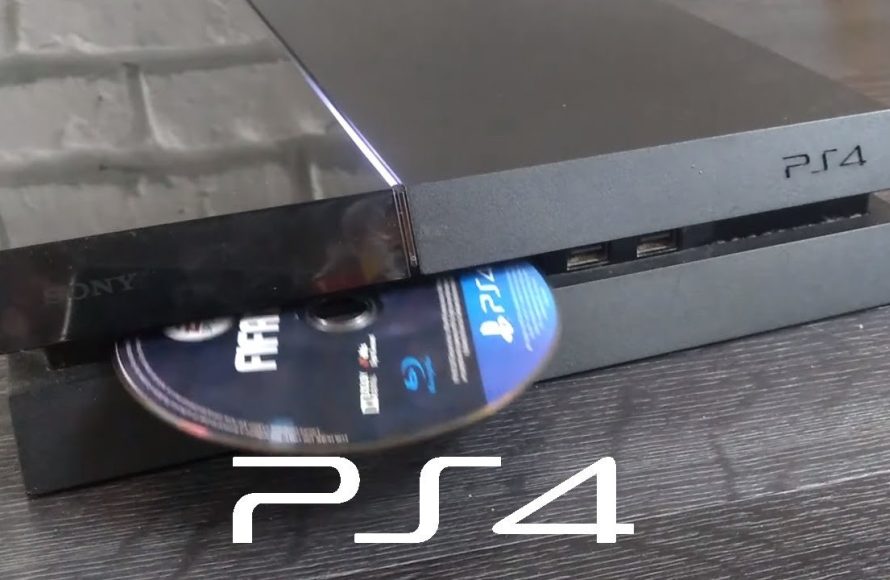
To put a game into a PS4, you insert the game disc into the disc drive or download the game digitally from the PlayStation Store.
Ever wondered how to get your hands on the latest gaming experience? Maybe you’re new to PlayStation and unsure of the process, or perhaps you’ve simply forgotten after a long break. The question of how to put a game into ps4 often pops up, and it’s simpler than you might think.
We will clarify the methods. This involves either using a physical disc or a digital download. Each method is straightforward and gets you gaming in no time.

How to Put a Game into PS4: A Complete Guide
So, you’ve got a brand new PlayStation 4 game, or maybe you’re revisiting an old favorite. Either way, you’re probably eager to start playing! But before you can jump into the action, you need to know how to actually put the game into your PS4. Don’t worry, it’s super easy, and we’re here to help you with everything! This guide will walk you through the process, whether you have a game on a disc or a digital game you want to download. We’ll cover everything step by step, making sure that even someone completely new to the PS4 can get their games going without any problems. Let’s dive in and get you gaming!
Getting Started with Physical Games (Game Discs)
Let’s talk about those shiny game discs first. These are the traditional way to get games for your PS4. Think of them like a DVD or a Blu-ray movie – you put the disc into your console, and the game starts! Here’s what you need to do:
Locating the Disc Slot
First things first, find the disc slot on your PS4. The location of the disc slot may vary slightly depending on the model of your PS4, but generally, you’ll find it on the front of the console. If you have the standard PS4, the disc slot is a thin, horizontal opening on the left side of the console. For the PS4 Slim, it’s usually on the front right, and for the PS4 Pro, it’s in a similar spot. It has a small, rounded button next to it; this is the eject button which is used to take the game disc out after playing.
Properly Inserting the Game Disc
Now, grab your game disc. Make sure the shiny, printed side of the disc is facing upwards (the side with the game’s name and artwork), and the smooth, reflective side is facing down. Gently push the disc into the slot. Don’t force it! The PS4 will automatically pull the disc in. Once it’s in, you might hear a gentle whirring sound as the PS4 reads the disc. The game should appear on the PS4’s main menu shortly.
- Step 1: Locate the disc slot on your PS4.
- Step 2: Hold the game disc with the label side up.
- Step 3: Gently insert the disc into the slot.
- Step 4: Wait for the PS4 to load the game.
Troubleshooting Disc Issues
Sometimes, things might not go perfectly. If your PS4 doesn’t read the disc, or if you hear strange noises, don’t panic! Here are some common problems and fixes:
- Disc not recognized: Try taking the disc out and carefully wiping it clean with a soft, lint-free cloth. Make sure there are no smudges, fingerprints, or scratches. Then, reinsert it.
- Disc won’t insert: Ensure that you’re putting the disc in the right way up and that you aren’t trying to insert a DVD or CD, as PS4 only supports Blu-ray Discs for games.
- Loud noises: If the PS4 makes loud grinding noises, something could be wrong with the disc or the PS4’s disc drive. Try a different game disc. If the issue continues, you might need to contact PlayStation support.
Remember, never force a disc into the PS4. If it’s not going in smoothly, double check that you have the correct side facing up, and that the disc is clean.
Downloading and Installing Digital Games
Lots of games are now available as digital downloads. This means you don’t need a physical disc – you get the game directly from the PlayStation Store. It can be very convenient, as you can access new games without having to go to a store.
Accessing the PlayStation Store
To get started with digital games, you need to go to the PlayStation Store. From the PS4’s main menu, navigate to the PlayStation Store icon. It looks like a shopping bag with the PlayStation logo on it. Select this using your controller, and you’ll be taken to the online store.
Finding Your Game
Once inside the PlayStation Store, you can search for games by name, or browse through different categories. You might see new releases, top-rated games, or deals. Use the controller’s joystick and buttons to navigate the store. You can also look at game trailers and read game reviews to help you choose a game.
Purchasing and Downloading Games
When you find a game you want, select it. You’ll see options to purchase or add the game to your cart. To buy a game, you’ll likely need a payment method set up with your PlayStation account, such as a credit card or PlayStation Store gift card. After purchasing, the download will start automatically. The size of the game affects how long it takes to download. Some big games can take several hours to download. Make sure your PS4 is connected to the internet, and make sure it will not turn off or go into rest mode until the download is complete. You can see how far along the download is on the PS4’s Notifications screen.
- Step 1: Go to the PlayStation Store on your PS4.
- Step 2: Search for the game you want to buy.
- Step 3: Purchase the game (if it’s not free).
- Step 4: The game will automatically download and install.
Installing Digital Games
The good news is that digital games install automatically after they finish downloading. When the game has fully downloaded, you’ll see it appear on your main PS4 screen, and you can start playing. You can track the progress in the downloads section of the Notifications menu. The PS4 takes care of the installation part for you, making it easy and simple.
Managing Your Downloaded Games
Your PS4 keeps track of all the games you’ve purchased digitally. They’re stored on the console’s hard drive. You can delete a game to free up space but can always re-download them later. You can easily manage your games in the PS4 Library section, where you can see everything you own, as well as your game saves.
Using PlayStation Plus and Other Services
PlayStation Plus is a subscription service that adds extra features to your PS4 experience. One of the things it offers is access to free games each month. These games can be downloaded from the PlayStation Store, just like other digital games, and they are available as long as you have an active PlayStation Plus membership. This offers a great way to expand your game library without always paying full price for new titles. You can access all the PlayStation Plus games from the PlayStation Plus section of the store.
Downloading PlayStation Plus Games
Access the PlayStation Plus section from the PlayStation Store. You will find games that you are eligible to download for free through your PlayStation Plus membership. Just select them and start the download process just like you would a regular purchase. These games will be available to you as long as your PlayStation Plus membership remains active.
Other Downloadable Content
You may sometimes see downloadable content, or DLC, for games. These are add-ons such as new levels, characters, or items. You download DLC from the PlayStation Store too, just like games, after buying the DLC, or sometimes some DLCs can be free too. If it’s a paid DLC, you’ll usually need to purchase it separately. The installation process for DLC is the same as games, automatic and straightforward, and you will usually see a message on screen when it’s been installed.
Understanding Game Updates and Patches
After you put a game into your PS4, whether it’s a disc or digital, you may notice that the console wants to download an update or a patch. These are important because they add new features, fix bugs, or make the game perform better. These updates are usually automatic, but sometimes, you might need to start them yourself. When an update becomes available, you’ll be prompted to download and install it when you start the game.
Checking for Updates
If you’re unsure if a game is up to date, you can also manually check for updates. To do this, find the game icon on the PS4 main menu, press the Options button on your controller, and select “Check for Update.” If an update is available, your PS4 will begin to download and install it.
Importance of Game Updates
It’s a good idea to install game updates because they will provide the best gaming experience. Sometimes, updates contain important fixes that can stop your game from crashing, or they may be needed for online gaming. Always make sure your games have all the updates before you start to play!
Removing Games From Your PS4
So you’ve finished playing and it’s time to take your game out of the PS4. The method will depend on whether it’s a disc game or a digital game. For disc games it’s pretty easy.
Removing Game Discs
To take out a game disc, find the eject button on your PS4. This is usually a small, rounded button near the disc slot. Press it, and your PS4 will spit out the disc. If it doesn’t eject automatically, don’t force it out. Your PS4 console also has a manual eject hole, which you can use in cases when your PS4 is having issues. You will need something like a paperclip or thin piece of wire to push inside the hole to manually eject the disc. You can usually find it underneath or near the power button, depending on your model of PS4. Keep the disc in its case to keep it safe and scratch free.
- Step 1: Turn off the PS4.
- Step 2: Locate the eject button.
- Step 3: Press the eject button to remove the disc.
Deleting Digital Games
If you no longer want a digital game on your PS4, you can delete it. Remember, deleting a game won’t remove it from your account – you can download it again later if you want. To delete a game, go to the PS4’s main menu, find the game you want to delete, and press the Options button on your controller. You should see a “Delete” option. Be careful when selecting this option, because you won’t be able to play the game until it is re-downloaded. Deleting the game will free up space on your PS4’s hard drive.
In conclusion, putting games into your PS4 is a straightforward process, whether you are using physical game discs or getting digital games through the PlayStation Store. Following these simple steps ensures that you’ll be playing in no time, and have a smoother gaming experience. From inserting discs correctly, understanding how to download games, to managing your game library and keeping them updated, you’ve now got the tools to get the most out of your PlayStation 4.
Play Disc-Based Games on PS4! [How to Properly]
Final Thoughts
To play a physical game, insert the disc into the PS4’s disc slot. The console will then read the data. Digital games must be purchased through the PlayStation Store.
After buying, download the game directly to your console’s storage. This process varies by the game’s size and your internet speed. Learning how to put a game into ps4 is simple.
Ensure adequate storage space. Once installed, you can find your games on the PS4 home screen.

