
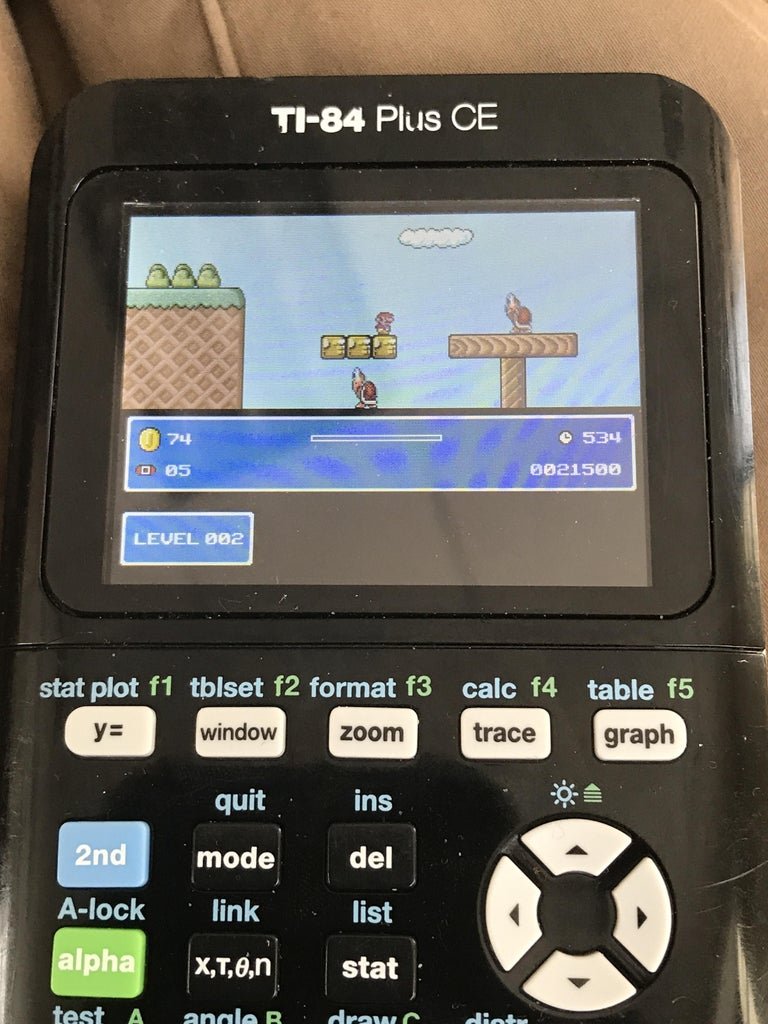
Putting games on a calculator typically involves transferring compatible game files using a USB cable and specific calculator software.
Ever wonder if you can squeeze a little fun out of that trusty old calculator during a boring class? It turns out, you can actually learn how to put games on a calculator, providing a bit of entertainment in unexpected places. Many students want to add more than just numbers to their calculators.
The process is not as complicated as it might sound; it mostly involves getting the right files and software. Specific instructions differ among calculator models, but the general idea remains consistent.

How to Put Games on a Calculator
Okay, let’s talk about something really cool: putting games on your calculator! You might be thinking, “Wait, a calculator? Can that even do that?” The answer is a surprising YES! It’s not like putting on a PlayStation game, but it’s definitely a fun way to pass the time, especially during a boring class or when you’re just waiting around. We’re diving deep into the world of calculator gaming, explaining all you need to know to get started. You’ll learn what types of calculators work, where to find games, how to load them, and even some tips for playing. It may sound a bit technical, but don’t worry! We’ll break it down into easy-to-understand steps, so even if you’re not a computer whiz, you can get your calculator gaming in no time.
What Kind of Calculators Can Play Games?
Not all calculators are made equal, especially when it comes to games. The basic ones you might use for simple math usually won’t cut it. We’re focusing on a specific type: graphing calculators. These are the calculators with the big screens and lots of buttons, often used in higher-level math classes like algebra and calculus.
Why Graphing Calculators?
Graphing calculators are powerful mini-computers. They have processors, memory, and a screen capable of displaying more than just numbers. This means they can run programs, and guess what? Games are just special kinds of programs! Common examples of graphing calculators that often support games include:
- Texas Instruments (TI) calculators, like the TI-84 Plus series, TI-83 Plus, and TI-Nspire (although the Nspire has its own special ways of doing things).
- Casio calculators, such as the fx-9860G series and the fx-CG50.
These calculators are great because they’re designed to be programmed. Students often write programs to solve math problems or graph equations, but those same programming capabilities make it possible to load games.
Important things to note:
Model Matters: The exact process can vary slightly based on the specific model. We’ll cover the general steps, but always check resources for your exact calculator.
Permissions: Sometimes, schools have settings on the calculators that block programs. You might need to talk to a teacher or administrator about this.
Not Every Game Works: Older calculators may not be able to run some of the more complex games. Newer models handle more without a problem.
Where to Find Games for Your Calculator
Once you’ve figured out if you have a suitable calculator, you’ll need to find some games. The good news is that there’s a whole community of people who create and share calculator games online.
Popular Websites and Forums
Several websites and forums specialize in calculator games. Here are some good places to start looking:
TI-Calc.org: This website is an excellent resource for Texas Instruments calculators, including a massive library of games.
Cemetech: Another fantastic source for TI calculator programs and games.
UnitedTI: This forum is full of helpful people and resources related to programming TI calculators.
Casio-Calc.org: A go-to place for Casio calculator users to find games and programs.
Planet Casio: Dedicated to Casio calculators, with various games and support forums.
Reddit: Subreddits like r/TI84 and r/CasioCalculators are good for advice and links to games.
These sites contain a large selection of free games. You can usually find games based on classic titles, such as versions of Tetris, Snake, Pac-Man, and simple adventure or puzzle games. These games are usually created by users just like you who enjoy using their calculators in innovative ways.
Types of Games Available
Text-Based Games: These are simpler games that use text to create stories and puzzles.
Simple Graphics Games: These use basic shapes and lines to make visual games like Snake or Tetris.
More Advanced Graphics: Newer calculators can handle more sophisticated graphics, creating more complex visual experiences.
Puzzle Games: These can range from simple number puzzles to more complicated logic games.
Arcade Style Games: Games that are similar to classic arcade games like Pac-Man or Space Invaders.
How to Download a Game
1. Choose Your Game: Browse the sites and pick a game that looks interesting to you.
2. Download the Game File: Look for a file with a specific extension (.8xp for TI calculators, .g1a for Casio calculators) associated with your calculator brand.
3. Save it to Your Computer: Download the file to a place on your computer that you can easily remember.
4. Prepare for Transfer: You need some software to put the game file from your computer to your calculator. We’ll cover that in the next section.
Transferring Games to Your Calculator
Transferring game files isn’t as easy as just plugging in a USB cable, though that’s part of it. You need special software to talk to your calculator.
Software for Transferring Files
TI-Connect: This software, made by Texas Instruments, is essential for moving files to and from TI calculators. You can download it for free from the TI website.
Casio FA-124: This is Casio’s official software for connecting your Casio calculator to your computer. Download this from the Casio support page.
Third-Party Programs: Some other programs, like WabbitEmu (for TI) or fx-Interface (for Casio), can also be used for transferring files. Often these may be older, or community projects, so check that it’s safe to download, and also if you should use it alongside the official software.
Step-by-Step Transfer Guide (TI Calculator Example)
Since TI calculators are very popular, let’s use that as an example. The process for Casio calculators is similar but uses different software and slightly different file types.
1. Install TI-Connect: Download and install the TI-Connect software on your computer.
2. Connect Your Calculator: Use a USB cable to connect your calculator to your computer. Your computer should make a sound to let you know it detects the calculator.
3. Open TI-Connect: Launch the TI-Connect program on your computer.
4. Check the Connection: TI-Connect will show you if it can see your calculator. It usually lists the model number.
5. Transfer the File:
Click the button to transfer a file. This is often a “Send” or “Transfer” button.
Find the game file you downloaded on your computer.
Choose the destination on your calculator; usually it’s just in the main program memory.
Start the transfer. Wait until it is complete.
6. Disconnect and Play: Unplug your calculator from your computer. Your game is now on your calculator!
Step-by-Step Transfer Guide (Casio Calculator Example)
Here’s how to transfer files to a Casio calculator using FA-124:
1. Install Casio FA-124: Download and install the FA-124 software.
2. Connect Your Calculator: Use a USB cable to connect your calculator to your computer. Ensure the connection is stable and the calculator is recognized.
3. Open Casio FA-124: Launch the software.
4. Recognize Calculator: Make sure your calculator is listed and recognized within the software.
5. Transfer the File:
Use the “Send” or “Transfer” feature.
Find the game file you downloaded (usually with a .g1a or similar extension).
Select the memory location in the calculator.
Start the transfer. Wait for it to complete.
6. Disconnect and Play: Disconnect your calculator once the transfer is complete.
Tips for Successful Transfers
Battery Power: Make sure your calculator has enough battery power before starting the transfer. You do not want your calculator to run out of battery power mid transfer.
Correct Cable: Use the correct USB cable to connect your calculator to your computer.
Software Updates: Keep your software updated to avoid issues.
File Extensions: Be sure to select the correct file type of the calculator you have so that you do not have a problem during file transfer.
Troubleshooting: If you are having trouble with transferring files, consult the official manuals for both the software and your specific model of calculator.
Running Games on Your Calculator
The steps to actually play your calculator game are easy:
Steps to Play a Game
1. Turn On the Calculator: Turn on your calculator.
2. Go to the Program Menu: Look for a button labeled “PRGM” (for TI calculators) or “MENU” or “PROG” (for Casio calculators).
3. Select the Game: Use the arrow keys to move through the list until you find the game file.
4. Press Enter/Execute: Press the enter or execute button to start the game. This is usually the same button you use to get answers to calculations.
5. Play! Follow the instructions on the screen. Games usually use the arrow keys and numbers for input.
General Tips for Playing Games
Game Manuals: Some games come with their own text files giving instructions or tips. Check your downloaded game files for manuals.
Button Maps: Different games might use different buttons for actions, so look for that information if available.
Practice: Just like with any game, practice makes perfect! Don’t be afraid to try out different buttons.
Community Help: If you get stuck, use the forums mentioned previously. People are always happy to help.
Additional Considerations
Calculator Maintenance
Battery Life: Games use more power than regular math functions. Keep spare batteries handy.
Memory Space: If you load lots of games, you might need to delete old ones to make room. You can also back up programs to your computer for safekeeping.
Resetting: If a game is frozen or not working correctly, try restarting your calculator (usually there’s a reset button on the back).
Software Updates: Occasionally, there are updates for your calculator’s operating system that improve performance and stability. Check the manufacturer’s website for any updates.
Ethical Use of Calculator Games
Classroom Rules: Be careful using games during class. You might get in trouble!
Test Restrictions: Games are usually not allowed during tests. Make sure they’re off the calculator.
Proper Use: Always follow the rules of your school or organization when using your calculator.
Getting Started with Basic Programming
If you enjoy playing games on your calculator, you could also try making your own! You don’t need to be a pro coder. There are lots of tutorials online to help you with the basics.
Simple Scripts: Start with simple text-based games.
Online Resources: Websites like TI-Basic Developer and Casio Education offer tutorials on basic programming techniques.
User Groups: Join online forums. There is a large community of individuals who would love to help you out.
Hopefully, this guide has been helpful to you. Now, you can get started and have fun with calculator games! This journey starts with a simple calculator and ends up being a world of fun and creativity, and possibly even an interest in future programming. The possibilities with calculator gaming are quite interesting!
Turning my calculator into a gaming PC
Final Thoughts
You can transfer game files to your calculator using a USB cable and the appropriate software. Compatibility is key; check if your calculator model supports games. The process varies depending on the brand and specific calculator model.
Always obtain games from reliable sources to avoid malware. Follow the installation steps carefully as per the software instructions. This concludes how to put games on a calculator, ensuring fun on the go.

