
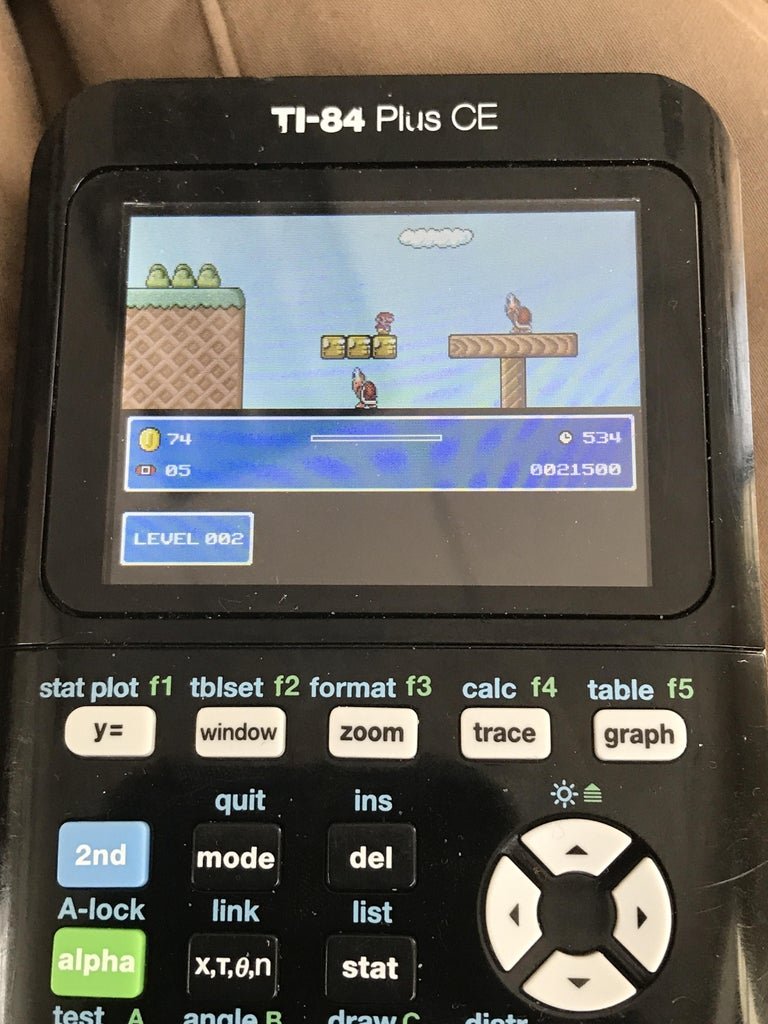
To put games on a TI-84, you will typically need a computer, a TI-84 calculator, a mini-USB cable, and the specific game files. You will then use a program like TI Connect CE to transfer these game files to the calculator’s memory.
Ever wondered if your trusty TI-84 calculator could do more than just crunch numbers? It’s true, you can actually play games on it! Many people are curious about how to put games on a TI-84 and it’s not as complicated as it might seem.
This guide will walk you through the simple steps necessary to get your favorite classic calculator games up and running on your device. We’ll show you everything you need.

How to Put Games on a TI-84 Calculator
So, you’ve got a TI-84 calculator, and you’re thinking, “This thing is powerful; can it do more than just math?” Absolutely! You can load games onto your TI-84, making those long classes or study sessions a bit more fun. It’s like having a mini gaming device right in your backpack. Let’s walk through how to get those awesome games onto your calculator.
Understanding the Basics
Before diving into the process, it’s crucial to understand a few key things. The TI-84 isn’t like a smartphone where you download apps directly from a store. Instead, you’ll need to transfer files from your computer to your calculator using a special cable and some software. These files are usually small programs, often written in a language called Assembly, specifically designed for the calculator. It might sound a little technical, but don’t worry, we’ll break it down step by step.
Types of TI-84 Games
The games you’ll find for the TI-84 aren’t like the ones you see on PlayStation or Xbox. These games are simpler, usually with black and white graphics, but they’re still incredibly fun. Here are a few popular types:
- Puzzle Games: Think Tetris or simple logic puzzles. These are great for testing your brainpower.
- Arcade-Style Games: These include classics like Snake, Pac-Man-inspired games, and simple platformers.
- Text-Based Adventures: These games use text to tell a story, and you make choices to guide the character.
- Simple Simulations: Some games simulate things like dice rolls or card games.
The games are relatively simple, which is why they can run on the TI-84’s hardware. Remember, it’s designed for calculations, not cutting-edge graphics!
What You Will Need
To get games onto your TI-84, you’ll need a few things. Gather these before you start:
- A TI-84 Calculator: Obviously, you can’t do this without the calculator! This guide specifically applies to the TI-84 series which includes TI-84 Plus, TI-84 Plus CE and similar models.
- A USB Cable: This is the cable that connects your calculator to your computer. It usually comes with the calculator itself.
- TI Connect CE Software: This is Texas Instruments’ official software that enables communication between your computer and calculator. You’ll need to download and install it on your computer.
- Game Files: These are the actual game programs, which have a special file extension for TI calculators. You can download these from various online sources.
- A Computer: You need a computer (Windows or Mac) to download the software, game files, and to transfer the games.
Finding Game Files
Finding game files for your TI-84 calculator is much easier than it was in the past. Here are some places you can find them:
- Ticalc.org: This website is a great place to find calculator programs and games. It has a huge collection of games, including classics and original titles.
- Cemetech.net: Another very active and well-known community website that has a large library of games and applications.
- Planet-TI: Planet-TI is another great community resource for TI calculator programs and games.
- TI User Forums: There are several online forums dedicated to TI calculators, where users often share games they have developed.
When searching for game files, be very careful about the file format. TI calculators use specific file formats (.8xp is one of the common file formats, also keep an eye out for .8xg and .8xv), ensure the files you are downloading are designed for your particular TI-84 model. Double check the compatibility before downloading. Download files only from trusted sources to avoid viruses or other issues.
Installing TI Connect CE Software
First, you need to install TI Connect CE on your computer. This software is the bridge that lets your computer talk to your calculator. Here’s how:
- Go to the Texas Instruments website: Search for “TI Connect CE download” on your search engine (like Google) and go to the official Texas Instruments site.
- Download the software: Choose the correct version for your computer’s operating system (Windows or Mac) and download the installer.
- Run the installer: Locate the downloaded file and double-click it to start the installation. Follow the on-screen instructions.
- Connect the calculator: Once the installation is done, connect your TI-84 to your computer using the USB cable. Make sure the calculator is turned on.
- Launch TI Connect CE: Open the TI Connect CE software, it should automatically recognize your calculator. If not, check your connections.
If your computer doesn’t recognize the calculator, check the USB connection and ensure the calculator is on. Sometimes a simple restart of the computer or the calculator can help. Having the correct software installed is one of the most important parts of the whole process, and without it, it would be impossible to connect your calculator to your computer.
Transferring Games to Your Calculator
Now that you have TI Connect CE set up and your calculator is connected, you can finally transfer your games. Here’s how it’s done:
- Open TI Connect CE: Make sure the software is open and recognizes your connected calculator.
- Find the send button: In TI Connect CE, look for an icon or a button that looks like an arrow pointing to a calculator or something like that. This is typically the send button that transfers files from computer to your calculator.
- Browse for the game files: Find the location where you saved the downloaded game files (the .8xp, .8xg or .8xv files).
- Select the game files: Click on the game file that you want to transfer to your calculator.
- Click send: Now, press the “Send” or transfer button.
- Wait: The software will now send the files to your calculator. You’ll see a progress indicator on both your computer and calculator screen. This process might take a little bit of time depending on the size of the file.
Avoid disconnecting your calculator while the transfer is in progress. Doing so can cause errors during the transfer and might mess with your files. Wait until the transfer is complete, you’ll get a notification when it finishes. Make sure that your calculator is turned on and has enough battery.
Running Games on your TI-84
After the games have been successfully transferred to your calculator, it’s time to run them! Here’s how you do it:
- Turn on your calculator: Make sure your calculator is turned on.
- Press the “PRGM” key: This button is usually located near the top of the calculator’s keyboard. It stands for “Program”.
- Select the game: A list of all the programs currently on your calculator will appear. Scroll through the list until you find the name of the game that you just transferred.
- Press “Enter”: Press the Enter button to select the game.
- Press “Enter” again: The game should now start. Sometimes, you might have to press Enter again to start.
If your game doesn’t appear on the program list, then something might’ve gone wrong during the transfer. Try re-transferring it. Also, try to use the up/down arrow keys on the calculator to scroll up or down the list. If the game still doesn’t work, then make sure the file is compatible with your calculator model, and that it is a valid file format. Keep in mind that most TI-84 games use the Arrow keys, the Enter key and sometimes the Number keys for controls. If the game doesn’t seem to respond, check for instructions on the source where you downloaded it from.
Troubleshooting Common Problems
Sometimes, things don’t go as planned, and you might encounter some issues. Here are common problems and how to fix them:
- “Error: Invalid file”: This means the file you downloaded isn’t compatible with your calculator or that the file may be corrupt. Double-check the compatibility and try downloading the file again from a trusted source.
- Calculator not recognized: If TI Connect CE doesn’t see your calculator, ensure that the USB cable is connected properly and that your calculator is turned on. Try a different USB port or a different cable. Restart both your computer and calculator, it can sometimes solve the issue.
- Game doesn’t appear in the program list: If the program was transferred but doesn’t appear on your program list on the calculator, try sending the file again. Make sure to wait until the whole transfer is complete and make sure that your calculator is on and has sufficient battery.
- Game crashes or freezes: Sometimes, a game might not work perfectly. If it crashes or freezes, try restarting your calculator by taking out one of the batteries and putting it back in.
Tips for a Smooth Experience
Here are a few tips to make the process of transferring and playing games on your TI-84 easier:
- Keep your calculator charged: Low battery power can affect file transfers. Make sure your calculator is fully charged before starting the transfer.
- Use good quality USB cables: Faulty USB cables can cause transfer errors. Using a good cable prevents issues.
- Keep your TI Connect CE software up to date: Newer versions of the software sometimes provide better performance and fixes for common issues.
- Organize your game files: Create folders on your computer to store your game files and organize them well.
- Read instructions: Always read the instructions for both the game and software before transferring the files.
By following these tips, you’ll have fewer issues and can get to playing the games even faster.
Putting games on your TI-84 is a fun way to make use of a device you may already have. With a little bit of patience and the steps we’ve gone through, you will be playing your favorite games on your calculator. Remember to have fun and explore the vast world of TI-84 calculator gaming!
How to Put Games on the TI 84 Plus CE
Final Thoughts
In short, transferring games involves connecting your TI-84 to your computer using a USB cable. You’ll must need the appropriate software, usually TI Connect. Then, you send the game files to your calculator.
The process requires the specific file type compatible with the calculator. After that, you can find and play your selected game from your calculator’s program menu. Remember, how to put games on a ti 84 relies on these key steps and suitable files.

