
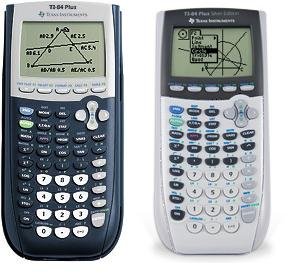
To put games on the TI-84 Plus, you’ll need to connect your calculator to a computer using a USB cable and then use software to transfer compatible game files.
Ever wonder how to put games on the TI 84 plus? It’s a common question for students looking for a bit of fun during those long math classes. This process is not as complicated as you might think, and it opens a whole new world of entertainment right on your calculator screen.
Many find the idea exciting, since the TI-84 plus is known for math functions. So let’s explore how you can load those fun games to your trusty calculator. We’ll walk you through each step.

How to Put Games on the TI-84 Plus
Alright, so you’ve got a TI-84 Plus calculator, and you’re thinking, “This thing can do way more than just math!” You’re absolutely right! It’s not just a tool for algebra and geometry; it can also be a mini game console. Getting games onto your TI-84 Plus isn’t as hard as you might think, and we’re here to walk you through it step-by-step. This guide will show you how to load games onto your calculator, so you can have a little fun during study hall or downtime.
Understanding TI-84 Plus Games and File Types
Before we dive into the “how-to,” it’s good to know a little about the types of games you can get on your calculator and what kinds of files they use. Most games for the TI-84 Plus come as program files. These files typically have a “.8xp” or “.8xg” extension. The “.8xp” extension means it’s a TI-BASIC program, and “.8xg” usually means it’s an assembly program (which tends to be faster and more complex but requires a bit more effort to install).
TI-BASIC vs. Assembly Programs
- TI-BASIC Games: These games are written in a simpler programming language that the calculator understands directly. They’re easier to find and get onto your calculator, but they might not be as fancy or run as quickly as assembly games. Think of it like writing a short story in simple sentences.
- Assembly Games: These are made using a more complex language. Assembly games are usually faster, look better, and can have more intricate gameplay. They’re the difference between a detailed novel and a short story. However, they often need extra steps to be put on your calculator and might need additional setup programs.
What You’ll Need
Before you begin the process, gather the few things that you will need. It’s like getting your ingredients ready before you start baking. Here’s what you’ll need:
- A TI-84 Plus Calculator: Obviously, you need the calculator itself. Any model in the TI-84 Plus family will work. These are the most common types: TI-84 Plus, TI-84 Plus Silver Edition, TI-84 Plus CE.
- A Computer: You’ll use your computer to get the game files and transfer them to your calculator. Any computer with a USB port should be fine.
- A Mini-USB to USB Cable: This is the cable you probably use to charge things like a phone, camera, or e-reader. You will use it to connect your calculator to your computer. It’s the bridge between the two. If you do not have a mini-usb cable, then you will not be able to put games on your calculator.
- TI Connect CE Software: This is free software made by Texas Instruments that allows you to move files between your computer and your TI-84 Plus calculator. You can get it from the Texas Instruments website. It is available for both Windows and macOS.
- Game Files: You will need the game files (.8xp or .8xg files) that you actually want to put on your calculator. You can find many games online from various calculator communities. Be careful about where you download files. Make sure the source is trustworthy.
Finding Games for Your TI-84 Plus
Now that you have all the tools you will need, you need to find some games! There are a bunch of places to find games for your TI-84 Plus online. Here are some popular and safe places to look:
- TI-Calc.org: This is a classic website that hosts a large variety of games made by the TI calculator community. It has programs, games, and helpful utilities for TI calculators. It’s a great place to begin your search because you can often read the game’s description and user reviews before downloading.
- Omnimaga.org: This website is a forum and a hub for users who are into creating programs and games for their TI calculators. You can often find very good high-quality games.
- Cemetech.net: Similar to Omnimaga, Cemetech is also a very large forum and home to a lot of creative users who create programs and games for TI calculators.
Things to Keep in Mind When Choosing Games
- File Extension: Pay attention to whether the game is a .8xp (TI-BASIC) or .8xg (Assembly) file. You need to follow different instructions if they are different types of files.
- Reviews and Ratings: Look for reviews from other users to see if the game is good. It will give you a good idea about how the game is and if it will work properly.
- Safety: Only download from websites that you trust. Watch out for fishy sites that could contain viruses.
Getting Your Computer Ready: Installing TI Connect CE
The next big step is to get the TI Connect CE software installed. This is very easy. Here’s how you do it:
- Go to the Texas Instruments Website: Go to the official Texas Instruments website and find the TI Connect CE download page.
- Download the Software: Download the correct version for your computer’s operating system (Windows or macOS).
- Install the Software: Run the installer and follow the on-screen instructions to install TI Connect CE on your computer. It will just ask you if it is okay to install. Click the next button and follow any instructions.
- Restart Your Computer: After the install process, restart your computer.
Now that you have the TI Connect CE Software installed, it’s time to start transferring your games to your calculator.
Transferring Games to Your TI-84 Plus: A Step-by-Step Guide
With your calculator, computer, cable, software, and game files all ready, let’s put them all together! Here’s how to get games onto your calculator:
- Connect Your Calculator: Use the mini-USB cable to connect your TI-84 Plus calculator to your computer. Your calculator needs to be turned on.
- Launch TI Connect CE: Open the TI Connect CE program on your computer. You should see your calculator listed as a connected device.
- Locate the Game Files: Find the folder on your computer where you saved the .8xp or .8xg game files.
- Drag and Drop: The easiest way to transfer the game is to just drag the files from the folder where you saved them into the area that shows your calculator on TI Connect CE. You can also click the “Send to TI Device” button and then find and select the file. You can also use the “Send to Calculator” button from within TI Connect CE.
- Wait for Transfer: You will see a progress bar showing you that the file is being transferred. Wait for this process to complete. Don’t disconnect the cable during the transfer. You might have to wait a little while, especially if you are transferring multiple games, but it will be worth it when you get to play!
Running Games on Your TI-84 Plus
Now that the files are on your calculator, it’s time for the best part—playing the game! Here’s how you run a game:
- Press the [PRGM] Button: On your calculator’s keypad, you will find a button with PRGM written on it. Press this button. It’s usually on the left side of the calculator.
- Choose the Game: You should see a list of all the programs that are on the calculator. Look for the game that you transferred onto your calculator. Use the up and down arrows to highlight the game file you want to run.
- Press [ENTER]: After selecting your game, press the [ENTER] button. This will start the program.
- Play! Now, follow the instructions on your calculator screen. The controls are mostly self-explanatory, and most use the arrow keys.
Troubleshooting Common Issues
Sometimes, you might run into a few problems. Here are some common ones and how to fix them:
- Calculator Not Recognized: If TI Connect CE doesn’t see your calculator, make sure the cable is plugged in firmly at both ends. Also, try a different USB port on your computer. Also, make sure your calculator is turned on. Sometimes restarting your computer and the calculator also helps.
- Game Won’t Run: Make sure you selected the right file. If you downloaded an assembly game, it might require a special program (like “asm(“). Double-check the game’s instructions on the website you got it from.
- Error Messages: If you see an error, try transferring the game again. It’s possible something went wrong during the transfer. Make sure that your calculator has enough available memory as well, or else it may not be able to load or run games.
- Game is too slow: If the game is too slow, it is very likely that it is a TI-BASIC game. You can search for assembly language versions of the game for better performance. Assembly games are much faster and are better for complex games.
Advanced: Setting Up Assembly Games
Like we said before, Assembly programs often need an extra step or two. If you want to run assembly games, you may have to install a shell program. This acts like a tool kit that allows the game to work. Here’s the basic idea, although it can vary a bit depending on the specific assembly game.
Installing a Shell Program
Some of the most common Shell Programs for TI-84 Calculators are:
- Celtic: Celtic is a common shell and can be used for a variety of assembly programs.
- Doors CS: Doors CS is also a widely used shell program.
To put a shell program on your calculator, you can follow the same steps as moving a game, as the shell program will have a .8xp or a .8xg file. Usually a single shell program can be used for many assembly games. The program will likely need to be run before running the assembly game file.
How to Use Assembly Programs
- Run the Shell: Before you try to play an assembly game, first run the shell program from your list of programs, just like you would run a regular TI-BASIC game.
- Run the Game: Sometimes you must run the assembly game through the shell menu, and sometimes you must run it separately. The instructions provided for the program can tell you how to run it.
And that’s it! You’ve successfully put a game on your TI-84 Plus calculator. Now you can have some fun on your calculator. If you are getting into TI-84 calculator games, you will have a blast exploring all the creative games that are available. Playing games on your calculator is a fun way to take a break from math, while still using your calculator.
Now you know how to put games on your TI-84 Plus, allowing you to turn a math tool into a fun gaming device. Enjoy exploring the world of calculator gaming!
How to Put Games on the TI 84 Plus CE
Final Thoughts
Transferring games involves connecting your TI-84 Plus to your computer. You must use the TI Connect CE software and transfer game files. Ensure the files are in the correct format for your calculator model.
Then, follow on-screen prompts on both computer and calculator. Sending files is essential for ‘how to put games on the ti 84 plus’. You must have compatible games ready to send.
The process is straightforward once you have the tools and files. With these steps, you can enjoy games on your TI-84 Plus.

