
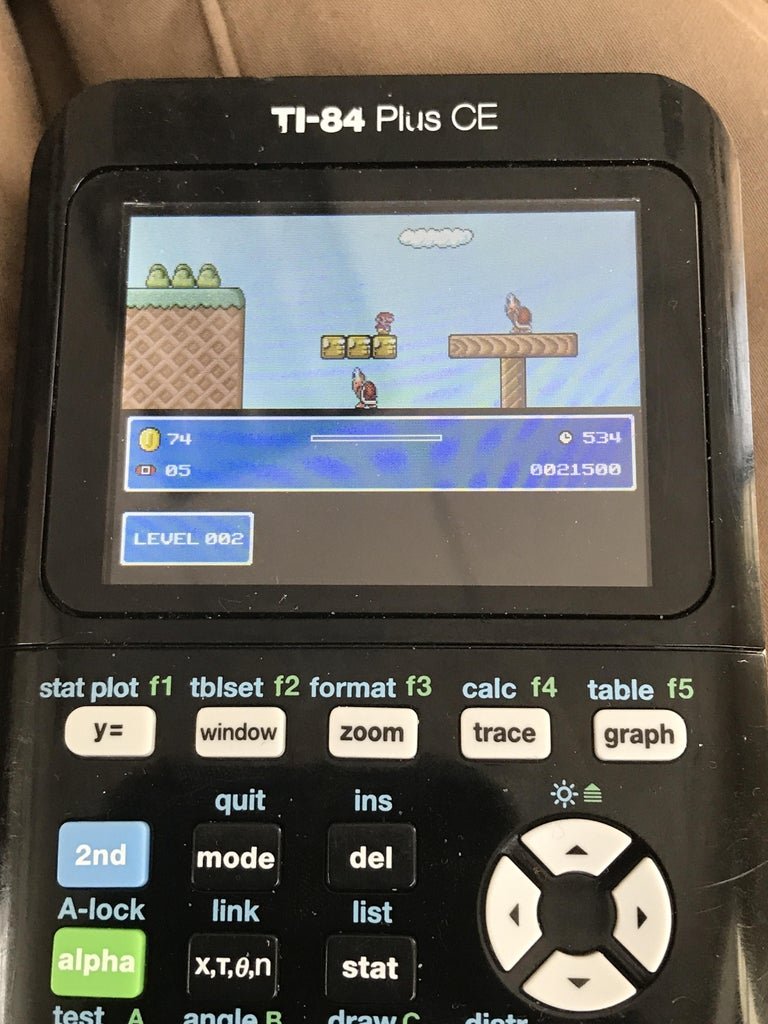
To put games on your TI-84, you will typically need a computer, a TI-84 calculator, a link cable, and the game files (.8xg or .8xp). You use software on the computer to transfer the game files to the calculator’s memory.
Ever felt your TI-84 could be more than just a math tool? You’re not alone! Many students have wondered how to put games on ti 84, turning those boring moments into something a bit more fun.
It’s actually easier than you might think. This guide shows the basic steps involved in getting those coveted games onto your calculator, giving your TI-84 a new purpose.

How to Put Games on TI-84: A Simple Guide
So, you’ve got a TI-84 calculator, and you’re thinking, “Man, this thing could be way more fun.” You’re absolutely right! While it’s a super cool tool for math class, it can also be a portable gaming device. Getting games onto your TI-84 isn’t as tough as you might imagine. Let’s walk through the process together, making it easy and enjoyable.
Understanding the Basics
Before we dive into the how-to, let’s get a grasp of the playing field. Your TI-84 isn’t a smartphone or a gaming console. It’s a calculator with limited memory and specific software. This means the games you can play are, well, different. They’re simpler, often black and white, and don’t require fancy graphics. But trust me, they can still be a blast!
What Kind of Games Can You Play?
The games you’ll find for your TI-84 are mostly puzzle, strategy, or classic arcade style games. Think Tetris, Snake, or simple platformers. These games are usually written in programming languages that the calculator can understand, like Z80 assembly or TI-BASIC. We will be focusing on the most common type which is TI-BASIC programs.
What You’ll Need
Gather these things before you begin:
- Your TI-84 Calculator: Obviously, you can’t put games on a calculator you don’t have!
- A Computer: Any computer with internet access will work – Windows, Mac, or Linux.
- A TI Connect Software: This software lets your computer and calculator “talk” to each other.
- A Mini-USB Cable: This is the cable that connects your calculator to your computer, usually a USB-A to Mini-USB cable.
- The Game Files: These are usually files with a .8xp or .82p extension and hold the game’s code.
Finding Games for Your TI-84
Alright, so you know what you need. Now where do you find these game files? Here are a few safe ways to find games that work well on your TI-84:
Safe Websites for Games
There are lots of websites online that provide TI-84 games for free. However, be careful when downloading files from the internet. Only use websites that seem trustworthy and have good reviews. Some reliable places include:
- Ticalc.org: This is a popular site with a large library of calculator programs and games.
- Cemetech.net: Another good resource for TI calculator programming and games.
Always check the comments or reviews of the file before downloading, to make sure the files are safe and free of viruses. Look for files with .8xp extensions for TI-83 and TI-84 or .82p files for TI-82 calculators.
Understanding File Types
It’s important to understand the different types of files you might encounter:
- .8xp: These files are program files, often containing game code. They are generally used for TI-83, TI-83 Plus, TI-84 Plus, TI-84 Plus CE, and other similar models.
- .82p: These files are also program files, but are mainly used for TI-82 calculators. Some games that work on TI-82 can also work on other TI models.
- .zip: Sometimes, game files are bundled up in a .zip archive. You’ll need to “unzip” or extract them to get the actual program files.
Step-by-Step Guide: Getting Games on Your TI-84
Okay, let’s get to the good stuff – transferring the games to your calculator! This is where it all comes together. We will break this down into easy steps.
Step 1: Installing TI Connect Software
First things first, you need to install the software that allows your computer to speak with your calculator. Here’s how you do it:
- Find the Software: Go to the official Texas Instruments website or use your favorite search engine to find and download the appropriate TI Connect software for your calculator model and your computer’s operating system. Make sure you select the correct version!
- Install the Software: Once the download is finished, follow the installation prompts. It’s usually a straightforward process, so just click ‘next’, ‘agree’ and ‘install’ as needed.
- Open the Software: Once the installation is done, open up the TI Connect software on your computer.
Step 2: Connecting Your Calculator to Your Computer
Now it’s time to physically connect your calculator and computer:
- Plug it in: Use the mini-USB cable to connect your TI-84 to your computer. One end of the cable goes into the port on your calculator and the other into a USB port on your computer.
- Turn on Your Calculator: Make sure your TI-84 is powered on.
- Wait for Detection: Your computer should recognize the calculator as a connected device. The TI Connect software should also recognize your calculator once it’s plugged in.
Step 3: Transferring Game Files to Your Calculator
With everything connected, we can now transfer the game files to your calculator:
- Open the TI DeviceExplorer: Within the TI Connect software, open the “TI DeviceExplorer” or similar tool for transferring files.
- Locate Your Calculator: Your calculator should appear in the software. It may have a name or just a model number.
- Find the Game File: In the TI DeviceExplorer, find the place in your computer where you saved your downloaded game file (.8xp or .82p).
- Drag and Drop (or Send): Drag the game file from your computer’s file explorer to the area that represents your TI-84 in the TI DeviceExplorer or use the “send” button.
- Wait for Transfer: Wait for the file to completely transfer to your calculator. Don’t disconnect it until the software confirms the transfer is complete.
Step 4: Running the Games on Your TI-84
Now that you’ve got games on your TI-84, here’s how you can start playing:
- Press the ‘PRGM’ Button: This button on your calculator will open the program menu.
- Select the Game: Use the arrow keys to find the name of the game you transferred.
- Press ‘Enter’: Once you’ve selected the game, press the Enter button to begin.
- Follow Instructions: Each game might have different controls. Pay attention to any onscreen instructions.
Troubleshooting Common Issues
Sometimes, things don’t go perfectly, and that’s okay! Here are a few issues you might encounter and how to deal with them:
“Error: Invalid Data Type” or “Error: Archive Full”
These errors can pop up when there’s something not quite right with the game file or if your calculator’s memory is full:
- Check the File: Make sure the game file is meant for your specific calculator model and was downloaded from a trusted source.
- Delete Old Programs: You might need to delete some old files on your calculator to free up space. Use the ‘MEM’ button, then ‘2: Mem Mgmt/Del’, to manage your calculator’s memory.
- Restart Your Calculator: Turning your calculator off and on sometimes fixes glitches. Remove one battery for about 30 seconds and put it back in.
Game Doesn’t Appear in Program Menu
If you can’t find your game after transferring it, try these solutions:
- Double-Check the Transfer: Verify that you have correctly transferred the game file. It might be corrupted or not transferred at all if the connection was lost during the transfer.
- Check the Name: Games are named by the file name you send to calculator. Sometimes the name you are looking for is not what you would expect. Look for all files and try to identify the game you are looking for.
Games Freezing or Not Working Correctly
If the game starts up but then freezes, or doesn’t work quite right, try this:
- Battery Check: Make sure your calculator’s batteries aren’t too low. Weak batteries can affect the calculator’s performance. Replace them with a new set to check if it helps.
- File Corruption: The game file may be corrupted. Try downloading the game from a different source, or redownloading the current game.
Tips for a Smooth Gaming Experience
Here are some tips to make your gaming experience more enjoyable:
- Organize Your Files: As you accumulate more games, use folders to keep things organized. You can create folders on your calculator through the TI DeviceExplorer.
- Look for Game Reviews: Before downloading a game, check online reviews to make sure other people had a good experience with it. It will help avoid problematic files.
- Be Careful with Unofficial Programs: Always download programs from known, reliable sources. Avoid downloading from sources that seem sketchy.
- Charge your batteries: Low battery levels might impact the games, and can also cause data loss in your calculator. Make sure that your batteries are full before playing, or replace them for a good time.
Remember, the TI-84 is first and foremost a calculator. Enjoy the fun of gaming, but don’t forget its primary purpose of helping you with your studies!
Getting games on your TI-84 can make math class or free time much more interesting. By following these steps, you should be playing your favorite games on your calculator in no time. Enjoy and have fun!
How to Put Games on the TI 84 Plus CE
Final Thoughts
Transferring games to your TI-84 calculator requires a computer, a link cable, and the TI Connect software. You must download the game files, then connect your calculator to your computer. Use TI Connect to send the files to your device.
The process involves selecting the program files and transferring them. After the transfer, find the game in your calculator’s program list. Now you can enjoy your new games. This is how to put games on ti 84.

