
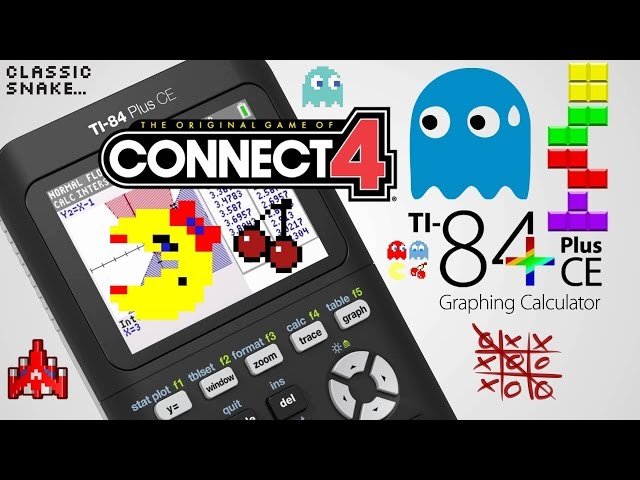
To put a Python game on your TI-84 Plus CE Python, you’ll need to use a computer to transfer the .py file to the calculator via TI Connect CE software.
Have you ever wondered how to put python game on ti84 plus ce python? It’s a fantastic way to expand your calculator’s capabilities beyond math, and dive into some fun. Getting a game onto your calculator isn’t as complex as you might think.
The process involves a few key steps. You’ll first need the game saved as a python file, then you’ll utilize the TI software to connect your calculator and send the file. Soon, you will be playing your game right on the calculator!

How to Put Python Game on TI-84 Plus CE Python
So, you’ve created a cool Python game and you’re itching to play it on your TI-84 Plus CE Python calculator? That’s awesome! It’s like having a tiny portable gaming console right in your pocket. But how exactly do you make that happen? It’s not as simple as just copying the file over. This guide will break down the steps, making it easy to get your game running on your calculator. We will cover everything from the necessary software to the actual transfer process. Let’s jump in and get your game ready to play on the go.
Getting Your Tools Ready
Before we get into the actual game transfer, we need to make sure we have the right tools. Think of it like gathering all your ingredients before you start baking a cake. These tools will help you connect your calculator to your computer and send your game over.
The Essential Software
First, you’ll need some specific software. Don’t worry, most of it is free and easy to get. Here’s the list:
- TI Connect CE Software: This is the main program that lets your computer talk to your calculator. It’s made by Texas Instruments and you can download it from their website. Make sure you grab the version that’s made for your computer’s operating system (like Windows or macOS).
- Python Script (Your Game): Of course, you’ll need your Python game file! Make sure it’s saved as a ‘.py’ file. This is the file you’ll be transferring.
- USB Cable: You need a USB cable that fits your TI-84 Plus CE Python. It’s usually a mini-USB to USB-A cable, the same kind that connects some older phones and devices.
Important Note: Always download software from the official websites to avoid viruses or other problems.
Setting Up TI Connect CE
After you have downloaded TI Connect CE, install it. Follow the on-screen instructions. It’s usually pretty straightforward, like installing any other program. Once installed, you will see an icon on your desktop. This program will help you connect to your calculator. After Installation, before starting the transfer process, open the program, plug your calculator into your computer using the USB cable. If everything is set up correctly, TI Connect CE should recognize your calculator. If it doesn’t, try unplugging and plugging it back in or restarting the software and your calculator. Also make sure that the TI-84 Plus CE is turned on when connected to your computer. TI Connect CE is also used to update the operating system of the calculator.
Preparing Your Python Game
Not all Python code will run smoothly on your TI-84 Plus CE Python. The calculator has some limitations. So, let’s prepare your game for its new home.
Keeping it Simple
The TI-84 Plus CE Python has a much less powerful processor than your computer. This means big or complicated games will likely be slow and will not function properly. Avoid using heavy graphics or extremely complex calculations. Simple games work best. Try to keep your game’s graphics simple. Use shapes and text rather than complex images. Also, limit the use of external libraries (modules). The calculator doesn’t support all of the regular Python libraries. It has some specific libraries available, but using too many of your own can lead to errors. You may need to change your game’s code to make sure it uses the libraries available on your calculator.
Testing Your Game (The Simulator)
Before sending your game to the calculator, a great idea is to test it. Using the calculator simulator software on the computer can greatly help. TI provides an emulator which lets you test games on your computer, without actually using the calculator. You can download this from TI’s website. You need to download the appropriate OS version for your calculator. Install this software. When you open it, you can drag and drop your game into the simulator. When it is running you can use your keyboard to control the emulator, like you are controlling the calculator itself. This will help you find bugs and fix them before you put them on your calculator. This way you don’t have to keep transferring files each time.
Specific Libraries for TI-84 Plus CE Python
Here is a list of some of the libraries available on the TI-84 Plus CE Python calculator:
- ti_system: This library is for interacting with the calculator itself, like displaying text and getting user input.
- ti_plotlib: Use this for drawing graphs and simple shapes on the screen.
- math: This includes basic mathematical functions like square roots and trig functions.
- random: Use for generating random numbers for game elements.
When you write your game make sure you are using only from these libraries, because other libraries will not work, and your game will crash. Remember to import the necessary modules in your Python code at the start of your game.
The Transfer Process
Now for the moment you’ve been waiting for: moving your game to your calculator!
Opening TI Connect CE
First, open TI Connect CE on your computer. Make sure your calculator is connected with the USB cable and turned on. The software should recognize your calculator, and display the calculator information. Make sure it says connected before attempting file transfers. Sometimes it might require you to restart the software, or disconnect and reconnect the USB cable. If you still can’t see it, make sure your calculator’s operating system is up to date. You can update it through TI Connect CE software as well.
Sending Your File
With your calculator connected, look for a file transfer option within the TI Connect CE software. You can usually find it labeled as “Send to Calculator” or something similar. Now, you have to select the file, choose the file, which is your Python game file (.py) and click the send button. This will start sending the file to your calculator. Wait for the software to show that the transfer is done. Don’t disconnect the cable while the transfer is in progress. After transfer is done, you can safely unplug the calculator from your computer. The time it takes depends on the size of your file but it is generally fast.
Finding and Running Your Game on the Calculator
Unplug your calculator from your computer. On your calculator press the “prgm” button. This will open the programs menu. You should see your Python game listed there with the name of the file. Scroll to it and press “Enter”. This should start running your game. If everything went well, your game should begin to work. If you encounter any errors, double check your code, and see if your game uses any library not supported by the calculator, or the game is too big for the calculator.
Troubleshooting Common Issues
Sometimes, things don’t go as smoothly as planned. Here are some common problems and how to fix them:
The Calculator Doesn’t Recognize the File
If you don’t see your game listed when you press the “prgm” button, it could mean that it was not transferred properly. Try sending it again, ensuring that your calculator was on and properly connected while transferring the file. Sometimes, the file may be transferred but not recognized because of an older operating system on the calculator. In this case update the calculator operating system using TI Connect CE. Make sure to close all the other applications before updating. Sometimes restarting your calculator may also help.
The Game Doesn’t Run or Crashes
If the game starts but crashes immediately, it often means there is an error in your code. This may be because of some syntax error or not available libraries. Go back to your code and check for any mistakes, and run it through the emulator to find bugs. Also make sure your game is not too big and too complicated for the calculator to handle. Try simplifying your game and sending it again. Also, ensure that you are using the supported libraries from the calculator.
Slow Performance
If your game is running slowly, that probably indicates that your game is trying to do more than the calculator can manage. Try to simplify your graphics and calculations. The TI-84 Plus CE Python is not a gaming powerhouse. Keep it simple and fun!
USB Connection Issues
If your calculator isn’t connecting to your computer, try a different USB cable, or USB port on the computer. Also, make sure the operating system of your computer is up to date, sometimes older operating systems have difficulty connecting to newer devices. Also, if you have any other calculator connecting software installed on your computer, remove them, as it can cause conflict.
Advanced Tips for Game Development
If you want to make your games even better, consider these tips:
Efficient Coding
Try to write very efficient and clean code. Remember that the calculator is not as fast as your computer. So, try to do as little calculation as you can, and make sure that you are not using loops that are not necessary.
User Input
Use input() to get input from the user. Be very clear about what the user is expected to input. Because it is not possible to write anything from the keyboard, you need to use arrow keys, and number keys to enter the user input, you should use prompts in your game to guide the user.
Saving Game Progress
You can save the game progress, so user can resume the game at any point. To do this you can use the calculator memory variables, to save data, and load back from the variables when user restarts the game. This may require a good understanding of calculator memory management.
Adding Sound
The TI-84 Plus CE Python does not have any built in audio support. So you cannot use music or sound effects in your game. Maybe in the future updates, TI may add this feature.
Following these steps and tips, you should be able to successfully transfer your python game to your TI-84 Plus CE Python calculator and play it on the go! Remember to keep your games simple, test them thoroughly, and have fun. You are doing something really cool, turning your calculator into a portable gaming machine.
So, that’s everything you need to get your Python game on your TI-84 Plus CE Python calculator. It might seem like a lot at first, but once you do it a few times, it will become second nature. Remember, be patient, and don’t give up if you encounter problems. Keep practicing and soon you’ll be playing your own creations on your calculator.
The UPDATED Guide to Game Boy (Color) Games on the TI-84 Plus CE!
Final Thoughts
Transferring your Python game to the TI-84 Plus CE Python requires using the TI Connect CE software. First, connect your calculator to your computer with a USB cable. Then, use the software to send the Python script file to the calculator.
Ensure your Python program is compatible with the calculator’s version of Python, which may have some limitations. Once uploaded, you can execute the game directly on your calculator. This completes how to put python game on ti84 plus ce python.

