
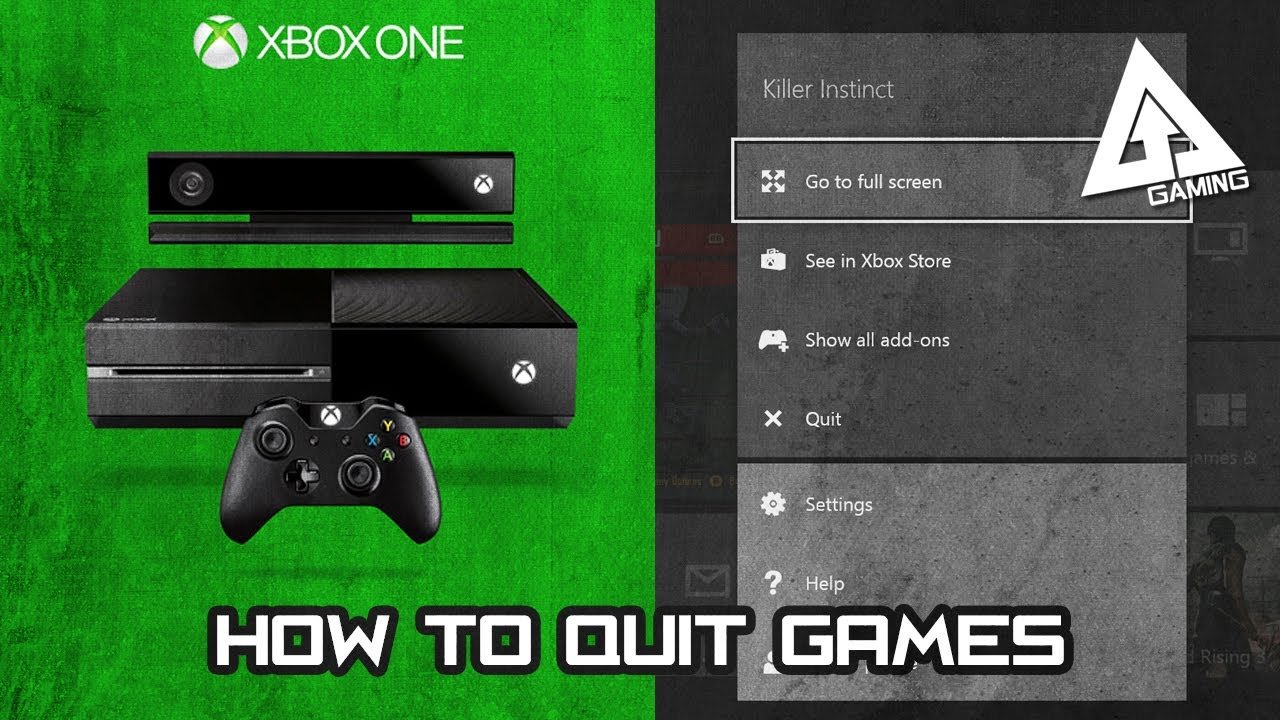
To quit a game on your Xbox One, press the Xbox button on your controller to return to the Home screen, then highlight the game and press the Menu button. Select “Quit” from the options provided.
Have you ever been deeply engrossed in a game only to realize you need to stop playing immediately? Figuring out how to quit a game in Xbox One can sometimes be confusing, especially when you’re in the heat of the moment. It’s a common issue many players face.
We often want to switch games or get back to the dashboard without any trouble. Knowing the correct steps will make your Xbox experience much smoother and quicker. This will also help prevent any accidental data loss.

How to Quit a Game on Xbox One
Okay, so you’re deep in an amazing game on your Xbox One, but maybe it’s dinner time, or your friend just messaged you to play something else. You need to stop playing, but how do you actually quit a game? It’s not always as obvious as hitting a big red “STOP” button! Don’t worry, we’ll walk through all the different ways to gracefully exit your Xbox One games. We’ll make sure you understand how to do it correctly, so you don’t lose progress or have your console acting up. This is about more than just closing a game; it’s about understanding how your Xbox One handles running different things at once and how to manage them smoothly.
Why Quitting Games Properly Matters
Before we jump into the “how,” let’s talk about the “why.” You might think just switching to another game or turning off your console is enough, but it’s not always the best idea. Xbox One games, like many apps, can keep running in the background even if you’re not actively playing them. This uses up your console’s resources, like memory and processing power. It’s like leaving a bunch of lights on in your house, even when you’re not in the room. Over time, this can slow your Xbox down and even cause glitches. Properly closing your games frees up these resources and keeps your Xbox One running smoothly. Another reason to quit properly is to avoid losing progress. Some games save automatically but others save progress manually. You don’t want to shut down and not save your progress in a game.
The Simplest Method: Using the Xbox Button
The quickest and most common way to quit a game on your Xbox One is by using the Xbox button. This is the big, glowing button in the middle of your controller. Here’s how it works:
- While you’re playing the game, press the Xbox button on your controller. This will bring up the Xbox Guide, a side menu on the left side of your screen.
- Navigate to the game tile on the menu. It’s usually highlighted and is the same image that you saw when you started the game.
- Press the Menu button on your controller. This is the button with three horizontal lines.
- A small pop-up menu will appear. Choose the option that says “Quit.”
- The game will close and return you to the Xbox Home screen or the last thing you were looking at before starting the game.
That’s it! The game is officially closed. You can now play a new game, watch videos, or do anything else you want on your Xbox.
Using the Xbox Menu for Multiple Games
Sometimes you might have several games running at the same time. Your Xbox One allows you to switch between games quickly, but it can be good to close these out. To manage multiple running games, you can use the Xbox menu
Accessing the Menu
- Press the Xbox button on your controller to open the guide.
- Move down to “My games & apps” and select it.
- Select “See all”.
Finding the Game You Want to Quit
- You will now see a list of your games. You can press ‘Start’ on each of them.
- Find the game you are looking for in this list and press the Menu button on your controller. This is the button with three horizontal lines.
Quitting the Selected Game
- Select the “Quit” option from the menu.
- The game will now close.
Why Games Stay “Quick Resume”
The Xbox One has a feature called “Quick Resume” where games will stay paused in memory and start quickly when you open them again. This is a great feature for quickly switching between multiple games. However, if you want to close a game and free up your consoles memory you need to completely quit the game as shown above, and not just switch away from it.
The benefits of Quick Resume
- Quick Resume allows you to quickly switch between games without having to restart them.
- It saves you time, as you don’t have to wait through loading screens every time you want to resume.
When to Fully Quit a Game
- If you won’t be playing the game anytime soon.
- If you want to free up your Xbox’s resources.
- If you are having issues with your Xbox (such as a game freezing) a full quit of the game can resolve this.
Troubleshooting: When Quitting a Game Doesn’t Work
Sometimes, you might encounter situations where a game doesn’t want to quit the way it should. It’s not the end of the world and there are a few things you can try. Here’s how to tackle some common issues:
Game Freezing
- If the game freezes and you can’t access the Xbox guide, you might need to do a hard restart of your console.
- Press and hold the Xbox button on the console itself for about 10 seconds until it turns off.
- After a few seconds, press it again to turn the console back on.
- This will close all running games.
Game Not Quitting
- If the game doesn’t quit when you press the “Quit” option. This may mean it’s frozen or is taking a while to close. Wait a few minutes and try again.
- You can check to see if the game is still open in the menu we looked at earlier. Go to ‘My games & apps’ then ‘See all’ then press the ‘Start’ button on the game to see if it is running.
- If the game is not closing you can try a hard restart of your console as shown above.
Game Crashing
- If the game crashes and returns you to the dashboard or home screen, it is usually closed automatically.
- It is still good to check the menu and ensure the game has closed. Go to ‘My games & apps’ then ‘See all’ then press the ‘Start’ button on the game to see if it is running.
Check for System Updates
- Outdated system software can cause problems with games not quitting properly. Make sure your Xbox One is up to date.
- Go to “System” in your settings, then select “Updates.” Follow the on-screen instructions to install any pending updates.
When to Just Turn off Your Xbox One
Turning off your Xbox One without closing the game first isn’t usually recommended, but there are specific times it can be okay.
Forcing a restart
- In extreme cases when you can’t quit a game or navigate to your menus, holding the power button to switch off can be your only option, this should be a last resort and not a common method
- Always try to use the ‘Quit’ option from your menus whenever possible.
When you will resume a game very soon
- If you are only stepping away from your Xbox for a few minutes, just switching off your TV can be a good method. The Xbox will continue running and will be ready to go when you get back.
- Always try to use the ‘Quit’ option whenever possible.
Games That Save Automatically
Some games use auto-saving features, which means the game saves your progress regularly without needing to manually save it yourself. These games are generally more forgiving if you forget to close them down the right way.
Examples of Games with Autosave
- Most modern games feature autosave functions.
- Many single-player games use autosave functions.
- Some online multiplayer games also have auto-save features.
Even with Autosave, Quit Properly
- Even if your game autosaves, you should still quit properly.
- Quitting a game fully will free up resources on your Xbox
- Quitting a game properly also protects your game saves.
Games That Need Manual Saving
Some games don’t autosave and need you to manually save your progress. If you play one of these types of games, you will want to be extra careful and always save your progress before you quit the game or turn off your console. Failing to do this will mean you have to repeat sections or levels that you have already completed.
Knowing When to Save
- Pay attention to the save prompts in the game.
- Many games allow you to save at specific points.
- Always save before quitting.
Quick Tips For Smooth Game Quitting
Here are some quick tips to make quitting your games on your Xbox One easy and simple:
- Always try to use the ‘Quit’ function from your Xbox guide to close a game.
- Do not leave games running in the background.
- Make sure your Xbox is up to date.
- Always save your games when required.
- Hard restarts are for emergencies only.
By following these easy steps, you can keep your Xbox One happy, healthy, and running perfectly. Now you can switch between games without any problems and your Xbox will be running smoothly.
How To Fully Exit Games on Xbox One – Close or Quit Xbox One Games
Final Thoughts
To quit a game on your Xbox One, press the Xbox button to return to the Home screen. From there, highlight the game tile and press the menu button. Then, select “Quit” from the options that appear. This action will completely close the game.
For quick game switching, use the Xbox button to go to Home. Select a different game tile to launch it, this process will automatically close the previous game. This is another method of how to quit a game in xbox one.

