
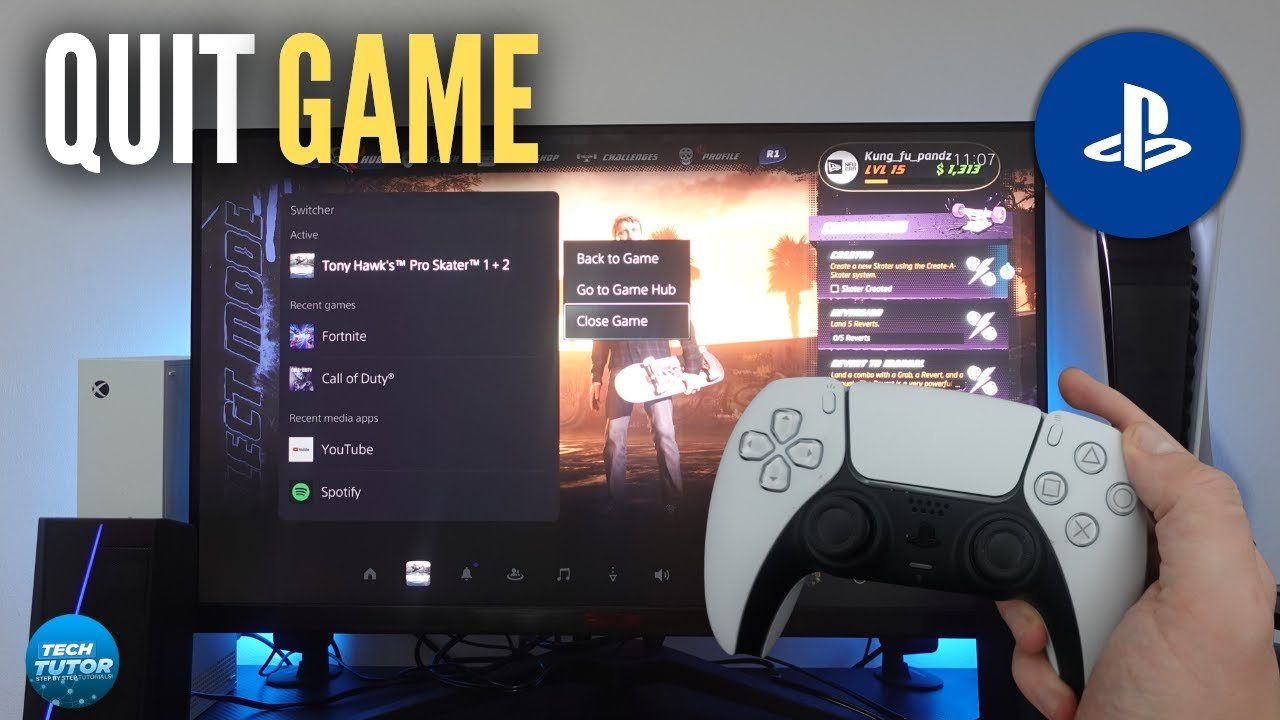
To quit a game on PS5, press the PlayStation button on your controller, navigate to the game’s icon, press the options button, and select ‘Close Game’.
Ever found yourself lost in a digital world, only to realize you need a quick escape? Knowing how to quit a game on PS5 is essential for smooth console use. We’ve all been there, deep in a gaming session when real-life calls.
This simple task can actually be a point of confusion for some, especially new PS5 users. Don’t worry, we will show you how to end your gaming session correctly. We will guide you through the necessary steps to close any game.

How to Quit a Game on PS5: A Comprehensive Guide
Sometimes, you just need to take a break from your awesome PlayStation 5 games. Maybe dinner is ready, or you’re ready to try a different game. Whatever the reason, knowing how to properly close a game is important. This guide will walk you through everything you need to know about quitting games on your PS5, keeping your console running smoothly.
The Basics: Closing Games Using the PS Button
The most common way to exit a game is by using the PS button on your DualSense controller. It’s the button with the PlayStation logo in the middle. Pressing this button takes you back to the PS5’s main menu, also called the Control Center. This doesn’t actually close the game completely; it puts it into a kind of “sleep” mode. Think of it like pausing a movie, but the movie is still running in the background. This is called a ‘suspended game’ state.
Returning to a Suspended Game
If you press the PS button again while the game is still in its suspended state, you’ll jump right back into the action, exactly where you left off! This is a great feature because it allows you to quickly switch between games without having to reload all the time. But remember, if you don’t close the game properly, it can cause some issues, which we’ll talk about later. Imagine your game is like a book with a bookmark in place. You can easily pick up where you left off. That’s the ‘suspended game’ feature.
Closing a Game from the Control Center
Now, let’s look at the right way to close the game. When you press the PS button and see the Control Center, scroll over to the game that you want to close. You can identify the game by its icon. Once you’ve selected the right game, press the ‘Options’ button on your controller. It’s the button with three horizontal lines. This will open a small menu, and one of the options is “Close Game.” Select that, and the game will close completely. This is like putting your book back on the shelf, ready for the next time you want to read it.
- Press the PS button: This takes you to the Control Center.
- Select the game: Navigate to the game’s icon.
- Press the Options button: This opens the game menu.
- Choose “Close Game”: This completely closes the game.
Why You Should Properly Close Your Games
You might be thinking, “Why bother closing games at all?” Well, there are several good reasons! Just leaving games in suspended mode can affect your console’s performance.
Memory Management
When a game is suspended, it’s still using a little bit of your console’s memory (RAM). If you have many games suspended at once, it can slow down your PS5. Think of it like having too many browser tabs open on your computer. Eventually, it will start to get slow and maybe even freeze. Closing your game releases this memory, making your PS5 run more smoothly, and also allow other applications and games to access this resources.
Avoiding Game Issues
Sometimes, games can act weird if they’ve been in suspended mode for too long, especially after updates. It could lead to errors or unexpected crashes. Closing and then reopening the game ensures that it starts fresh. It’s like giving the game a clean slate to work with. If you are seeing some strange bugs or the game isn’t working right, closing the game and restarting it can solve many common problems.
Preventing Game Data Loss
Though very rare, occasionally keeping games suspended for extremely long durations could in very rare scenarios create conflicts that can impact the integrity of your game’s data. This is not usual, but there is a very slight risk of that. By properly closing your games, you’re minimizing this already low risk.
Updates and Patches
When developers release updates for games, these updates usually need to be installed the next time you launch the game, and sometimes they need a full restart of the game to apply all the updates. Having a game in suspended mode could prevent you from experiencing some new changes. Closing the game makes sure you get all the new improvements and fixes.
Using the Quick Menu to Close Games
There is another slightly faster method to close a game. The Control Center we mentioned before is also sometimes called the Quick Menu. You can access it from anywhere when you press the PS button, even while you are inside a game. This is great because you don’t have to go back to the main screen to close the game.
How To Use Quick Menu
- Press the PS Button: Press it once while inside a game.
- Select Activities: You will see a list of available options and the current game will be highlighted.
- Press Options: This opens the contextual menu for the game you have selected.
- Choose “Close Game”: Select it to completely close the game.
This approach allows for quick transitions without needing to fully return to the game selection area. It’s efficient and lets you manage open games quickly.
Understanding Game Saving and Quitting
Before you close a game, you need to think about saving your progress. Most games have an auto-save feature, which saves your progress frequently. However, it’s always a good idea to save manually before you quit, just to be safe.
Manual Saving
Most games have a ‘save game’ or a similar option in the main menu. Look for it and be sure to save before you exit. This ensures you don’t lose any important progress. Sometimes, games only save at specific points. Knowing where these saving points are is essential for not losing your hard work. If you are playing a game that doesn’t have auto-save, then it is extra important to manually save before you close the game, otherwise you could lose everything.
Auto-Save Features
The majority of modern games come with auto-save features. This automatically saves your progress at regular intervals or at key points in the game. If you see a specific icon appearing frequently, that’s usually the auto-save icon. Although auto-save is very helpful, it is better to manually save before you exit any game.
Troubleshooting Common Issues
Sometimes things don’t go as planned, and you might encounter issues when closing a game. Let’s look at a few common problems and how to resolve them.
Game Freezes
If a game freezes and you can’t close it using the normal methods, you may need to force close it. To do this, you press and hold the PS button for about 10 seconds until you hear a beep. This will shut down the game forcibly. This is like hitting the power button on your computer when a program freezes. After force quitting a game, it’s recommended to restart your PS5. This will ensure that any temporary problems are cleared and that all your games and applications are ready to run.
Games Not Closing
If you are trying to close a game using the option, but it won’t close, the most common resolution is to restart your PS5. Often, a simple restart is enough to fix any issues with how the console handles game closing. To restart your PS5, follow these steps:
- Press the PS button to go to the Control Center.
- Select the “Power” option at the right end of the menu.
- Select “Restart PS5”.
This will restart the console and close all running applications, which allows the console to work properly again.
Error Messages When Closing Games
Sometimes, you may see an error message when trying to close a game. Usually, these error messages give a code or a short explanation. The best way to find out how to resolve these errors is to search for the error code or text online. You can use the Playstation official website to get more specific help, or ask in the community forums online for support. Sometimes, the error is a sign that an update or system software install is needed.
Best Practices For Managing Games
Let’s summarize some key points to remember for closing games properly and managing your PS5 for maximum enjoyment.
- Always save your progress: Do not rely on the auto-save. It’s always good to save manually.
- Close games properly: Always close games with the “Close Game” option from the Control Center or quick menu.
- Do not leave many games in suspended mode: This can slow down your console.
- Restart your console: Restart your PS5 every once in a while to ensure that it’s running smoothly.
- Keep your system up to date: Make sure you install any updates to your system software and games.
Different Types of Games
Not all games are made the same, and different games can have different saving mechanics. Here are some categories of games and what you should consider when closing them.
Single-Player Games
Single-player games usually allow you to save your progress at any time. These games often rely heavily on manual saving. Make sure you save frequently, and always remember to save before closing the game.
Multiplayer Games
Multiplayer games, especially online games, often save your progress automatically, especially character progression. However, if you are in a match, it’s not a good idea to quit abruptly. You may be penalized, and you also may affect the game for your teammates. It’s best to wait until you are not in a match to close these kinds of games. Look for a ‘leave match’ option or wait until the match is over.
Indie Games
Indie games can vary a lot in how they save. Some might use auto-saving frequently, but others might not have that feature at all, or might only save at specific points. It’s always best to know how a specific indie game saves, so you don’t lose any progress or important items you have found.
Why Proper Game Closing Matters
Taking a few extra seconds to correctly close your games can make a world of difference to the performance and overall health of your PS5. It prevents the build-up of unnecessary background processes and ensures a stable and smooth experience for you and your console. By following the steps that we discussed, you are making the best of your games and your PlayStation 5 console.
In the end, closing your games properly is a simple task, but can have a significant impact on your gaming experience. You will keep your console working in the best way possible. This also helps to avoid many problems that are easily avoided.
PS5: How to Close Games & Applications Tutorial! (For Beginners) 2024
Final Thoughts
To effectively quit a game on ps5, press the PlayStation button on your controller. This action will bring up the Control Center. Then, navigate to the game you wish to close.
Select the game and press the options button. From the menu, choose “Close Game.” Confirm your choice, and the game will shut down. Knowing how to quit a game on ps5 ensures you can easily switch between titles.

