
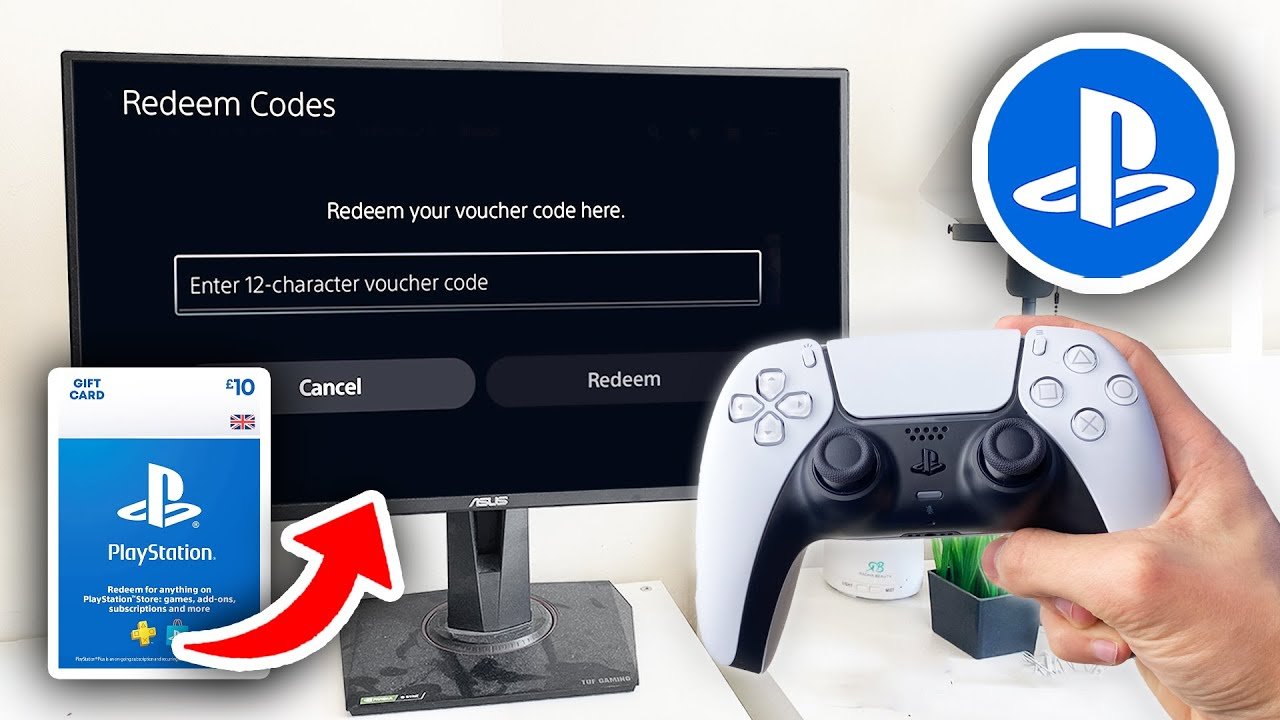
To redeem game codes on PS5, go to the PlayStation Store, select ‘…’, choose ‘Redeem Codes’, and enter your code.
Got a shiny new game code for your PS5? Awesome! You are probably itching to start playing. Don’t worry, redeeming those codes is simple.
The process involves navigating through a couple of menus on your console. We’ll show you exactly how to redeem game codes on PS5, quickly and easily. So, let’s get right to it, shall we?

How to Redeem Game Codes on PS5
So, you’ve got a brand new game code for your PlayStation 5? That’s awesome! Whether it’s from a gift card, a promotional offer, or a digital purchase, getting that new game onto your console is exciting. Don’t worry, it’s easier than you might think. This guide will walk you through all the different ways you can redeem those codes and start playing in no time. We’ll look at how to do it using your console, the PlayStation app on your phone, or even through a web browser on your computer. Let’s jump right in!
Understanding Different Types of PS5 Game Codes
Before we get into the actual process, it’s good to understand that not all game codes are exactly the same. Knowing what type of code you have can save you some confusion.
Full Game Download Codes
These are the most common types of codes. They let you download an entire game directly to your PS5. You’ll usually find these on cards that you buy in stores, or in digital receipts when you buy a game online.
Add-on Content Codes
These codes give you extra stuff for a game you already own. Think of things like new characters, special weapons, cool outfits, or extra levels. These codes are linked to a specific game, so make sure you have that game before you try to use the code.
PlayStation Plus Codes
These codes are for a PlayStation Plus membership. With PlayStation Plus, you can play games online with your friends, get free games each month, and gain access to special discounts. The codes will have different durations (like one month, three months, or a year) so it’s always good to check how long your subscription will be for.
PlayStation Network (PSN) Wallet Top-Up Codes
These codes add money to your PSN wallet. You can then use this money to buy games, add-ons, or anything else available in the PlayStation store. Think of it like adding cash to your PlayStation account.
Trial Codes
Sometimes, you might receive codes for trials to games or services. These let you play a game or use a service for a limited time before deciding if you want to pay for the full product.
Redeeming Codes Directly on Your PlayStation 5
The most straightforward way to redeem a code is by using your PlayStation 5 console. Here’s how you do it:
- Turn On Your PS5: Make sure your console is powered on and you are logged into your PlayStation Network (PSN) account.
- Go to the PlayStation Store: From the main menu, find and select the PlayStation Store icon. It looks like a shopping bag.
- Select the Options Menu: Once you are in the PlayStation Store, navigate to the right-hand side of the screen, and find the “…” icon (three dots). Click on this menu.
- Choose “Redeem Code”: From the options menu, select the “Redeem Code” option. It should be one of the options in the list.
- Enter Your Code: A screen will pop up where you can enter your code. Use the controller to type in all the letters and numbers exactly as they appear on your code card or in your digital receipt. Make sure you get all the letters correct, even capital and lowercase letters, and any numbers.
- Click “Redeem”: Once you’ve entered your code, click the “Redeem” button.
- Confirm your item: The system will show you what your code is for. Double-check this to make sure it’s what you were expecting, then confirm to continue.
- Download or Access Your Content: If your code was for a game or add-on, it will begin downloading automatically. If it was for PSN money, it will be added to your wallet.
Redeeming Codes Using the PlayStation App
You can also redeem codes using the PlayStation app on your smartphone or tablet. This is handy if you’re not near your console. Here are the steps:
- Download the PlayStation App: If you don’t already have it, download the PlayStation app from the App Store (for iPhones) or the Google Play Store (for Android phones).
- Log into your account: Open the app and log into your PSN account, making sure it is the same account you use on your PlayStation 5.
- Tap the PS Store Icon: At the bottom of the app, you will find a PlayStation Store icon, tap on it to proceed to the PS Store.
- Find the Menu Button: Look for the “…” menu icon (three dots) usually on the top right of your screen, tap it to find the redemption options.
- Select “Redeem Code”: Tap the “Redeem Code” button from the menu to start the process.
- Enter Your Code: Enter the code into the field, using the keyboard on your device. Remember to double-check that it is correct and has all the numbers and letters correct.
- Click “Redeem”: Once the code is entered, tap the “Redeem” button.
- Confirm your item: The screen will show you what you are about to redeem, confirm this and the item will start downloading on your PlayStation 5 when it is turned on.
- Start Downloading or use your wallet: The purchased item is added to your library, if it is a game it will start downloading on your Playstation when it is online, if it is PSN funds, then it will be added to your wallet.
Redeeming Codes Through a Web Browser on Your Computer
For those who prefer using a computer, you can redeem codes through the PlayStation website. Here’s what you need to do:
- Go to the PlayStation Website: Open your web browser and go to the official PlayStation website.
- Sign In to Your Account: Click on the sign in option at the top right of the website.
- Go to Account Management: Once you are signed in, click on your avatar to display your account options and choose the ‘Account Management’ option from there.
- Navigate to the “Redeem Code” Section: From your account, look for the “Redeem Code” option. It is usually found on the left hand sidebar, if you are on a desktop, or in the menu options if you are on a mobile web browser.
- Enter Your Code: A text field will be displayed. Type in the code exactly as it appears on your card or digital receipt. Make sure all the numbers and letters are correct, in the right case.
- Click “Redeem”: Click the “Redeem” button.
- Confirm your purchase: The screen will now display what the code is for, double check and then confirm.
- Start Downloading or use your wallet: The purchased item is added to your library, if it is a game it will start downloading on your Playstation when it is online, if it is PSN funds, then it will be added to your wallet.
Troubleshooting Common Code Redemption Issues
Sometimes, you might run into issues when trying to redeem a code. Here are some common problems and how to fix them:
Incorrect Code Entry
Problem: This is the most frequent issue. Even one wrong letter or number will prevent the code from working.
Solution: Carefully double-check your code. Pay close attention to letters that look similar (like O and 0, or I and 1). Try entering the code again.
Code Already Redeemed
Problem: If someone else has already used the code, you won’t be able to use it again.
Solution: Double-check that you haven’t already redeemed the code on a different account. If the code was gifted to you, check if the sender might have used it by mistake. If you suspect a problem, contact PlayStation Support.
Code is for a Different Region
Problem: Game codes are often region-specific. A code from Europe will not work on a US account, for example.
Solution: Make sure your PlayStation account is set to the same region as the code you’re trying to use. You may need to contact customer support for a new code from your region if you have one from a different region.
Code has Expired
Problem: Some codes have expiration dates, especially promotional ones.
Solution: Check the terms and conditions of the code or the card, as they will provide details about the codes’ expiration date. If it has expired, unfortunately you will not be able to redeem the code.
Server Issues
Problem: Sometimes, the PlayStation Network might be having problems, which can stop you from redeeming codes.
Solution: Check the PlayStation Network status page. If there are any issues, you may need to wait a little while and try again later.
Poor Internet Connection
Problem: If you have a bad internet connection, this can result in errors when trying to redeem a code.
Solution: Make sure you have a stable internet connection. Try restarting your router if you are having problems.
Tips for Smooth Code Redemption
Here are a few extra tips to make the whole process even smoother:
- Keep codes safe: Store your game codes in a safe spot so you can easily access them.
- Redeem quickly: Try redeeming your codes soon after you receive them. That way you are sure they will be valid and have not expired.
- Double-check everything: Before you click “Redeem,” take an extra moment to make sure all the details are right. This can help you avoid mistakes.
- Use the app or website for bigger codes: If you have a code with lots of letters and numbers, using the app or website to enter the code can be easier than using the on-screen keyboard.
Redeeming game codes on your PS5 can be quick and simple once you know how. With these steps and tips, you’ll be on your way to playing your new games with no fuss. If you follow the guide and double-check everything, you should not have any problems. Just make sure to take care when entering the codes, as they are case and number sensitive. And if you still have trouble, don’t hesitate to reach out to PlayStation support; they are there to help.
How To Redeem Codes On PS5! PS5 Redeem Game Codes (For Beginners!)
Final Thoughts
Redeeming game codes on your PS5 is straightforward. Navigate to the PlayStation Store and select the “…” menu. Choose “Redeem Code” and enter your 12-digit code.
Follow the prompts, and the game will start downloading. This simple process quickly adds new titles to your library. You just need to know exactly ‘how to redeem game codes on ps5’ and follow the instructions.

