
To redeem a game on the Steam app, click the “Games” menu, then select “Activate a Product on Steam” and follow the on-screen prompts to enter your product key.
So, you’ve got a new game code and you’re itching to play, but aren’t sure how to get it onto your Steam account? Don’t worry, it’s a simple process. This guide explains exactly how to redeem game on steam app. Let’s get that game added to your library quickly and easily.

How to Redeem a Game on the Steam App
So, you’ve got a new game code and you’re excited to play! Awesome! But now what? How do you actually get that game onto your Steam account so you can start your adventure? Don’t worry, it’s easier than you might think. The Steam app, whether you’re using it on your computer or a phone or tablet, makes redeeming games pretty simple. Let’s break it down step-by-step.
Understanding Steam Game Codes
Before we dive into the redeeming process, let’s chat briefly about what a Steam game code is. A Steam game code is like a special key that allows you to get a game on your Steam account. These codes can come from different places:
- Buying from online stores: Many retailers sell Steam games directly as a code.
- Bundles: Sometimes games are part of a package with other games or products.
- Giveaways: Lucky you! Sometimes you can get a code from a contest or promotion.
- Physical Copies: Some physical games still include a code inside the box.
These codes are usually a mix of letters and numbers, like this: ABCDE-12345-FGHIJ. It’s super important to keep your code safe and only use it on your account. Sharing it with others means they could get the game instead of you!
Redeeming a Game on the Steam Desktop App
Most people use the Steam desktop app on their computer, so let’s start there. Here’s what you’ll do:
Step 1: Open the Steam App and Log In
First things first, open the Steam app on your computer. It looks like a grey circle with a white gear in the middle. If you don’t have it, you’ll need to download it from the Steam website. Once it’s open, make sure you’re logged into your Steam account. If you have multiple accounts, check that you’re on the one where you want the game.
Step 2: Locate the ‘Add a Game’ Option
At the top of the Steam window, you’ll see a menu bar. Click on the “Games” menu. A dropdown menu will appear. From there, select “Activate a Product on Steam…” This is the option you use to add a new game using a code.
Step 3: The Product Activation Window
A new window will pop up, called “Product Activation”. Steam will provide a brief explanation on how to use game codes. Click the “Next” button. After clicking next, you will be presented with the Steam Subscriber Agreement. Read through the agreement, and if you agree, click on “I Agree”. If you don’t agree, you won’t be able to redeem the game.
Step 4: Enter Your Game Code
Now, you will see a field to enter your game code. This is where you carefully type (or paste) the code you got earlier. Double check to make sure you haven’t made any mistakes. Even one wrong letter or number will stop the code from working. Click “Next” after typing the code.
Step 5: Confirmation and Game Installation
If the code is valid, Steam will tell you which game you are adding to your account. Double check that it is the game you want. If everything is correct, Steam will confirm that the game has been added to your library. You will now see that the new game has appeared in your game library. Sometimes the game will begin to download right away. If not, you can click the “Install” button to start the game download whenever you’re ready. And that’s it! You’ve added your game to your Steam library.
Redeeming a Game on the Steam Mobile App
What if you don’t have your computer handy, but you still want to redeem a game? No problem! You can also do this on the Steam mobile app. It’s a slightly different process, but still pretty straightforward.
Step 1: Open and Log In to the Steam Mobile App
Open the Steam app on your phone or tablet. It looks the same as the one on your computer. Log in to your Steam account, just like you did on the desktop version.
Step 2: Find the Menu Option
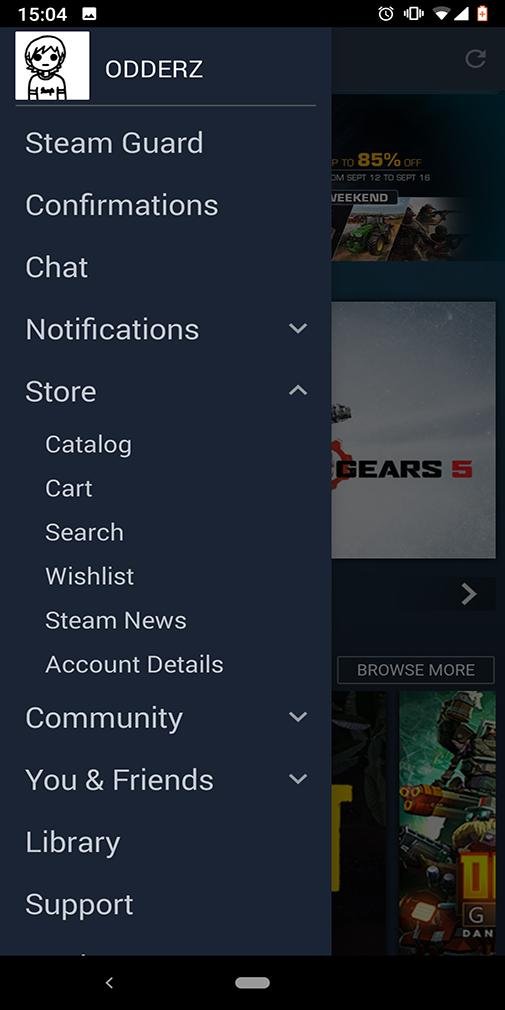
The Steam mobile app has a different layout compared to the desktop version. At the top left side of the screen, you’ll see the menu button, which looks like three horizontal lines (a “hamburger” menu icon). Tap on this button. A slide-out menu will appear.
Step 3: Access the Account Details Page
In the slide-out menu, you’ll find the option labeled “Account details”. Tap on that option. This will bring you to a screen that contains various account related information.
Step 4: Locate the “Add Funds” Option
On the Account details page, find and click on “Add Funds” option. Please note that we are NOT actually adding funds to the account, this option is the gateway for redeeming the code.
Step 5: Redeem a Steam Gift Card or Wallet Code
From this page, find and click “Redeem a Steam Gift Card or Wallet Code”. Even though you are not redeeming a gift card, this option will work for your game code as well.
Step 6: Enter the Game Code
Just like on the desktop, you will have a field to enter the game code. Again, make sure to type the code carefully. There is not a way to copy paste into the app. Double check that you have entered it correctly, before clicking continue.
Step 7: Confirm and Install
If your code is correct, Steam will confirm which game you are adding to your account. You will see that the game is added to your library on both the mobile app and on the desktop app. The game may not download immediately on your mobile device but if you access your desktop version, you will be able to start the download from there. Now you can play the game on your computer whenever you are ready.
Troubleshooting Common Issues
Sometimes, things don’t go as smoothly as planned. Here are a few common problems you might run into and how to handle them:
Invalid Product Code
This is a common problem. It means Steam doesn’t recognize the code you entered. Here’s what to do:
- Double-check the code: Make sure you typed it correctly. Check for common mistakes like swapping zeros for the letter “O” or the number 1 for letter “l”.
- Try copy-pasting: If you’re using the desktop app, copy the code and paste it in. It’s easier than typing and minimizes the chance of errors.
- Check the source: If you received the code from somewhere other than a legitimate retailer, it might be invalid or a scam. Contact the seller/giver about the problem.
- Expired code: Sometimes codes have an expiration date. Check that your code is still valid.
Game Already Added to Your Account
Steam will show an error that the game is already owned by the account you are trying to redeem the game on. This often happens when you forget that you redeemed the code previously. Here’s what to check:
- Check your Steam library: Make sure you didn’t accidentally add the game to your account already. Search your library for the game title.
- Check other accounts: You might have added the game to a different Steam account by mistake. Check any other accounts that you own.
Steam Servers are Down
From time to time, Steam servers experience problems and you may be unable to redeem a code. This issue is usually temporary. Try the following:
- Wait and try again: Steam servers sometimes have temporary issues. Try redeeming the code later.
- Check Steam status: See if Steam is having known issues. You can search online for Steam server status to see if other users are experiencing problems.
Problems with Codes from Third-Party Sellers
If you bought a code from somewhere other than a legit retailer, you should be careful. Some sellers are not official, and the codes they give might not work. Here’s what you should do:
- Contact the seller: Tell them about the issue, and see if they can give you a new code.
- Buy from official stores: In the future, buy games from official sources or places that Steam supports.
Tips for Keeping Your Steam Account Safe
While redeeming game codes is usually safe, there are a few things to keep in mind to protect your account.
Don’t Share Your Codes
Keep your codes to yourself. If someone else uses it first, you’ll be out of luck.
Be Careful Where You Buy Codes
Only buy game codes from legitimate stores. Unofficial sellers might sell invalid codes or even try to steal your account information.
Use a Strong Password
Make sure your Steam account has a strong and unique password. Avoid using the same password for other accounts.
Enable Steam Guard
Steam Guard is a security feature that adds an extra layer of protection to your account. Turn it on in your account settings.
Exploring Steam’s Features After Redeeming a Game
Now that you have redeemed the game, take some time to see what else Steam can do. Here are a few things you can check out:
Steam Library
Your Steam Library is where all your games are kept. You can see them by clicking the “Library” tab. You can sort and organize the library with categories and filters.
Community Hubs
Every game on Steam has its own community hub where you can chat with other players. This is a great way to discuss the game or get help if you’re stuck. Find these communities from your game page.
Steam Workshop
If the game has a workshop, this is where players can make and share custom content. Check out mods for games that support them.
Steam Friends
You can add your friends to Steam and play games together. This makes gaming way more fun. Find and add your friend’s accounts by searching for their usernames.
Steam Settings
Check the Steam settings to control your downloads and how the app looks. You can find it in the menu bar at the top. You can also change your account settings from here.
Redeeming a game on the Steam app is not hard when you know how. Whether you’re using the desktop app or the mobile app, the steps are easy to follow. Just be careful with your game codes, and you’ll be playing games in no time. Now that you’re all set, go have fun playing your new game!
How to redeem code on Steam mobile (FULL GUIDE)
Final Thoughts
To redeem a game, open the Steam app. Click the “+ Add a Game…” button at the bottom left. Then, choose “Activate a Product on Steam…”
A new window will appear. Follow prompts, entering the product code you have. The game will then be associated with your account.
These steps outline how to redeem game on steam app. This simple process allows you to quickly add new titles to your library.

