
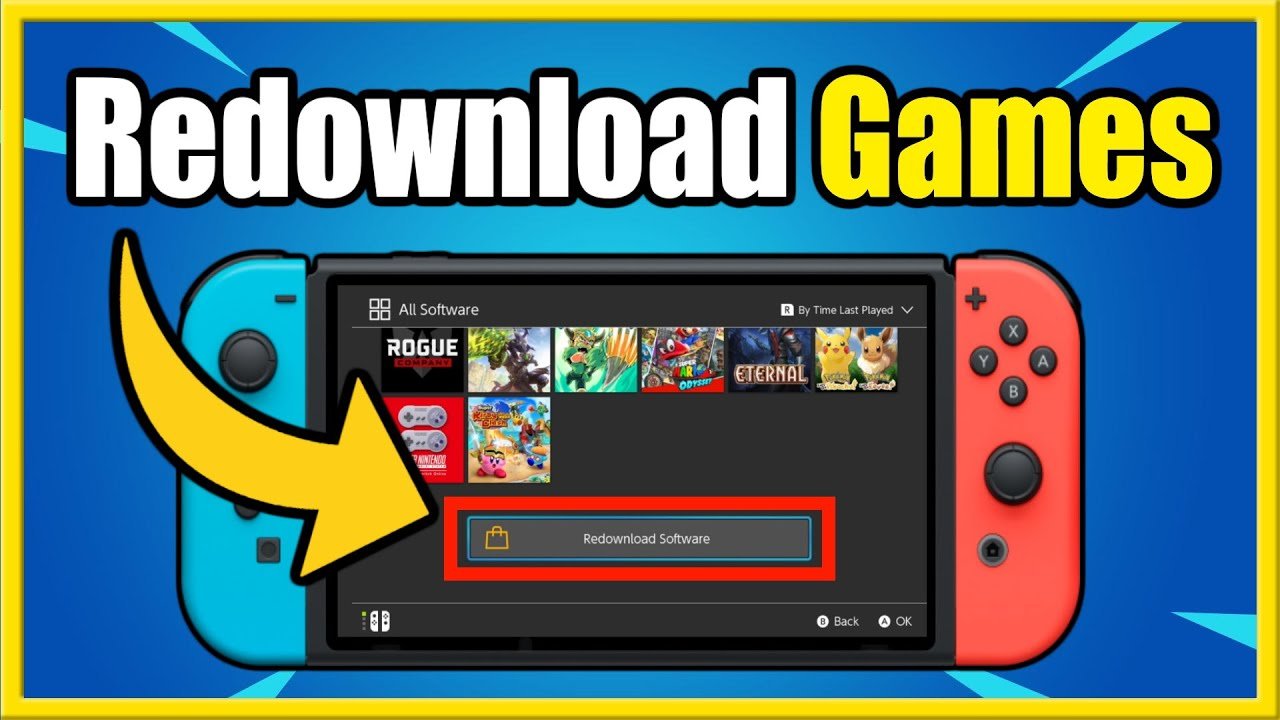
To redownload a game on Nintendo Switch, go to the eShop, find your profile icon, select “Redownload,” and choose the game you want.
Ever accidentally delete a favorite game from your Nintendo Switch? It happens, and it’s not the end of the world. You might be wondering how to redownload a game on nintendo switch. Fortunately, the process is straightforward, and you can get back to playing in no time.
It’s a common issue, and Nintendo made it quite simple. You just need to navigate a few menus within the eShop to restore your purchased titles. Think of it as a quick trip back to your library.

How to Redownload a Game on Nintendo Switch
Oops! Did your favorite game disappear from your Nintendo Switch? Don’t worry, it happens! Sometimes, you might accidentally delete a game, or maybe you got a new Switch and want all your old games back. The good news is, redownloading your games on Nintendo Switch is actually quite easy. Let’s dive into how you can get back to playing your games in no time. We’ll cover everything from finding your digital purchases to what to do if you’re having some trouble along the way.
Understanding Digital Game Ownership
Before we jump into the how-to, let’s quickly talk about how digital games work on the Nintendo Switch. When you buy a game from the Nintendo eShop, you’re not just getting a copy on a disc. Instead, you’re buying a license to play that game. This license is linked to your Nintendo Account, which is kind of like your personal key to all things Nintendo. This is why you can redownload your games on any Switch console that’s linked to your account. You are the owner, so you have the right to download on other consoles as well, whenever you want. Think of it like your favorite toys being kept in a special cloud, ready to be brought down whenever you want to play.
The Importance of Your Nintendo Account
Your Nintendo Account is super important for redownloading games. It’s the central place where all your purchases are recorded. If you want to redownload games you previously purchased, the first thing you need to do is make sure the Nintendo Switch console is linked to the correct account. If you use multiple consoles, and your account isn’t linked on the console that you want to redownload on, then you will not be able to do so. It’s also important that your account details such as email and password are remembered, as you might have to use it to confirm the linked account on a new console.
Steps to Redownload Your Nintendo Switch Games
Okay, let’s get to the good part – actually redownloading your games. Here’s a step-by-step guide:
- Power On Your Nintendo Switch: Make sure your console is charged and ready to go.
- Go to the Nintendo eShop: From the home screen, find the orange shopping bag icon (that’s the Nintendo eShop) and click on it.
- Select Your User Profile: Choose the user profile that you used to purchase the game in the first place. Remember, each Nintendo Account is linked to a user profile, so pick the right one.
- Access Your Account Information: Once in the eShop, look for your profile icon at the top right corner of the screen, usually, it’s your character icon. Select it. This will take you to your account information page.
- Find “Redownload”: On your account information page, you’ll see a few options. Look for an option that says “Redownload” or “Your Downloads.” It might be labeled a little differently, but it should be easy to spot. This is where all the games linked to your account are listed.
- Choose the Game: You’ll see a list of all the games you’ve bought using your account. Scroll through the list and find the game you want to redownload.
- Start the Download: Once you’ve found your game, select the orange cloud icon or arrow button to start the download. Your Switch will start downloading the game and will let you know when it’s done.
The Redownload List: More Details
Let’s talk about that ‘Redownload’ list in a little more detail because it can be very helpful. This list shows every single game you’ve bought digitally using your Nintendo account. Here’s what you might see:
- Game Icons: The games are represented by their familiar cover art icons. This makes it very easy to find the right game.
- Download Status: If a game is already downloaded on your Switch, you’ll see a little checkmark or a message saying “Downloaded”. If a game is not on your console yet, it will show the cloud symbol with a downward arrow or an orange button to download the game.
- Game Titles and Publishers: You’ll see the name of each game and sometimes who made it, which helps you make sure you’re selecting the right thing.
The Redownload list is very convenient, as it does not matter if the game was deleted, or it was downloaded on another console that is linked to the same account. You can access it at any time, and download games as many times as you like on any compatible console, as long as it’s linked with the same account that purchased the game, and of course, if you have enough storage space.
Managing Storage Space
Speaking of storage space, let’s address that elephant in the room. Games on the Nintendo Switch are pretty big, and you might find that you run out of space. This is especially true for digital games, as they take up storage space on your console’s internal memory, or your microSD card. Here’s how to handle that:
Checking Available Space
Before you start redownloading, it’s a good idea to check how much free space you have. You can do this easily from the settings menu:
- Go to System Settings: From the HOME Menu, click on the Settings icon. This is the one that looks like a gear.
- Select Data Management: Scroll down the left-hand menu until you see the option labeled “Data Management”. Select it.
- View System Memory/SD Card: On the right, you’ll see your console’s internal storage and your microSD card, if you have one. Your available space will be displayed next to each of them.
If you don’t have enough room, you might need to delete some games or other content before downloading new ones. Don’t worry – deleting a game doesn’t delete your game progress, so you don’t have to worry about losing all the progress you made.
Freeing Up Space
If you need to free up some storage space, you can easily do so by deleting any games or other unnecessary data. Here’s how:
- Navigate to Data Management: As we previously discussed, go to Settings and then Data Management.
- Select Manage Software: There you will see an option called “Manage Software”, which you need to select.
- Choose a game: From the list that appears, select the game you want to delete.
- Delete: On the next screen, you’ll see the option to delete the game. Remember, this will not delete your progress, so you can always re-download it later on.
Another useful method is to archive the game. This does not remove the icon from the home screen, and you can still see the game. However, to play it, you must download it again first. So, if you have many games that you haven’t played for a long time, and you don’t want to delete their icons from the home screen, then archiving is the best option for you. Archiving helps save up the space, and is also a very quick process, much faster than deleting.
- Navigate to Data Management: As we previously discussed, go to Settings and then Data Management.
- Select Manage Software: There you will see an option called “Manage Software”, which you need to select.
- Choose a game: From the list that appears, select the game you want to archive.
- Archive: On the next screen, you’ll see the option to archive the game.
If you’re constantly running out of space, you might want to get a microSD card. They’re like external hard drives for your Switch. They are easily insertable into the card slot of the console, and very helpful, as they add a lot of storage space for your games.
Troubleshooting Common Issues
Sometimes things don’t go as smoothly as we’d like. If you’re having trouble redownloading your games, here are some common issues and how to fix them:
Internet Connection Problems
The most common issue is a bad internet connection. Make sure that your Switch is connected to the Wi-Fi, and that you have a reliable internet connection. Sometimes restarting your router can also help. If you’re not sure how, follow these steps:
- Check Your Internet Connection: In the Switch settings, look for the internet settings and check your connection to your Wi-Fi. Make sure that the signal is strong, and the Wi-Fi is connected.
- Restart your Router: If you have troubles connecting to the internet, restarting your router is a good option. Turn it off, wait a few seconds, and turn it back on.
Wrong Nintendo Account
Another common problem is being logged into the wrong account. Make sure you’re logged into the same Nintendo Account that you used to purchase the game in the first place. As we mentioned before, your purchases are linked to the Nintendo Account that bought them, not the console. If you have multiple accounts, or your console is linked to a different account, then you will not see your games in the “Redownload” list. Here is how to fix this issue:
- Check the Account: Go to your profile page on the eShop, and check that you are using the correct account that was used to purchase the game.
- Change Account: If your console is linked with the wrong account, log out of that account, and log into the correct one.
Software Issues
Sometimes your Nintendo Switch’s software might be causing issues. It’s a good idea to make sure that your Switch is up to date with the latest software version. If not, then it’s a good idea to update to the newest version, and that might resolve many issues. To do this:
- Go to System Settings: From the Home Menu, choose the Settings icon.
- Select System: In the left sidebar, select the “System” option.
- System Update: On the right, you will see the “System Update” option. Choose this to update the console software to the latest version.
Contact Nintendo Support
If you’ve tried everything and you’re still having issues, it might be time to contact Nintendo support. They’re there to help with any problems you might have, and can help you with your issues.
Redownloading Physical Games
Okay, so far, we’ve talked about digital games that you purchased from the eShop. But what about physical games? If you lose or damage a physical game cartridge, you can’t just redownload it from the eShop. Physical game purchases are only possible by buying them on a cartridge. Here are some things to consider when it comes to physical copies:
- Physical Games Cannot Be Redownloaded: If you’ve lost your game card, you will need to purchase the game again, either digitally or by purchasing another cartridge.
- Save Data is Kept on the Switch: Even though the game isn’t available, the save data is stored on your console. So, if you get a new copy of the same game, you can continue from where you left off.
- Consider Getting Digital: If you are prone to losing game cards, it might be best to buy games digitally. This way, you can always re-download them as we previously discussed.
While you can’t redownload a physical game, remember that save data is kept on your Nintendo Switch. This is great, because, if you buy a new physical copy, or a digital copy, you can continue where you left off, and not lose any progress.
So, there you have it. Redownloading games on your Nintendo Switch is pretty easy once you get the hang of it. Just remember to check your storage, make sure you are logged in to the correct account, and have a stable internet connection. If you encounter any problems, follow the troubleshooting tips above, or contact Nintendo support for further assistance. Enjoy playing your favorite games!
How to Redownload Deleted Nintendo Switch Games & Apps (Fast Method!)
Final Thoughts
To redownload a game on nintendo switch, access the eShop, find your profile, and select “Redownload.” A list of purchased games appears; choose the one you need. The download will then begin.
You can also redownload from your games library. Select the game icon with a cloud icon on it, and proceed with redownloading. This makes it easy to get back to playing your favorites.
Remember this process if you ever need to redownload a game on nintendo switch. It’s a straightforward approach to reclaim deleted games.

