
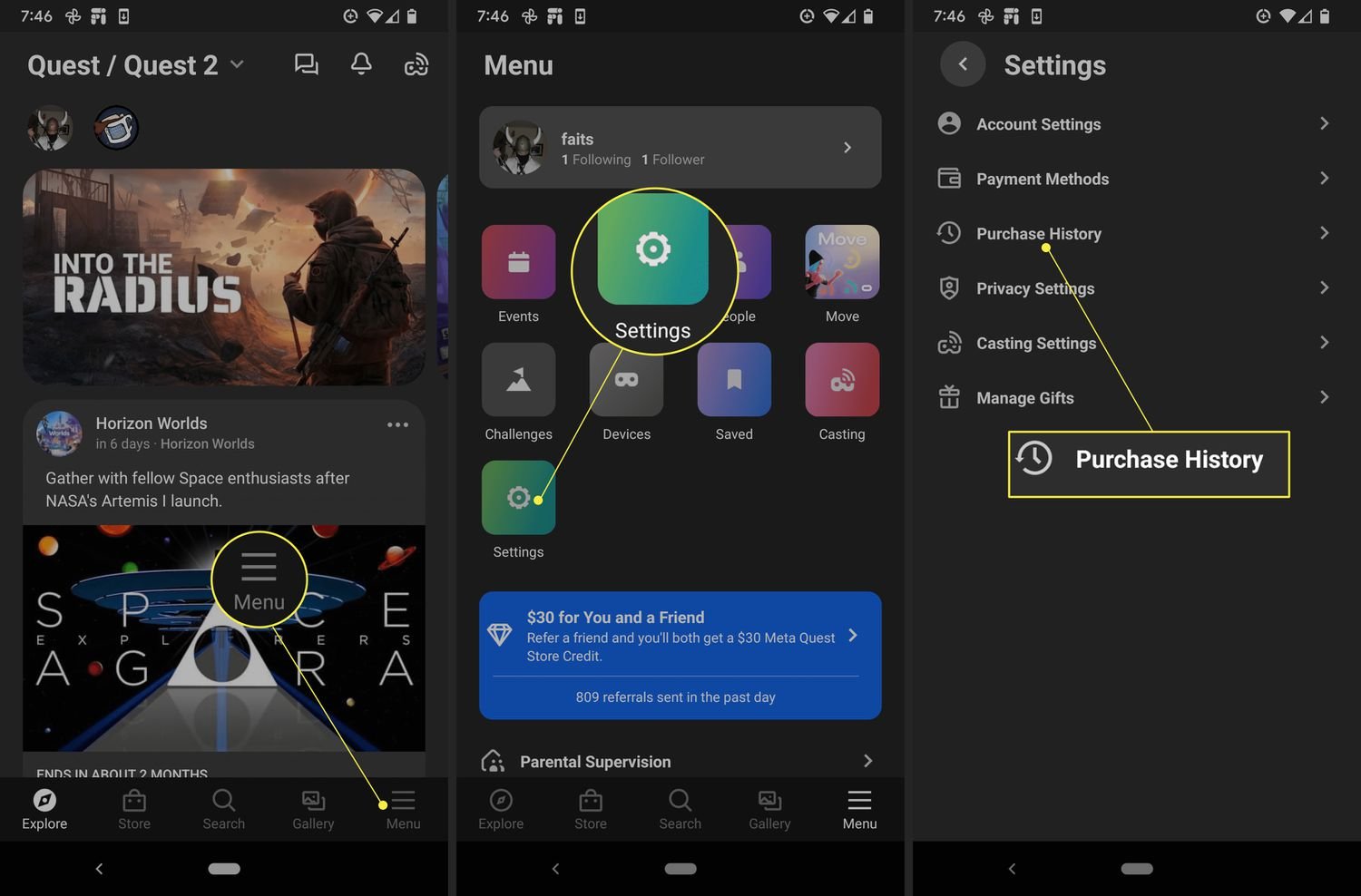
To refund a game on Oculus Quest 2, you must request the refund through the Oculus mobile app or website within 14 days of purchase and with less than two hours of playtime.
Ever bought a game, got home, and it just wasn’t what you expected? It happens! Navigating the world of virtual reality can sometimes lead to unexpected purchases. The good news is, learning how to refund a game on Oculus Quest 2 is fairly straightforward.
Knowing you have options makes the whole experience less stressful. We will walk you through the necessary steps, ensuring you can get your money back quickly and get back to playing games you actually love.

How to Refund a Game on Oculus Quest 2
Buying a game can be super exciting, especially when you get to play it in virtual reality on your Oculus Quest 2! Sometimes though, a game just isn’t what you expected. Maybe it’s too hard, maybe you just don’t like the story, or maybe it doesn’t work right. Whatever the reason, it’s good to know you can often get your money back. This article will walk you through exactly how to refund a game on your Oculus Quest 2, so you can keep enjoying the VR world without any worries about spending money on games you don’t like.
Understanding Oculus Refund Policies
Before you rush to return every game you buy, it’s important to know the rules. Oculus, like other stores, has specific refund policies that you need to follow. These policies make sure that people don’t take advantage of the system, while still giving users a fair chance to try out new experiences.
The 2-Hour and 14-Day Rule
The main thing to remember is the “2-hour and 14-day” rule. This means two important things:
- Playtime Limit: You must have played the game for less than two hours. Oculus tracks the total time you spend inside the game. So, if you play for even a little bit over two hours, you usually won’t be able to get a refund.
- Purchase Time Limit: You need to request a refund within 14 days of buying the game. If it’s been more than 14 days since you bought the game, even if you haven’t played it, you won’t be able to return it.
Think of it like this: you have two weeks to decide if you like the game, and you have a two-hour “trial period” to see if you want to keep it. It’s like test driving a car before you buy it!
What Games are Eligible for Refunds?
Most games and applications that you buy directly from the Oculus store are eligible for refunds. But, there are some exceptions. For example, if you get a game as part of a bundle, it might not be refundable on its own. Also, sometimes special promotional games or content might have different rules. Always look at the description of the game or bundle before you buy, just to be sure.
Content Not Eligible for Refunds
While most of the Oculus games are eligible for the refund, here are some of the categories of content which you cannot refund.
- Games or apps purchased through other platforms other than the Oculus Store.
- Movies, bundles and some applications purchased from the Oculus store are not refundable.
- Content that is downloaded as part of a promotion.
- Content purchased as part of bundles may not be refundable.
- Any in-game content such as in-app purchases, DLC, or virtual currency.
How to Start a Refund Request
Now that you know the rules, let’s get into the steps for requesting a refund. The process is straightforward. You can do it either through the Oculus app on your phone or through your computer browser. We will cover both.
Requesting a Refund via the Oculus Mobile App
The mobile app is often the easiest way to request a refund since you are likely to have it handy. Here are the steps:
- Open the Oculus App: Find the Oculus app on your smartphone and open it. Make sure you are logged in to the same account you used to buy the game.
- Navigate to Your Menu: Tap the menu icon, which usually looks like three lines in a corner of the screen.
- Select Purchase History: In the menu, find and tap “Purchase History”. This will show all the games and apps you’ve purchased.
- Find the Game: Scroll through the list and find the game you want to refund. It should show the date you bought it and how much you paid.
- Tap on the Game: Tap on the game title. This will give you more details about the game and hopefully, a ‘request refund’ button will appear.
- Request Refund: If the game is eligible for a refund (you’ve played it for less than two hours and it’s been less than 14 days), you’ll see a button or option that says something like “Request Refund” or “Refund.” Tap on that.
- Choose Your Reason: You’ll have to select a reason for the refund. Options might include that the game doesn’t work, that it isn’t fun or you weren’t enjoying it. Select the reason which best describes why you want a refund.
- Submit the Request: After you select the reason, you will be asked to submit the refund request. Confirm your selection, and your request will be sent to Oculus.
Requesting a Refund via a Web Browser
Sometimes, you might find it easier to use a computer browser. Here’s how to do it:
- Go to the Oculus Website: Open a web browser on your computer and go to the Oculus website.
- Log into Your Account: Log in to the same Oculus account you used to buy the game. This should be in the top-right corner of the page.
- Go to Your Account: Click on your profile picture or username at the top right to access your account menu.
- Select Purchase History: Find “Purchase History” in your account settings.
- Find the Game: Look for the game you want to refund in your list of purchases.
- Select Refund option : click or select the game from your purchase list and the page with the game details and ‘Request Refund’ option will appear on the screen.
- Choose Your Reason: A small window with reasons will appear, choose the reason that you think is the most appropriate.
- Submit the Request: Click submit the request and your request will be sent to Oculus.
After You Submit a Refund Request
After submitting the refund, you just have to wait for a reply from Oculus. Here’s what you can expect:
The Review Process
Oculus will review your request to make sure it fits all the rules. They’ll check the playtime and the purchase date to see if you are still eligible. This process normally takes 2 to 3 days. You will receive an email from Oculus stating the refund status.
How You’ll Get Your Money Back
If your refund is approved, you’ll get your money back through the same payment method you used to buy the game. If you used a credit card, the money will be returned to that card. If you used PayPal, it will go back to your PayPal account. It usually takes a few business days for the money to appear in your account, depending on how fast your bank processes these kinds of transactions.
If Your Refund is Denied
Sometimes, Oculus might deny a refund request. This usually happens if you played the game too long or if it’s been too long since you bought it. If your refund is denied, you’ll receive an email explaining why. Don’t feel bad if it happens! Just remember the rules for next time. You will not be able to appeal the decision.
Tips for Avoiding Refund Headaches
While refunds are a nice option, it’s often better to avoid needing them in the first place. Here are some tips to help you pick the right games:
Check Out Game Reviews and Videos
Before you buy a game, do a little homework. Look up reviews written by other players. Read what people are saying about the game. Also, watch gameplay videos on YouTube or Twitch to get a real sense of what the game is like. This helps you see if the game is really your cup of tea before spending money on it.
- Read the User Reviews : See what other people are saying about the game. Did they like it? Did they not like it?
- Watch Game videos : Try watching gameplay of the game that you want to buy. This way you can see exactly how it plays, and you might even change your mind about purchasing it.
Consider Demo Versions and Free Trials
Sometimes game developers offer demo versions or free trials of their games. This lets you try the game before you buy the full version, giving you a chance to see if you like it before committing your money. Keep an eye out for these demos when a new game is about to release.
Be Mindful of Time
Keep track of how much time you’re spending in a game. If you are unsure if you want to keep a game, play it in short bursts, just in case it’s not for you, and you want to refund it. This way, you are less likely to get to the two hours mark, before trying to make a decision. It’s like a timer in your brain, so you can try the game and get your money back.
Read the Game Description Carefully
Read the game description in the oculus store carefully, before purchasing a game. Sometimes, you think a game is something else, but the description will clear up any confusion you might have. This way, you will not end up with a game that you do not enjoy.
Special Considerations
There are some specific situations where the refund process might be a little different, or where you may have to pay extra attention.
Bundled Games
As we mentioned earlier, games that come in a bundle are sometimes not refundable on their own. This means that you can’t refund only one game from a bundle. Make sure to read the description of the bundle before buying, to make sure this won’t be an issue.
Gifted Games
If someone gives you a game, you might be wondering if you can still refund it. Usually, if a game is gifted, the person who purchased it has to request the refund, not the person who received it. But the same “2-hour and 14-day” rule applies for the initial buyer.
In-App Purchases
If you buy extra things inside a game (like extra levels, virtual money, or new outfits for your character) those are almost never refundable. This is why you have to be extra careful when making those decisions, because you probably won’t be able to get this money back if you are not happy with what you bought.
Getting a refund on the Oculus Quest 2 is a straightforward process when you follow the rules. By using this guide, you can confidently navigate the refund process and ensure you’re only keeping the games you truly love. Remember to check playtime and purchase dates, read game reviews, and try demos when available. With the right approach, you can make the most of your VR experience without any worries about spending money on games that aren’t for you.
How to Refund Oculus Quest/Quest 2 Games (Tutorial)
Final Thoughts
You can refund a game on Oculus Quest 2 if you meet specific criteria. The purchase must be within 14 days and you played less than two hours. Initiate the refund through the Oculus mobile app or website.
You locate the purchase history and select the game you want to refund. Submit your refund request; Oculus will review it. Following those steps is how to refund a game on oculus quest 2.

