
To refund Quest games, you must request a refund through the Meta Quest app or website within 14 days of purchase and with less than two hours of playtime.
Ever bought a game and quickly realized it wasn’t for you? It happens to the best of us, especially in the exciting world of VR gaming. Knowing how to refund Quest games is key to a hassle-free experience.
Thankfully, the process is quite straightforward, when you meet their specific requirements. We’ll guide you through the necessary steps, so you can get your money back and try another virtual adventure. This way you avoid buyer’s remorse.

How to Refund Quest Games: A Simple Guide
So, you bought a cool new game for your Meta Quest, but maybe it’s not as awesome as you thought? Don’t worry! Getting a refund on Meta Quest games is usually pretty easy. This guide will show you all the steps you need to take to get your money back. We’ll explore the different rules, walk through the refund process, and give you tips to make it go smoothly. Let’s jump in!
Understanding the Meta Quest Refund Policy
Before we dive into the how-to, it’s super important to know the rules. Meta, the company that makes the Quest headsets, has a specific refund policy. It’s like the rules of the game, and we need to know them to win (or, in this case, get our refund!). Here’s a breakdown of the key things:
The 14-Day and 2-Hour Rule
The most important thing to remember is the “14-day and 2-hour rule.” This means:
- 14 Days: You have 14 days from the date you bought the game to ask for a refund. This gives you a little over two weeks to decide if you really like it.
- 2 Hours: You must have played the game for less than 2 hours. Think of it like test-driving a car— you get to try it out, but not use it for a full road trip!
If you’ve had the game for longer than 14 days, or if you’ve played for more than two hours, usually Meta won’t give you a refund. There are some exceptions we’ll cover later, but this is the standard rule.
Refunds for Bundles and Apps
The refund policy also applies to bundles of games and applications. If you bought several games together as a bundle, the entire bundle is considered one purchase. This means you can’t just return one game from the bundle; you’d have to return all of them, keeping in mind that total game time across the bundle needs to be less than 2 hours and the request has to be within 14 days from the purchase.
When Are Refunds Usually Not Allowed?
Even if you are within the 14-day and 2-hour limits, there are some situations where you might not get a refund:
- Downloaded Content: If you downloaded add-ons or in-game content, it can complicate things. Usually, they are non-refundable. So, think twice before buying extra stuff inside the game.
- Violation of Terms: If you’ve done something that violates Meta’s rules, they might not give you a refund. Try to use the games in the way that they were meant to.
Step-by-Step Guide: How to Request a Refund
Okay, you’ve checked the rules, and you think you qualify for a refund. Now, let’s go through the steps of how to actually request one. There are different ways to do it.
Requesting a Refund Through the Meta Quest Mobile App
Many users find this way most simple for them. Here’s how to start:
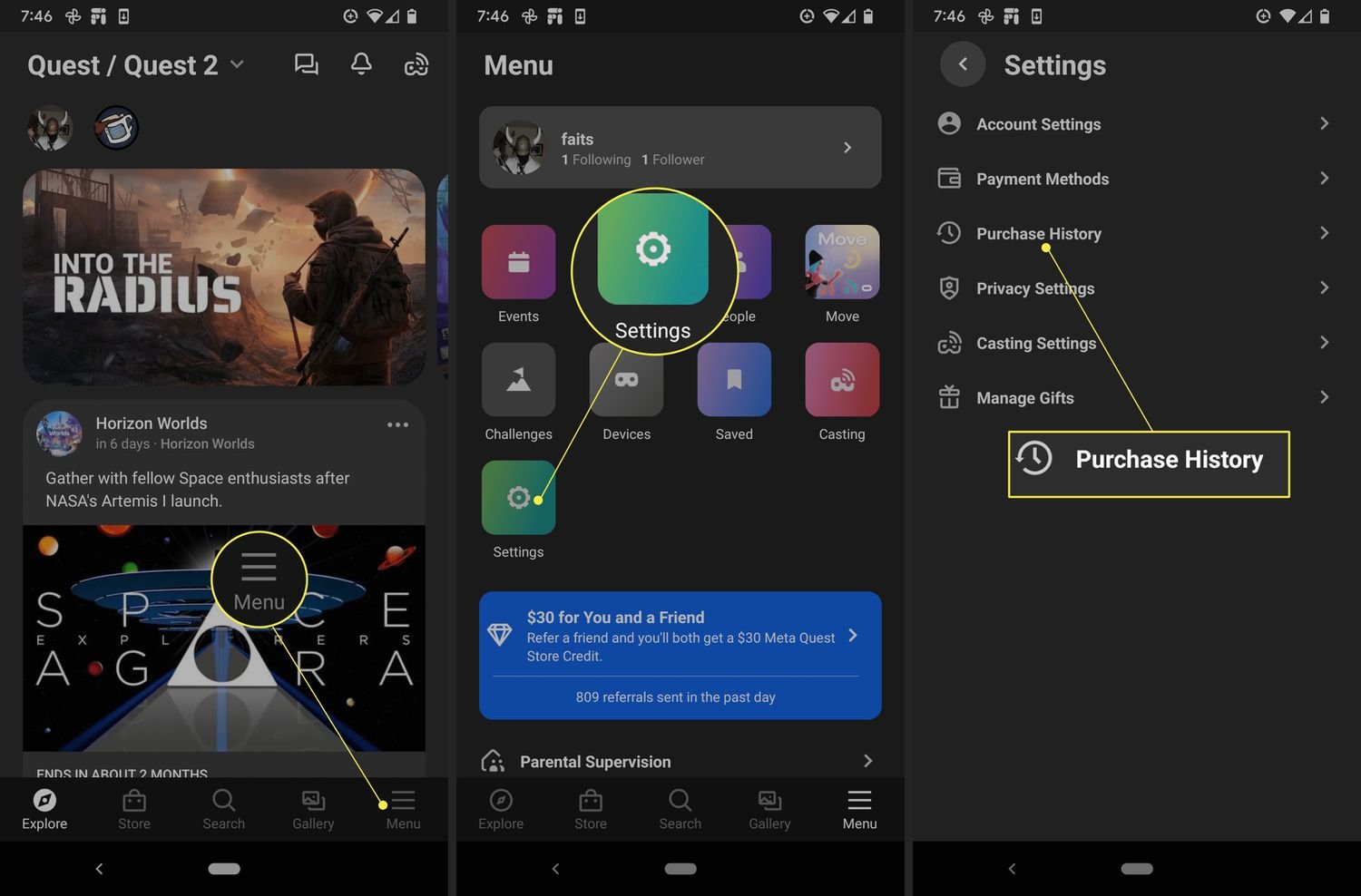
- Open the Meta Quest App: On your phone, find and tap the Meta Quest app to open it. If you don’t have it, you’ll need to download it from the app store (Apple App Store for iPhones or Google Play Store for Androids).
- Go to Your Menu: Find your profile picture or a menu icon. It’s usually in the bottom or top corner of the app.
- Find Purchase History: Look for something like “Purchase History” or “Transaction History.” This is where all of your game purchases are listed.
- Select the Game: Tap on the game you want to return from the list.
- Click Request a Refund: You should see a button or option that says “Request a Refund.” Tap it.
- Fill Out the Information: You might be asked a few questions about why you’re returning the game. Be honest, but there is no need to give too much details. Meta just needs to understand that your refund request is legitimate.
- Submit the Request: Tap “Submit” or a similar button to send your request.
Requesting a Refund on the Meta Website
You can also request a refund via Meta’s website through a computer. Here are the steps:
- Go to the Meta Website: Open your web browser and go to the official Meta website (meta.com).
- Log In: Click on the login button and enter the email and password you use for your Meta Quest account.
- Go to Account Settings: Find your account settings. This is usually under your profile picture or account name.
- Find Purchase History: Look for an option such as “Purchase History” or “Order History”.
- Select the Game: Click the game that you want to refund from the list of your purchases.
- Request a Refund: You should see an option to request a refund. Click on it.
- Fill out the Details: Similar to the app, you may be asked to provide a reason for the refund request. Provide necessary info.
- Submit Your Request: Click the “Submit” button to send in the request.
What Happens After You Request a Refund?
After you submit a refund request, here’s what usually happens:
Processing Time
Meta will review your request to make sure that you are within their return window and that your purchase is eligible for a refund. This usually takes a few business days. Remember that weekends and holidays don’t usually count as a business day.
Approval or Rejection
If your refund request is approved, you’ll get an email to tell you. The money will usually go back to the original payment method that you used for purchase. This might be your credit card, debit card or PayPal account. If your request is rejected, Meta will tell you the reason. You can always contact them again to ask questions or for clarification.
Time for Refund to Appear
It might take a few extra days for the money to show up back in your account. The time depends on the way you paid and your bank or financial institution. Just be patient. Most refunds occur within 7-10 business days.
Troubleshooting Common Refund Problems
Sometimes, things don’t go as smoothly as we’d like. Here are some common problems and how to fix them:
Refund Rejected Even When You Met the Rules
If you think you followed the rules but your refund was rejected, first, double-check all the times and dates. Sometimes, we might mistake the date, or it’s possible to forget you’ve played longer than you thought. If you are sure about all the details, you should reach out to Meta customer support. Be polite and clear, explaining your situation and why you believe you deserve a refund.
Not Seeing the “Request Refund” Option
If you cannot see the “Request Refund” button, it could mean that your purchase is too old. Double check the purchase date to make sure it is within 14 days and also check the gameplay time to be sure you haven’t exceeded the 2 hour limit. If those conditions are met and you still don’t see the button, contact Meta support and ask for help.
Refund Taking Too Long
Sometimes refunds take longer than we expect. It’s normal for refunds to take a few business days to appear in your account. If it has been more than 10 business days and you still don’t see a refund, contact Meta Support to find out what is going on. There could be a delay or an issue with the processing of your payment.
Tips for Avoiding Refund Issues
The best way to deal with refund issues is to avoid them in the first place! Here are some tips to help you:
Read Reviews Before Buying
Before you buy a game, look at reviews from other people. See what they think about it. Did they have any issues? Is the game too hard? These reviews can help you figure out if a game is a good fit for you before you even purchase it.
Use the Game Demos or Trials When Possible
Some games have free demos or trials. These allow you to try them before you buy the full game. If you see a game you like, check to see if there’s a demo first. This way, you can experience the game for yourself and see if you actually want to purchase it before needing a refund.
Keep Track of Play Time
Pay attention to how long you are playing a game. If you think you might want a refund, stay under two hours of gameplay. Keeping an eye on playtime helps in case you have doubts about keeping the game. A clock is usually the best tool for tracking time while gaming.
Don’t Buy Games on a Whim
Take some time to think before you buy a game. Don’t just buy one because it looks cool. Make sure that you are going to like playing it and that you’ve looked at gameplay trailers or read reviews before buying the game. Impulse buys may lead to needing to refund a game and may make the refund process inconvenient.
Exceptions to the Refund Policy
There are a few special situations where Meta might consider giving you a refund even if you don’t meet the standard rules.
Technical Issues
If a game has a lot of technical problems that make it unplayable, Meta may give you a refund. For instance, if the game crashes constantly or if the game is full of bugs, Meta may make an exception. Make sure to document these issues with screenshots or videos, and let Meta customer support know as soon as possible.
False Advertisement
If a game is advertised in a way that is very different from how it actually is, Meta may consider a refund. This is not very common, but if you believe that a game did not live up to what it promised, reach out to Meta for assistance. Provide details on what was advertised that was different than actual game experience.
Unintentional Purchases
If you accidentally bought a game, Meta might help you out. This could be someone else using your account or if you bought something without meaning to. Contact Meta right away, providing details of how the purchase was made unintentionally.
Knowing how to get a refund on Meta Quest games helps you to explore games without being worried of spending money on games that you do not enjoy. If you are within the 14 days and 2 hours limit, you can get a refund relatively easily through their website or mobile app. Keep the tips that you learned here in mind and you will have no problem enjoying Meta Quest games.
How to Refund Games on the Oculus Meta Quest 2
Final Thoughts
To refund a game on the Meta Quest, you must request it within 14 days of purchase and have played it for less than two hours. You can initiate a refund through the Meta Quest app or website.
The process is usually simple. However, not all games qualify. Meta checks to ensure you meet the requirements before issuing a refund. Remember these crucial steps for a smooth experience with ‘how to refund quest games’.

