
Unfortunately, you cannot directly remove Game Center from Mobile Legends as it’s integrated with your device’s settings.
Are you annoyed by the constant Game Center pop-ups in Mobile Legends? Many players find it bothersome. This article explains that you cannot entirely remove the integration because it’s tied to your device settings.
We understand the frustration that many players feel. Learning how to remove Game Center in Mobile Legends is something many search for. While direct removal isn’t possible, we’ll discuss some potential workarounds that can minimize its interference with your game play.

How to Remove Game Center in Mobile Legends
Okay, so you’re playing Mobile Legends and maybe you’re not too happy with Game Center being involved. Maybe it’s messing with your progress, or you just don’t like how it’s connecting things. Whatever the reason, you want it gone, or at least disconnected. It’s a pretty common thing, and thankfully, it’s something you can usually sort out. This guide will walk you through different ways to disconnect or manage Game Center in Mobile Legends.
Understanding Game Center and Mobile Legends
Before we jump into removing it, it’s good to understand what Game Center actually does. Game Center is an Apple service that helps keep track of your gaming progress, your friends, and achievements across different games on your Apple devices like iPhones and iPads. Mobile Legends uses it to connect your game account, save your progress, and for things like leaderboards and friend lists. The link is usually done automatically. Sometimes you might not want this automatic connection, so let’s see what we can do!
Why Would You Want to Remove Game Center?
There are several reasons why you might not want Game Center linked to your Mobile Legends account:
- Starting Fresh: Maybe you want to start over with a brand new account, and Game Center is automatically loading your old one.
- Account Conflicts: Sometimes, if you have multiple Game Center accounts, or accidentally linked the wrong one, it can cause problems.
- Privacy Concerns: You might not want all your gaming activity shared with Game Center.
- Troubleshooting: If your game is acting up, sometimes disconnecting and reconnecting Game Center can fix things.
- Preference: Some players prefer not to use Game Center, and like to manage their game saves differently.
Checking Your Current Account Link
First thing first, let’s take a quick look at how your Mobile Legends account is currently connected. Open the Mobile Legends app on your iPhone or iPad.
- Tap on your profile picture, usually found in the top-left corner of the screen.
- Look for the ‘Account’ button, or a section labeled similar. This can be different based on the version of the game.
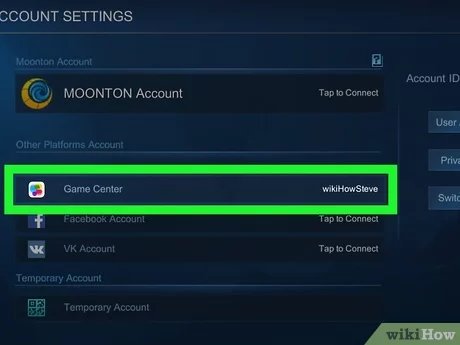
- You will see the connected account listed. If it is connected to your Game Center, it will show “Game Center” with your Apple ID.
Methods to Disconnect Game Center
Okay, now we know how it’s linked. Let’s explore some different ways to disconnect. It is important to note that you cannot directly “remove” Game Center as it is tied to your Apple ID. The strategies here focus on unlinking the game and managing how Game Center interacts with Mobile Legends.
Method 1: Unlinking Within Mobile Legends (If Possible)
Sometimes, game developers allow you to unlink an account directly from their settings, and this can help you manage your connection with Game Center. It’s worth checking if Mobile Legends itself has this feature:
- Go back to the ‘Account’ section inside Mobile Legends, as we did before.
- Look for an option that says “Unlink,” “Disconnect,” or something similar related to your Game Center connection. If you see it, try this first.
- Follow any instructions on the screen. They will probably ask you to confirm what you want to do, and that you understand what unlinking means.
- After unlinking, you might have to log out of the game and log back in to see the changes.
Important Note: Not all versions of Mobile Legends or every update have this option. If you don’t see a clear way to unlink, that means we will need to use the other methods below. However, It is always better to try this option first.
Method 2: Disabling Game Center in iOS Settings
This is a different way of approaching it. We can control whether Game Center is even allowed to connect to Mobile Legends within your iPhone or iPad settings. Let’s do this:
- Open the “Settings” app on your iPhone or iPad. You probably use this for a lot of things, and it is the one with the gear icon.
- Scroll down until you find “Game Center.” It’s usually between “General” and “Display & Brightness.”
- Tap on “Game Center.”
- You will see a toggle switch at the top. If it’s green, Game Center is on. If it’s grey, it’s off. You could turn Game Center completely off, but it could impact your progress on other games that are important to you.
- A better approach is to find the list of games, usually located at the bottom in the settings.
- Look for “Mobile Legends” in the list.
- Tap on “Mobile Legends.”
- Turn off the “Allow Game Center” setting just for Mobile Legends.
What This Does: This stops Mobile Legends from communicating with Game Center. Mobile Legends will not use your Game Center information to load your saved progress, which means it will either ask you to connect a different account or start a new one. If you turn off Game Center completely, none of your games that use it will connect. Be sure you are happy with that.
Method 3: Creating a New Game Center Account (Advanced)
This method is a bit more complicated, but it can be helpful in certain situations. It involves creating a different Game Center account, which you can then use to connect to Mobile Legends. This can be a bit lengthy, so make sure to do it carefully.
Steps to Create a New Apple ID (Game Center Account):
First, you’ll need to create a new Apple ID:
- Go to “Settings” on your device.
- Tap on your name at the top, if you are already logged in, or “Sign In to Your iPhone”
- Tap “Sign Out” to sign out of your current Apple ID.
- Then tap “Create a New Apple ID.” This will be below the sign-in options
- Follow the on-screen instructions, filling out your information (name, birthday, etc.). It is important to use a new email address for this account.
- Verify your email. Apple will send you a code to make sure it is a valid email.
- Once your new Apple ID is created, sign in with it on your device.
Connecting the New Game Center to Mobile Legends:
- Open Mobile Legends.
- Log out of your existing Mobile Legends account.
- The game will automatically check for a Game Center account and will prompt you to log in. Log in with your new Apple ID.
- Now the game should be linked to the new Game Center account, effectively separating it from your old one.
Important Note: Remember that any progress you had on the old account will still be tied to the old Apple ID/Game Center account. You are creating a completely new gaming environment using a new Apple ID/Game Center account.
Method 4: Using a Different Account (Facebook, VK, etc)
Mobile Legends lets you connect using other platforms like Facebook, VK, or your Moonton Account. If you wish to avoid Game Center altogether, here’s how to use another account type:
- Open Mobile Legends.
- Go to the “Account” area in your profile settings.
- You should see a list of different login options like Facebook, VK, or Moonton Account.
- If you have one, connect using one of these options. If not, create a new one. For example if you want to connect to Facebook, tap “Facebook” and you will be redirected to login. If you want to use Moonton account, first create a Moonton account.
- After linking the account, log out of your Game Center account from your Mobile Legends and log in using your new login method.
Benefit: This completely removes your reliance on Game Center for Mobile Legends. Your game data will now be linked with your Facebook, VK, or Moonton account.
Important Considerations
Before you go ahead and remove Game Center access from Mobile Legends, consider these points:
- Data Loss: If you don’t have another account linked, you risk losing progress. Make sure you are prepared to start over if needed.
- Account Security: Always be sure to keep your account information in a safe place, especially when you are using different accounts.
- Game Updates: Game updates can sometimes change how accounts are linked. So, things might look different from time to time.
- Device Syncing: If you have multiple iOS devices, ensure you understand how removing Game Center will affect your game progress across devices.
- Check with Support: If none of these methods are working, check the Mobile Legends support pages. They can have more ways to help that is specific to the current game version.
By going through these methods and carefully following the steps, you can effectively manage Game Center and your Mobile Legends account. Remember, it might take some time, and you might need to test different approaches, but you can do it!
Always make sure you have a backup of your game information before making big changes. Taking these steps will let you have more control over your gaming experience with Mobile Legends, and will help you play in the way you choose, not how your device chooses.
How To Disconnect Mobile Legends From Game Center
Final Thoughts
To remove Game Center in Mobile Legends, you must first access your device’s settings. Find the Game Center option.
Next, toggle the Game Center switch to the off position. This will disconnect your game from the service. This action successfully removes it from Mobile Legends.
If you still see a connection to Game Center, ensure it’s not linking via another platform. Remember, ‘how to remove game center in mobile legends’ is possible using device settings.

