
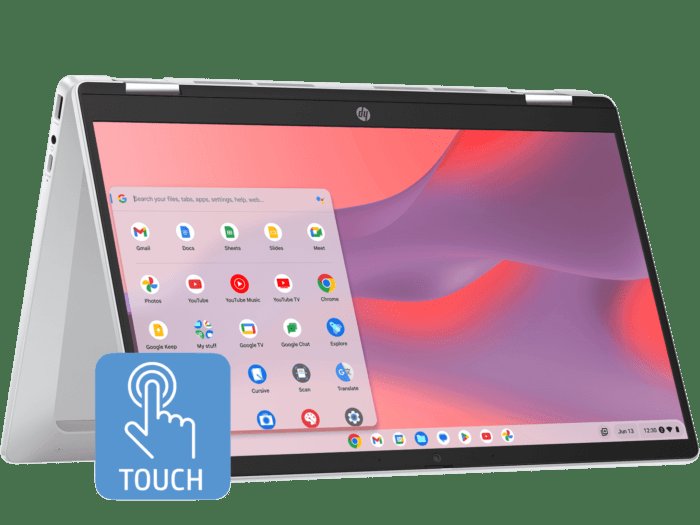
No, you cannot directly remove the Google Play Store (game store) from an HP Chromebook x360. It is integrated into the Chrome OS. However, you can disable it or control app access.
Frustrated with the game store on your HP Chromebook x360? Many users find it distracting or want to limit app usage. While a complete removal isn’t possible due to its integration with the operating system, there are effective ways to manage it. You can disable the Play Store and also control which applications have access.
This approach allows for a cleaner, more focused experience without requiring complex or risky system modifications. Let’s explore the simple steps involved in disabling this feature on your Chromebook.

How to Remove Game Store on HP Chromebook x360
Okay, so you’ve got an HP Chromebook x360 and maybe you’re not a big fan of having the game store hanging around. Maybe it’s taking up space or maybe you just don’t need it. Whatever the reason, you’re in the right place! Getting rid of the game store is totally doable, and we’re going to walk through it step by step. It might sound tricky, but it’s simpler than you think. We’ll talk about why it’s there, the different game stores that might be on your Chromebook, and most importantly, how you can remove it. Let’s jump in!
Understanding Game Stores on Chromebooks
Before we dive into removing anything, it’s a good idea to understand what we’re dealing with. Chromebooks, like your HP x360, are designed to be simple and fast. They rely on the internet for a lot of what they do, and most of their apps are web-based. But sometimes, they have apps that are meant to work more like apps on your phone or tablet. These apps can be from different places, and some of those places might have games.
The Google Play Store
The most common game store you’ll find on a Chromebook is the Google Play Store. This is the same store you use on Android phones and tablets. It has tons of apps, and that includes a lot of games. If you see a shortcut to the Play Store, that’s probably where the games are coming from. It’s important to know that the Play Store isn’t just for games; it also has other kinds of apps like drawing tools, school apps, and much more. So, when we talk about removing the “game store,” what we’re really often talking about is removing the access to the Google Play Store apps, which are source of games for some people.
Other Potential Game Sources
Sometimes, game apps might come from other places like a website that offers web-based games, or even pre-installed apps that the Chromebook came with. While these are less common, they are worth considering. They might show up as icons on your launcher or in your app list. We’ll cover ways to deal with these too. For example, if the game is available on website, you can block access to the site on the Google Chrome browser. If the game is a chrome extension, then you need to remove it from the extensions page. And also if it’s a chrome application, then you can uninstall it from the app settings page in chrome browser.
Why Remove the Game Store?
You might be wondering why someone would want to remove the game store. There are lots of good reasons! For example, if you use your Chromebook mostly for school or work, the games could be a distraction. Or maybe you are trying to use a computer that’s just for work and not play. Sometimes, too many apps can slow down your Chromebook. Removing the game store might help make it faster. Also, some people don’t want to play games, they just want to use their Chromebook for other things. Another common reason is parental control. Parents often want to limit what their kids can access on their devices, including games. Removing the game store is a way to do this.
Methods to Remove or Restrict Access
Now, let’s get to the good part: how to actually remove the game store. Since we’re often talking about the Google Play Store, or potentially other types of apps, there isn’t a single “remove the game store” button. Instead, we’ll explore a few different techniques to restrict or remove access to the games you’re trying to get rid of. These methods include disabling the Google Play Store, uninstalling individual game apps, blocking access to game websites, and disabling the extensions. Here are the methods you can try:
Disabling the Google Play Store
This is a pretty effective way to keep new games from being installed. When you disable Google Play Store, you are restricting access to all the apps, including games, available there. It won’t remove the games you already have, but it stops you from downloading new ones. Here’s how to do it:
- First, click on the clock at the bottom right of your screen.
- Then, click on the Settings icon (it looks like a gear).
- In the Settings menu, look for “Apps”. It might be on the left side or in the main window.
- Click on “Google Play Store”.
- You’ll see a switch that says “Turn on Google Play Store.” Click on the switch to turn it OFF.
- You’ll see a confirmation message. Click on “Turn Off” to confirm.
Now, the Google Play Store is disabled on your Chromebook. You won’t be able to access it or get new games. Remember, this doesn’t remove the apps you already have. It only prevents new downloads.
Uninstalling Individual Game Apps
If disabling the Play Store isn’t quite what you need, you might want to get rid of the games you’ve already downloaded. This is like deleting apps on your phone. Here’s how:
- Click the circle icon (Launcher) in the bottom left corner of your screen.
- Find the app you want to get rid of. You can scroll through the list or type the name in the search bar.
- Right-click (or two-finger click on the touchpad) on the game’s icon.
- Choose “Uninstall” or “Remove from Chrome.”
- Click “Uninstall” or “Remove” to confirm.
Repeat this process for each game you want to remove. This method will free up space on your Chromebook and get rid of the game completely.
Blocking Game Websites
Sometimes, games aren’t downloaded as apps, but are available on websites. If that’s the case, you can block those websites so that you can’t access the games. This is especially useful if the games don’t have a particular app icon.
Using Chrome’s built-in settings
You can use Chrome’s settings to block specific websites. Here’s how:
- Open the Chrome browser.
- Click on the three vertical dots at the top right corner of the window.
- Click on Settings.
- Click on “Privacy and security” on the left panel
- Click on “Site Settings”
- Scroll down to “Content” and click on “Additional content settings”
- Click on “Blocked sites”
- Click on the “Add” button next to “Blocked list”
- Type the URL of the game website that you want to block.
- Click on “Add”.
Now, if you try to go to the game website, Chrome will block it.
Using Extensions
There are Chrome extensions that can also help you block websites. Some of these extensions are more advanced and can even let you set up times when certain websites are blocked. If you want to explore extensions, open the Chrome Web Store and search for “website blocker.”
Before you install extension, make sure it is safe to use, read the reviews and ratings about it. These steps are important.
Disabling Game-Related Chrome Extensions and Applications
Sometimes, games may be installed as extensions or applications within the Chrome browser itself. To manage these, follow these steps:
Removing Chrome Extensions
- Open the Chrome browser.
- Type
chrome://extensionsin the address bar and press Enter. - You’ll see a list of the installed extensions.
- Find the game-related extension that you want to remove.
- Click the “Remove” button next to the extension.
- Click “Remove” to confirm.
Uninstalling Chrome Applications
- Open the Chrome browser.
- Type
chrome://appsin the address bar and press Enter. - You’ll see a list of the installed applications.
- Find the game application that you want to remove.
- Right click on the app and then click on remove from chrome option.
- Click “Remove” to confirm.
By removing unnecessary extensions and applications, you can not only prevent access to games but also free up resources on your browser.
Parental Controls
If you are a parent trying to keep games away from your child’s Chromebook, Chrome OS provides a way to set up parental controls using Google Family Link. This is a more powerful method than just disabling the Play Store. It allows you to manage what your child can do on their Chromebook from your own device. It can be very useful in restricting access to games. If you are planning to setup parental controls using Family Link, then consider to research on that, as these steps are not related to removing game store but related to parents who want to control what their children can access in their computers.
Considerations
Before you start making changes, here are a few things to keep in mind. First, removing or disabling the Play Store or game apps won’t affect any of your other apps or settings. It also doesn’t change anything about your Chromebook’s operating system. It only restricts access to Google Play Store and individual game apps. Also, if you ever want to get the game store back, you can follow the instructions in reverse order. If you want to use the Play Store again, turn it back on in Settings. If you removed an app you can re-install it again using Google Play Store.
Also, some games can save data locally, make sure to keep your data backed up if you feel that they can disappear from the device after uninstalling some games. Also, when you are blocking the websites, you can accidentally block other websites. So, please be cautious when adding websites on blocklist. And if you are using extensions for blocking websites, keep in mind that the extensions you installed can access your data, so install extension from well know publishers or developers.
Finally, remember to restart your Chromebook after making these types of changes. This ensures that the changes you make take effect properly. Sometimes, you won’t see the change immediately without doing a restart. It helps your Chromebook refresh itself after you remove or block apps or websites or when you make some changes to the settings.
Removing the game store from your HP Chromebook x360 might seem like a big deal, but it’s really about making your Chromebook work the best way for you. Whether it’s disabling the Play Store, removing individual game apps, blocking game websites, removing browser extensions, or using parental controls, you have a lot of options available. Pick the method that suits your needs best and enjoy a Chromebook that’s just right for you.
How to Get Google Play Store on Chromebook (EASY!)
Final Thoughts
To remove the game store, first disable Google Play Store. Navigate to settings and find “Apps”. Select Google Play Store, and then click “Turn off”. The game store should now be gone from your device.
Disabling the Play Store effectively removes access to all associated apps. This means games and the game store itself. This is the method for how to remove game store on hp chromebook x360.

