
To remove games from your Android phone, you can either uninstall them directly from the app drawer or within the Google Play Store.
Is your phone bogged down with games you no longer play? We all have those apps we installed with enthusiasm only to forget about later. Knowing how to remove games from android phone can free up valuable storage space and improve your phone’s performance.
It’s surprisingly simple, really! You’ll find a couple of straightforward ways to delete those unwanted games. So, let’s get right to it and reclaim your device’s precious memory.

How to Remove Games from Your Android Phone
Okay, so you’ve got a bunch of games on your Android phone. Maybe you’re not playing them anymore, or maybe they’re taking up too much space. Whatever the reason, it’s time to learn how to get rid of those games! Don’t worry, it’s actually quite easy. This guide will walk you through all the different ways you can remove games, making sure your phone is tidy and ready for new adventures.
Understanding the Basics: Deleting vs. Uninstalling
Before we jump into the how-to, let’s understand the difference between “deleting” and “uninstalling” an app. When you delete a game from your home screen, you’re just removing its shortcut. The game is still on your phone, taking up space. To truly get rid of a game, you need to uninstall it. Uninstalling completely removes the game and all its data from your phone. It’s like taking a toy you don’t want anymore and putting it completely away.
The Quick and Easy Way: Uninstalling from the Home Screen or App Drawer
This is often the quickest way to uninstall a game on your android phone. Here’s how to do it:
- Find the Game Icon: Go to your home screen or app drawer (where all your apps live). Locate the game you want to remove.
- Long Press the Icon: Tap and hold your finger on the game icon for a couple of seconds.
- Look for the Uninstall Option: A menu should pop up. You might see words like “Uninstall,” “Remove,” or sometimes just a trash can icon.
- Tap Uninstall (or Remove): Tap the “Uninstall” or “Remove” option. Your phone will then ask you to confirm that you want to uninstall the game.
- Confirm Uninstall: Tap “OK” or “Uninstall” on the confirmation message. The game will be gone!
Note: The exact wording and appearance of the menu might vary slightly depending on your phone’s brand and Android version.
Uninstalling Games Through the Settings App
Sometimes, the “long press” method doesn’t always work perfectly, or maybe you want to see a full list of all the apps on your phone. That’s where your phone’s settings come in handy. This method is also very helpful to see how much storage space each game is taking.
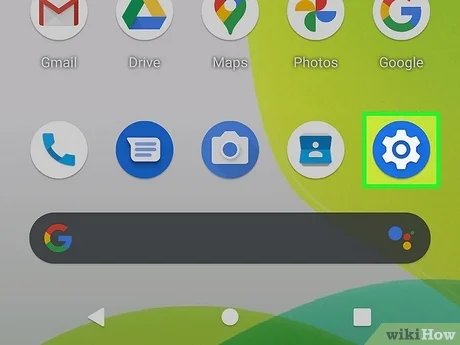
- Open Settings: Find the Settings app (usually a gear icon) and tap it.
- Go to Apps: Look for the section called “Apps,” “Applications,” or “Apps & Notifications.” Tap it.
- Find Your List of Apps: You’ll see a list of all the apps installed on your phone. This list is often in alphabetical order, making it easy to search for a specific app you want to remove.
- Locate the Game: Scroll through the list or use the search bar (if available) at the top to find the game you want to uninstall.
- Tap on the Game: Tap on the game’s name. This will take you to the game’s app info screen.
- Tap Uninstall: On the app info page, you should see an “Uninstall” button. Tap it.
- Confirm Uninstall: Just like before, your phone will ask you to confirm. Tap “OK” or “Uninstall” to finalize the process.
Sorting Apps by Size
If you’re looking to free up a lot of space, it can be helpful to sort your apps by size. Here’s how:
- Follow Steps 1-3 Above: Open the Settings app and navigate to the “Apps” section.
- Find a Sort Option: Look for a menu button (often three dots in the upper-right corner) or a “Sort” option.
- Sort by Size: Tap the “Sort” option and choose “Size” or “Storage.” The apps will now be listed from largest to smallest. This makes it easy to see which games are taking up the most space.
- Choose Games to Uninstall: You can now uninstall large games that you’re not playing anymore.
Uninstalling Games from the Google Play Store
You can also uninstall games directly from the Google Play Store. This method is useful if you remember downloading the game from the play store and want to use the same app to uninstall it. Here’s how:
- Open Google Play Store: Find the Play Store app (usually a triangle icon with colors) and tap it.
- Tap Your Profile Icon: Tap your profile picture or the initial of your name at the top-right corner of the screen.
- Manage Apps and Device: In the menu, tap “Manage apps & device.”
- Go to Manage Tab: Tap “Manage”. Here, you will see all installed apps on your phone.
- Find the Game: Scroll or search for the game you want to remove.
- Select the Game: Check the box next to the game you wish to remove.
- Uninstall Option: Tap the trash can symbol or the uninstall icon at the top of the screen.
- Confirm Uninstall: Your device will confirm, and the game will be removed.
What About Games That Came Pre-Installed?
Some games are pre-installed on phones, meaning they were there when you first got the device. These games can sometimes be a little trickier to remove.
Uninstalling Pre-Installed Games (If Possible)
Some pre-installed games can be uninstalled just like any other app, using the methods we discussed earlier. However, some cannot. In that case, you’ll see the uninstall button is grayed out or not active. In other words, you will not be able to uninstall them using simple methods.
Disabling Pre-Installed Games (If Uninstalling Isn’t an Option)
If you can’t uninstall a pre-installed game, you might be able to disable it. Disabling an app prevents it from running, using up resources, or showing up in your app drawer. Here’s how to disable a pre-installed game:
- Follow Steps 1-5 Under Settings: Open the Settings app, go to the Apps section, and find the game you want to disable.
- Look for the Disable Option: If the “Uninstall” button isn’t active, you might see a “Disable” button instead. Tap it.
- Confirm Disabling: Your device may ask you to confirm. Tap “Disable app” to confirm.
Note: Disabling an app won’t remove it completely from your phone, but it will stop it from running or showing up. You can always enable it again later if you change your mind.
Using Third-Party App Managers
There are some third-party apps, also known as app managers, available on the Play Store that can help you manage your apps, including uninstalling them. While not strictly needed, these apps can provide additional features like batch uninstalling (uninstalling multiple apps at once) or detailed storage information. It is generally advised to avoid using such apps, as it might not be safe to download third-party applications, especially when you do not need them. However, if you choose to use a third-party app manager, download them from reputable sources only like Google Play store only.
Clearing Game Data
Sometimes, even after uninstalling a game, some leftover data might still be on your phone. It’s not common but if you feel the storage space is not freeing up as you thought, you may want to clear the data. Usually, clearing data is not required after you uninstall a game.
To clear the cache and data for the game you’ve already uninstalled:
- Open Settings: Go to Settings app on your phone.
- Navigate to Apps: Look for Apps or Applications.
- Select the Game App: Tap the uninstalled app, you might see the app name grayed out.
- Storage: Tap on “Storage & cache”.
- Clear Data and Clear Cache: You may see “clear data” or “clear storage” button and clear the cache button. Tap on them to clear data.
A Quick Note About Cloud Saves
Many games these days have cloud save features. This means your progress and data are saved online. Even if you uninstall a game, you might not lose all your progress if it’s linked to your account. When you reinstall the game, you can usually restore your saved progress and data. But some game data might be stored only on the device. so it is always better to check with game settings before uninstalling it if the game data is stored on device only.
Why Uninstalling Games is a Good Idea
- Free up space: Games can take up a lot of storage. Removing games you don’t use makes room for other things like photos, videos, or more music.
- Faster Phone: Less apps can make your phone run a little faster and smoother.
- Better Organization: A cleaner app drawer and home screen makes it much easier to find the apps you need.
- Reduced Distraction: If you are looking to focus better and reduce game time, uninstalling the game you play most often is a good option.
And that’s pretty much it! Removing games from your Android phone is quite simple once you understand how it works. You can do this via the home screen, through Settings, or even the Play Store. Now you can manage your phone space more efficiently, declutter, and make your android device work better.
how to remove or hide games in Android phone (remove instant apps)
Final Thoughts
To remove games from your android phone, you can long-press the game icon and select “uninstall”. Another way is to navigate through settings, then apps, find the specific game and tap “uninstall”.
You also can use the play store. Go to the “manage apps and device” area, find the game in the list and select the uninstall option. This gives you multiple simple ways for how to remove games from android phone.

