
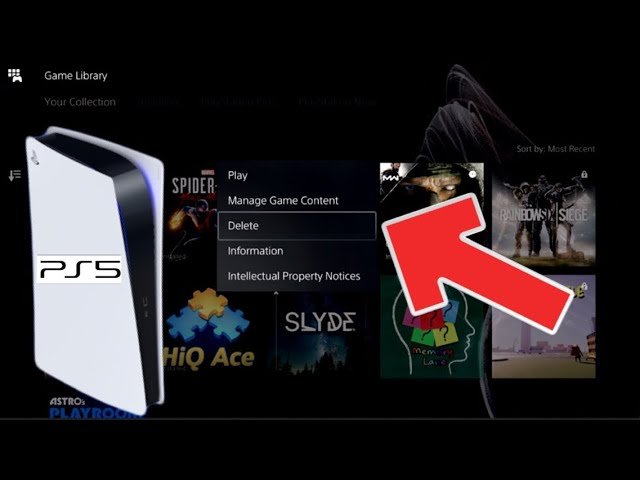
To remove games from library PS5, you must first navigate to your Game Library, select the game, press the Options button, and then choose “Delete”.
Ever felt your PS5 library getting a little cluttered? It happens to the best of us. So many great titles, but sometimes you just want things neat. The question on many gamers’ minds is how to remove games from library ps5.
It’s actually quite a simple process once you know where to look. You can quickly declutter your digital collection with just a few steps. We’ll guide you through these easy actions.

How to Remove Games from Library PS5
Okay, so you’ve got a bunch of games on your PlayStation 5, and maybe your library is starting to look a little crowded. Maybe you finished a game and don’t want it cluttering up the list, or perhaps you just want to keep things tidy. Don’t worry, managing your game collection is easier than you think! While you can’t fully “delete” a game from your library (if you have purchased it or claimed it), you can hide games you no longer want to see. This guide will walk you through every step on how to remove games from your PS5 library. We’ll cover different scenarios and explain what you can and can’t do to get your game library looking exactly the way you want it.
Understanding the PS5 Game Library
Before we dive into the how-to, let’s first understand how the PS5 game library works. It’s a bit different from previous consoles, and it’s important to know the differences. On the PS5, your library isn’t just a list of games you’ve installed. It also keeps track of games you’ve purchased digitally, games you’ve claimed through PlayStation Plus, and games you may have played on disc. This is great because your library is like your own history of PlayStation games.
What’s Included in Your Library?
- Purchased Games: These are games you bought from the PlayStation Store, either digitally or using a code. They’ll be in your library, even if you delete the game from your console.
- PlayStation Plus Games: Games you’ve “claimed” through your PlayStation Plus subscription are also added to your library. Even if your subscription lapses, these games will remain in your library, ready to download when you resubscribe.
- Games you’ve played on disc: Even if you no longer have the disc in your possession, the title will appear in your library. This helps you keep track of games you’ve played on your account.
What You Can’t Do
It’s important to note that you cannot permanently delete a game from your library if you have purchased it, or claimed it through PlayStation Plus. Once added, they stay there. This is a security measure that helps ensure you can easily redownload your games at any point. Think of it like a digital receipt – it’s always there just in case you need it again. So, instead of outright deleting, what you can do is organize and hide.
Hiding Games from Your PS5 Library
Now, let’s get to the practical part. Instead of deleting, we’ll focus on hiding games you don’t want to see. The process for hiding games is not complex, and is a great way to clean up your game list. This is especially useful when you have a long list of games and you just want to get to what you are actively playing, or plan to play soon. Here’s how to do it:
Steps to Hide a Game
- Go to Your Game Library: From your PS5’s home screen, go to the “Games” section, which is to the left of the main banner. Then select “Your Collection” which is the icon that looks like a bookshelf and you will be taken to your Game Library.
- Find the Game You Want to Hide: Scroll through your game list until you find the game you want to remove from view.
- Press the Options Button: Once you have highlighted the desired game, press the Options button on your controller. It’s the small button with three horizontal lines next to the PS button.
- Select “Hide”: A menu will pop up. Select the “Hide” option.
- Confirm the Change: The game will now disappear from the main view of your library.
Where Did the Game Go?
Don’t worry, the game is not gone forever! It’s just hidden. To view hidden games, you can simply navigate to the library and when you are on the screen with the game list. You have options at the top of the screen which are “Your Collection”, “PlayStation Plus” and “Installed”. There are also 3 small dots to the side of these options. Select that, and you will see the option to view your “Hidden Games”.
You can find this list of hidden games by accessing those 3 dots which are located at the top right of the game library screen. Once you are viewing this list of Hidden Games, you can reverse the hiding process, by selecting the “Unhide” option. From here you can choose to unhide any game you have hidden.
Different Ways to Organize Your Game Library
Hiding games is one way to tidy up, but there are other useful features you can utilize to manage your library effectively.
Using Game Lists
The PS5 allows you to create custom lists to organize your games. This is especially helpful when you want to group your games by genre, single player, co-op or just create a list for the games you want to play next.
Here is how to create and use game lists:
- Go to your game library and locate “Your Collection”.
- Select the “Create Game List” button that is located on the right of your screen. It looks like 3 squares with a + sign on them.
- A screen will appear and you will be prompted to enter a name for your list. Add a name.
- Select all the games you wish to add to the list, and select confirm.
- Now you can view your list by selecting it, from the main game library screen.
Sorting Your Library
You can also sort your games by various criteria, which helps you find what you are looking for quickly.
- Alphabetical Order: Sort your games from A to Z. This is useful for quickly finding a specific title.
- Recently Played: Sort your games by when you last played them. This is helpful for keeping track of the games you’re currently engaged with.
- Installation Status: You can sort your games by if they are installed on the console. This helps separate games that are downloaded to your console, from the ones which are not currently downloaded.
Managing Games from PS Plus
PlayStation Plus games are handled slightly differently, as they’re tied to your subscription. As mentioned, you can’t fully remove them, but you can keep them hidden from your game library when not actively subscribed.
How PlayStation Plus Games Work
When you claim a game through PlayStation Plus, it’s added to your library, even if you don’t download it right away. This means the games are available for you to download and play for as long as you have an active subscription. If your subscription ends, you won’t be able to play these games until you renew, however, they remain in your library.
Hiding PlayStation Plus Games
The method for hiding games from the game library, which are part of Playstation Plus is the exact same as the standard method. You still can’t fully delete them from your library, but you can hide the titles from view.
Managing Games Played on Disc
Even games you’ve played on disc will appear in your game library. This can be useful if you want to keep track of all the games you have played on your account. You will still follow the same steps to hide the games in this library as previously described above.
Games Removed from PlayStation Store
Sometimes, you might have games that are no longer available on the PlayStation Store. These games will still remain in your library, and can be re-downloaded if you have previously had them downloaded on your console.
Important Considerations
While these steps are straightforward, there are some important things to consider as you manage your games.
Storage Space
Hiding a game doesn’t free up any storage space on your console. To free up space, you need to delete the game from your system storage. Here is how to do that:
- Go to your game library.
- Highlight the desired game.
- Press the options button.
- Select “Delete”.
It is good to know that deleting a game does not remove it from your library, only from your system storage.
Multiple Accounts
If you have multiple accounts on your PS5, you will need to manage each account’s game library separately. Hiding games on one account will not hide them on another.
Redownloading Games
If you want to play a hidden game again or delete the game from your system storage and you now want to redownload it, it’s easy to do so. Go to your “Hidden Games” list, or the main game list and locate the game you want to download. Select it and then select “Download”.
And there you have it! Managing your game library on the PS5 isn’t about permanent deletion, but about smart organization and hiding. By using the methods outlined above, you can keep your library clutter-free and make it easier to find the games you are looking for. Enjoy your organized gaming experience!
How to Delete Games From PS5 Collection & Library (Fast Method!)
Final Thoughts
To summarize, you can’t directly delete games from your PS5 library. However, hiding them is easy. Navigate to the Game Library, press Options, and select “Hide.” This removes the game from your main list.
You can always find hidden items in the “Your Collection” filter. This option shows all titles, including the hidden ones. Therefore, you’ve effectively learned how to remove games from library ps5 by hiding, not deleting.

