
To remove games from Steam, right-click the game in your library, select ‘Manage,’ and then choose ‘Uninstall’.
Ever found your Steam library overflowing with games you no longer play? It happens to the best of us. Managing that collection can feel like a chore, especially when space is at a premium. Knowing how to remove games from Steam becomes essential for a tidy and efficient gaming experience.
This process is quite straightforward and will reclaim storage space. The step by step guide will help you in cleaning your game list. Enjoy more space for new games or other important files on your computer.

How to Remove Games from Steam
Okay, so you’ve got a Steam library that’s maybe getting a little too full, right? Maybe you finished a game and you’re ready to say goodbye, or perhaps you accidentally bought something you don’t actually want. Whatever the reason, knowing how to remove games from Steam is a helpful skill. It’s like decluttering your digital shelves! This article will guide you through all the ways you can manage your Steam games, whether it’s uninstalling, hiding, or permanently removing them. We’ll take it slow, step-by-step, so you can easily manage your games. Let’s get started!
Understanding the Different Ways to “Remove” Games
Before we dive into the how-to, it’s important to know that there are different levels of “removing” a game from Steam. It’s not always a simple delete button situation. Here’s a quick breakdown of the main options:
- Uninstalling: This is like taking a book off your shelf and putting it in storage. The game is no longer taking up space on your computer’s hard drive, but it’s still in your Steam library and ready to be installed again if you change your mind.
- Hiding: This is like putting a book on a less visible shelf. The game is still in your Steam library, but you can’t see it in your main list. It’s good for games you might want to play again someday but don’t need to see all the time.
- Permanently Removing: This is like giving a book away. The game is completely removed from your Steam account, and you can’t easily get it back. This is usually only done if you made a mistake purchase or if Steam’s support team approves the removal.
Now that you know the differences, let’s learn how to do each of these!
Uninstalling a Steam Game: The Storage Saver
Uninstalling games is the most common way to manage space on your computer. Here’s how you do it:
Step-by-step guide to Uninstalling
- Open Steam: First things first, open up the Steam app on your computer.
- Go to your Library: Click on “Library” at the top of the Steam window. This takes you to your list of all your games.
- Find Your Game: Scroll through your list or use the search bar to find the game you want to uninstall.
- Right-Click the Game: Once you’ve found the game, right-click on it. A menu will pop up.
- Select “Manage”: In that menu, look for the option that says “Manage.” Hover over it, and another menu will appear.
- Click “Uninstall”: In this second menu, click on “Uninstall.” Steam will ask if you’re sure you want to uninstall the game.
- Confirm: Click “Uninstall” again to confirm. Steam will start the uninstallation process. You’ll see a progress bar indicating the process.
- Wait for Completion: Wait for Steam to finish uninstalling. It might take a few seconds or minutes depending on the size of the game. Once it’s done, you’re all set! The game is no longer taking up space on your computer.
That’s it! The game is now uninstalled, but it’s still in your Steam library if you ever want to play again. You can always reinstall it with just a few clicks.
Hiding a Game: Making it Disappear (Mostly)
Hiding a game is handy if you have a large library and just don’t want to see certain games all the time. They are still there and can be found, but they are not in your main list.
How to Hide a Game on Steam
- Open Steam and go to your Library: Just like before, open Steam and go to your “Library”.
- Find the Game You Want to Hide: Scroll or search for the game in your library.
- Right-Click the Game: Right-click the game’s name.
- Select “Manage”: Hover over the “Manage” option.
- Choose “Hide this game”: Click “Hide this game” in the submenu.
The game will disappear from your main library list. Don’t worry, it’s not gone forever!
How to See Your Hidden Games
To view your hidden games, follow these steps:
- Click the “View” menu: In the Steam window at the top, click on “View”.
- Select “Hidden Games”: In the drop-down menu, click on “Hidden Games”.
You’ll now see all the games you’ve hidden. To unhide a game, right-click it and select “Manage” then “Remove from Hidden”.
Permanently Removing a Game: The “Final Goodbye”
Okay, now for the big one: permanently removing a game. This option is more complicated and is not available for all games. Steam does not make it easy to permanently remove the games from your library. This option is only typically used when you made a mistaken purchase, or for other special cases. However, once you remove the game it will be gone from your Steam account, and if you wish to play the game again you need to buy it again.
When to Consider Permanently Removing a Game
Here are a few examples of when this might be useful:
- Mistake Purchase: You bought the wrong game by mistake and want to remove it from your account.
- Steam Support Request: Steam support may remove certain types of games in special cases.
- For Cleanliness: You really, really want to remove a game and are willing to lose access to it.
It’s important to think twice before doing this, because getting the game back isn’t always easy.
How to request a Game Removal from Steam Support
Steam doesn’t have an easy “remove permanently” button. If you want to do this, you usually need to contact Steam Support. Here’s how:
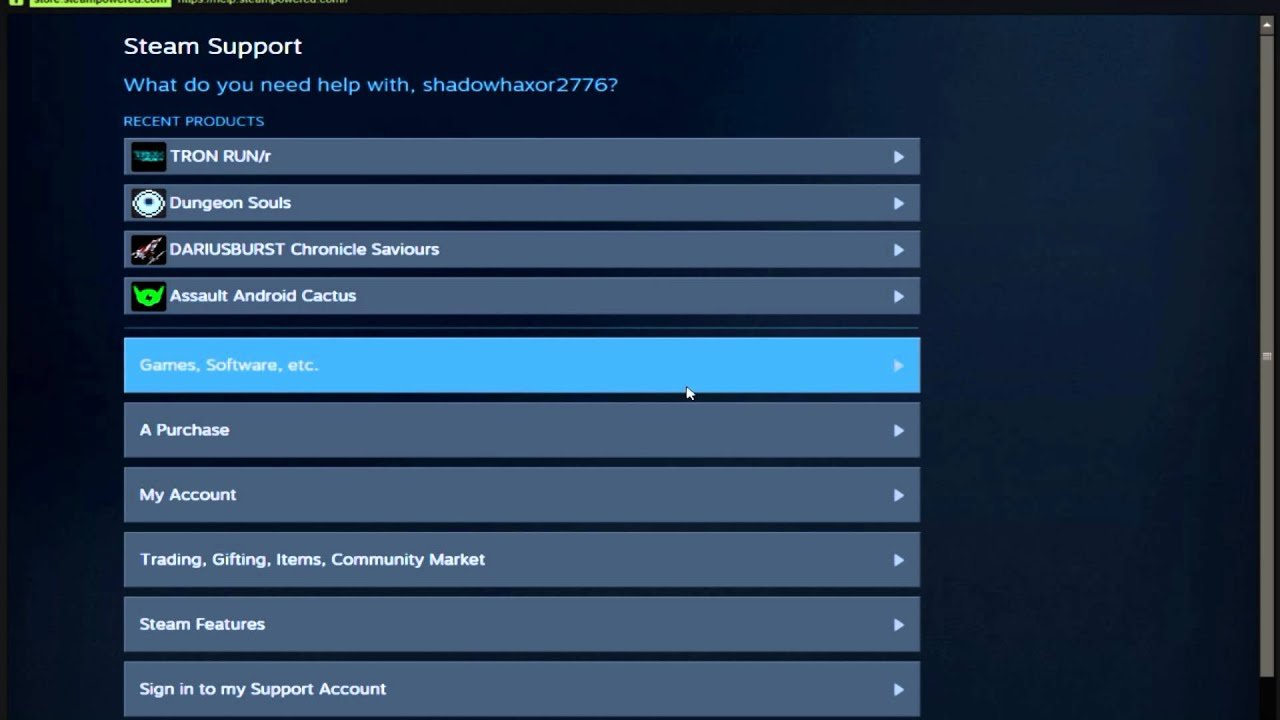
- Open Steam Support: Go to the Steam Support website. You can do this by clicking the “Help” menu in the Steam client, and then selecting “Steam Support.” Or you can search for “Steam Support” on the internet.
- Log In: If you aren’t already logged in, sign in with your Steam account details.
- Find Your Game: You can either select the game from recent purchases or click “Purchases” at the top. Then search or scroll to the game you want to remove.
- Select the game: Click on the game you wish to remove from your account.
- Select the reason: Select the game from the list of your purchases. Then, choose a topic, like “I made a purchase by mistake,” or “I want to remove this game from my account.” The option you need is not easy to find but keep clicking the options, you can eventually find the option to ask steam to remove this game permanently from your account.
- Submit Your Request: Follow the instructions to submit your request to Steam support. It will usually involve filling out a form or explaining why you want the game removed.
- Wait for Steam Support: Steam support will then review your request, they do not make the permanent removal easy, and will likely push back with different responses. It may take a few days for them to respond. Steam will likely approve it if you made a mistake purchase or if you have other valid reasons. If they do approve it, the game will be permanently removed from your library.
This is not a fast process and is not recommended unless you are sure that you do not want to play the game again and it is the only method of removal.
Using Steam Filters and Categories for Organization
While we’ve talked about removing games, let’s also touch on organizing them. Steam lets you create categories and use filters to make finding your games easier.
Creating Game Categories
Categories are a bit like folders for your Steam games. This makes it easier to find the games you want to play.
- Go to Your Steam Library: Open Steam and go to your “Library.”
- Right-Click a Game: Find the game you wish to add to a category and right-click.
- Select “Categories”: Move your mouse over the “Categories” option.
- Create a New Category: In the new pop-up window, type in the name of your new category, such as “Finished Games,” “Multiplayer,” or “Favorites.”
- Add More Games: You can add many games to the same category by right-clicking and selecting the category you created.
You can create as many categories as you like, helping you organize your games in the best way possible.
Using Filters in Your Library
Filters let you sort your games by various criteria like install status, last played date, and more.
- Installed Games: Shows only games that are currently installed on your computer.
- Uninstalled Games: Shows only games that are not currently installed.
- Recent Play: Sorts games based on when you last played them, which can help you find what you’ve been playing recently.
- Category Filtering: When you have categories set up, you can use them as a filter in the library, allowing you to show only specific games from categories.
Filters are a great way to quickly sift through your library without permanently deleting anything, but instead, showing only the games you wish to see.
A Quick Table Recap
Let’s recap everything in an easy-to-read table:
| Action | Description | How To | Game Library Impact | Can Revert? |
|---|---|---|---|---|
| Uninstalling | Removes game files from your computer’s hard drive. | Right-click > Manage > Uninstall | Game remains in library. | Yes, re-install anytime. |
| Hiding | Hides a game from your main list of games. | Right-click > Manage > Hide this game | Game remains in library, but is hidden. | Yes, unhide in hidden games list. |
| Permanently Removing | Removes game permanently from your Steam account. | Contact Steam Support | Game removed from library. | Difficult, likely require repurchase. |
| Creating Categories | Creates folders to organize your library. | Right-click game > Categories > New Category | Game remains in library, but is categorized. | Yes, change/remove anytime. |
| Using Filters | Sorts library based on different parameters. | Use filter options at the top of library | Game remains in library, only filtered view. | Yes, change filters any time. |
Knowing how to do all of this can help you manage your library, make your games easier to find, and clear space from your computer.
Managing your Steam library doesn’t have to be a chore. Whether you’re uninstalling games to save space, hiding them to declutter, or creating categories to stay organized, you’ve now got the knowledge to keep your Steam library neat and tidy. Remember, Steam is all about enjoying your games, so take the time to learn how to manage them to make your playing experience more fun and organized. Now, go forth and make your Steam library a better place!
How to permanently remove a game from Steam – Quick Guide
Final Thoughts
To remove a game, go to your Steam library. Right-click the title and choose “Manage”, then select “Uninstall”. This removes the game from your hard drive.
To permanently remove it, go to “Steam Support”. Find the game, select “I want to permanently remove this game from my account.” This is how to remove games from steam.
It is also possible to hide a game from your library view without uninstalling it. The must way to do this is by selecting “Set Categories” in the manage menu.

