
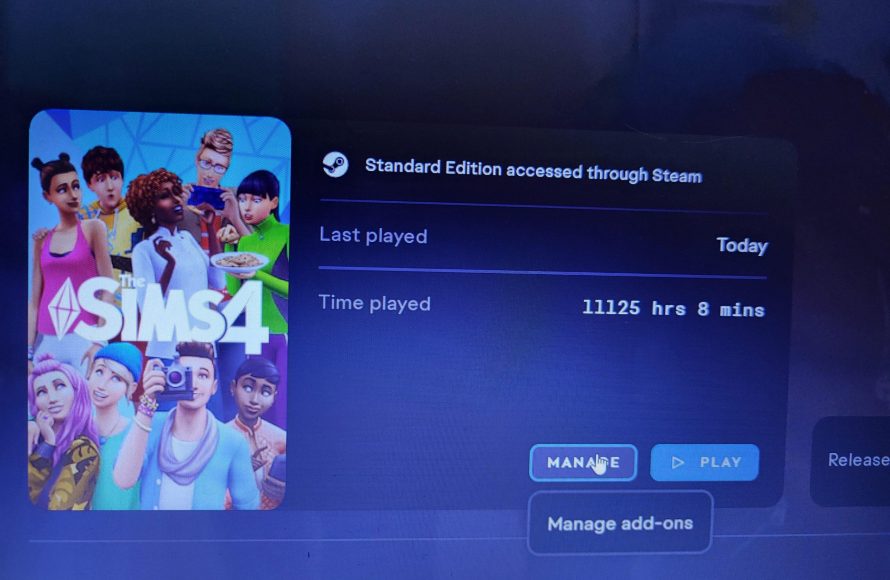
To repair game Sims 4, utilize the Origin or EA app’s built-in repair function by right-clicking the game and selecting the ‘Repair’ option.
Is your Sims 4 world glitching, freezing, or just plain acting weird? It’s a common frustration for players, but don’t worry! You can address many issues with a simple game repair. We’ll guide you through the process of how to repair game Sims 4 quickly and easily. It is an essential troubleshooting step for enjoying smooth gameplay.
Sometimes a few corrupted files can cause big problems. The repair tool will check and replace these files. This ensures you have a clean and stable game experience.

How to Repair Game Sims 4
Sometimes, even our favorite games like The Sims 4 can have hiccups. Maybe your Sims are acting weird, the game is crashing, or things just aren’t loading right. Don’t worry! These issues are often fixable. This article will guide you through simple ways to get your Sims 4 world back in perfect working order. We will explore different ways to fix common problems and what to do when things don’t go as planned.
Understanding Common Sims 4 Issues
Before we dive into fixing things, let’s talk about the usual suspects. Knowing what causes problems can help you prevent them in the future. Some common problems in The Sims 4 include:
- Game Crashing: The game suddenly closes, often without warning.
- Freezing or Lagging: The game becomes slow or stops responding for a while.
- Graphics Issues: Textures appear wrong, or there are visual glitches.
- Error Messages: The game shows error codes that stop you from playing.
- Mod Conflicts: Mods, which are fun add-ons, can sometimes interfere with the game.
- Sim Behavior Problems: Sims do strange actions or don’t follow commands.
These issues can arise from many things, like a faulty game installation, outdated computer drivers, or too many custom content. Knowing the common issues can help you to resolve them much quicker. Now, let’s begin the journey of repairing your Sims 4 game!
The Basics: Restarting Your Game and Computer
Sometimes, the simplest fixes are the best. Before you dive into anything complicated, try these basic steps:
Restarting the Game
Close the Sims 4 game completely. Make sure it is not running in the background. Then, open the game again. This can clear up temporary glitches and get things running smoothly. When the computer keeps the game in memory, it sometimes fails to correct some minor issues.
Restarting Your Computer
If restarting the game doesn’t work, try restarting your computer. This clears the computer’s memory and gives the computer a fresh start, just like restarting the game. Sometimes the computer is confused with too many operations at a time and when you restart your computer, it clears all the confusions.
These two quick steps are often enough to resolve basic issues. If the issues persist, move on to the next steps.
Using the Repair Option in Origin or the EA App
Origin, which is now called the EA app, has a built-in tool that can help fix your game. This tool checks the game files for errors and fixes them. It’s like a check-up for your game. Here’s how you use it:
Repairing Through the EA App
- Open the EA App: Launch the EA app on your computer. This is the app you use to start The Sims 4.
- Go to Your Library: Find “The Sims 4” in your game library. It will be in the list of your installed games.
- Click the Three Dots: Click the three dots (more options) next to “The Sims 4” icon.
- Choose Repair: Click on the “Repair” option from the list that shows up.
- Wait for the Process: The app will then check the game files. It might take some time, depending on how fast your computer is. You may need to wait a little for it to finish.
This process can fix many issues, including missing files and minor errors that can cause the game to crash or lag. Always try this step after restarting the computer, if the basic fixes don’t work.
Checking for Game Updates
Game developers like to fix things and add new features through updates. If your game is not updated it might have bugs or glitches which already fixed in new updates. An outdated game can have conflicts that cause it to not work well. It’s always important to have the latest version of the game. Here’s how to check for updates:
Updating The Sims 4
- Open the EA App: Open the EA app, just like you did for repairing.
- Go to Your Library: Find “The Sims 4” in your game library.
- Look for Updates: The app will usually notify you if there is an update available. You will usually see a notification icon or a button to update.
- Start Update: Click on that notification or update button to start downloading.
- Wait for it: The update will take some time, depending on your internet connection. Let the update finish before you try to play your game.
Keeping your game updated ensures you have the latest fixes and are less likely to have problems. Check for updates regularly.
Managing and Troubleshooting Mods and Custom Content
Mods and custom content (CC) are fantastic for adding new things to your game, but they can also be a cause of issues. Sometimes mods conflict with each other or with the latest game updates. Let’s look at how to handle them:
Finding Problem Mods or CC
If you have mods and the game is having problems, it’s good to test it without them. The easiest way to do it is to move the mods folder out of The Sims 4 folder.
- Locate Your Mods Folder: Go to the “Electronic Arts” folder, then find “The Sims 4” folder. Inside that folder you will see “Mods”.
- Move the Mods Folder: You can move this folder to your desktop or any other safe location. Now, your game will run without mods or custom content.
- Test the Game: Run the game and see if the problems are gone.
If the game works fine without mods, then the issues were most likely caused by a mod or a custom content. Now you need to find out which one was the problem.
Identifying the Problem Mod
It can be a very long process to find which mod is causing the issues. You can try these steps.
- Add Mods Back One by One: Start by putting back a few of the mods into your “Mods” folder.
- Test the Game After Each Mod Added: Start the game after each one you added. This way, if the game has problems you will know which mod or custom content is causing the issue.
- Repeat: Repeat this process until you find the mod causing the problems.
Once you found the problem, you can delete or update the mod. Sometimes mods are updated by their creators so the new updated version will fix the issue. You can find these updates on mod creator pages.
Keeping Mods Up to Date
Old mods can be a problem, especially when the game gets a big update. Always check if the mods you are using has been updated for the new version of the game.
- Check Mod Creators: Visit the pages or websites where you got your mods. See if there are newer versions.
- Download Updates: If there is an update, download it and replace the old mod with the updated one.
Managing mods correctly can save you lots of troubles, make sure to check them regularly.
Checking Your Computer’s Drivers
Computer drivers are like instructions that tell your computer how to use your hardware, like the graphics card. If these drivers are old or not working well, it can cause problems with games. It is really easy to update them.
Updating Your Graphics Drivers
- Find Your Graphics Card: The first step is to know what kind of graphics card you have. Usually you can find it in the system settings.
- Go to the Manufacturer’s Website: Go to the website of the company that made your graphics card (like NVIDIA, AMD, or Intel).
- Look for Drivers: Find the drivers section. Enter the model of your graphics card.
- Download New Drivers: Download the latest driver that is suitable for your computer.
- Install the Drivers: Run the file you downloaded and follow the steps to install the driver.
- Restart Your Computer: Restart the computer so that the updated drivers can start working.
After updating, play the game again and check if the problem still exists. Sometimes it fixes the graphic issues with the game or when the game is lagging.
Freeing Up Disk Space
Sometimes your computer needs space to run smoothly. If you are running out of space on your hard drive, it can cause problems with your games, including the Sims 4. Your computer can become slow and can not run the game properly.
Checking Disk Space
Check the amount of space you have available on your hard drive. You can do that through file explorer on Windows or finder on Mac. Make sure that you have at least 10 gigabytes of space, preferably more.
Deleting Unnecessary Files
Delete some files that you don’t need. These files can include old videos or pictures, and even old game saves of games you no longer play. You can also clear the trash can after you deleted the files. You can use the “disk cleanup” tool on Windows or manage storage on Mac.
Freeing up space on your computer will help the game to run smoother and it can solve issues when the game is lagging or freezing.
Reinstalling the Game
If none of the above methods work, reinstalling The Sims 4 is a good next step. This removes all game files and then installs a clean, new version. It is like giving your game a fresh start.
Uninstalling the Game
Use the EA app to uninstall the game. This is usually in the settings or option menu of the game library. Once uninstalled, make sure to double check that there are no game files in “Electronic Arts” folder of your system. Sometimes uninstallers don’t delete every file.
Reinstalling the Game
Now you can start the installation again from the EA app and install the game in same way you have installed it before. Once the installation is complete, start the game and check if the issue is still there. If you had any old saves, they will be there as well, unless you have deleted the whole “Sims 4” folder.
Contacting EA Support
If you’ve tried everything and the game still won’t work, EA support can help. They can provide more specific advice or help solve more complicated problems.
How to Contact EA Support
- Go to EA Help Website: Go to the official EA help website.
- Search for Your Problem: Type the problem you have into their search bar. Sometimes there might be an article that will solve your problem.
- Start a Help Chat: If you do not find a solution in their articles, you can start a chat with a real person from the support team. They can assist you further.
Be ready to describe your problem clearly and tell them what you have tried so far. The more information you can give, the better they can help. They might also ask you to provide screenshots or files, to help diagnose your problem.
Repairing The Sims 4 can feel a bit like detective work, but with these steps, you have a good chance of getting your Sims world back to normal. Remember to be patient and try each method one by one. Happy Simming!
Sims 4 – How To Repair Your Game
Final Thoughts
To fix Sims 4, first, try restarting your computer. If that doesn’t help, repair the game files through the Origin or EA app. Often, this fixes common issues.
You can also clear the game’s cache folder for improvement. This simple step can address performance problems. Remember to save any crucial progress before you do.
Ultimately, regularly maintaining your game can prevent headaches. These are vital steps when considering how to repair game sims 4. The game can be sensitive and require frequent upkeep.

