
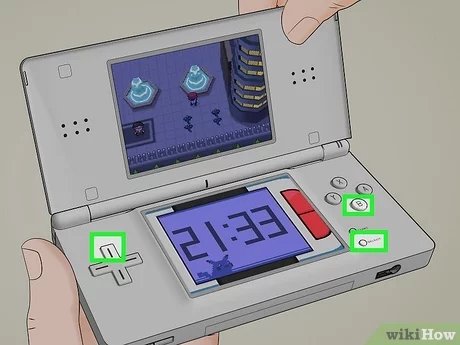
To reset a Pokémon game, press and hold A, B, Start, and Select buttons simultaneously on most consoles. This will bring you to the title screen where you can begin a new game.
Ever feel the itch to start your Pokémon adventure afresh? Perhaps you chose the wrong starter, or maybe you want to relive the journey with a different team. Knowing how to reset a Pokémon game is important for players who want a clean slate.
This process lets you delete your current save file and begin anew. It’s simple enough, but varies slightly between console generations. We will explore the method in detail, ensuring you know how to reset a Pokémon game.

How to Reset a Pokémon Game: A Comprehensive Guide
Alright, so you’re ready for a fresh start in the Pokémon world? Maybe you want to try a different starter, challenge yourself with a Nuzlocke, or simply want to relive the adventure from the beginning. Whatever your reason, knowing how to reset a Pokémon game is essential. It’s like hitting the ‘New Game’ button on your favorite adventure. This guide will walk you through everything you need to know, step-by-step, for various Pokémon games and consoles. So, let’s get started and dive into the world of resetting!
Understanding the Need for a Reset
Before we jump into the “how,” let’s quickly touch on the “why.” Why would you want to reset a Pokémon game in the first place? There are many valid reasons! Perhaps you chose a starter Pokémon you didn’t like, or you made some decisions in the game you want to undo. Maybe you want to catch a specific legendary again because your first encounter didn’t go as planned. Or, you might want to replay the game with a unique challenge, like a mono-type run or a self-imposed rule set. Sometimes, it’s just about wanting to feel that initial excitement again, that fresh feeling of starting a new journey in the Pokémon world. Whatever the case, resetting allows for endless replayability and enjoyment.
Resetting on Nintendo Switch Pokémon Games
The Nintendo Switch has a slightly different process compared to older consoles. It usually involves a combination of in-game menu options and console settings. Here’s how to do it for the modern mainline games:
Resetting Pokémon Sword and Shield, Scarlet and Violet, Legends: Arceus
These games generally have similar reset mechanics. They don’t have an in-game reset option directly in the game menu; you’ll be heading to the console’s settings to take care of it. Here’s a step by step explanation for you:
- Close the Game: First, make sure the game is completely closed. From the Switch home screen, highlight the game icon, press the + button, and select ‘Close’.
- Access System Settings: From the Nintendo Switch’s home screen, go to “System Settings” (it’s the gear icon at the bottom).
- Navigate to Data Management: Scroll down the left-hand menu and select ‘Data Management’.
- Choose Saved Data: On the right side of your screen, select ‘Delete Save Data’.
- Select Your Game: Pick the Pokémon game you want to reset (e.g., “Pokémon Sword” or “Pokémon Scarlet”).
- Confirm Deletion: You’ll see a warning message about deleting the save data. Select ‘Delete Save Data’ to confirm and completely reset the game. Be very sure, because this process is not reversible.
- Start a New Game: Now, you can start your game again. You’ll be greeted with the initial start-up screen as if you’re playing for the first time.
Important Note: This method deletes all your save data for the selected game. This is a full reset, and everything you’ve done will be gone! Be sure this is what you want before you take the final action.
Resetting on Nintendo 3DS Pokémon Games
The Nintendo 3DS family of systems (3DS, 2DS, New 3DS) have their own ways of handling save data. Resetting Pokémon games on the 3DS is quite similar to the Switch, but there are minor differences. Here’s the breakdown:
Resetting Pokémon X, Y, Omega Ruby, Alpha Sapphire, Sun, Moon, Ultra Sun, and Ultra Moon
For these games, the reset procedure is very similar for each of them. Similar to the switch games, these games don’t offer an in-game reset option in the game menu. The reset is done at the system level.
- Close the Game: First close the game. From the 3DS HOME Menu, select the game you are going to reset and press the X button to close it.
- Go to System Settings: On the 3DS HOME Menu, select the System Settings icon (it looks like a wrench).
- Data Management: On the touch screen, tap on ‘Data Management.’
- Nintendo 3DS Software: Select ‘Nintendo 3DS Software.’
- Select Your Game: Select the Pokémon game you want to reset from the list of games on the next screen.
- Delete Data: You’ll see the ‘Delete’ option, select it.
- Confirm Data deletion: You’ll see a warning message about deleting your save data. Select ‘Delete’ once again to complete the reset.
- Start a New Game: Now you can start up your game again, and it will be a completely fresh save file.
Remember: Once you have deleted the save data, there is no way to recover it. Make sure you want to reset before taking this step.
Resetting on Nintendo DS Pokémon Games
The Nintendo DS and DS Lite have a more direct approach to resetting some Pokémon games compared to newer systems. Some games have an in-game reset, but others require a combination of button presses at start up. Here’s how to do it for a variety of titles:
Resetting Pokémon Diamond, Pearl, and Platinum
These generation 4 games can be reset directly by using the following button combo at the game start up.
- Power On: Turn on your DS or DS Lite with the Pokémon game inserted.
- Button Combination: As the Nintendo DS logo and game name appear on the top screen, hold down the following buttons together:
- Up on the D-Pad
- B Button
- Select Button
- Confirm Deletion: If the button combination is successful, the game will display a prompt asking if you want to delete all saved data. Select yes and your game will be reset.
- Start a New Game: You can start the game again, and it will start fresh.
Resetting Pokémon HeartGold and SoulSilver
The process for resetting these games is identical to Diamond, Pearl and Platinum:
- Power On: Turn on your DS or DS Lite with the Pokémon game inserted.
- Button Combination: As the Nintendo DS logo and game name appear on the top screen, hold down the following buttons together:
- Up on the D-Pad
- B Button
- Select Button
- Confirm Deletion: If the button combination is successful, the game will display a prompt asking if you want to delete all saved data. Select yes and your game will be reset.
- Start a New Game: You can start the game again, and it will start fresh.
Resetting Pokémon Black, White, Black 2, and White 2
The process for resetting these games is identical to Diamond, Pearl, Platinum, HeartGold and SoulSilver:
- Power On: Turn on your DS or DS Lite with the Pokémon game inserted.
- Button Combination: As the Nintendo DS logo and game name appear on the top screen, hold down the following buttons together:
- Up on the D-Pad
- B Button
- Select Button
- Confirm Deletion: If the button combination is successful, the game will display a prompt asking if you want to delete all saved data. Select yes and your game will be reset.
- Start a New Game: You can start the game again, and it will start fresh.
Resetting on Game Boy Advance Pokémon Games
The Game Boy Advance (GBA) and Game Boy Advance SP offer a simple way to reset their Pokémon games. It’s consistent across the generation 3 titles.
Resetting Pokémon Ruby, Sapphire, and Emerald
Resetting on the GBA is straightforward and uses a specific button combination at start up.
- Power On: Turn on your Game Boy Advance or Game Boy Advance SP with the Pokémon game inserted.
- Button Combination: As the Nintendo logo appears on the screen, press and hold down the following buttons simultaneously:
- A Button
- B Button
- Start Button
- Select Button
- Confirmation Prompt: The game will display a prompt asking you if you want to delete all saved data. Confirm yes to reset.
- Start a New Game: You can start a fresh game now.
Resetting Pokémon FireRed and LeafGreen
The process to reset these gameboy advance games is identical to Ruby, Sapphire and Emerald:
- Power On: Turn on your Game Boy Advance or Game Boy Advance SP with the Pokémon game inserted.
- Button Combination: As the Nintendo logo appears on the screen, press and hold down the following buttons simultaneously:
- A Button
- B Button
- Start Button
- Select Button
- Confirmation Prompt: The game will display a prompt asking you if you want to delete all saved data. Confirm yes to reset.
- Start a New Game: You can start a fresh game now.
Resetting on Game Boy Color Pokémon Games
The Game Boy Color (GBC) method for resetting is also simple. It utilizes a similar button combination at game start up.
Resetting Pokémon Gold, Silver, and Crystal
These games require a simple combination at start up to reset the game
- Power On: Turn on your Game Boy Color or Game Boy Pocket with your Pokémon game.
- Button Combination: As the Game Boy logo appears, hold these buttons:
- Up on the D-Pad
- A Button
- B Button
- Start Button
- Confirm: This should erase the save file and allow you to start a fresh game.
Resetting on Original Game Boy Pokémon Games
Finally, let’s look at the original Game Boy. There isn’t a button combination to reset these games, but they do have a way of removing save data.
Resetting Pokémon Red, Blue, and Yellow
- Power On: Turn on your Game Boy with Pokémon Red, Blue, or Yellow.
- In-game Reset: If the cartridge has a battery and still has some charge, the game data will be loaded. There is no button combination to delete the save data in the main menu. If you want a new save, simply start a new game, and when asked if you want to overwrite the old game, select “YES”. If the battery is dead, the game should automatically start a new game.
Things to Consider Before Resetting
Before you commit to resetting your game, it’s wise to pause for a moment. There are few things you might want to consider to be sure you want to take that final step:
- Important Pokémon: Do you have any valuable or favorite Pokémon you want to keep? Consider trading them to another game if you have the option, or use the Pokémon Home service for Nintendo Switch titles.
- Shiny Pokémon: Have you caught any shiny Pokémon? Shiny Pokémon are rare, and you might regret losing them after reset. If you’ve caught any special shiny, think twice before resetting.
- Event Items: Have you received any special event items, like event Pokémon, exclusive items or hidden gifts? They will be gone if you reset.
- Game Progress: Are you close to finishing the game? If you’re near the end, perhaps you should finish it before resetting.
- Backup Option: While not an official feature of Pokémon games, if you are using an emulator, then you may be able to back up your save data. This gives you the option to play multiple games at the same time, or go back to your previous game.
It’s always better to be safe than sorry, so take a moment to think before you reset your game. Remember, once your save data is gone, there’s no turning back unless you have a backup!
Resetting a Pokémon game can open doors to new adventures and challenges. Whether you are going to replay a title for fun, or start a new type of challenge, it’s great to know how to reset your game properly. Always be mindful of your current save data, and back it up if you can. Remember to be sure you want a reset, before you take that step. Happy gaming, and have a great adventure!
How to Delete / Restart Pokemon X, Y, Sun, Moon, Alpha Sapphire & Omega Ruby!
Final Thoughts
To reset a Pokémon game, you generally need to press a specific button combination at the title screen. This combination varies depending on the console. Consult your console’s manual or an online resource for the precise inputs.
Keep in mind that resetting deletes all save data. This action will erase your entire gameplay progress. Make sure you know ‘how to reset a pokemon game’ correctly before doing this.

