
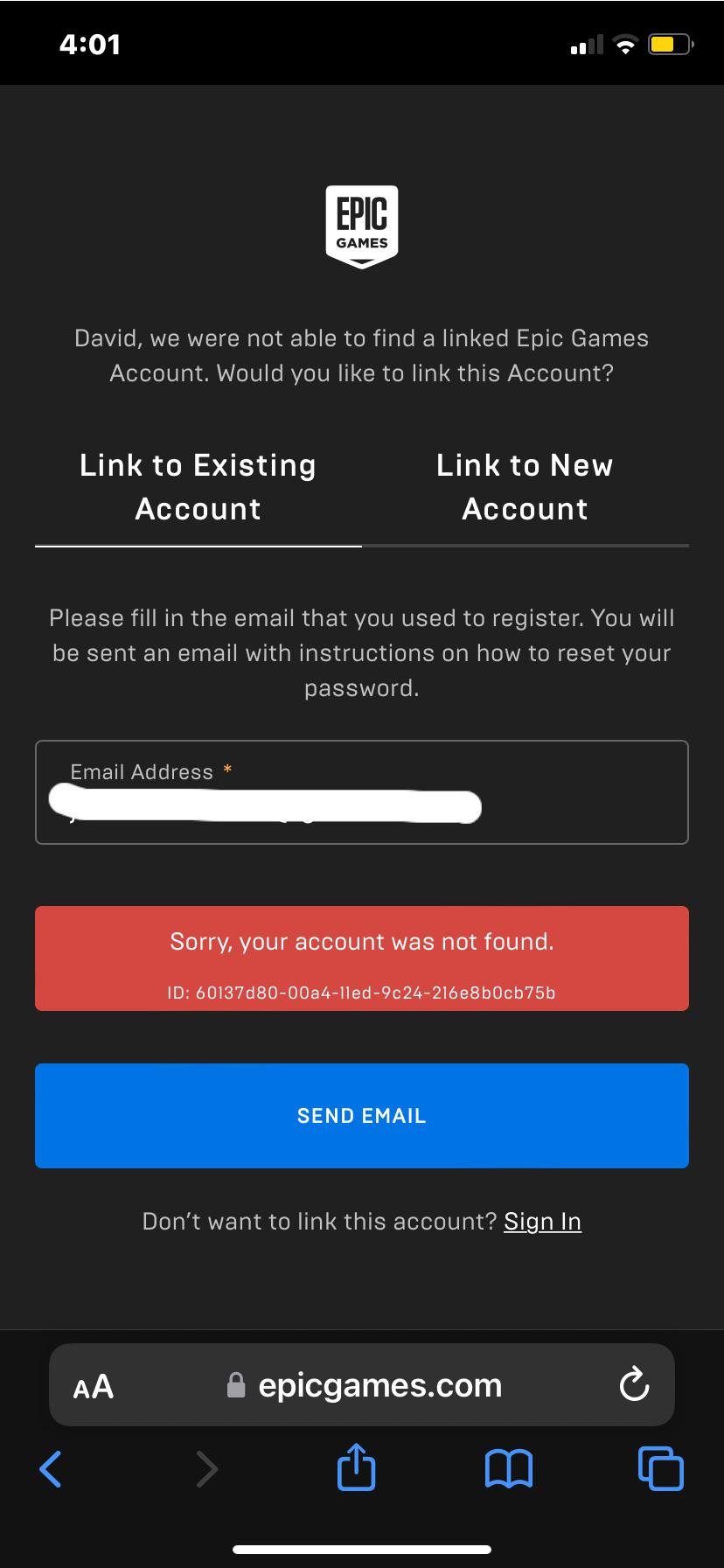
To reset your Epic Games email, navigate to the Epic Games website, go to account settings, and select the option to change your email address, then follow the prompts provided.
Ever found yourself locked out of your Epic Games account because you no longer have access to your old email? It’s a common frustration, but thankfully the platform makes it relatively straightforward to recover. Many gamers find themselves wondering exactly how to reset epic games email.
The process involves a few simple steps within the account management section of their website. This guide will quickly walk you through the necessary actions to regain access with a new, valid email address.

How to Reset Your Epic Games Email
Sometimes, you might need to change the email address connected to your Epic Games account. Maybe you’ve switched email providers, or perhaps you just want to use a different address. No matter the reason, it’s good to know how to do this safely and easily. Changing your Epic Games email is a straightforward process, and we’re here to guide you through it. This article will explain everything you need to know about resetting your Epic Games email, covering different scenarios and giving you step-by-step instructions. We’ll also talk about ways to keep your account safe during the process.
Why You Might Need to Change Your Email
There are several common situations where you might find yourself needing to reset your Epic Games email. Let’s look at a few of them:
- Old Email No Longer Active: Perhaps you’re not using that old email account anymore. Maybe you switched providers, or maybe that old email address was associated with an old school or work account you no longer have access to. It’s important that you always keep your account connected to an active email address so you won’t miss important updates or need account recovery in the future.
- Security Concerns: If you think your current email account might have been compromised, changing your Epic Games email adds a layer of security. It can protect your account from unauthorized access, providing you with peace of mind.
- Personal Preference: Sometimes, you just want to use a different email. Maybe you’ve got a separate email for your gaming stuff now, or you just want a shorter email to log into your Epic Games account.
- Merging Accounts: If you used different emails for Epic accounts and you are merging them, this will be useful.
Whatever your reason, knowing how to update your email is useful for any Epic Games user.
Before You Start: Things to Consider
Before jumping into the process, there are a few crucial things to keep in mind:
Access to Current Email
First and foremost, make absolutely sure you have access to your current email address linked to your Epic Games account. Epic will send a verification code to this address to confirm it’s really you changing your email. If you can’t get into your old email, this process is going to be more tricky. Check if there’s anyway for you to recover your old email.
New Email Availability
Also be sure that the new email address you want to use is also available to you. You need to be able to receive and send emails from this new account. The new email you will use must be an active email address.
Password Security
Make sure you also remember your Epic Games account password. It will be needed to make any changes to your account settings. If you have forgotten your password, it is recommended to reset it first before you proceed to change your email address.
Two-Factor Authentication (2FA)
If you have 2FA (Two-Factor Authentication) enabled on your Epic Games account, make sure you have your 2FA method available (like a backup code or app). You will likely be asked for a 2FA code after changing your email.
Step-by-Step Guide: How to Reset Your Epic Games Email
Now that we’ve covered the basics, let’s get into the actual process of changing your Epic Games email. Follow these steps carefully:
-
Log in to Your Epic Games Account
Start by heading over to the Epic Games website. Use your current email and password to log into your account. It’s best to do this on a desktop computer, although you can also use a mobile device. The steps are similar for both. You can visit it directly by searching ‘Epic Games website’ or going to the URL: epicgames.com.
-
Go to Account Settings
Once logged in, find the account settings section. Usually, this is found by clicking on your profile name in the upper-right part of the screen. Then, you’ll usually see “Account” from the list, so click on that to go to your settings page.
-
Find the “Email” Section
In your account settings, search for the section that lists your email. It is usually under the “Account Details”, “General” or “Personal Info” tab. You’ll see your current email displayed there, with an option that says “edit” or “change” next to it. Click that button. This will often open up a pop up. Be prepared to have a new tab or window open.
-
Enter Your New Email Address
Now is when you will be prompted to enter the new email address you want to use. Type this very carefully! Double-check to make sure you’ve typed it correctly. An error here will make it difficult to proceed. If you have trouble seeing the email address, you can use the show password toggle to view it.
-
Verification Time
After you have typed in the new email address, Epic will send a verification code to your current email address. Go check your inbox for that current email address, and find the email from Epic Games with the verification code. This email may take a few minutes to appear, so do not panic if you don’t see it right away. If you can’t see it in your inbox, check your junk or spam folder to make sure it hasn’t ended up there. Once you see the verification code, copy the code from the email.
-
Enter the Verification Code
Go back to the Epic Games website, where you are changing your email, and enter the verification code in the required box. This confirms you actually have access to the email currently associated with your account, and that you are the one trying to make this change. Click ‘verify’ or ‘confirm’ button after you enter the verification code. If the code is correct, you will be taken to the next step. If you don’t get the code in your inbox, you can request for a new code to be sent again.
-
Final Verification and Password
Now the final part of the email change. Epic will ask you again to confirm the email that you want to use, and then to verify the change using your password. Input your new email address if it is not already in the required box, then input your Epic Games account password. Remember, make sure you’ve typed the new email correctly. Then click ‘confirm’. If all goes correctly, you should receive an email to your new email address to confirm the change.
-
Confirmation of the Change
Now that you’ve completed all of the previous steps correctly, you will get a confirmation email to your new email address, confirming that the change was successful. You’re done! You can now log into your Epic Games account using your new email address. Make sure to keep this new email safe, as you’ll need it to log in in the future and for account recovery in the future.
Troubleshooting Common Problems
Sometimes, things don’t go as planned. Here are some common issues people face when changing their Epic Games email and how to fix them:
“Verification Code Not Received”
If you don’t get the verification code, the first thing to do is wait a few minutes. Emails sometimes take a while to come through. Also, check your spam or junk folder. If it’s still not there, request for a new code to be sent. Be sure you are also checking the correct email inbox (the one associated with your current Epic Games account). And remember that the verification codes are temporary; they only work for a short time. If they have expired, request a new code.
“New Email Address Already in Use”
You can’t use an email address that is already linked to another Epic Games account. If you have created multiple accounts previously with this email, you need to go into each of those other accounts, and change the email to something else, before you are able to use it for the account you want.
“Password Incorrect”
If you are getting the message ‘password incorrect’, that means you are entering the wrong password. Try again. Use the ‘show password’ option to make sure you are typing it correctly. You can also request for your password to be reset. Once you have reset your password, you will be able to proceed with changing your email.
“Can’t Access Old Email”
This is a tough one. If you don’t have access to your old email, the process of changing your Epic Games email becomes significantly more complicated. You’ll probably have to contact Epic Games support directly and they will guide you through some extra security checks, such as proving it is your account. It’s a lot easier to change the email if you have access to it, so always make sure to keep your account’s email up-to-date and accurate.
“Account locked after changing email”
Sometimes, Epic Games will lock your account for security reasons after you change your email address, if it detects something suspicious. Don’t panic, this is normal. Often all you need to do is log in to your account on the website with your new email and password to confirm the change. You may also need to go through an additional two-factor authentication procedure. If you are still locked out of your account, reach out to Epic Games support for assistance.
Tips for Account Security
Changing your email is a good chance to think about your account’s overall security. Here are some extra tips to keep your account safe:
Strong Passwords
Make sure your Epic Games password is strong. Use a mix of upper and lower case letters, numbers, and symbols. Don’t use passwords you’ve used on other websites.
Enable Two-Factor Authentication (2FA)
This is a very important one. With 2FA enabled, even if someone gets your password, they can’t access your account without your special code, making it much more secure. You should use a trusted authenticator app or SMS message.
Keep Your Email Secure
Always protect your new email account with a secure password, and keep your email password separate to your Epic Games password. Don’t use the same passwords on multiple accounts.
Be Cautious of Phishing
Always be careful of emails that ask for your password or personal details. Epic Games will never ask for your password via email. If something looks fishy, do not engage with it. Go to the website yourself and log in. Never click on links from an email that asks for passwords.
By paying attention to these security tips, you can make sure your Epic Games account is protected against unauthorized access. Changing your email is just one step; it’s important to keep your account secure at all times.
Resetting your Epic Games email is a simple process when you follow the steps. Always remember to have access to both the old and new email address, and to have your account password handy. If you ever encounter issues, don’t hesitate to contact Epic Games support. They are there to help. With these steps, you will have your Epic Games email updated in no time, keeping your account secure and accessible.
HOW TO GET YOUR EPIC GAMES ACCOUNT BACK WITHOUT EMAIL AND PASSWORD (Fortnite OG)
Final Thoughts
To change your Epic Games email, first, visit the account settings page. Then, find the email section and select the option to change it. You will receive a verification link at your current email.
Follow the verification process by clicking on that link. Enter your new email address and save your changes. This completes the ‘how to reset epic games email’ process.
Remember that you must have access to your old email for the verification step. Also, check spam folders if you don’t receive the email immediately.

