
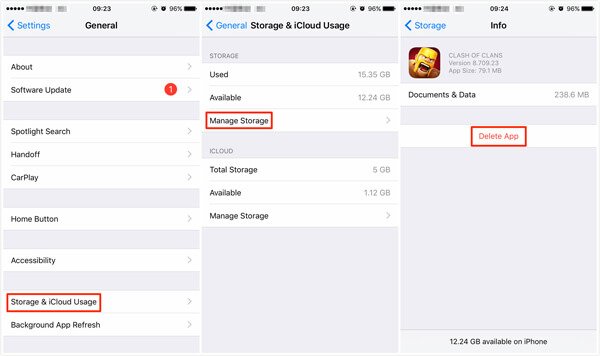
To reset your Game Center account, you must sign out of your Apple ID within the Game Center settings, then sign back in with the desired account.
Having trouble with your gaming progress or wish to start fresh? Many users wonder how to reset game center account. It’s a common query, especially when wanting to separate game progress from an old account. You are at right place.
The process isn’t as complicated as you might think. This guide provides a simple solution to get your Game Center account reset. Let’s walk through the straightforward steps together.

How to Reset Game Center Account
Okay, let’s talk about Game Center. It’s a cool place where you can keep track of your game scores and play with friends. But what if you want to start over or use a different account? It might seem tricky, but it’s totally doable. Resetting your Game Center account is like getting a fresh start – it clears the old data linked to your current Apple ID. It’s important to understand that you’re not deleting Game Center, but rather changing the Apple ID that is connected to it. This will mean your game progress, achievements, and friends list will be tied to the new Apple ID you are using. Here’s a breakdown of how to do it, step by step.
Understanding the Basics of Game Center
Before we jump into resetting, let’s quickly go over what Game Center is all about. Think of it as your gamer profile within the Apple world. It’s where all your game progress, friends, and achievements get stored. It works with your Apple ID, the same one you use for your apps, music, and everything else on your Apple devices. When you reset your Game Center, you’re actually changing the Apple ID linked to it.
Why Might You Need to Reset Your Game Center Account?
There are a few reasons why someone might want to reset their Game Center account. Here are a few situations that might apply to you:
- Switching Apple IDs: Maybe you’re using a new Apple ID or a different one than you used to. If you need your game progress and achievements under a new id you have to change your Game Center account linked to that.
- Starting Over: You might want to start a game fresh and do not want any previous progress to interfere. If you previously played a game and want a new beginning, resetting your Game Center is a solution.
- Privacy Concerns: Perhaps you want to separate game data from your regular Apple ID or maybe you want to unlink previously used account that you no longer want connected.
- Selling or Giving Away a Device: Before you give away your old iPad or iPhone, you’d want to ensure your Game Center data doesn’t go along with it.
The Core Process: Changing Your Game Center Apple ID
The main method for resetting your Game Center account involves changing the Apple ID associated with it. Here’s how you do it on your iPhone or iPad, which is usually the central device.
Step-by-Step Guide: How to Change Your Game Center ID
Okay, let’s get into the nitty-gritty. Here’s how to swap out your Game Center Apple ID, step-by-step:
- Open the Settings App: Find the gray gear icon on your device’s home screen and tap it. This opens your device’s settings.
- Tap Your Name (Apple ID): At the very top of the Settings menu, you’ll see your name and profile picture (if you have one set up). Tap on it. This takes you to your Apple ID settings.
- Sign Out of Your Current Apple ID: Scroll down to the very bottom of this page. You will find the “Sign Out” option there in red color text. Tap “Sign Out.” You might be asked for your Apple ID password before signing out. This will disconnect the current Apple ID from your device.
- Sign Back In With Your New Apple ID: Now that you are signed out of your previous Apple ID, you will see the “Sign in to your iPhone” or “Sign in to your iPad” prompt. Tap on it and enter your new Apple ID and password to sign back into your device. Make sure that this is the Apple ID you want to use for Game Center. This new Apple ID will now be connected to Game Center.
- Check Your Game Center Settings: After signing in with your new Apple ID, go back to the main Settings menu. Scroll down and find “Game Center”. Tap on it to make sure that you see your new Apple ID listed here. If you do, then congratulations, you have successfully reset your Game Center!
Important Considerations After Resetting
Changing your Game Center’s associated Apple ID is not without its consequences, It’s good to be aware of what to expect after you make this change.
What Happens to Your Game Data?
The key thing to remember is that your game progress and related data are tied to the Apple ID that was connected to your Game Center account. Here’s what might happen:
- Old Progress is Tied to the Old Account: If you switch to a new Apple ID, your progress in games tied to the previous ID won’t automatically transfer. Your achievements, game saves, and friends will still exist but under the previous account.
- Some Games Offer Cloud Saves: Many modern games use their own servers or iCloud to store game progress, so you may have the option to import or transfer your progress to the new Apple ID by signing in with that account through the game’s settings.
- Starting Fresh: For games that don’t use cloud saves, you’ll likely have to start over with the new Apple ID.
What About My Friends List?
Your Game Center friends list will also be associated with the Apple ID that was linked to it, meaning:
- New Friends, New List: If you switch to a new Apple ID, you’ll start with a fresh friends list in Game Center, and you’ll need to send new friend requests.
- Old Friends Still Exist: Your old friends will still exist under your previous Apple ID profile.
Troubleshooting Common Issues
Even though the process seems straight-forward, things can go wrong. Let’s take a look at some common problems people face when resetting their Game Center and discuss how to solve them.
Issue: Game Center Still Shows Old Information
Sometimes, your Game Center may not update right away after switching Apple IDs. Here’s how to fix this:
- Restart Your Device: The classic first step – turn your device off and on again. It often solves minor glitches.
- Double-Check Your Sign-In: Ensure you’re signed in with the correct Apple ID in Settings under your name, and also in the Game Center section.
- Sign Out and In Again: Try signing out of Game Center and then back in. To do this, go to Settings > Game Center, tap on your Apple ID, and then select “Sign Out.” Wait a minute or so, then tap “Sign In” and use your new Apple ID.
- Check for Updates: Make sure your device’s operating system (iOS or iPadOS) is up to date. Sometimes, old software can cause conflicts.
Issue: Can’t Sign Out of Apple ID
If you’re having trouble signing out of your Apple ID, here’s what to do:
- Stable Network Connection: Make sure you have a stable Wi-Fi or cellular connection. A weak connection can cause issues with sign-out.
- Force Restart: If the sign-out is stuck, force restart your device. On iPhone 8 or later, press and quickly release the volume up button, then the volume down button, then press and hold the side button until you see the Apple logo. On earlier iPhones, press and hold the power button and home button until you see the logo.
- Apple ID Servers: Sometimes the Apple ID servers could be having issues. Wait a while and try again. You can check Apple’s system status page on their website to see if there are any widespread problems.
Issue: Games Don’t Show My New Account
If some games still don’t recognize your new Game Center account, try this:
- Force Quit the Game: Close the game entirely and then restart it. Sometimes a simple restart is needed to pick up new settings.
- Game Settings: Check the game’s settings to see if it has its own Game Center sign-in. Some games may require to sign in using new Apple ID from within the game settings menu.
- Delete and Reinstall the Game: As a last resort, delete the game and then reinstall it from the App Store. Be warned, this may also clear local game saves, so use this only if you have other ways of saving game progress.
Preventing Future Issues
The best way to avoid future problems is to have a clear understanding of how Apple ID and Game Center function.
Keep a Record of Your Apple IDs
If you have multiple Apple IDs, make sure you keep them organized with their associated passwords. This can avoid confusion later.
Use Cloud Saves Where Possible
Whenever possible, use games that provide cloud save features. This protects your progress and can simplify the transition if you decide to change your Apple ID again in the future.
Regular Backups
Backup your device regularly using iCloud or your computer so that you can always restore your device to a previously working state if required.
Be Patient
Sometimes, a new Apple ID may take time to fully register with all Apple services. Be patient and try again later.
Resetting your Game Center account is not a difficult process, but it’s important to follow each step carefully and understand how it works. While you are making these changes you should always pay attention to what Apple is showing you on the screen. Remember to be patient and double-check each step. If you run into problems, the troubleshooting tips above will help you get back on track. This knowledge will help you make the best use of your Apple devices and keep your gaming experience enjoyable and under your control.
How To Reset Game Data On iPhone
Final Thoughts
To summarize, you can’t directly reset your Game Center account. Instead, you must sign out of your current Apple ID and sign in with a different one. This effectively changes the associated Game Center data.
This also means you begin with fresh game progress. The new Apple ID will have its own Game Center information. Therefore, understanding how to reset Game Center account requires managing your Apple ID.

