
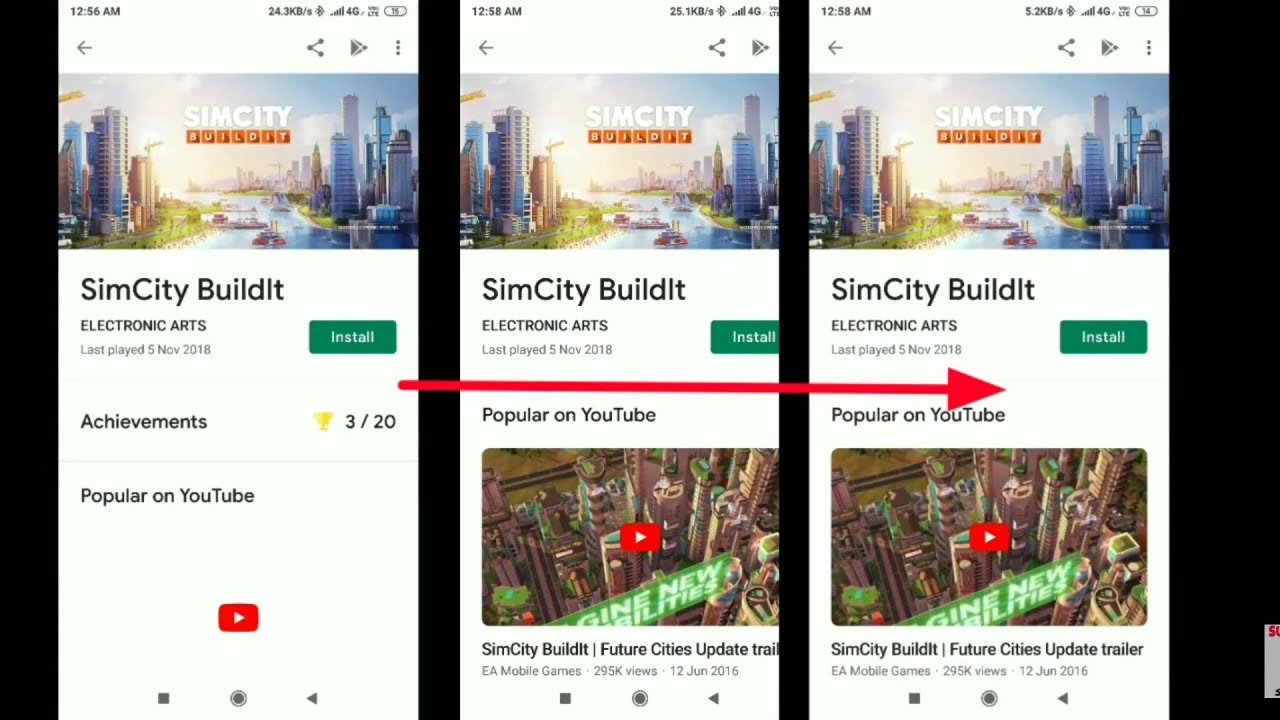
To reset game data on Android, navigate to your device’s settings, find the ‘Apps’ section, select the specific game, and then tap ‘Storage’ followed by ‘Clear Data’.
Ever felt stuck in a game, wanting a fresh start? We’ve all been there. Sometimes, starting from level one is the only way forward. This often brings up the question of how to reset game data on android.
Well, the good news is that you can easily wipe the progress, clearing in-game currency, scores, and items. This process allows you to return your game to its initial state. You can do this directly from your phone’s settings.

How to Reset Game Data on Android
Sometimes, games on your Android phone or tablet can get a little buggy, or maybe you just want to start fresh. Resetting your game data can help! Think of it like cleaning up your room – you get rid of all the clutter and start with a blank slate. It’s a pretty common thing to need to do, and luckily, there are a few ways to do it. We’ll go through the main methods, so you can get back to playing smoothly in no time.
Why Reset Game Data?
Before we dive into how to reset, let’s think about why you might want to do this in the first place. There are several reasons, and knowing them can help you understand when this step is necessary.
- Game Bugs or Glitches: Sometimes, games get stuck, or things don’t work right. Resetting data can fix these issues by removing corrupted files or settings. It’s like giving the game a fresh start to work properly.
- Starting Over: Maybe you want a fresh challenge or to play from the beginning. Resetting your data lets you enjoy the game again as a new player, without all the progress you made before.
- Performance Problems: Games can slow down over time, especially if they store a lot of temporary files. Clearing the data can help games run more smoothly and quickly on your device.
- Free Up Space: Game data can take up a lot of storage space. If you are running low on space, clearing game data can free it up.
- Account issues: You might need to reset game data if you are having an issue with the game account. This can be particularly important if the game saves progress to a local file rather than to the server.
Methods to Reset Game Data
Now that we know why you might need to reset your game data, let’s explore the different ways you can do it. We’ll start with the easiest and move to more detailed approaches.
Clearing App Cache and Data through Android Settings
The most common method for resetting game data is through your Android device’s settings. This approach typically addresses most problems and is straightforward for any user.
- Open Settings: Find the Settings app on your Android phone or tablet, usually with a gear-like icon.
- Go to Apps: Scroll down and find the “Apps” or “Applications” section. The name may vary slightly depending on your device.
- Select the Game: In the apps list, find the game you want to reset. Tap on the game’s name or icon.
- Find Storage: Inside the game’s app information, look for a “Storage” or “Storage & Cache” option. Tap on it.
- Clear Cache: You’ll see buttons to “Clear Cache” and “Clear Data”. Start by tapping “Clear Cache”. The cache is like a temporary storage, and clearing it is often enough to fix simple issues.
- Clear Data: If clearing the cache doesn’t work, tap “Clear Data”. Be careful, this will remove all your game progress, settings, and saved data for that game. Your game will be like it is newly installed.
- Confirm: A pop-up will ask you to confirm that you want to clear the data. Tap “OK” or “Clear”.
Important Note: Clearing data will often log you out of the game, requiring you to log back in. Make sure you have your login details before you do this.
Using Game Settings (If Available)
Some games have their own reset or start-over options built into their menus. If your game has this, it can be the easiest method to use.
- Open the Game: Launch the game you want to reset.
- Look for Settings: Look for a “Settings” button or icon within the game. It’s often a gear symbol or found within the main menu.
- Find a Reset Option: Inside the settings, look for an option like “Reset Game,” “Start Over,” or similar terms.
- Follow Prompts: The game will likely prompt you to confirm that you wish to reset the data. Follow the on-screen instructions.
Tip: This method will only reset game data, not the app’s settings. So, you may still have to make other changes if your intent is to reset to a totally new state.
Reinstalling the Game
Another approach, and sometimes the most foolproof way to remove all game data, is to uninstall and then reinstall the game. This forces the game to start completely fresh. Here are the steps:
- Uninstall the Game: Find the game’s icon on your home screen or in your app drawer. Long-press the game’s icon and select “Uninstall.” Or you can uninstall through the Google Play Store or Settings app as explained above.
- Confirm Uninstall: Confirm that you want to uninstall the game when prompted.
- Go to the Play Store: Open the Google Play Store app.
- Search for the Game: Search for the game you just uninstalled.
- Install the Game: Tap “Install” to download and install the game again.
Considerations:
- This method takes more time than clearing cache and data, as you need to re-download the game.
- This method completely removes all traces of the game from your device.
Using Third-Party Apps (Use with Caution)
There are third-party apps that claim to help reset game data or manage apps in more complex ways. These are often found in the Google Play Store or on other app stores. However, they come with some important cautions.
Risks of Third-Party Apps:
- Security: Some third-party apps can contain malware or other harmful software. Only use reputable apps with high ratings.
- Privacy: These apps might request permissions to access more information than necessary. Ensure the app developer is trustworthy.
- Instability: Some apps can cause your device to slow down or may not work as intended.
When to use: If you choose to explore this route, make sure to back up your device if it provides the option, and read reviews and take caution before proceeding. Generally, the methods we covered already (settings, in-game options, reinstalling) should be sufficient for most cases.
Cloud Save Games and Data Reset
Many games today use cloud saves to back up your progress. This is important to understand when trying to reset game data. If your game uses cloud saves, resetting data locally may not remove all your progress. Here’s what you need to know.
- Cloud Saves: Cloud saves mean that game progress is saved on a game’s server (on the internet), not just on your device.
- Checking Cloud Sync: Look for settings within the game to see if it syncs to the cloud (often called “Cloud Save” or “Game Sync”).
- Cloud Reset: Clearing your local data might not reset a game that cloud-syncs progress, as it will restore your last save the next time you connect. There are typically no ways to reset this.
How to Address Cloud Saves:
- Contact Support: If you want to remove a cloud save, you may need to reach out to the game developer’s support team and ask them to reset your cloud progress.
- New Account: If possible, you might need to use a different account for the game. This will start you fresh and make sure the cloud save does not restore your previous data.
- Check Game Forums: Game forums and community sites are a great place to look for information related to specific games. You may find solutions other players have come up with to reset their progress on cloud-saved games.
Advanced Techniques (Use with Caution)
For very technical users, there might be other ways to reset game data, but these methods usually involve advanced tools or rooting your device. They are not recommended for the average user.
- Root Access: Rooting your phone is like giving yourself administrator access. This can be risky, void your phone warranty, and can even damage your device if done improperly.
- File Managers: There are advanced file managers that give access to the game’s hidden files and data. But manipulating these files carries a high risk of breaking your game or phone software.
Recommendation: Unless you are very familiar with these methods, it’s best to stick with the methods we’ve already discussed: clearing cache and data in settings, using in-game options, or reinstalling the game.
Backing Up Game Data (Before Resetting)
Before you try any of the methods to reset your game data, consider backing up your game data first. You could save your progress or game setup in case you want to revert your changes.
- Game’s Backup Options: Check if the game has a built-in backup or cloud-save feature and use it.
- Android Backup: Android also has a built-in backup feature in the settings. These backups sometimes include game data.
- Third-party Backup Apps: There are third-party apps that can backup your apps and game data. Research these apps thoroughly before using them.
Important Tip: Backing up game data can be unreliable, especially with older or locally stored game data, so it is best to only use the built-in cloud save of the game, if it exists. Always make sure to use the game’s own backup functionality when it’s available.
Troubleshooting Resetting Game Data
Sometimes, resetting game data might not go smoothly. Here are common issues and some possible solutions:
- Game Won’t Reset: If clearing data or reinstalling doesn’t work, make sure your game isn’t cloud syncing, which restores data automatically. See cloud sync section.
- Login Problems: If you have trouble logging back into your game, double-check your login information. Reset your password if you forgot it.
- Game Still Buggy: If the game still has issues after resetting the data, it is possible the problem might not be related to your data. Ensure you have the latest version and contact game support for more help.
Resetting game data is a useful way to fix issues, start fresh, or free up space on your Android device. By understanding why you might need to do it and the available methods you can keep your game smooth. Remember that some games might have different data settings than others, so read documentation on the game if available.
How to Reset Game Data on Android Phone
Final Thoughts
Clearing app cache or data through settings, or using in-game options, often resets game progress. Sometimes, reinstalling the game is the only solution. These methods vary across different games.
Ultimately, understanding these techniques is essential for regaining a fresh start. Therefore, knowing ‘how to reset game data on android’ empowers you with control over your gaming experience. Reinstalling should be your final step.

