
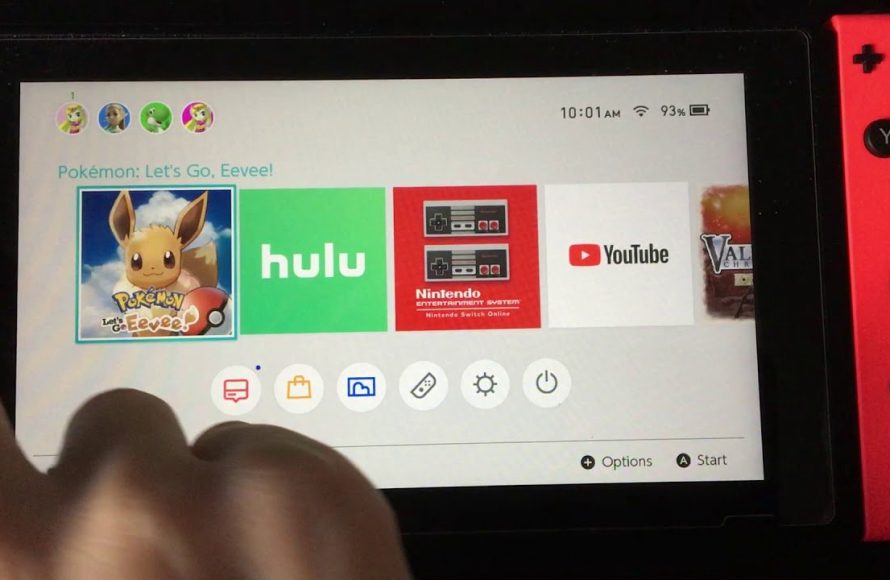
To restart a game on Nintendo Switch, close the software from the HOME Menu and then relaunch it.
Ever found yourself needing a fresh start in your favorite Switch title? It happens to the best of us; maybe a frustrating level has you wanting a do-over, or you just need to revisit the beginning. Understanding how to restart a game on Nintendo Switch is simple, but knowing the exact steps is key.
It’s a common question for new and experienced gamers alike. This short guide will quickly show the necessary steps, so you can jump back into the game quickly. Let’s get started.

How to Restart a Game on Nintendo Switch
Sometimes, you just need a fresh start. Maybe you made a mistake, want to try a different strategy, or simply want to experience the game from the very beginning. Whatever the reason, knowing how to restart a game on your Nintendo Switch is a handy skill. It’s not always as simple as hitting a reset button, but don’t worry, we’ll walk you through all the different ways to get that fresh start.
Understanding Game Saves on Nintendo Switch
Before we dive into restarting, it’s important to understand how Nintendo Switch saves work. Unlike some older consoles, the Switch primarily uses autosave features. This means your progress is often being saved automatically as you play. This is great for preventing lost data, but it also makes a traditional ‘restart’ a little trickier. Games save data to the console’s internal memory or to a microSD card if you have one installed. This data is tied to your user profile, which is another important point to know.
Why Autosave Can Be Tricky
Since most games use autosave, you won’t always find a manual “save” or “load” screen, like you might have seen on older consoles. This means that the game remembers where you were and what you were doing when you last played. Therefore, starting over sometimes means you need to actually work to delete or bypass that stored data.
Soft Resetting a Nintendo Switch Game
A soft reset is like giving your game a gentle nudge. It’s the easiest and fastest way to try again from your last save point without completely wiping everything. The exact steps might vary slightly from game to game, but the general method remains the same.
Steps to Perform a Soft Reset
Here’s a basic guide to do a soft reset:
- Press the Home button: While you’re playing your game, press the Home button on your right Joy-Con controller. This will take you to the Nintendo Switch’s Home menu.
- Close the Game: With the game highlighted on the Home menu, press the X button. This will close the game completely.
- Start Again: Now, select the game from the Home menu again to start it up.
This will usually take you back to the last save point that the game made. Remember, it won’t erase all of your progress, but it will allow you to try again from that point without a full wipe.
Starting a Game Over with a New File
Many games offer the option to start a new game file. This is often the best way to truly start from scratch without messing with your current progress, allowing you to have multiple saves. This is a great idea if you want to have another play through.
How to Start a New Game File
The location of the “New Game” option will vary, so you may need to look around in the menus. Here’s what you typically need to do:
- Open the Game: Start your game as you normally would.
- Look for “New Game”: Search for the “New Game” option on the game’s main menu. This option might also be called “Start New Adventure” or something similar.
- Create a New Save: Select the new game option, and the game will usually ask you to create a new save file or profile.
Once you start your new game, your old save will still be there (unless the game specifically overwrites it). This is very useful if you want to go back to your old save later.
Deleting Game Save Data for a Fresh Start
Sometimes, the game may not provide a clear “new game” option, or you may want to completely wipe all save data for that game. In this case, you will need to delete the save data from your console.
Steps to Delete Save Data
Here’s how to delete save data on your Nintendo Switch:
- Go to System Settings: From the Home menu, select the “System Settings” icon at the bottom. It looks like a gear icon.
- Navigate to Data Management: Scroll down in the settings menu to find “Data Management,” and select it.
- Select Save Data: Under Data Management, choose the “Save Data” option.
- Choose your Game: Select the game you want to remove save data from. This will show you the save data for the user profiles that have played that game.
- Delete the Data: Select the user profile associated with the save data that you want to delete. You should see a “Delete Save Data” option – choose this option, and confirm your decision.
Important Note: Deleting your save data will erase your progress permanently. There is usually no way to recover that data once it is gone, so make sure you really want to do this before you complete this action.
Cloud Saves and Your Data
If you have Nintendo Switch Online, your saves may be backed up to the cloud. Deleting your saves from the console does not remove them from the cloud, unless you also delete that cloud backup. When you start your game again, it will often ask if you would like to download the save from the cloud. If you are starting fresh, you will want to select that you do not want the cloud save downloaded.
Using User Profiles for Separate Saves
The Nintendo Switch allows multiple user profiles on a single console. Each profile has its own save data for each game. This is a very useful way to start new games without losing all your old progress.
Creating a New User Profile
Here’s how to set up a new user profile:
- Go to System Settings: From the Home menu, choose System Settings (the gear icon).
- Go to User Tab: Select “User” on the left-hand menu.
- Select Add User: Choose “Add User” on the right of the screen.
- Follow On-Screen Instructions: The Switch will walk you through the process of setting up a new user, including creating an icon.
After you create a new user profile, you can launch your game through that profile. You will begin completely fresh without affecting other users’ save data on the same console.
Switching Between Profiles
To switch to another profile, simply return to the Home menu, select your profile icon in the upper left corner, and then select the profile you wish to use.
Game-Specific Restart Options
Sometimes, game developers include specific options for restarting within the game itself. These options may be in addition to or instead of the methods listed above.
Looking for In-Game Restart Options
Here are some things to look out for in-game:
- Options/Settings Menus: Many games will have options within the main menu that can reset the game.
- Game-Specific Menus: Some games have special menus that might include a “reset game” or “start new” option. For example, Animal Crossing has a special menu to help with starting a new island.
If you are having trouble starting fresh with a game, it might be worth checking out the game manual or the game developer’s website to see if it includes unique start over instructions.
Troubleshooting Common Restart Issues
Sometimes, starting over can be tricky. Here are some common problems and how to solve them:
Game Not Restarting
If a game still isn’t restarting after trying the steps above, make sure that you are doing all of the steps correctly. Sometimes, games have a hidden autosave in the menus that can overwrite your attempts to restart. Make sure that you are fully exiting out of the game using the X button, and not simply putting the console to sleep.
Cloud Save Conflicts
As mentioned, cloud saves can sometimes cause problems when trying to start fresh. You will want to verify that your cloud saves are deleted before starting your game again. To verify this, use these steps:
- Go to System Settings: From the Home menu, select the gear icon to get to system settings.
- Navigate to Data Management: Scroll down to “Data Management” and choose that.
- Select Cloud Saves: Choose “Save Data Cloud” in the menu.
- Pick your User Profile: Select the user profile you are working with.
- Select Your Game: Choose the game you are trying to start over from the list of save files.
- Delete: Choose “Delete Save Data” and confirm your choice.
After removing the cloud saves, your game should start fresh.
Game Won’t Start After Data Delete
If you have problems with a game not starting, you should double-check that you haven’t deleted the game data. Save data and game data are not the same thing. The save data is your specific in-game progress, while the game data is the code the game uses to run. Make sure that you are only deleting save data, and not the game’s code. If you have accidentally deleted game data, you will need to reinstall the game from the Nintendo eShop.
Game Always Reverts to the Old Save
If your game keeps reverting to an old save, there may be a backup of your save in a game-specific folder. This issue is rare, but some games will use a separate backup location. Unfortunately, fixing this issue may require you to reach out to the game developer for more help, as deleting it may have unintended consequences. It could also indicate that the game autosaves even when it says it doesn’t, and that you may need to delete the game save again.
Restarting a game on the Nintendo Switch may seem a little confusing at first, but with the information here, you will now have an easier time trying again. Remember to take your time when working in menus and to be sure of your choices before completing them. Knowing the various methods can give you the experience you want from your games. Have fun playing again!
How To Restart ANY Nintendo Switch Game
Final Thoughts
To restart a game on Nintendo Switch, you must first close the software entirely. You can do this by pressing the Home button, then highlighting the game. Press the X button to bring up the menu and select “Close.”
Now, simply reselect the game from your home menu and start it again. This closes the previous save and initiates a fresh start, effectively showing you how to restart a game on nintendo switch.

