
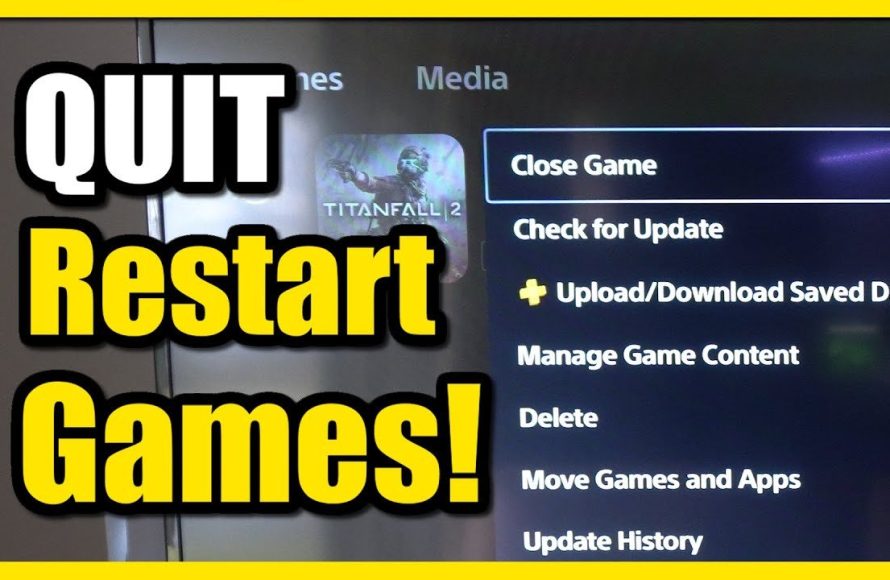
To restart a game on PS5, simply press the PlayStation button on your controller, highlight the game from the menu, press the Options button, and then select ‘Close Game’. Then, just relaunch the game from the home screen.
Have you ever felt stuck in a frustrating gaming loop, or maybe a glitch messed up your progress? It happens to all of us. Knowing how to restart a game on PS5 quickly can save you time and headaches. This simple action can often resolve minor bugs and get you back into the action smoothly. Learning these basic steps will improve your overall gaming experience.

How to Restart a Game on PS5
Have you ever been playing a game on your PlayStation 5 and wished you could just start over? Maybe you made a mistake, want to try a different strategy, or are just in the mood for a fresh beginning. Whatever the reason, restarting a game on the PS5 is quite simple, and there are several ways to go about it. This article will guide you through all the methods, ensuring you can jump back into your favorite games with a clean slate. We’ll cover everything from quick restarts to more thorough methods, making sure you’re well-equipped to manage your game progress.
The Quick and Easy Way: Closing and Reopening the Game
The simplest way to restart most games on your PlayStation 5 is by closing the application and then launching it again. This method usually clears the current session and starts the game from the main menu. Here’s how you do it:
Using the PlayStation Button
- While you’re playing your game, press the PlayStation button on your controller. This will bring up the Control Center menu.
- Navigate to the game using the directional buttons and highlight the game’s icon or the recent game option in the list.
- Once selected, press the Options button on your controller. This is the small button with three horizontal lines, usually on the right side of the touchpad.
- A menu will pop up, look for the option that says “Close Game” or “Close Application.” Select this and press the X button.
- The game will now be completely closed. Return to the main PS5 menu and navigate back to your game and press the ‘X’ button to launch it again.
This method is fast and effective for most games. It’s the quickest way to get back to the game’s starting menu. However, keep in mind that this may not always fully reset your in-game progress if the game has an auto-save feature or the game is designed to remember specific states, like persistent worlds. But for most cases, it allows you to begin playing from scratch.
Restarting from Within the Game’s Menu
Some games include a dedicated “restart” or “new game” option right inside their menus. This is a cleaner approach and often provides more control over the restart process. Here’s a closer look at how this usually works:
Locating the “Restart” or “New Game” Option
When you’re in the game, you’ll need to go to the in-game settings or main menu screen. The exact location of these options varies depending on the game, but here are a few common places to look:
- Main Menu: Many games will have a “New Game” or “Restart” option directly on the main menu screen when you first launch the game.
- Pause Menu: During gameplay, pressing the Options button (or the equivalent in the game) to pause often gives you access to in-game menus and settings. You may find options to restart your current level, start over from the beginning of the game, or load from a different save slot here.
- Settings Menu: Sometimes, the option to restart will be located inside the game’s settings menu. You might need to look under “Gameplay” or “Save Settings” for this option.
Confirming Your Choice
Once you locate the relevant option to restart or begin a new game, make sure you’re certain before selecting it. Some games might ask you to confirm your selection. You might see a message like “Are you sure you want to overwrite your progress?” or “This will erase your current game.” If so, take a moment to read these prompts to be certain before continuing. Be aware that restarting this way can overwrite your save data or any progress you’ve made in that particular save slot.
Using Save Game Management Features
Many games allow you to manually manage your save files. This method provides a way to start fresh while not affecting your previous playthroughs if you want to keep those. It’s also useful for games that offer multiple save slots. Here’s a breakdown of using save management features for restarting:
Understanding Save Slots
Some games give players different save slots. This means you can have multiple playthroughs of the game at the same time. For instance, you could have one save where you’re playing as one character, and another save where you’re playing as another character. This is really helpful if you want to experiment with new game options, without affecting the your current saved game. This means you can restart the game with different characters or difficulties by just selecting the different saved games.
How to Manage Save Data
To manage your save data and start a new game, you typically need to do the following:
- Check Game Menu: In most cases, the game will have an in-game save management system. Go to the game menu, which could be the pause menu, main menu or through a settings option in the main game menu. Look for options relating to “Save,” “Load,” or “Save Game Management.”
- Save Option: Many games offer a “save” option during gameplay. Sometimes you have to manually create a new save, while other times, the game does this automatically by overwriting your current save file.
- Select “New Game” with caution: When starting a new game through a “new game” or “restart” option in a game, you may be given a new slot for this. Or, the game may overwrite a pre existing save file, be cautious and read all the dialog prompts before accepting any options.
- Select Desired Save File: When restarting you may be asked to choose a save slot. Select the new game or save slot you just created to begin playing from the start.
It’s also worth noting that your PS5 has system-level save data management as well. While this method doesn’t allow you to start a game over, it does help to keep your save files organized. You could delete save files from the system, but this is usually an action you should be very careful when doing.
Resetting Your Game Settings
Sometimes, you don’t need to completely restart the game; you might just want to reset certain settings. This could include game difficulty, control options, or display settings. Resetting these can offer a fresh perspective or allow you to try a different gameplay style. Many games offer options to restore these settings to their default values.
Locating Reset Settings Options
The settings menu in games is usually the place to find options to restore default settings. You can typically find this menu in-game or on the game’s main menu screen. Look for headings such as “Options,” “Settings,” or “Game Options.” Inside, find options for:
- Gameplay Settings: This section often contains difficulty settings, in-game tips, and other game-specific options.
- Control Settings: Here, you will find options to adjust button layouts, controller sensitivity, and other controls-related preferences.
- Display/Graphics Settings: This area is for changing screen resolution, brightness, color options and other graphic-related options.
- Audio Settings: You can often adjust audio volume, music and sound effects in these settings.
Resetting to Default Settings
Within each settings sub-menu, you will usually find options to reset the settings to their default values. This is often represented by buttons or options named “Default”, “Reset”, or “Restore Defaults”. Confirming this option will revert changes you made back to the game’s original configuration. Note that this will not start a new game but will only reset specific settings.
Using the PS5 System Menu for Game Management
The PS5’s system menu also gives you access to some tools for managing your games. While not a direct restart, understanding these options can be helpful. These system level settings can help you manage the game data on the hard drive and sometimes resolve issues. Let’s go through these options:
Closing the Game Through the Quick Menu
We briefly touched on this earlier, but let’s look at it again with a bit more detail. The quickest way to close a game is through the PS5’s Control Center.
- Press the PlayStation button on your controller to access the Control Center.
- Find the game icon or recent game option.
- Press the options button on your controller.
- Choose “Close Game.”
Closing a game like this can help to fix some problems within the game, and can be a useful first step in trying to restart.
Deleting and Reinstalling Games
Sometimes, if there’s a significant issue with a game, like corrupted data, you might consider deleting and reinstalling it. While this is a more extreme approach, it can act as a hard reset and often fixes many problems.
Steps to Delete a Game
- From the main PS5 menu go to the game you want to uninstall.
- Highlight the game. Then, press the Options button on your controller.
- Select the “Delete” option, and confirm that you want to delete the game.
After deleting the game, insert the disc, or select the game from your library to start the download and install it again. This will give you a clean install and can reset any data or configuration issues related to a previous install.
Clearing Cache Data
The PS5 stores temporary files and data called “cache.” Sometimes, clearing the cache can resolve issues and possibly help with how the game starts. This action isn’t a direct restart, but it can make a difference.
How to Clear Cache Data
- Go to the PS5 Settings menu (the gear icon at the top of the screen).
- Select “Storage”.
- Select “System Storage”.
- Choose “Other” and then “Cache”
- Select “Clear Cache Data” and confirm the action.
This process can improve system performance and may help games to start fresh.
Game-Specific Restart Options
Keep in mind that some games have their own special ways to restart or manage game data. For instance, some online games might require you to log out and log back in. Certain single-player games might have a special “story restart” option. Always check the game’s manual or online forums for specific guidance if the above methods do not seem to work, or if you are looking for unique options.
Checking Game Manuals and Guides
It’s always a good idea to consult the game’s digital manual or any included printed guide (if you bought a physical copy). These manuals often contain information about game-specific features, including restart or new game options. If you have a digital copy of the game, you can often find a manual within the game itself.
Looking for Information Online
If you’re having difficulty finding the restart option you are looking for, look on a search engine for your game name and the word “restart” or “new game”. Gaming forums and online guides can be very helpful and often have specific information about how to manage progress for different games.
In summary, restarting a game on your PS5 is usually quite straightforward. Whether you prefer the quick close-and-reopen method, using in-game menus, or managing save files, there are several ways to start fresh and get back to enjoying your game. Remember to pay attention to game-specific options and use these techniques to start playing from scratch.
How to Reset PS5 Games & Delete Game Progress (Easy Method)
Final Thoughts
To restart a game on PS5, you typically close the application and then relaunch it from the game library. Alternatively, you can use the quick menu to select the game and then choose “Close Game”. This effectively stops the game allowing for a fresh start.
Knowing how to restart a game on PS5 can sometimes fix glitches. Understanding this simple process improves your gaming experience. It’s a basic but useful skill for every PS5 owner.

