
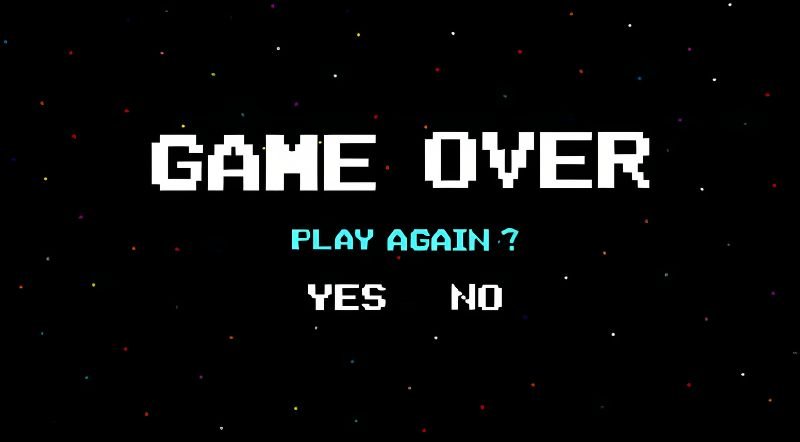
To restart a game, typically you can find an option within the game’s menu or settings. This may be labeled “Restart,” “New Game,” or something similar.
Ever felt stuck in a game, wishing you could just hit reset and start fresh? We’ve all been there, right? Maybe you made a bad choice early on, or perhaps you just want to experience the beginning again. Understanding how to restart a game is a common need for gamers.
This simple action of restarting can revitalize your gaming experience. It allows you to explore different paths or simply try a new approach without any past mistakes holding you back. It’s your game, and you should be able to control your journey.

How to Restart a Game: A Comprehensive Guide
Ever been deep into a game, making a ton of mistakes, or just wanting a fresh start? We’ve all been there! Sometimes, the best thing you can do is hit that reset button and begin again. But how exactly do you do that? It’s not always as simple as pressing a single button. This guide will walk you through all the ways you can restart a game, whether it’s on a console, a computer, or even your phone. We’ll cover different game types and platforms, so you’ll be a restart pro in no time.
Understanding Game Saves
Before we jump into restarting, it’s helpful to understand how games save your progress. Most games use save files. These files are like digital bookmarks that remember where you are in the game, what items you have, and your score. Where these files are stored can vary greatly. Some games save directly to your console or computer’s hard drive, while others use cloud storage, meaning they keep your saves online. Knowing where your saves are located is useful for some advanced restart methods. These saves can sometimes be managed within the game’s options or through the console’s/computer’s system settings.
Local Saves vs. Cloud Saves
Let’s break down local and cloud saves:
- Local Saves: These are stored directly on your device, like your PlayStation, Xbox, Nintendo Switch, computer, or phone. If you want to delete a local save, you typically do it through the game’s menu or your device’s system settings. This method means if your device gets damaged, you might lose your progress.
- Cloud Saves: These are stored online. Platforms like Steam, PlayStation Network, Xbox Live, and some mobile games use cloud saves. This means your progress is safe even if you switch devices (or lose one!). To delete a cloud save, you usually need to do it within the game or through your platform’s settings, which means they are easily managed on multiple platforms if needed.
Restarting from the Beginning
The most common type of restart is starting completely over. Here are the main ways to accomplish this:
The In-Game Menu Method
Many games offer an option to restart the game within their menus. Look for things like “New Game,” “Start Over,” or “Reset Progress” in the main menu or settings. This option is the easiest and safest way to get a fresh start.
How to Use the In-Game Method:
- Go to the game’s main menu. This might be the screen you see when you first start the game.
- Look for a button labeled “New Game”, “Restart”, or something similar.
- Click it or select it using your controller.
- The game will usually ask you to confirm. Make sure you really want to start over before saying yes!
- The game will then begin from the very start, like the first time you played.
This method works best for story-driven games or games where you want to reset all your progress.
Deleting Local Save Data
If the game doesn’t have an in-game restart option, you can delete the local save data. This method will erase your progress, but it can be a little more involved. Remember, before deleting local save data, make absolutely sure you don’t want to go back to your current progress. It is important to note that after this process you can’t recover the data, unless you have a backup.
How to Delete Local Saves:
The steps will vary depending on your platform:
PlayStation
- Go to your PlayStation’s settings menu (usually found on the main screen).
- Select “Saved Data and Game/App Settings”.
- Choose “Saved Data (PS5)” or “Saved Data (PS4)”.
- Select “Console Storage”.
- Choose the game whose saved data you want to delete.
- Select the file you want to remove.
- Confirm that you want to delete the save file.
Xbox
- Press the Xbox button on your controller to go to the guide menu.
- Go to “My games & apps”.
- Select “See all”.
- Highlight the game you want to remove saves for.
- Press the “Menu” button (the button with three lines) on your controller.
- Choose “Manage game & add-ons”.
- Select “Saved data”.
- Choose the saved data you want to delete, then select “Delete from console.”
Nintendo Switch
- Go to the Nintendo Switch’s home menu.
- Select “System Settings”.
- Scroll down to “Data Management” and select it.
- Select “Save Data/Screenshots and Videos”.
- Choose the game whose saved data you want to delete.
- Select your user profile.
- Choose the save file you want to delete.
- Confirm that you want to delete the save file.
Computer (Windows)
Finding save files on a computer can be a bit tricky because they are stored in different locations. Often, they are located in these folders:
- Documents Folder: Look in a folder named after the game developer, publisher or the game itself.
- Appdata Folder: Type %appdata% into the Windows search bar and open the roaming folder, then locate the save files within a folder of the game publisher or name.
- Program Files (x86) or Program Files: Sometimes the save files are inside the folder that the game is installed in.
Once you’ve found the save file, simply delete it. Be careful not to delete the actual game files.
Mobile Devices (Android/iOS)
On mobile devices, you can usually delete a game’s saved data in the app settings. The specific steps will vary depending on your device and operating system, but the basic process is similar:
- Go to your device’s settings.
- Look for “Apps” or “Applications”.
- Find the game in the list.
- Select the game.
- Tap on “Storage”.
- Select “Clear Data” or “Clear Storage”. Be aware that “Clear Cache” won’t erase save data. Make sure to select “Clear Data” if you want to reset your progress.
Starting Again with Cloud Saves
If you are using cloud saves, simply deleting your local save data might not be enough. This is because once you start the game again, it might sync back your save from the cloud and you will have your progress back again. To effectively restart a game using cloud saves, you need to delete the data from the cloud.
How to Delete Cloud Saves
Here’s how it generally works for different platforms:
PlayStation Network (PSN)
- Go to your PlayStation’s settings menu.
- Select “Saved Data and Game/App Settings”.
- Choose “Saved Data (PS5)” or “Saved Data (PS4)”
- Select “Cloud Storage”.
- Choose the game for which you want to remove the cloud saves.
- Select the file you want to remove.
- Select delete.
Xbox Live
- Go to your games and apps.
- Select “See all”.
- Highlight the game you wish to delete the cloud saves from.
- Press the menu button on your controller.
- Select “Manage game and add-ons”.
- Go to “Saved Data”
- Choose the saved data for your profile and then select delete from everywhere.
Steam
Steam offers a variety of methods to manage cloud saves. Generally, you can manage cloud saves through the Steam client:
- Open the steam app.
- Select the game you want to delete the cloud saves for.
- Right click on the game
- Click properties.
- Go to the “General” tab.
- Under “Steam Cloud”, uncheck the box that says “Keep game saves in the steam cloud”.
Alternatively, you can use Steam’s website. However, this method might be less direct for some games.
Remember that deleting cloud saves might also delete the data from other devices where you are using the same account. You should be aware of these implications and take proper steps to ensure the progress you intend to be removed is properly removed from all the devices.
Restarting Specific Game Modes
Some games have different modes or scenarios within them. Sometimes, you may only want to reset a specific mode, not the entire game. Here’s how to tackle that:
Level or Chapter Selection
Many games with levels or chapters allow you to reselect and replay a particular section. This lets you restart from the beginning of a specific part of the game, without affecting the rest of your progress.
How to Use Level Select:
- Look for a menu option like “Level Select,” “Chapter Select,” or “Mission Select”.
- Choose the level you wish to restart.
- The game will bring you back to the beginning of the selected level or chapter.
Custom Game Options
In some games, especially ones that involve building, creating, or simulations, you may find a “New Game” option within a specific mode. This would allow you to start fresh in that mode while keeping your overall game progress.
Restarting Online Games
Restarting an online game can present unique challenges. Here’s how to go about it:
Multiplayer Games
For multiplayer games, restarting often means creating a new character or account. You often cannot restart an online game unless there is an option to create a new profile, or by creating a new account. Your current online progress is usually tied to your account, so you would either have to create an entirely new account, or look for an in-game option to start a new profile.
MMORPGs
In massively multiplayer online role-playing games (MMORPGs), you cannot reset a character’s progress, but you usually have the option to create a new one from scratch. You can then choose a different class, skills, and overall character. In addition, you can also restart individual quests or scenarios if you wish, but that will not usually reset the entire progress of the game itself. To reset the progress of MMORPGs the best method is to create a new profile.
Things to Keep in Mind When Restarting
Before you restart a game, think about these things:
- Backups: If you’re very invested in your current progress, consider creating a backup of your save data. This is especially useful when deleting local saves. You can copy save files to a USB drive for instance.
- Cloud Syncing: If you have cloud saves enabled, be aware that deleting local saves won’t remove progress stored in the cloud. You may need to manage cloud save data separately.
- Achievements/Trophies: Restarting could mean losing progress towards certain achievements or trophies. If you’re a completionist, consider the impact of restarting.
- Game-Specific Quirks: Some games might have their own unique save management systems, or other methods to ensure data is not accidentally removed. Be sure to check the game’s manual or online resources if you are unsure about the best method to use to reset your game.
In summary, restarting a game can be a useful and even fun practice when we are learning the mechanics of games, trying a different character or class, or we just want a fresh start in a game. By understanding how games save your progress and the methods to reset, you can make the most of your gaming experience. Whether you’re using an in-game option or diving into system settings, you now have the tools to manage your progress and enjoy your games in whatever way you see fit.
Nintendo Switch: How To Restart Any Game | Reset Any Game
Final Thoughts
To restart a game, usually, you can find this option within the game’s menu. Look for a “new game” or “restart” button. Some games also have a “load game” option where you can load an earlier save. This essentially restarts your progress from that point.
Different games have slightly varied approaches for how to restart a game. You should consult the game’s specific documentation or online guides if the in-game options are unclear. Always pay attention to warnings, as restarting typically deletes progress.

