
To restart Game Bar, close it from the taskbar or task manager and then open it again using the keyboard shortcut (Windows key + G).
Ever found yourself in a gaming session where Game Bar just isn’t responding? It can be frustrating when overlays won’t appear or capture tools fail. So, you need to know how to restart game bar quickly.
Luckily, it’s a simple process to get things back on track. No need for complicated fixes. Knowing the steps means you’ll be back in the game without much interruption.

How to Restart Game Bar: Your Guide to Smooth Gaming
Sometimes, even the best tools need a little nudge to work perfectly. The Game Bar on your Windows computer is a handy tool that helps you record gameplay, chat with friends, and take screenshots. But what happens when it gets a bit glitchy or stops responding? That’s when you might need to know how to restart Game Bar. Don’t worry, it’s not as tricky as it sounds! This guide will walk you through all the different ways you can bring your Game Bar back to life, making sure your gaming experience stays awesome.
Why You Might Need to Restart Game Bar
Before we jump into how to restart Game Bar, let’s talk about why you might need to do this in the first place. Just like any software, Game Bar can sometimes have hiccups. These problems might include:
- Freezing: The Game Bar window might get stuck and not respond to your clicks.
- Not Opening: You press the Windows key + G, and nothing happens – the Game Bar just won’t show up.
- Lagging: The Game Bar might be super slow, making it hard to use its features quickly.
- Features Not Working: Certain tools, like the screen recording or audio capture, might suddenly stop working.
- Errors: Sometimes, you might see error messages pop up related to the Game Bar.
These situations can be annoying, but restarting Game Bar is often a quick fix. It’s like giving it a fresh start!
Quick and Easy Restart Options
Let’s start with the simplest methods you can try first. These are usually the quickest way to get your Game Bar back up and running.
Using Task Manager to Restart Game Bar
The Task Manager is like the control panel for all the programs running on your computer. It’s great for shutting down and restarting apps that aren’t behaving. Here’s how to use it for the Game Bar:
- Open Task Manager: Press Ctrl + Shift + Esc on your keyboard all at the same time. This will open the Task Manager window.
- Find the Game Bar Process: Look for a process called “Game Bar” or “Xbox Game Bar”. It might be under the “Apps” section or the “Background processes” section. Sometimes it might have the full name of “Game Bar” and sometimes may be like “GameBar.exe”.
- End the Process: Click on the process to select it and then click the “End Task” button. This will completely close the Game Bar.
- Restart Game Bar: Now, press the Windows key + G to open the Game Bar again. It should restart, hopefully solving your problems.
Why this works: Task Manager directly stops the process that runs Game Bar. When you start it again, it’s like a fresh load, and problems are often resolved.
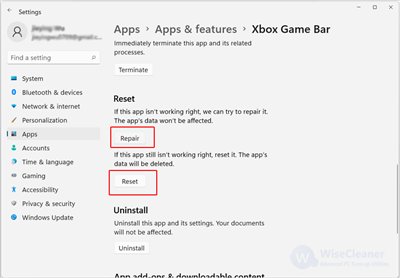
Restarting via the Start Menu
Sometimes you can also find a way to reset using start menu:
- Open the Start Menu: Click the Windows button at the bottom left of your screen.
- Search for Game Bar: Type “Game Bar” into the search box.
- Click App Settings: On the right, click the App Settings option.
- Click the Terminate Button: Under the “Reset” heading, click “Terminate” button.
- Restart Game Bar: Now, press the Windows key + G to open the Game Bar again. It should restart, hopefully solving your problems.
This will terminate the app without ending the process. So you don’t need to restart the process again from the task manager.
Digging Deeper: More Advanced Restart Techniques
If the simple methods didn’t do the trick, don’t worry! There are still some more advanced ways we can try to restart the Game Bar. Let’s look at some options that require a bit more digging under the hood.
Using PowerShell to Restart Game Bar
PowerShell is a more advanced command-line tool in Windows. It’s like a super-powered version of the Command Prompt, and it can be used to restart the Game Bar. Don’t worry if you’ve never used it before, we’ll break it down step-by-step:
- Open PowerShell as Administrator: Click the Start button, type “PowerShell”, right-click on “Windows PowerShell” (or “PowerShell”) and choose “Run as administrator”. You may need to confirm that you want to allow the program to make changes on your PC.
- Enter the Command: Type or copy and paste this command into the PowerShell window:
Get-AppxPackage xbox | Remove-AppxPackage - Press Enter: Press the Enter key on your keyboard. This will uninstall the Xbox related apps.
- Enter the Command: Type or copy and paste this command into the PowerShell window:
Get-AppxPackage -AllUsers | Foreach {Add-AppxPackage -DisableDevelopmentMode -Register "$($_.InstallLocation)\AppXManifest.xml"} - Press Enter: Press Enter to reinstall all the app.
- Close PowerShell: Type Exit and hit enter or click the ‘X’ on the top right.
- Restart Game Bar: Press Windows key + G to start the Game Bar again.
Why This Works: This method essentially uninstalls and reinstalls the components of the Game Bar application. When you use the Windows key + G, it launches the completely new instance of the software. If any of its files were corrupted or something similar, this should clear the problem.
Restarting the Game Bar Service
The Game Bar relies on a service that runs in the background. Sometimes, restarting this service can solve the issue.
Using the Services App
The Services app is like a manager for all background processes of your PC.
- Open the Services App: Press Windows key + R, type services.msc into the box, and press Enter.
- Find the Game Bar Service: In the list of services, look for one called something like “Xbox Game Bar Service”. The name of the service is normally “XboxGipSvc” or similar to this.
- Restart the Service: Right-click on the service and select “Restart”. If the restart option is grayed out, right click on it and click the stop option. Then, right click again and click start option.
- Close the Services App: Close the window.
- Restart Game Bar: Press Windows key + G.
Why This Works: By restarting the service, you are ensuring that the background process that supports Game Bar is running correctly. If it was having problems, this method should fix them.
Checking for Windows Updates
Sometimes the issue isn’t with the Game Bar itself, but with your version of Windows. Outdated system files can sometimes cause problems with the apps. So, it’s always good to make sure that your Windows is up to date with the latest patches and upgrades.
Checking for updates is simple.
- Open Settings: Click the Start button, then click the Settings icon (the gear).
- Go to Update & Security: Click on “Update & Security”.
- Check for Updates: Click the “Check for updates” button. If there are updates available, let Windows download and install them.
- Restart Your PC: Once the updates are installed, restart your computer. This will make sure all changes take effect.
- Restart Game Bar: Press Windows key + G.
Verifying Game Bar Settings
Before diving into more complex solutions, it’s worthwhile to quickly verify that Game Bar settings are set correctly. Sometimes, an accidentally disabled setting can be the reason it doesn’t open or work as expected. Here’s how to double check:
- Open Settings: Click the Start button, then click the Settings icon (the gear).
- Navigate to Gaming: Click on “Gaming” from the settings menu.
- Check the Game Bar Setting: On the left panel, click “Game Bar”. Make sure the toggle that says “Open Xbox Game Bar using this button on a controller” is turned ON. And the one that says “Enable Xbox Game Bar” is also turned ON. If the toggle is off, click the button to turn it ON.
- Restart Game Bar: Press Windows key + G.
Uninstalling and Reinstalling the Xbox App
In some cases, the root of the problem might be with the Xbox app that comes with Windows, as Game Bar is part of this ecosystem. Uninstalling and reinstalling the Xbox app could solve it. Here’s how:
- Open Settings: Click the Start button, then click the Settings icon (the gear).
- Go to Apps: Click on “Apps”.
- Find the Xbox App: Find the “Xbox” app from the list. Then, click on the Xbox app name.
- Click Uninstall: Click the uninstall option and follow the instructions.
- Open the Microsoft Store: Open the Microsoft Store app. You can find it by searching in the start menu.
- Search for Xbox: Search for the “Xbox” app in the Microsoft Store.
- Install Xbox: Install the Xbox App and launch it.
- Restart Game Bar: Press Windows key + G.
Advanced Tips for Avoiding Game Bar Issues
While restarting Game Bar is a good way to fix existing problems, you can also take steps to reduce the chances of these problems happening again. Here are a few helpful tips:
- Close Unnecessary Programs: Having too many programs open can slow down your computer. Close any applications or background processes that you aren’t actively using.
- Update Your Graphics Drivers: Outdated graphics drivers can sometimes interfere with the Game Bar. Visit your graphics card manufacturer’s website (NVIDIA, AMD, Intel) and download the newest drivers.
- Keep Windows Updated: Regularly install the latest Windows updates as they usually fix bugs and improve performance.
- Don’t Overload Your System: If your computer is struggling with games and you are using Game Bar as well, then it’s more likely to create problems.
- Avoid Running Game Bar on Low Speced PCs: If your pc is low spec then you must think twice before using game bar.
Restarting the Game Bar might seem like a daunting task at first, but it’s usually quite simple once you know the right steps. Whether you use the quick Task Manager method or dig into PowerShell, it is often possible to fix most of the issues that arise with the Game Bar. By following this guide, you should now have all the knowledge required to get the Game Bar working when issues come up. Hopefully, these steps will allow you to enjoy recording your gameplay, chatting with friends, and taking awesome screenshots with fewer disruptions! Keep gaming, and remember to try these tips if your Game Bar needs a little boost.
How to Reset the Xbox Game Bar to Default on Windows 10/11
Final Thoughts
To restart Game Bar, first, try closing it directly from the interface. If that fails, use Task Manager to end the “Game Bar” process. This will force the application to close completely. Then, simply launch Game Bar again using the shortcut or start menu.
This action effectively restarts it. You might need to attempt this a few times if it’s unresponsive. Remember, restarting can fix many minor glitches. Now you know how to restart Game Bar.

