
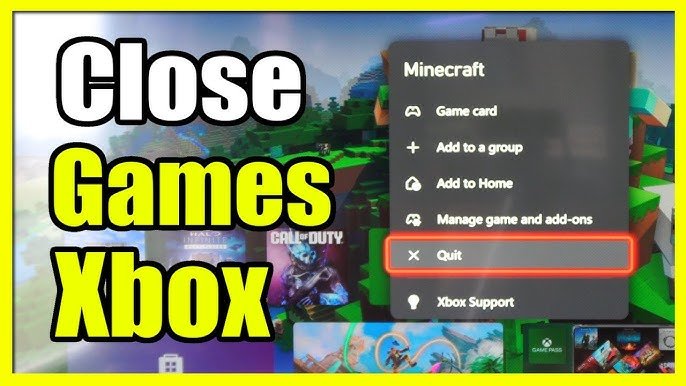
To restart a game on your Xbox, press the Xbox button on your controller, navigate to the game tile, press the menu button, and select “Quit.” Then, relaunch the game.
Have you ever been deep into an Xbox game, only for it to glitch or bug out? It can be frustrating when the game stops cooperating. You might wonder how to restart game on xbox to get things back on track. The good news is, the process is quick and simple. This article will guide you through the steps to restart a game. You can get back to enjoying your games in no time.

How to Restart Game on Xbox: A Complete Guide
Sometimes, games on your Xbox might get a little glitchy, or maybe you just want to start over fresh. Whatever the reason, knowing how to restart your game is super handy. This guide will walk you through all the different ways you can restart a game on your Xbox, making sure you get back to playing smoothly and quickly. We’ll cover everything from the simplest methods to some of the more specific situations you might encounter. Let’s jump in!
The Quick and Easy Way: Using the Xbox Button
The most common and easiest way to restart a game on your Xbox is by using the Xbox button on your controller. It’s like a magical button that does a lot of things, including helping you quickly close and restart your games. Here’s how you can do it:
Steps to Restart Using the Xbox Button:
- Press the Xbox button: First, press the glowing Xbox button in the center of your controller. This will bring up the Xbox guide menu.
- Highlight your game: Using the directional pad (D-pad) or the left analog stick, move around the guide menu until you see the game you want to restart highlighted. The game you’re currently playing will usually be in the middle of the screen.
- Press the Menu button: Next, press the Menu button, which looks like three horizontal lines, on your controller. This will open up a menu specific to that game.
- Choose “Quit”: In the menu that appears, you’ll see different options. Select “Quit” and press the A button. This will close the game completely.
- Restart the game: Now go back to the dashboard or library, find the game you just closed, and press A to start it up again.
That’s it! The game will start from the beginning or from the last save point. This method works most of the time and is super quick to do. It’s also great when you need to restart a game because it’s not responding properly.
Why You Might Need to Restart a Game
There are several reasons why you might need to restart a game on your Xbox. Understanding these reasons can help you know when this method is necessary. Here are some common situations:
- Game Glitches: Sometimes games experience errors or “glitches.” These could be anything from characters getting stuck in the environment to parts of the game not loading properly. Restarting the game often clears these temporary issues.
- Performance Issues: If the game starts running slowly, starts to lag, or become choppy, restarting it can often improve its performance. This is because sometimes a game will use up too many resources. Restarting it gives it a fresh start.
- Starting Over: Maybe you’ve messed up in the game or you simply want to start from the beginning. Restarting gives you that option without going into the game settings if it does not have an option to restart the game from within the game menu.
- Multiplayer Issues: Sometimes, multiplayer modes can have problems connecting to servers or getting into the right game. Restarting often resolves these connection problems.
- Updates: If a game has updated recently, restarting the game can be necessary to make sure all of the changes and new features are in place.
Hard Restart: When a Simple Restart Doesn’t Work
Occasionally, a simple restart of the game may not be enough to fix the issue you are experiencing. In such cases, you might need to perform what we call a “hard restart.” This involves actually turning off the console completely, not just putting it in sleep mode. This can help fix more stubborn problems.
Steps for a Hard Restart:
- Hold the Xbox Button: Press and hold the Xbox button on the front of your console. This isn’t the one on your controller, but the one on the actual console itself.
- Power Options: Continue holding the button until you see a menu pop up on your screen or the console shuts off. This usually takes about 5 to 10 seconds.
- Unplug the Console: Once your Xbox is completely off, unplug the power cable from the back of the console. This is important! Wait for about 2 minutes before plugging it back in.
- Power it On: Plug the power cable back into the console. Then, press the Xbox button on the front of the console or the Xbox button on your controller to turn it back on.
A hard restart forces your Xbox to completely reboot, clearing any temporary files and potentially fixing issues that a normal restart can’t. This method is helpful if your game is consistently crashing or if the other methods are not working.
Restarting Specific Games
Sometimes, the way you restart a game might be slightly different depending on the game itself. Some games might have their own menus or options that allow you to restart in a specific way, though these options are usually within the game menu. Let’s take a look at some common game types:
Games with In-Game Restart Options
Some games have options to restart within their own menus. These options could be labeled as “Restart Level,” “Restart Mission,” or something similar. This option is best to use when you want to restart a specific section of a game without completely closing the game.
- Open the game menu: Inside the game, look for the game’s menu. This is usually accessed by pressing the start button or the menu button on your controller.
- Find the restart option: Navigate through the menus, usually under gameplay settings, or options to find the restart option and select it.
This is the easiest and most convenient way to restart sections of your game without leaving your current game. Not all games have this option so you should use the other methods mentioned in this article if this option is not present in the game you are playing.
Multiplayer Games
When playing online multiplayer games, restarting might involve slightly different steps. Sometimes, leaving the multiplayer lobby or match is needed before restarting the game. Here’s a general guide:
- Leave the match: If you’re in an online match, you’ll often need to finish the match or leave it using the in-game menu.
- Return to the main menu: Go back to the main menu screen for the game.
- Restart as normal: Then, you can restart the game using the Xbox button, as shown in the previous sections.
These steps are typically necessary because of how servers handle player connections. If you don’t leave properly you might have problems connecting back to the server if you restart your game and also your progress may not be saved properly so it’s always best to leave the match properly before restarting.
Troubleshooting Game Restart Issues
Even with all these methods, sometimes you might still face problems when trying to restart a game. Let’s look at some common problems and their solutions.
Game Freezing
If a game is frozen completely, you may not be able to use the Xbox button to quit the game. In this case, try the hard restart method we talked about earlier. Hold down the power button on your Xbox console, unplug it, and then plug it back in and power it on. This can usually get your console unfrozen.
Game Won’t Close
Sometimes, a game might seem like it isn’t closing when you try to quit it. If this is happening, wait a bit to give your system enough time to close the application. If it’s still not closing, the hard reset method will be the next step to follow.
Game Not Saving Progress
If you restart your game and your progress isn’t saved, check the game’s autosave settings in the options menu. Also, make sure you don’t shut the game down or reset your console while the save icon is visible. If you are still experiencing problems you may have issues with your Xbox console not saving properly to the cloud and may need to further troubleshoot your console.
Additional Tips and Tricks
Here are a few more tips that can make restarting your games go smoother:
- Keep Your Console Updated: Make sure your Xbox and the games are updated to the latest version. Updates often include bug fixes that can prevent you from having to restart a game in the first place.
- Use the Latest Software: Ensure your Xbox software is up to date. Updates can solve compatibility and stability issues, which can impact your gaming experience.
- Storage Management: If you have too many games and apps, your console may run a little slower. Clean up unnecessary files by deleting old saved games and videos you no longer need or uninstall apps and games that you no longer play. This can improve your console’s overall performance.
- Check Game Settings: Look into the specific game’s settings for any options that could help with performance. Sometimes, lowering graphics settings can make a game run better.
These tips can help improve your overall experience when playing games on your Xbox, hopefully preventing the need to restart the game so frequently.
Restarting your game on Xbox is a simple process, but knowing all the ways you can do it will make sure you are prepared for any situation, and that you can get back to playing your favorite games as quickly as possible. Now you know all the different ways you can restart your game and when each one is most effective!
Xbox Series X/S: How to Refresh Games & Applications Tutorial! (For Beginners) 2021
Final Thoughts
Restarting a game on Xbox is simple. You can either quit the game from the Xbox menu and relaunch it, or use the quick resume function to restart from the last save point if the game supports it.
Using these options provides the quick way to start over. For a full reset, closing the game and starting again is often most effective. Ultimately, knowing how to restart game on xbox is a basic but essential skill for every player.

