
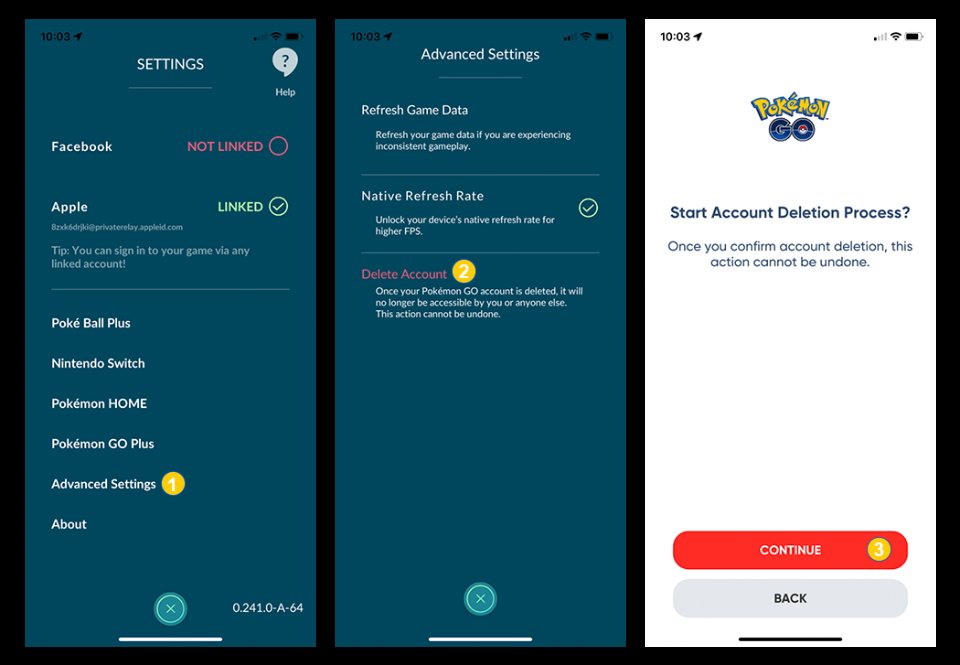
To restart Pokémon Go, force close the app and then reopen it.
Ever found your Pokémon Go game stuck or glitching? It’s frustrating when you’re about to catch a rare Pokémon and the app freezes. Knowing how to restart Pokémon Go game is a simple but essential skill for any trainer.
It’s often the quickest way to resolve minor issues. Sometimes a simple restart gets you back to your adventures smoothly. This ensures a smooth gaming experience and you can continue playing.

How to Restart Pokémon GO Game
Sometimes, things in Pokémon GO just don’t seem to be working right. Maybe your character is stuck, the game is lagging, or you need a fresh start to clear out some glitches. It’s like when your computer freezes and you have to restart it. Luckily, restarting Pokémon GO is usually pretty easy, and there are a few ways to do it. Let’s walk through the steps for a smooth game restart.
Understanding Why You Might Need to Restart
Before we jump into how, let’s talk about why you might need to restart Pokémon GO. Knowing the reasons will help you know when this solution is needed. Here are some common scenarios:
- Game Freezing or Crashing: The game stops responding or closes on its own. This is a very common reason to restart.
- Lagging or Slow Performance: The game runs slowly, making it difficult to play smoothly.
- GPS Issues: Your character isn’t moving or is moving in the wrong location. This can prevent you from catching Pokémon or reaching Pokéstops.
- Error Messages: The game might show error messages that stop you from playing.
- Stuck Animations: Some animations, like Pokeball throws, might freeze, making the game unplayable.
- Troubles with in-game events: you may be having trouble joining or seeing in-game events properly, restarting the game might resolve this.
- Needed to apply updates: After downloading the game updates, sometime the game needs to be restarted for effective implementation of the updates.
These are just a few examples, and if you experience any of these, restarting the game is a good first step to try.
The Simplest Restart: Force Closing the App
The easiest method to restart Pokémon GO is to force close the app. This closes the game completely, and when you reopen it, you’ll have a fresh instance. Here’s how to do it on different types of devices:
For Android Devices
Here are the steps for force closing on most Android phones and tablets:
- Open the Recent Apps screen: This is usually done by pressing a button at the bottom of your screen. It might look like three vertical lines, a square, or a circle.
- Find the Pokémon GO app: You will see the app previews in this recent apps screen. Find the one for Pokémon GO.
- Swipe to close: Depending on your device, you’ll either swipe the app preview left or right, or up to close it.
- Reopen the app: Go back to your app screen and select the Pokemon Go app to reopen it.
Sometimes, devices have a different way of closing the apps. If the steps above don’t work for you, try to find the option to close apps from settings and follow the given steps.
For iOS Devices (iPhone and iPad)
Here’s how to force close an app on Apple devices:
- Swipe up from the bottom of the screen: If you have an iPhone with Face ID (no home button), swipe up from the bottom and pause in the middle of the screen. If you have an iPhone with a home button, double-press the home button.
- Find the Pokémon GO app: Swipe left or right until you find the Pokémon GO app preview.
- Swipe up to close: Swipe the Pokémon GO app preview upwards to close it.
- Reopen the app: Go back to your app screen and select the Pokemon Go app to reopen it.
That’s it! After closing the app in this way, you can tap the Pokémon GO icon again to open the game.
When a Simple Restart Isn’t Enough
Sometimes, the simple restart doesn’t do the trick. If you’re still experiencing issues after force closing the app, there are a few other things you can try.
Restarting Your Device
If closing the app doesn’t solve the problem, try restarting your entire phone or tablet. This can resolve more deep-rooted issues:
- For Android Devices: Press and hold the power button. Select ‘Restart’ or ‘Reboot’ from the menu.
- For iOS Devices: Press and hold the power button and one of the volume buttons at the same time. Select ‘Slide to Power Off’, then turn the device back on again.
After your device restarts, open Pokémon GO and see if the problem is gone. This step is like giving your device a fresh start.
Clearing App Cache and Data
Sometimes, the saved data for the app can cause issues. Clearing the app’s cache and data can often fix problems. Here’s how:
- Please note: Clearing app data might reset your in game settings for the game. You’ll need to log in again after you do this. Your game progress will not be affected.
Clearing Cache and Data on Android
Follow these steps to clear cache and data for Pokémon GO on Android:
- Open Settings: Find the Settings app on your device and tap it.
- Go to Apps: Look for “Apps” or “Applications” in the settings menu and tap it.
- Find Pokémon GO: Scroll through the list of apps until you find Pokémon GO and tap on it.
- Go to Storage: Tap on “Storage”.
- Clear Cache: Tap “Clear Cache”.
- Clear Data: Tap “Clear Data” or “Clear Storage.”
Clearing Cache and Data on iOS
On iOS, you can’t directly clear just the app cache and data for a specific app. Instead, you need to uninstall and reinstall the application. This process has the effect of clearing both cache and data.
- Uninstall Pokémon GO: Find the Pokémon GO app icon on your home screen. Tap and hold the icon until the menu appears and choose the “Remove App” option and then the ‘Delete App’ option.
- Reinstall Pokémon GO: Go to the App Store, search for Pokémon GO, and install it again.
Once you’ve cleared the app’s cache and data, or uninstalled and reinstalled the app, try opening the game again. This should be done only if the simple restarting steps don’t fix the game issue.
Checking Your Internet Connection
A weak or unstable internet connection can also cause issues in Pokémon GO. Make sure your Wi-Fi or mobile data connection is working correctly. You might try:
- Turning Wi-Fi off and back on.
- Switching from Wi-Fi to mobile data (or vice versa).
- Moving closer to your Wi-Fi router.
A stable connection is very important to play the game smoothly. If your internet connection is poor, the game might not load properly, or you could experience issues with your avatar, Pokemon, or Pokestops. If necessary, test your connection with other applications or websites to verify if it is the issue or not.
Checking for Game Updates
Sometimes, the game might not run properly if you are not using the latest version. Ensure you have the latest updates for Pokemon Go installed:
- Go to the App Store or Google Play Store: Open the store on your device.
- Search for Pokémon GO: Look for the app in the search bar.
- Check for Updates: If there’s an update available, you’ll see an “Update” button. Tap it to update the game.
Keeping your game updated is important for bug fixes, new features, and performance enhancements. Always keep the app updated to the latest version and avoid any errors due to outdated game version.
Checking Device Compatibility
Make sure your device is compatible with the minimum requirements of the game. If the game is crashing or lagging on your device, it might be the case that your device doesn’t meet the requirements.
For Android Devices
Here are some minimum requirements for android to run Pokemon Go:
- Operating System: Android 6.0 or later
- RAM: 2 GB or more
- Screen Resolution: 720 x 1280 pixels or higher
- GPS and Internet Connection: Must have a good GPS and internet connection.
For iOS Devices
Here are the minimum requirements for iOS devices:
- Operating System: iOS 13 or later
- Devices: iPhone 6s or later
- GPS and Internet Connection: Must have a good GPS and internet connection.
If your device doesn’t meet these requirements, it can result in performance issues that can be resolved by playing on an appropriate device.
Reinstalling the Game
If you have tried all the methods mentioned before and you are still having problems with Pokemon Go, you might want to reinstall the game. This method cleans all the current data for the app and installs a fresh copy of the app on your device.
Uninstalling the game
Uninstalling the game can be done following the steps mentioned above, in the section for clearing the cache and data on iOS.
Reinstalling the game
After uninstalling the game, install the game from the respective application store.
When to Contact Support
If you’ve tried all the steps above and you’re still having issues, it might be time to contact Pokémon GO support. They can help with more complex problems or technical issues. You can find their contact information and support options through the game settings.
Remember, restarting Pokémon GO is often a quick and easy fix for many common problems. By following these steps, you’ll be back to catching Pokémon in no time. It’s all part of the fun of being a Pokémon trainer!
HOW TO RESTART POKEMON GO ACCOUNT OR HAVE 2 ACCOUNTS!!!
Final Thoughts
To restart Pokemon Go, force close the application. Then, reopen it from your device’s app menu. This is the most common method.
If the game continues to malfunction, try restarting your device. Rebooting your phone clears temporary files. This can sometimes resolve persistent issues.
Sometimes the app’s own settings can cause problems; explore your in-game settings. Following these steps gives you a reliable way on how to restart pokemon go game effectively.

