
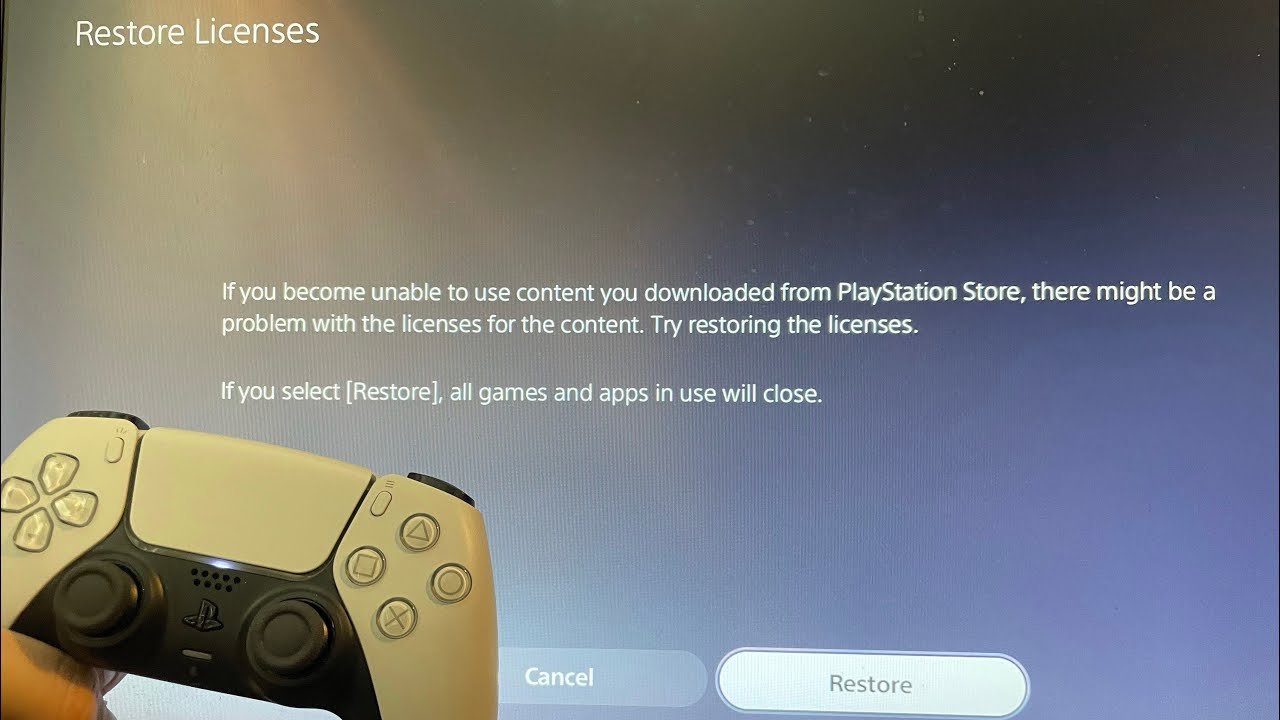
To restore game license on PS5, navigate to Settings > Users and Accounts > Other > Restore Licenses.
Ever felt that sinking feeling when your PS5 games suddenly lock up? It’s often a licensing hiccup, but don’t worry. Many players face this issue, and there is a simple fix. So, let’s look at how to restore game license on PS5.
This process is straightforward and will get you back to gaming quickly. You just need to follow a few steps within your console’s settings. It takes little time and usually works the first time.

How to Restore Game License on PS5
Okay, so you’re ready to dive into your favorite PS5 game, but something’s not quite right. Maybe you’re getting a pesky lock icon, or the game just refuses to start. It’s frustrating, we get it! These are usually signs of a license problem, which means your PS5 isn’t recognizing that you have the right to play the game. But don’t worry, it’s a common issue, and we can fix it. Restoring game licenses on your PlayStation 5 isn’t as scary as it sounds. We’ll walk you through all the steps, explaining each one clearly so that even if you’re not a tech whiz, you can get your games working again.
Understanding Game Licenses
Before we jump into fixing things, let’s talk a little about what game licenses actually are. Think of a game license as your permission slip to play a game. When you buy a game—whether it’s a digital download from the PlayStation Store or a physical disc—you get this permission slip attached to your account. This license tells your PS5, “Yep, this person has the right to play this game.” Sometimes, this permission slip gets lost or confused, leading to the issues we mentioned earlier. This could happen because of various reasons including connection issues or changes to your primary console settings.
Digital vs. Physical Licenses
It’s important to understand that digital and physical games have slightly different ways of handling licenses.
- Digital Games: These are directly tied to your PlayStation Network (PSN) account. When you purchase a digital game, the license is associated with your account, and the game can be downloaded directly to your console.
- Physical Games: These games use a disc for verification. The license is still tied to your account, but the disc acts as a key. If the disc is not present, your PS5 won’t allow you to play the game.
Common Reasons for License Issues
Now let’s explore why your PS5 might have trouble recognizing your game license. Knowing the causes can help us pinpoint the best solutions.
- Internet Connectivity Problems: Your PS5 needs a stable internet connection to verify licenses with the PlayStation servers, especially for digital games. If your Wi-Fi is acting up, your licenses might not validate correctly.
- Account Issues: If you’re not logged into the PSN account that purchased the game, or you have multiple accounts, the PS5 might not recognize the license. Also, if there’s a problem with your PSN account like a password change or account lock, it can interfere.
- Primary Console Settings: Your PS5 needs to be activated as your primary console for the games associated with your account, especially if you share games with others. If it’s not, you may encounter license problems.
- PSN Server Problems: Occasionally, PlayStation Network’s servers experience downtime or have maintenance periods. When this happens, license checks might fail. This is something that’s outside your control and usually resolves itself.
- System Glitches: Sometimes, your PS5 might experience a software glitch. These are like minor hiccups in the system that prevent it from working as it should, leading to license issues.
Quick Fixes: The First Things to Try
Before diving into more complicated solutions, let’s try some quick fixes. These simple steps often resolve common license problems.
Restart Your PS5
This might seem like the oldest trick in the book, but it often works like a charm! Restarting your console can clear up temporary glitches that could be interfering with license verification. To restart, simply hold the PlayStation button on your controller, choose the power option from the menu, and select restart. Let your PS5 power down and restart completely.
Check your Internet Connection
A weak or unstable internet connection can cause issues with license verification. Ensure that you are connected to the internet, and verify the connection is stable. Try restarting your modem and router if you suspect your internet is the issue. You can also check if other devices on your network are having similar problems.
Sign Out and Sign Back Into PSN
Sometimes your account information might need a little refresh. Signing out of your PSN account and signing back in can resolve minor account related license issues. You can do this by going to the settings, select “users and accounts”, choose your account, select sign out and then sign in again.
How to Restore Game Licenses: Step-by-Step Guide
If the quick fixes didn’t work, don’t worry. Here’s a detailed guide on how to restore your game licenses through your PS5’s settings.
Step 1: Accessing Your Account Management
First, you need to access the Account Management settings. These settings are where you can find options related to licenses and account details. Here’s how:
- Go to the Settings menu on your PS5 home screen. This is the gear icon on the top right of your home screen.
- Scroll down and select Users and Accounts.
- Inside Users and Accounts, select the Other tab.
Step 2: Restoring Licenses
Now that you’re in the right settings, it’s time to restore your licenses. This tells your PS5 to go to the PlayStation Network servers and check your account’s permissions for your games.
- In the Other tab under Users and Accounts select the option that says Restore Licenses.
- A pop-up window will appear, telling you that this process is going to restore licenses. Select Restore.
- The process might take some time, so be patient. Your PS5 is checking all the permissions for your games, so wait until the process is complete.
- Once done, a message will appear informing you that the licenses have been restored.
Step 3: Restarting Your PS5 Again
After restoring licenses, give your PS5 a restart. Sometimes a reboot is needed for the changes to take effect. This step ensures everything is properly recognized.
Checking Your Primary Console
If you are still having issues, you may want to check if your console is set as the primary PS5 console for your account. This is especially important if you share games with others.
Why Your Primary Console Matters
The primary console setting allows you to share digital games and benefits of your PSN account with other accounts that use the same console. If your PS5 isn’t set as your primary console, other accounts using your purchased digital games might experience licensing issues. This is something that people who share consoles with other people or family members need to be mindful of.
How to Set Your PS5 as Your Primary Console
To set your PS5 as your primary console, follow these steps:
- Go back to the Settings menu.
- Select Users and Accounts.
- Go to the Other tab.
- Select Console Sharing and Offline Play.
- If this is not your primary console the option will show as Enable, select the option to Enable your console as primary. If it shows Disable, then it’s already set as your primary console.
Dealing with Disc-Based Game Issues
If you’re still having trouble with game licenses and you are using a physical disc, there are some additional steps you should take.
Inspect the Disc
First, inspect the game disc. A dirty, scratched, or damaged disc can also cause problems with license verification. Try cleaning it with a soft, clean cloth, wiping from the center outward. If the disc is heavily damaged, this could be the cause of the issue.
Try a Different Game
Try inserting a different disc-based game to see if the PS5 can read it. If the console has no problem reading other discs, the issue might lie specifically with the original game disc.
Check the Disc Drive
If your PS5 is still not reading the disc, then there could be an issue with your PS5 disc drive. Try the game on another console and if it still fails to play, then the problem is with the disc. If it plays on another PS5, then the problem is with your PS5 disc drive and could require professional assistance to fix.
When To Contact PlayStation Support
If you have tried all the previous steps, and your game licenses still aren’t working, it may be time to contact PlayStation support. There are some issues that might require the assistance of a PlayStation representative.
When is it necessary to contact support?
If the problem persists even after following the guide you have read above, then you need to contact PlayStation support to check your account. They can investigate the situation, see if there is something wrong with your account and what further steps you need to take.
Here are examples of situations where PlayStation support is required:
- If your account has been compromised or hacked.
- If you have followed all the steps above but the licenses still fail.
- If you have exhausted all troubleshooting options.
- If there is a possible problem with your console, such as disc drive problems or software malfunctions.
How to Contact PlayStation Support
PlayStation offers various ways to contact their support team:
- PlayStation Support Website: You can find helpful articles, guides, and troubleshooting steps on their official support website. There is also an option to open a support ticket that will be responded to via email.
- PlayStation Support Chat: The live chat allows you to directly speak to a representative and quickly get help with your problems.
- PlayStation Support Phone: Calling support is another option where you can get help from PlayStation via a phone call.
Provide them with detailed information about the problem you are having, and what you have already tried to resolve it.
Restoring game licenses on your PS5 might seem daunting at first, but it’s usually a pretty straightforward process once you know the steps. By following the guide provided, you can usually get back to your favorite games quickly. If you do encounter problems that require more in-depth troubleshooting, remember that PlayStation Support is there to help. The key is to be patient and work through each possible solution one at a time. With a little bit of effort, you’ll have your games working again in no time.
How To Restore Licenses On PS5!
Final Thoughts
To restore game licenses, you should first go to Settings, then Users and Accounts, and select Other. There you’ll find the ‘Restore Licenses’ option. Simply choose it.
After that, the console will verify and refresh your licenses. This resolves issues where games show as locked. Restart your PS5 if problems persist after the process.
This helps fix license-related errors. Therefore, this process explains how to restore game license on ps5 quickly and easily.

