
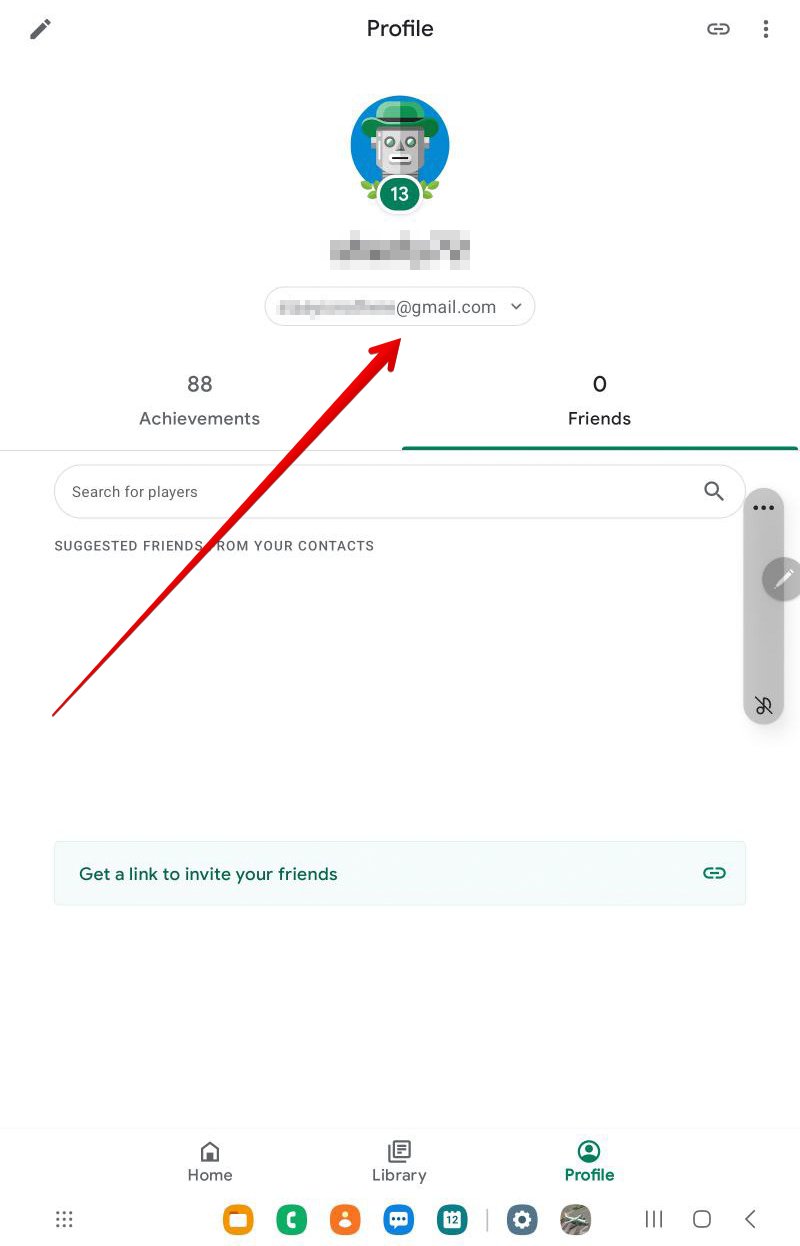
To restore game progress on Android, check if the game uses cloud saves linked to your account (like Google Play Games), or if it offers a local backup option. If available, log in to your account or restore from the backup file.
Losing hard-earned game progress can be a real pain, right? You’ve dedicated countless hours, climbed the leaderboards, and collected all those virtual treasures, only for it to vanish. Thankfully, there are ways to recover from these digital setbacks.
Let’s explore how to restore game progress on android devices. Whether it is due to switching phones, a factory reset, or accidental deletion, we will cover the most effective methods. Many games offer built-in cloud save features, making this process relatively straightforward.

How to Restore Game Progress on Android
Losing your hard-earned progress in a game can be super frustrating. You’ve spent hours building your character, collecting items, and conquering challenges, and then poof it’s gone! The good news is, there are many ways to get your game progress back on your Android phone or tablet. This article is going to walk you through the most common methods, explaining each one step-by-step. We’ll cover everything from game accounts and cloud saves to local backups and what to do if all else fails. So, let’s dive in and get your game back on track!
Understanding Game Save Methods
Before we start restoring, it’s important to understand how your game saves its progress in the first place. Games on Android use different methods for storing your achievements, and knowing which one your game uses will guide you in restoring your lost progress.
Cloud Saving: The Most Common Method
Many games use cloud saving, which is like keeping your game progress in a safe place online. Your progress is linked to an account, which could be a Google Play Games account, a Facebook account, or an account specific to the game itself. This is convenient because it lets you access your saved game on different devices, as long as you are signed into the same account. When a game supports cloud saving, your progress is usually saved automatically, making it really easy to resume your game from where you left off. Cloud saves are beneficial because if you lose your phone, you can still get your progress back.
Local Saving: Directly on Your Device
Some games use local saves, meaning your progress is stored directly on your Android device. This is like keeping your game data on your phone’s hard drive. The good thing about local saves is that they don’t rely on an internet connection. However, local saves are generally not as safe as cloud saves because if you uninstall the game or reset your phone, your progress might get deleted. Games with local saves usually don’t let you play on multiple devices with the same game progress, either. So if you want to play your game on a new phone, you would have to start over. It’s also less secure because if your device is damaged, or lost, you’ll lose your progress.
Game-Specific Accounts
Many games require you to create an account specific to that game. This account usually allows your game progress to be synced across different devices. For instance, games like Clash of Clans, or Call of Duty Mobile, require you to have a unique account. These game-specific accounts are usually tied to an email address and password. Sometimes, you can also link them to your Google account or Facebook account. This helps you keep your game safe and secure and makes it easy to restore your game progress on a new device. When using a game-specific account, your progress is typically synced to their servers.
Restoring Game Progress Using Cloud Saves
Cloud saves make getting your progress back nice and easy. Let’s walk through the steps for the most common cloud save services.
Restoring Google Play Games Progress
Google Play Games is often used for saving your progress automatically. This can be quite handy because many games use it without any extra work on your part! Here’s how to restore your progress using Google Play Games:
- Make sure you’re signed into the correct Google account: Go to your device’s Settings, then tap “Accounts” or “Users & accounts” and verify you have the Google account you used while playing the game selected. If not, add it and switch to it.
- Open the game: Launch the game you were playing.
- Look for a login option: Many games will automatically restore your progress when you open the game. If not, look for a button or option to sign in to Google Play Games. Usually, you will find a button that says something like “Sign in with Google Play” or “Google Play Games”.
- Confirm the restore: Once you sign in, the game should prompt you to restore your previous game progress. Follow the on-screen instructions to complete the restore process. Sometimes, games automatically restore when you start them.
Tips for Google Play Games: If your progress doesn’t restore automatically, check that you have Google Play Games enabled on your device. You can do this by going to Settings, then to “Google”, tap “Settings for Google apps”, and then “Google Play Games.” Ensure the setting to enable it is on.
Also, sometimes, you have to accept in-game prompt, when it asks to restore your progress.
Restoring Progress Using Facebook
Some games let you use your Facebook account to save your progress. If your game uses Facebook, the steps to restore are quite similar to Google Play Games. Here’s how it works:
- Open the game: Launch the game on your Android device.
- Find the sign-in option: In the game’s menu, look for an option to sign in with Facebook. It’s often a button with a Facebook logo or a text that says “Login with Facebook.”
- Sign in: Tap that option and sign in using the same Facebook account you used when you saved your progress.
- Confirm the restore: After logging in with your Facebook account, the game should automatically restore your saved data. If not, look for an option like “Restore Game” or “Load Progress” and follow the prompts.
Important Note: Sometimes, games have special save configurations. If your progress does not restore automatically, check that you have the latest version of the game.
Restoring Game-Specific Account Progress
Games that use their own accounts might have a slightly different process, but it’s usually still straightforward. Here’s how it usually works:
- Launch the Game: Open the game on your Android device.
- Find the Login Option: Look for a button that says “Login”, “Sign In” or the name of the game’s account system. For example, in some games, you will see “Supercell ID” or something similar.
- Enter your Details: Enter your username/email and password that are tied to your game account.
- Restore your game: Your progress should automatically be restored to your game. If not, look for an option in the game’s settings or menu to load your save data.
Example: In a game like Clash of Clans, you would log in using your Supercell ID. Once you do, all your base details, characters, and progress should be available to play again.
Recovering Game Progress From Local Backups
Restoring progress from local backups is a bit trickier than cloud saves, but it’s possible in some cases. Local saves are stored directly on your phone’s storage. If you’ve made a backup of your phone or specific game data, this method might be helpful.
Restoring from Device Backups
Android devices often have built-in backup options that can be useful for saving and restoring your game progress. Here’s how it works:
- Check for a Backup: First, check if you’ve backed up your device to Google Drive. Go to Settings, then to “Google,” then “Backup.” Here, you can see if a backup of your device is present and when it was last saved.
- Restore from Backup: If you have a backup, the easiest way to restore your game progress is to restore from your device’s backup, this will restore all the data from your device, not only the game data. To restore from your backup, you may need to factory reset your device.
Note: Restoring from a device backup can sometimes erase some of your data, so keep that in mind. - Open the Game: Once your device has finished restoring, open the game, and your progress should be back. If not, it may be that your game saves aren’t stored in the device backup.
When to use: Use device backups when you are resetting your phone and want to recover everything, including game saves.
Restoring from Game Data Backups
Some games allow you to manually backup the game data. This backup is usually a file stored on your device storage. To restore a game progress from this kind of backup, follow these steps:
- Locate the Backup: Find the saved backup file. This is often named something like “game_backup.sav” and may be in a folder inside the game’s main directory.
- Copy the Backup File: If your backup is on a different device, copy it to your new device using USB or cloud storage (like Google Drive).
- Place the File: Place this file in the same location it was originally backed up from. To find the location, you can Google the name of your game + “save game location” to get precise instructions.
- Open the Game: Launch the game and your progress should be restored.
Important Tips: Game specific backup files are usually stored in the “Android” folder under data or obb folder. Also, the method is very game specific, if you are finding it hard to locate your game files, simply search “game name save game location” on Google, to get specific instructions for your game.
Troubleshooting Common Restore Issues
Sometimes, despite our best efforts, restoring game progress doesn’t go as smoothly as we’d like. Here are some common problems and their fixes:
Problem: Cloud Save Doesn’t Restore Automatically
- Solution 1 – Check Internet Connection: Make sure your phone is connected to a stable WiFi or cellular data network. Cloud saves require a good internet connection to sync your progress.
- Solution 2 – Sign out and Sign in Again: Try signing out of your Google Play Games, Facebook, or game-specific account, and then sign in again. This can sometimes fix syncing issues.
- Solution 3 – Check Game Settings: Look for a “Sync” or “Restore” option within the game’s settings menu. Sometimes, you need to manually initiate the syncing process.
- Solution 4 – Update the Game: Make sure you have the latest version of the game installed from the Google Play Store. Outdated versions can sometimes have syncing problems.
Problem: Local Save is Gone
- Solution 1 – Check for Backups: Double-check if you have a backup on your Google Drive or other cloud storage.
- Solution 2 – Try a Data Recovery App: There are some data recovery apps available that can scan your device’s storage for deleted files. While they are not 100% effective, sometimes they can find deleted game data.
- Solution 3 – Contact Game Support: Reach out to the game’s support team. They might have suggestions or tools to help with recovering local saves, especially in the rare cases they back up the saves on their servers.
Problem: Wrong Account Is Synced
- Solution 1 – Sign out of All Accounts: Sign out from all the Google, Facebook and Game-specific accounts and sign back in with the correct account.
- Solution 2 – Switch Google Accounts: Make sure you’re using the correct Google account linked with Google Play Games. Check the Google Play Games app to ensure you are signed in with the right account.
- Solution 3 – Check game specific account: If you are playing on a game that uses its own account, make sure you are using the account where you had game progress.
Problem: Game Asks me to Start Over
- Solution 1 – Follow restore process: If your game does not restore your progress automatically, follow the steps above. Many games require you to click a button to manually restore the game data.
- Solution 2 – Check for pending updates: The pending updates sometimes cause the games to not restore the progress. To fix this, update your game and try again.
- Solution 3 – Contact Game Support: If nothing works, contact the game developers for assistance. They might be able to help you to restore your progress manually.
Losing your game progress can be annoying, but usually, there’s a way to get it back. By understanding how your game saves data and by using the methods above, you can often restore your progress and get back to gaming. If you still struggle to restore game progress, be sure to contact the game’s support team, as they are likely to provide specific steps for your game.
How To Restore Game Progress On Android! (2024)
Final Thoughts
Restoring game progress on Android often involves checking cloud saves linked to your Google Play Games account. Ensure you are logged in to the correct account. Some games offer in-app recovery options. If that’s not the case, try reinstalling the game, this often prompts a restore from cloud.
Also, check the game settings for manual save features. Sometimes developers include ways to load previous saves. Remember, ‘how to restore game progress on android’ relies mainly on developer implementation and cloud backups. Contact the game’s support if the issue persists.

