
To return a game on Oculus, you must request a refund through the Oculus app or website within 14 days of purchase and with less than two hours of playtime.
Ever bought a game and it just wasn’t what you expected? It happens! Fortunately, Oculus offers a way out. Many wonder how to return a game on Oculus when they’re not satisfied. You don’t have to be stuck with something you don’t enjoy.
The process is straightforward if you know the steps. You can get your money back, so you can try something new. We’ll guide you through that process quickly, and with ease, so you can resume gaming.

How to Return a Game on Oculus: A Simple Guide
So, you bought a game on your Oculus and it’s just not your cup of tea? Maybe it’s too scary, too boring, or just not what you expected. No worries! Returning a game on Oculus is easier than you might think. This guide will walk you through the steps, explain the rules, and make sure you get your money back smoothly. Let’s get started!
Understanding the Oculus Refund Policy
Before we dive into the “how,” let’s talk about the “when.” Oculus, like most digital stores, has a specific policy about refunds. It’s not a free-for-all, but it’s generally pretty fair. Here’s the key things you need to know:
- The 2-Hour Rule: You generally have to request a refund within two hours of using the game. Oculus keeps track of how long you’ve played a game, so you don’t have to worry about keeping a clock.
- The 14-Day Window: You need to make your refund request within 14 days of purchasing the game. After 14 days, it’s unlikely you’ll get your money back unless there are exceptional circumstances.
- Download and Play: The two-hour play time is a threshold, not a suggestion. You need to actually download and play the game in order to qualify for the refund.
- Exceptions: While the 2-hour and 14-day rules are usually firm, sometimes there are exceptions. If the game is truly broken or doesn’t work as described, Oculus might offer a refund outside the normal window. It’s worth contacting their support team to ask.
Why These Rules Exist
These rules are set up to be fair to both you and the game developers. Developers put lots of time and hard work into making games, and letting people play them for long periods of time and then asking for a refund would make it very tough for them. At the same time, Oculus wants you to feel safe when you buy something, knowing that if you don’t like it, you can get a refund. That’s why they have the 2-hour play time to see if a game is right for you, and the 14-day purchase window. It balances your right to try something with the developer’s right to payment for their work.
What Doesn’t Qualify for a Refund
Here’s a short list of situations where it’s usually more difficult to get a refund:
- Games you’ve played for more than two hours.
- Games you purchased more than 14 days ago.
- Games you got as part of a bundle and are trying to return only one of the games. Oculus often needs you to refund the entire bundle.
- Games you received as a gift, because gifts are not eligible for return.
Initiating a Refund: Step-by-Step
Okay, you checked the rules, and you’re ready to start a refund. Here’s how to do it, broken down into simple steps for both the Oculus mobile app and the Oculus desktop app or website:
Using the Oculus Mobile App
The mobile app is great when you’re away from your computer and want to manage your purchases quickly.
- Open the Oculus App: Find the Oculus app on your phone or tablet and open it. It’s the one with the Oculus logo.
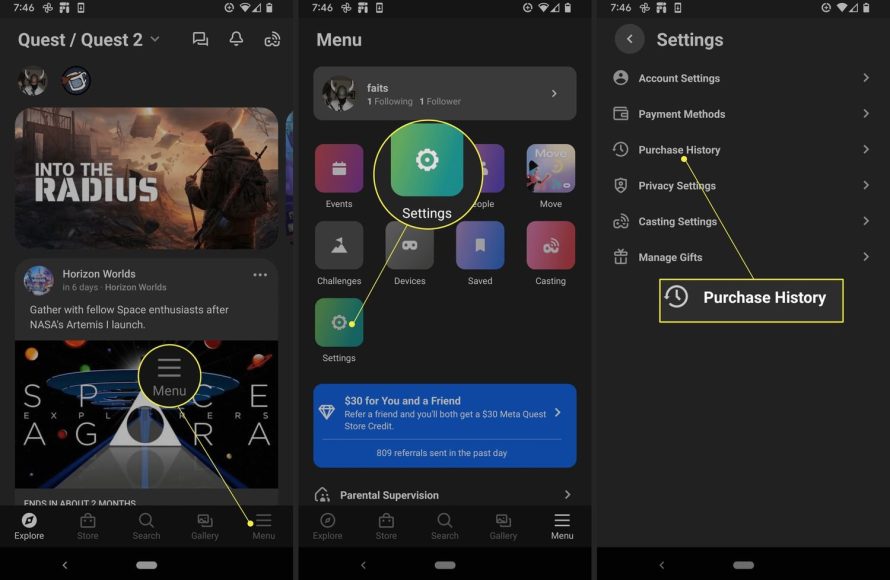
- Go to Your Menu: Tap the menu button, which usually looks like three horizontal lines in a corner of the screen.
- Find Purchase History: In the menu, look for “Purchase History” or “Transaction History.” Tap on that to see all the games and apps you have bought.
- Locate the Game: Scroll through the list until you find the game you want to return.
- Select Refund: Tap on the game you want a refund on. You’ll see an option that says “Request Refund.” Tap on it.
- Provide a Reason (Optional): Oculus may ask why you want a refund. This helps them know what they’re doing well and what they could do better. You can provide a reason, or you can often skip this step.
- Confirm the Refund: Follow the instructions on the screen. Usually, you’ll just need to confirm that you want to return the game.
Using the Oculus Desktop App or Website
The desktop app and website give you a similar experience to the mobile app, but on a bigger screen.
- Open Oculus: Start up the Oculus desktop app on your computer or go to the Oculus website (www.oculus.com) on your browser.
- Log In: If you’re not already, log in to your Oculus account.
- Go to Purchase History: Click on your profile picture or name, then look for a menu option that says “Purchase History” or “Transaction History.”
- Find the Game: Browse through the list until you locate the game you want to return.
- Select Request Refund: Click on the game. You should see a button or link that says “Request Refund.” Click that.
- Optional Reason: You might be asked to pick a reason for your refund. You can choose one or skip it.
- Finalize Refund: Click the “Confirm” button or similar to finish your refund request.
What Happens After You Request a Refund?
After you’ve asked for a refund, Oculus needs some time to look it over. Here’s what to expect after hitting that “confirm” button:
The Review Process
Oculus doesn’t automatically give you your money back right away. They first check to see if your refund request meets the requirements of their policy. This review is quick, but it does take a little time.
- Automated Check: First, a system will look to see how much you’ve played and when you bought the game.
- Human Review (Sometimes): If things aren’t super clear, like if your playing time is close to the two-hour mark, a real person might look at it.
- Waiting Period: Usually the review takes a couple of hours, but sometimes it can take up to several days. You’ll get a confirmation by email to let you know what the status of the refund is.
Getting Your Money Back
Once Oculus approves your refund, here’s how you get your money back.
- Same Payment Method: Oculus will return your money to the original way you paid. If you used a credit card, the refund goes back to your card. If you paid using PayPal, it goes back to your PayPal account.
- Time to Process: It might take a few business days for the money to show up in your account. Banks and payment systems have their own timeframes. It’s usually around 3-5 business days, but might take a little longer.
- Check Your Statement: If it has been a while and you still don’t see the refund, take a look at your payment statements to ensure that it hasn’t been credited and you simply did not notice it.
Troubleshooting Common Refund Problems
Sometimes, things don’t go perfectly. Here’s some troubleshooting advice for common refund issues you might face:
Refund Request Rejected
If your refund is turned down, it’s usually because you didn’t meet the 2-hour/14-day guidelines. However, sometimes there are other reasons:
- Check Playtime: Make sure you did not exceed the playtime limit. This is usually the biggest reason.
- Check Purchase Date: Was it more than 14 days ago since you purchased it?
- Contact Support: If you believe you should have gotten a refund, you can contact Oculus support. Explain the situation in a nice way and give them all of the details.
Refund Not Received
If the refund is approved but the money hasn’t shown up yet:
- Wait a Few Days: Banks and payment systems can be a little slow. Wait for 3-5 business days to see if the money appears.
- Check Statements: Double check your credit card or PayPal statements. It might be there and you missed it.
- Contact Support: If it’s been a long time and you don’t see the refund, contact Oculus support. They can help find out what happened to the money.
Problems with Bundles or Gifts
Bundles and gifts have special rules:
- Bundle Refunds: Usually you need to refund all games in a bundle. You cannot return one and keep the rest.
- Gifts are Final: Games that are gifted to you cannot be refunded. You have to be the original purchaser to ask for a refund.
Tips for Avoiding Game Purchase Regret
The best way to avoid needing a refund is to be a smart shopper. Here are a few tips to help you buy games that you’ll actually enjoy.
Do Your Research
- Watch Game Videos: Look for gameplay videos on YouTube or Twitch. Seeing a game in action is better than reading about it.
- Read Reviews: See what other people think about the game. Look for reviews from multiple people to get a well-rounded view.
- Check for Demos: If there’s a demo available, try it out before buying the full game.
Be Smart About Purchases
- Start Small: Don’t buy lots of games all at once. Start with one or two to see what you really like.
- Think About Your Tastes: Do you usually like scary games, puzzle games, or action games? Buy games in genres you enjoy.
- Wait for Sales: Oculus has sales from time to time. Waiting for a discount can make your purchase less of a risk.
Returning games on your Oculus isn’t hard once you know how. It’s all about understanding the rules and following the right steps. By being mindful of the purchase window, playtime limits, and doing your research, you’ll be enjoying a worry-free virtual reality gaming experience. Remember, it’s okay to return a game if you don’t like it, but it’s much better to find a game you love right away.
How to Refund Games on the Oculus Meta Quest 2
Final Thoughts
To return a game on Oculus, you must request a refund through your purchase history. Find the game and initiate the refund process. Remember, you must request this within 14 days of purchase, and you should not have played the game for more than two hours.
Once you submit your refund request, Oculus will review it. They will usually process it within a few business days. Following these steps clarifies how to return a game on oculus.

