
Ripping a Steam game typically involves creating a backup of the game files, which can be done using various third-party tools or by directly copying the installation directory.
Ever wanted to play your favorite Steam game offline, on a different device, or simply safeguard your purchase? Many players find themselves wondering how to rip a Steam game to have more flexibility with their gaming library. This process allows you to have a local copy of your games, away from the restrictions of the Steam client.
There are legitimate reasons for doing this, and while it might sound complicated, it is quite achievable with the right methods. This article will briefly explain how to create a backup of your installed Steam games.

How to Rip a Steam Game
Okay, let’s talk about something that might sound a little tricky: ripping a Steam game. Now, before we get too deep, it’s super important to understand that “ripping” a game isn’t the same as making a copy to share with everyone. That’s like stealing, and it’s a big no-no. What we’re really talking about is getting the game files so you can do things like back up your game, mod it, or move it to a different computer without having to download it all over again. It’s like taking apart a Lego set to understand how it works or moving it to a different shelf. You still own the Legos, just like you still own the game you purchased on Steam.
Understanding the Basics: Why and What is Game Ripping?
When you buy a game on Steam, you’re not actually getting a physical disc. Instead, you’re getting the right to download and play that game on your computer through the Steam platform. Ripping a game means taking those downloaded files, which are normally kept hidden by Steam, and making a copy of them that you can access directly. Think of it as making a paper copy of your homework before you turn it in to the teacher, so you have a backup to look at later. This is helpful for several reasons.
Why People Rip Games
Backups: Imagine your computer crashes or you get a new one. You’d have to spend hours redownloading your games. With ripped files, you could quickly copy the game back without Steam’s download manager.
Modding: Many games have very cool mods, which are like extra add-ons or changes made by other players. Sometimes, you need to access the actual game files to install these mods. Ripping lets you get to those files and get creative with your game!
Offline Play: Though Steam has an offline mode, sometimes you may prefer to play the game by launching it directly from the game files.
Moving Games Easily: If you have a super slow internet connection, moving large game files between computers is much quicker by just copying them over, compared to downloading them again and again.
What You Need to Know
When we talk about game files, it means we are talking about all the data that makes a game work: the pictures, the music, the code that controls the game, and so on. These files usually live inside of folders on your computer, organized neatly by the Steam application. Ripping involves finding those files, copying them to a new location, and potentially setting things up to launch the game outside of the Steam program. This is a process that needs your attention, and it’s not too complicated once you know the basics.
Finding the Game Files
Now, let’s get to the fun part: actually finding the game files. Steam is pretty good at hiding them away, but we know where to look.
Using the Steam Library
The first step is to use Steam itself to help us. Here’s what you should do:
1. Open Steam: Launch the Steam application on your computer.
2. Go to Your Library: Click the “Library” button at the top of the Steam window. This takes you to all the games you own.
3. Find Your Game: Locate the game you want to rip in your library. It might be a long list, so use the search bar if you need to.
4. Right-Click: Once you find the game, right-click on its name. A menu will pop up.
5. Select “Manage”: In the pop-up menu, look for “Manage” then select “Browse Local Files”. This will open a window showing the folder where your game is kept.
This folder contains the important stuff. Inside you’ll find all the files the game needs to run: everything from the game’s main file and folders with textures to sound effects. It’s like looking inside the engine room of a car.
Identifying Key Files and Folders
You’ll see a mix of different folders and files here. Here’s a quick rundown of what you might find:
Executable (.exe) File: This is the main file you use to run the game. It usually has the same name as the game itself. It’s like the key that starts the game’s engine.
Data Folders: Folders with names like “data,” “assets,” or “images” hold the game’s pictures, sounds, and other information.
Config Files: These files (.ini, .cfg, etc.) hold the game’s settings like resolution and keyboard controls.
Understanding what you’re looking at is important before you copy anything. Don’t worry about understanding every single thing; we only need to make sure you copy the whole folder for now.
Methods for Ripping Your Game
Now that you’ve found the game files, let’s talk about how to get them copied over for your backup or mods. There are few ways to approach this, and we’ll go over the most common methods: manual copying and using Steam’s Backup feature.
Method 1: Manual Copying
This method is as simple as it sounds: you’re just copying the entire game folder to a different location.
1. Select the Game Folder: Go back to the folder you found earlier using the ‘Browse Local Files’ option in Steam.
2. Copy the Folder: Select the entire folder containing your game’s files. You can do this by clicking on the folder and pressing Ctrl+C (or Command+C on a Mac), or right clicking on the folder and choosing “copy”.
3. Choose a Destination: Decide where you want to keep the ripped game files. You might want to put them on a different hard drive, a USB drive, or just a separate folder on your computer.
4. Paste the Folder: Go to your chosen destination and press Ctrl+V (or Command+V on a Mac), or right click anywhere inside the window and choose “paste.” This will start the process of copying the files from one place to another.
5. Wait for Completion: Depending on the size of the game, the copying process might take some time. Grab a drink and be patient!
This is the most basic way to make a copy of your game files. It works for almost all games, but there are some downsides to this method. Because you’re just copying files, this is generally not a method for bypassing Steam completely (more on that later), but it’s perfect for creating a backup of your existing installation.
Method 2: Using Steam’s Backup Feature
Steam actually has a built-in function to back up games. It creates a package of the necessary files that Steam can use to restore games later.
1. Go to the Steam Menu: Open Steam. Click “Steam” in the top left corner of the window.
2. Select “Backup and Restore Games”: From the menu, select “Backup and Restore Games.”
3. Choose “Backup currently installed games”: A new window will pop up. Select “Backup currently installed games” and then click next.
4. Choose the Game(s): Select the game(s) that you want to backup from the list.
5. Choose the Destination: Pick where you want to save the backup files.
6. Begin Backup: Click “Next” and then “Begin Backup.” Steam will then compress the games and store them into a backup folder.
7. Wait for the Backup Process: This may also take a while, so be patient. When finished, you’ll have a backup folder you can use.
Steam’s backup feature can be useful if you want to save space or be sure that you are following the rules. However, the backup files are not immediately usable for modding or directly launching games. Instead you would need to use Steam to “restore” the game.
Comparing the Methods
Let’s look at the two methods side-by-side:
| Feature | Manual Copying | Steam Backup |
|————————-|—————————————–|—————————————-|
| Ease of Use | Very easy, just copy and paste | Easy, uses Steam’s built-in tool |
| File Format | Files remain in their original format | Creates a backup file |
| Modding | Files are easily accessible | Requires a restore to access the files |
| Offline Play | Potentially easier to launch directly | Must be restored with Steam for use |
| Backup Speed | Can be faster for large games | May be slower due to compression |
| File Management | Directly copies game folders | Creates a unique backup folder |
Choosing between the two depends on what you need. For a simple backup that you intend to restore with Steam later on, Steam’s backup is fine. If you need to get right into the files for modding or direct launching, then manual copy is usually the better way to go.
Working with Ripped Game Files
Okay, now that you have the game files in a safe place, let’s discuss what you can do with them. Remember, we’re only working with the files we already own legally.
Backing Up Games
As we’ve discussed, creating backups is the most common use of ripped game files. If your hard drive crashes or you get a new computer, you can simply copy your backed-up game folder into the Steam folder and resume playing. This will save you a lot of download time.
Here’s how to restore a backup folder of your game.
1. Go to Steam’s game folder You should place your backup in the Steam common game folder (steam/steamapps/common)
2. Restart Steam: Sometimes Steam needs a little nudge to recognize a newly installed game. Restart the program after placing the game folder in the correct spot.
3. Verify game files: Then select the game in your library and choose properties. Go to the local files tab and select “Verify Integrity of Game Files”, so that Steam can install and download any missing files.
4. Launch Once that is completed the game should be all set and ready to launch.
Modding Games
Modding can make your favorite games even more fun by adding new content, changing how things look, or adding new gameplay features. To mod games you will often need to access those game files.
1. Find Mods: First, you need to find mods that other players have created. Websites like Nexus Mods or the Steam Workshop (if the game supports it) are good places to start looking.
2. Download the Mod: When you find a mod you like, download the files and place them in a safe place on your computer.
3. Follow Instructions: Each mod will have its own installation instructions, typically in a “readme” file. These may include pasting specific mod files into particular folders in your ripped game folder. Read these carefully to make sure you install correctly.
4. Testing: After installing your mod, start your game to ensure everything works correctly. Sometimes you might need to try a few different things to get mods to work just right.
Remember that some mods can be complicated or make changes to the game. Be careful about which mods you use and always back up your game files before installing mods.
Launching Games Without Steam
This is where things can get a little tricky. Sometimes, after ripping a game, people want to try to run the game without Steam, by directly launching the game’s .exe file. Steam, however, doesn’t want you to do this. In some cases, this method can work for certain games that don’t rely on Steam to start, but most Steam games will not work properly if you simply launch it from the executable. Usually, these games will fail to start or ask you to launch through the Steam application.
Trying to launch games without Steam is not always going to work, and can even lead to problems or errors. The best way to play a Steam game is often to launch through the Steam platform, but having your files backed up is still a useful thing.
Important Considerations and Best Practices
Before we finish, let’s talk about some important things to keep in mind.
Legality
It’s vital to understand that ripping games for personal use, such as creating backups or modding, is usually fine if you own the game legally through Steam. However, distributing those files or copies to other people, or playing a game without owning a license to that game, is against the law and against the Steam Terms of Service. It’s always best to be a responsible gamer and respect the creators of the games you enjoy!
Potential Issues
Sometimes, when working with game files, you might encounter some problems. Here are a few things that might happen and what you can do about them:
Corrupted Files: Sometimes, the copied files might get corrupted or not be copied completely. If you see strange errors or the game doesn’t work right, try copying the files again, or verify the game files through Steam.
Outdated Files: Games get updated all the time. If your ripped game files are old, they might not work with the newest version of the game. You can update your game through the Steam client.
Mod Conflicts: Some mods might not work together, causing your game to crash or act strangely. Try uninstalling mods or playing them separately.
Staying Safe
As with any kind of file downloading or modifying, it’s important to stay safe. Always get your mods from a reliable source. Make sure that your computer’s antivirus is active, and when in doubt, do some research before downloading or adding any files.
Ripping a Steam game isn’t that hard once you know the steps. It’s a great way to back up games, get into modding, and manage your games in different ways. Always be responsible, and you can use these skills to become a smarter gamer.
Remember: only make backups of games you own legally and always respect the game creators!
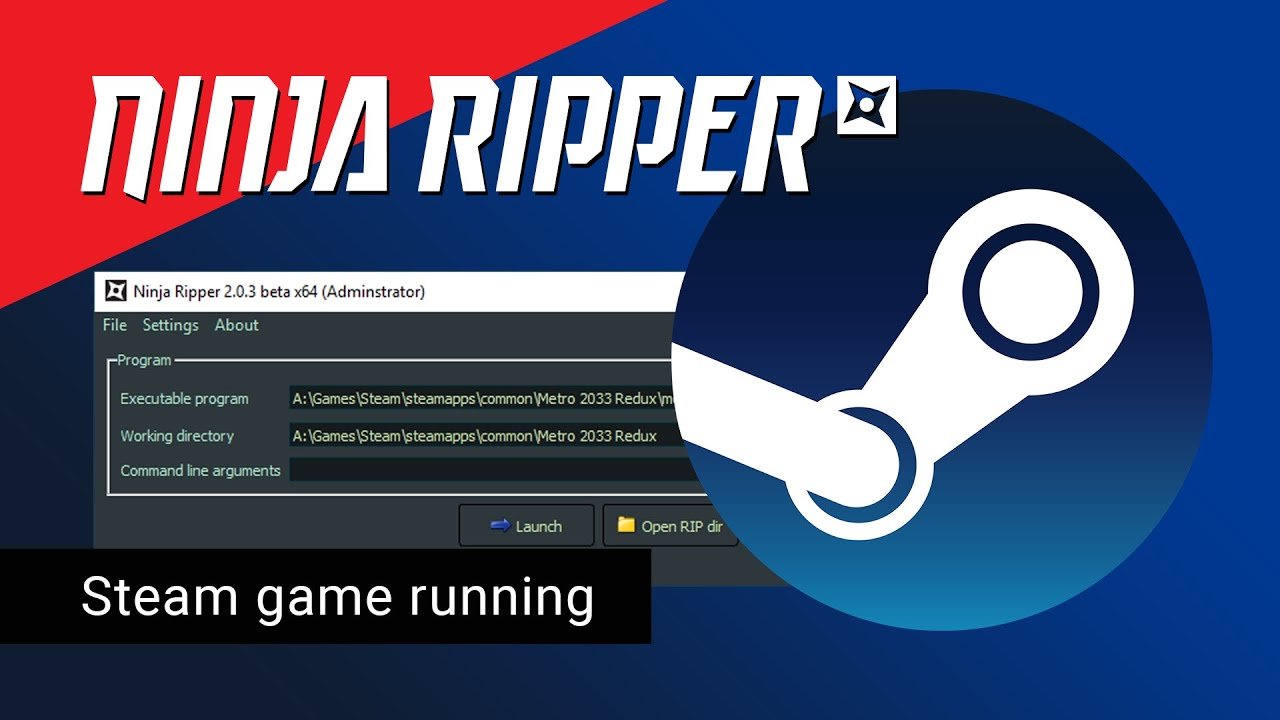
Ninja Ripper 2.0.3. How to rip games from Steam
Final Thoughts
Ripping a Steam game involves accessing the game files directly, often for backup or modification. This action is generally against Steam’s terms of service and may cause issues. Always consider legal and ethical implications.
Knowing how to rip a Steam game technically requires locating the game folder and copying its contents. Be very careful, as altering game files can result in game malfunction or account penalties. Proceed with caution and awareness.

