
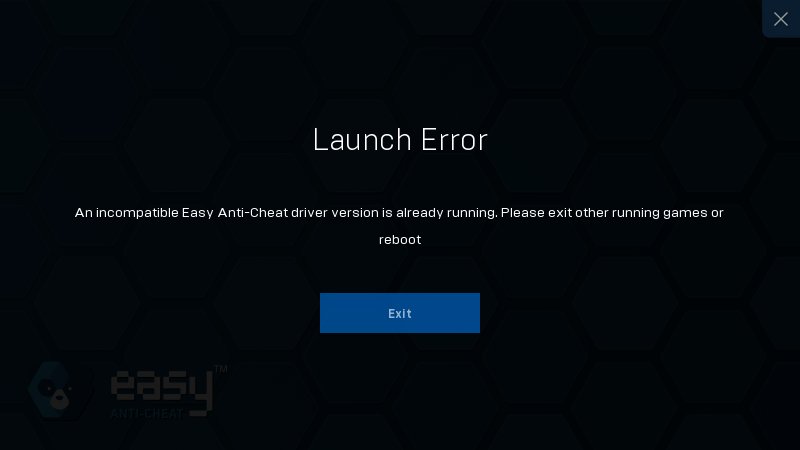
Running two games simultaneously that use Easy Anti-Cheat is generally not supported. Each game instance will likely interfere with the other’s anti-cheat processes.
Have you ever wondered if you could play two games at once, specifically those protected by Easy Anti-Cheat? The desire to multitask gaming can be strong, but the reality can be tricky. Many players ask how to run 2 easy anti cheat games, and it’s a question that deserves a clear explanation.
Unfortunately, Easy Anti-Cheat’s design prevents such a setup. The anti-cheat software often works on a system-wide level. This means it actively monitors other running processes, to ensure game integrity and prevent cheating.
Attempting to run two EAC-protected games can cause conflicts, leading to crashes or unexpected issues. It is important to play one game at a time to avoid problems.

How to Run 2 Easy Anti-Cheat Games
Ever wanted to play two awesome games at the same time? Maybe you love exploring a magical world while also battling it out in an action-packed arena. It’s a cool idea, but if both games use Easy Anti-Cheat (EAC), things can get a little tricky. Easy Anti-Cheat is like a super-smart guard that makes sure no one is cheating in online games. When two games use this guard, they sometimes bump heads, causing problems. This article will teach you some ways to try and get two EAC games running at once, although it’s important to know it might not always work perfectly.
Understanding Easy Anti-Cheat
Before we jump into making two games work, let’s understand what Easy Anti-Cheat is all about. Imagine a school with a really good security system. That’s kind of what EAC is for games. It’s a software program that looks for things that shouldn’t be there, like cheat programs that give players an unfair advantage. EAC runs in the background while you play, keeping things fair for everyone. Because of how it works, having two instances running at the same time could cause confusion.
Why Easy Anti-Cheat Makes Running Two Games Difficult
The main issue is that EAC is designed to be the only instance running at any single time on a computer. When you start one game, EAC launches, and if you then attempt to launch a second game using EAC, it can cause the program to struggle. Think of it like trying to have two captains on the same ship – they’re probably going to get in each other’s way. This can result in crashes, errors, or even the second game not starting. It’s not necessarily a problem of your computer not being powerful enough. It’s more about how EAC handles running twice at once.
Here’s why it can get tricky:
- Resource Conflicts: Both instances of EAC might try to access the same computer resources simultaneously, causing clashes.
- Software Interference: The anti-cheat software might not be designed to run alongside another instance of itself. This may cause one or both programs to fail.
- Game Stability Issues: The games themselves might be programmed to expect only one instance of their security to be running. When this gets disrupted, the game can become unstable.
Methods for Running Two Easy Anti-Cheat Games Simultaneously
Alright, you’re still game for trying to run two EAC games at once? It’s not a guarantee, but here are a few things you can attempt. Keep in mind that these steps can be tricky, and it’s not something the game developers always support, so proceed with caution.
Using Virtual Machines
A virtual machine is like having a computer inside your computer. It’s a software program that creates a separate environment to run programs. You can then try installing one game on your actual computer and the second one inside the virtual machine. It’s like having two separate computers, each with its own version of EAC. This method can help avoid conflicts between two instances of the anti-cheat software. It’s a more complex way to do things, but it might just work for you.
How to Set Up a Virtual Machine
Here are some broad steps you may follow to set up a virtual machine. Please note this is a high level overview, and your experience may vary based on the specific software you choose.
- Choose Virtualization Software: Download and install virtualization software like VirtualBox or VMware. These are common and free for personal use.
- Download the Windows ISO file: You’ll need a Windows disc image (.ISO) file if you intend on installing the Windows operating system on your virtual machine.
- Create a New Virtual Machine: Start your virtualization software and create a new virtual machine. This means choosing the operating system that you’ll use, how much RAM it can use, and how much hard drive space it can have.
- Install the Guest Operating System: Now, install the operating system inside the virtual machine using your ISO file. This process might take a little while just like installing any Windows instance.
- Install Game and Drivers: Install one of the games and any necessary drivers inside the virtual machine. Remember, it’s just like using another computer!
- Start Your Games: Now, start one of your games on your real computer, and the other game in the virtual machine. This can help avoid clashes between two instance of EAC.
Remember that virtual machines can take a lot of computer power, so ensure your computer meets the system requirements for both games and the virtual machine software to perform smoothly. You’ll need a decent processor, plenty of RAM, and space for both the virtual machine and game files.
Using Sandbox Environments
A sandbox program creates a special, isolated environment for running specific applications. Think of it as a playground where a game can run without interacting directly with the rest of your system. Sandbox software provides a safe way to test programs, and in this context, may help run two games with EAC. It works by separating the game and it’s anti-cheat from your main system, which might stop them from interfering with each other.
How to Use a Sandbox
- Choose a Sandbox Program: Download and install a sandbox program like Sandboxie or similar software.
- Configure the Sandbox: Create a new sandbox environment within the program. You can usually customize various settings such as resource allocation.
- Install One Game in the Sandbox: Launch the installer for one of your games within the sandbox. It will install in that isolated space.
- Run the Games: Start one of the games from your normal computer, and launch the other from inside the sandbox.
Keep in mind that some sandbox software has restrictions on how it interacts with other applications, including games. Experiment with the settings to see if it allows both games to run smoothly. It may require specific adjustments for each game to work correctly.
Dual Booting Systems
Dual booting allows you to have two completely separate operating systems on one computer. You might have Windows on one partition and Linux or another version of Windows on another. When your computer starts, you can choose which operating system you want to use. This approach lets you run one game on one operating system and the other game on the other, essentially avoiding the two instances of Easy Anti-Cheat crashing into each other. This solution, though reliable, can be a bit complex to set up.
How to Set Up Dual Boot
- Prepare Your Computer: You need to have space on your hard drive for two separate operating system installations. You’ll probably want to resize your current partition to make space for the second one.
- Download the Second OS: Download an ISO file for the other operating system you would like to install. You can get Windows or a Linux distribution here.
- Create a Bootable USB: Put the installer onto a USB drive by using programs such as Rufus.
- Install the Second OS: Boot from the USB drive. You’ll see the installer for your secondary OS. Follow the prompts to install the OS onto your extra drive partition.
- Select Your OS on Startup: Restart the computer. It will probably present you with a menu at startup where you can choose which operating system you want to run.
- Install Games: Install each game on it’s own operating system. This means you can install one game on your Windows partition and the other on your Linux (or other Windows) partition.
Remember that dual booting means you have to restart your computer and pick which operating system to use each time you play different games. It’s not as quick as simply opening two programs at the same time. This setup can get quite advanced, so always make sure to back up your information before tinkering with partitions on your hard drive. Always double check and verify information from your source before performing any steps regarding partitions, and always be very careful when modifying system partitions.
Running Games with Compatibility Mode
Compatibility mode is a Windows feature that tries to run older programs smoothly on newer systems. It works by making the program think it’s running on an older version of Windows. Sometimes, using compatibility mode for your games can change the way Easy Anti-Cheat interacts with your system, which might prevent conflicts. It’s not a guaranteed solution, but it’s often an easier one to try compared to virtual machines or dual booting.
How to use compatibility Mode
- Find the Game Executable: Look for the main .exe file for the games you want to play (the file that you click to open the game).
- Open Properties: Right click the executable file for one of the games and click “Properties.”
- Go to Compatibility Tab: In the Properties window, click on the “Compatibility” tab.
- Change Settings: Enable the checkbox next to “Run this program in compatibility mode for” and pick the older version of Windows from the dropdown.
- Run as Administrator: Also, check the option that says, “Run this program as an administrator.”
- Apply Changes: Click the “Apply” button and then “OK.” Now repeat all of these steps for the second game as well.
Sometimes compatibility mode might impact the way the game runs, so be sure to test the performance of the games. If they become too slow or unstable, you may have to disable this feature.
Important Considerations
Before attempting to run two Easy Anti-Cheat games at once, here are some essential things to consider.
System Resources
Playing two games at the same time requires much more computer power than just running one. Make sure your computer has enough RAM, processor power, and graphics capabilities to handle both games without lag or crashes. If your computer isn’t strong enough, you might get very slow gameplay or experience constant issues.
Make sure you have enough resources by checking the recommended hardware specifications for each game. Your computer’s components should meet or exceed those recommendations to run two games smoothly. You can monitor your resources usage by opening Task Manager (right-click the taskbar and click “Task Manager”) while you play to see how much of your computer’s CPU, RAM, and GPU is being used. If they’re maxing out, it might be time to upgrade some components.
Game Stability
Running two instances of any software, especially with anti-cheat mechanisms, can sometimes cause unexpected crashes or errors. Be prepared for potential stability issues, and make sure you’ve saved your progress frequently. Sometimes, one or both games may suddenly close without warning. This is normal when pushing the limits of your setup. It’s a good idea to be aware of these potential problems so that you’re not surprised if they happen.
Game Updates
Game developers sometimes update their games and the Easy Anti-Cheat software. These updates might break some of the methods we discussed earlier, or even cause new problems. Keep an eye out for game update information. Sometimes a workaround might only work for an older version of the game. If a game suddenly stops working, check to see if it just had a recent update. You may need to try the solutions we’ve talked about, or perhaps look for new solutions as they become available.
Ethical Considerations
While it might be possible to run two Easy Anti-Cheat games simultaneously using some of these methods, consider if this might break the rules for some games. Game developers might interpret attempts to modify the way their anti-cheat software operates as a form of cheating. Even if you’re not intending to cheat, the anti-cheat software might think that your attempts to get the games to work together are indeed trying to give you an unfair advantage. Play responsibly, and be aware of the potential consequences.
Troubleshooting Tips
If things aren’t going well, here are a few troubleshooting steps to try:
- Restart your computer: This can sometimes resolve conflicts between programs.
- Update drivers: Make sure your graphics card drivers are up to date. Outdated drivers may cause instability or performance problems.
- Close unnecessary programs: Closing background applications can free up resources.
- Lower game settings: Reducing graphics quality may help performance.
- Try different methods: If one approach doesn’t work, try another from this guide.
- Check game forums: Other players might have the same problem and may have found solutions. Check the game’s forums or online communities for advice.
It may be that some combinations of games and some methods just won’t work. Remember that these steps are not foolproof, so don’t be discouraged if you’re having problems.
Running two Easy Anti-Cheat games at the same time can be a challenge, but with the right approach and a little patience, it may be possible to achieve. It’s vital to understand the risks involved and make sure to play responsibly. By knowing what to expect and understanding how to troubleshoot, you’ll increase your chances of success and have more fun playing your favorite games.
How To Fix Easy Anti Cheat Is Not Installed in Fortnite
Final Thoughts
To play two Easy Anti-Cheat games, you must use separate Windows user accounts. Launch each game on its respective user profile. This method prevents conflicts between the anti-cheat instances.
Each game runs in its isolated environment. This lets you enjoy them simultaneously. Remember this key strategy of using different accounts. Now you know how to run 2 easy anti cheat games.

