
To run a game as administrator, right-click on the game’s executable file or shortcut and select “Run as administrator” from the context menu.
Have you ever encountered a situation where your game wouldn’t perform correctly or save your configurations? These issues often arise due to insufficient permissions. One solution for this type of problem is to understand how to run a game as administrator. Doing this provides the game with the necessary privileges to interact correctly with your operating system.
This approach might just fix issues with saving data or getting full access to the game’s settings. Running in this way allows the game to write to necessary folders and files. Therefore, giving the game the proper access it needs to function correctly.

How to Run a Game as Administrator
Have you ever tried to play your favorite game and it just didn’t work right? Maybe it was slow, or maybe it kept crashing. Sometimes, games need a little extra permission to run smoothly. This is where running a game as administrator comes in. It’s like giving the game a special pass to use all the computer’s resources. Don’t worry, it’s not as complicated as it sounds! Let’s learn how you can do this on your computer, step by step.
Why Run a Game as Administrator?
You might be wondering, “Why do I even need to do this?” Well, sometimes games need to access parts of your computer that regular programs aren’t allowed to touch. This might include things like files or settings that are necessary for the game to work correctly. Here are a few common reasons why you might need to run a game as administrator:
- Fixing Crashes: If your game keeps crashing or freezing, giving it administrator rights can often solve the problem. It ensures the game has full access to the necessary files.
- Saving Game Progress: Sometimes, games need to save data in specific folders on your computer. If they don’t have the right permissions, they might not be able to save your progress, and that’s no fun!
- Running Older Games: Older games were often made for older computers. They might need administrator rights to interact with modern systems correctly.
- Fixing Glitches: Glitches are annoying! Running a game as administrator can help resolve some graphic glitches and other bugs by ensuring the game can access all the resources it needs.
- Installing Mods or Patches: If you want to add fun mods or install game patches, running the game as administrator is sometimes required to allow these changes to be installed properly.
How to Run a Game as Administrator on Windows
Most of the time you’ll be doing this on a Windows computer. Here are different ways you can run a game with administrator privileges. Let’s walk through them!
Method 1: The Right-Click Method
This is the most common and easiest way to run a game as administrator.
- Find the Game Shortcut: Look for the shortcut to your game on your desktop, in your Start menu, or in your game folder. It’s usually an icon of the game.
- Right-Click: Right-click on the game’s shortcut. A menu will pop up.
- Select “Run as administrator”: In the menu, you’ll see an option that says “Run as administrator.” Click on it.
- Confirm: Windows might ask you to confirm if you really want to allow the game to make changes to your computer. This is a security feature. Click “Yes.”
- The Game Starts: Your game will start up, running with administrator privileges.
That’s it! Your game now has all the permissions it needs.
Method 2: Setting the Game to Always Run as Administrator
If you find yourself needing to do this every time you play a game, you can set the game to always run as administrator.
- Find the Game Shortcut Again: Like before, locate the game’s shortcut.
- Right-Click and Select “Properties”: Right-click on the game shortcut again. This time, choose “Properties” from the menu.
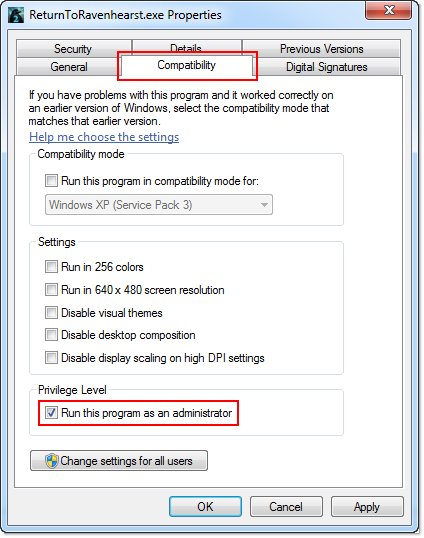
- Go to the “Compatibility” Tab: In the Properties window, click on the tab that says “Compatibility.”
- Check “Run this program as an administrator”: Look for the checkbox that says “Run this program as an administrator.” Click on the checkbox to put a checkmark in it.
- Click “Apply” and then “OK”: Click the “Apply” button, and then click the “OK” button.
Now, every time you open the game using that shortcut, it will automatically run as administrator.
Method 3: Running From The Game’s Folder
Sometimes, you may not use shortcuts. Here’s how you can run a game as administrator straight from its folder.
- Open the Game’s Folder: Find where the game is installed on your computer. This is often in the “Program Files” or “Program Files (x86)” folder.
- Find the Game’s .exe file: Look for a file that ends with “.exe”. This is the actual program file that starts the game.
- Right-Click and select “Run as administrator”: Right-click on the .exe file, and choose “Run as administrator” from the menu.
- Confirm and Play: Confirm if prompted and start your game.
Potential Issues and What to Do
While running a game as administrator can solve many problems, it’s not always a perfect fix. Sometimes, you might run into a few other issues. Here are a few possible issues and how to try to solve them:
Game Still Crashes or Doesn’t Save
If running as administrator doesn’t solve the crashing issue, there might be other problems. Here are a few things you can try:
- Update Your Graphics Card Drivers: Make sure you have the latest graphics drivers for your computer. Old drivers can cause problems with games.
- Update Windows: Ensure your Windows operating system is up to date with all the latest updates and security patches.
- Check System Requirements: Make sure your computer meets the minimum requirements for the game. If it’s too old to run the game properly, then running as administrator won’t help.
- Run a Virus Scan: Sometimes, viruses or malware can interfere with games. Scan your system to make sure there are no malicious programs present.
- Check Game File Integrity: If you are using platforms like Steam, you can check to see if the game files are corrupted. You can do that by right-clicking the game in steam then click on properties. Then go to installed files and click “verify integrity of game files”.
The Game Won’t Start at All
If your game won’t even start, it can be very frustrating. Try these ideas:
- Compatibility Mode: You might need to run the game in compatibility mode. In the game’s properties (like we did to make it always run as admin), try running it in compatibility mode for an older version of windows.
- Reinstall the Game: Sometimes the best solution is to start fresh and reinstall the game.
- Check for Known Issues: There might be known issues with the game itself that others have found. Check online forums or the game’s website to see if there are fixes or patches available.
When is Running as Administrator Not Necessary?
While giving a game administrative rights can fix many problems, it’s not always necessary. Here are some situations where you probably don’t need to do it:
- New Games: Many newer games are designed to work well with the default permissions of your computer.
- Well-Behaved Games: If a game is working well without the need to run as administrator, then there’s no need to change it.
- Steam and Other Platforms: If you are using a gaming platform like Steam, often times the platform itself already handles the permissions.
Understanding Permissions
It’s helpful to understand a little bit about computer permissions. When you run a game (or any program) as administrator, you’re giving that program special access to your computer’s system. This can be helpful, but it’s also important to know why it’s necessary so you can be careful when providing this access.
User Accounts
Most computers have different user accounts. If you have a user account that is not the administrator, you will need to use administrator credentials to run something as an admin. These can be another user name and password or another way of verifying, depending on what is enabled on your machine.
File Access
When a game runs as administrator, it can access files that might be restricted to regular programs. This is important for games that need to write data or change configurations in specific places on your computer.
Security
It’s essential to be careful when running programs with administrator rights. Always make sure that the program you are giving these rights to is from a trusted source. Don’t give administrator privileges to files that you’re unsure about. When in doubt, it’s always better to be cautious. This is why you will be prompted to accept the changes to your computer when you start a game this way.
Alternatives to Running as Administrator
Sometimes, running as administrator isn’t the best answer. Here are some alternatives you can try before giving a game those full permissions:
Compatibility Settings
Sometimes, games will work fine if you run it in compatibility settings mode, instead of as administrator. This is a good option because this method doesn’t give a game full administrator permissions. Let’s try this method before giving the game full administrator permissions:
- Right-Click and Open Properties: Just like we did before, find your game shortcut, right click it and choose “Properties”.
- Open Compatibility Tab: In the Properties window, click the “Compatibility” tab.
- Try Different Compatibility Modes: You can try different compatibility modes for older versions of windows by selecting the option for compatibility modes and selecting different operating system options.
Lowering Graphic Settings
If your game is running slowly or crashing, try lowering the graphic settings of the game. Many times, problems will be resolved by not pushing the game to it’s maximum limits and using resources. Find the game’s graphics settings and turn down the features to see if the game improves.
Looking for Game Patches
Sometimes game developers provide updates or patches that fix bugs or resolve issues with the game. Check if your game has any updates you can install before trying the method of running as administrator.
When to Ask for Help
Sometimes, no matter what you do, a game just won’t work right. Here are a few situations when it’s a good idea to ask for help:
- If You Can’t Figure It Out: If you’ve tried all the methods and your game still won’t work, it’s okay to ask for help from a friend, family member, or online forum.
- If You’re Not Sure About Something: If you’re ever unsure about what permissions to give to a program, it’s always better to ask someone who knows more about computers. It’s better to be safe than sorry.
- If the Problems are Really Complicated: Sometimes computer issues are complex, and you might need help from a professional. Don’t be afraid to ask if you feel like you’re dealing with a very complex problem.
Running a game as administrator can be a helpful tool for fixing common problems, but it’s not always the solution. By understanding when and how to use this feature, you can get your games running smoothly. Remember, computer safety is important, so only give administrative access to trusted programs.
Using these different methods for running your games with administrator privileges will help ensure your gaming experience is much better than before. Remember to start with the right-click method first because it is the easiest. If that does not work then you can always use the properties to change the setting to always run the game with those permissions. Always remember to be safe when running programs as an administrator on your computer.
How To Run Steam Games As Administrator
Final Thoughts
Running games as administrator grants necessary permissions. This is crucial for avoiding issues with game installations or save files. Failing to do so could result in game malfunctions.
Therefore, right-clicking the game’s executable and selecting ‘Run as administrator’ is the key action. You must follow these steps for optimal performance. Understanding how to run a game as administrator ensures a better gaming experience.

