
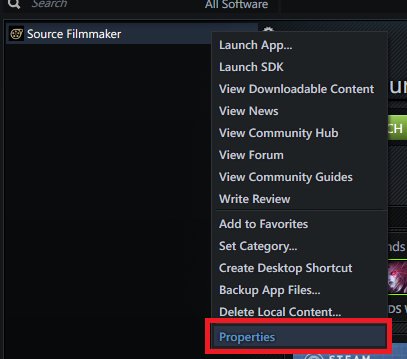
To run a game in compatibility mode, right-click the game’s executable, select “Properties,” go to the “Compatibility” tab, and choose the desired Windows version; then, apply the changes.
Have you ever faced the frustration of an older game refusing to work on your modern computer? It can feel like a technological roadblock. This happens because of system changes over time. Knowing how to run a game in compatibility mode is the key to making those old favorites playable again.
This method tricks your computer into thinking it is using an older Windows version. It is quite simple and very effective at fixing these issues.

How to Run a Game in Compatibility Mode
Sometimes, when you try to play an older video game on your newer computer, it might not work correctly. It might crash, look strange, or not even start. This happens because older games were made for older versions of Windows. Compatibility mode is a special setting on your computer that helps these older games run better by making your computer act more like an older one. Think of it like putting on a different hat – your computer puts on an “old computer” hat to trick the game into thinking it’s in the right place. Let’s explore how to use this helpful tool!
Why Use Compatibility Mode?
Before we dive into the “how,” let’s talk about the “why.” You might need to use compatibility mode for several reasons:
- Old Games Won’t Start: If a game simply won’t open or gives you an error message, compatibility mode is often the first fix to try.
- Graphics Issues: Sometimes, older games appear glitchy, with messed up colors or parts of the screen missing. This is often due to how the graphics are handled in newer systems. Compatibility mode can help resolve these visual problems.
- Sound Problems: You might encounter sound issues, such as no sound, or strange noises. Compatibility mode can sometimes correct audio problems with older software.
- Gameplay Problems: Games may run too fast or too slow, or the controls might not work correctly, when old software doesn’t like the operating system. Compatibility mode can help to smooth things out.
- Software designed for an older operating system : Some old programs are not optimized to run correctly on new operating system, so compatibility mode might be an important key to fix the issue.
In short, compatibility mode is like a magic trick to convince an older game that it’s running on the system it was designed for.
How to Find the Compatibility Settings
Now, let’s learn how to find the compatibility settings for your games. It’s usually very easy to access through the game’s executable file. Here’s a step-by-step guide:
- Locate the Game’s Executable File: The executable file is the main file that starts the game. It usually has a name that’s similar to the game title, and ends with
.exe. For example, if your game is called “Space Adventure,” the executable file might be namedSpaceAdventure.exe. It’s often located inside the game’s installation folder. You might find a shortcut on your desktop, but you should find the original file to make sure changes made can be saved. - Right-Click: Once you’ve found the executable file, right-click on it with your mouse. A menu will pop up.
- Select “Properties”: From the menu, look for the option that says “Properties” and click on it. This will open a new window with various settings for the file.
- Go to the “Compatibility” Tab: In the Properties window, you’ll see several tabs at the top. Find the one that says “Compatibility” and click on it.
The Compatibility tab is where the magic happens. You’ll see options to adjust how the game runs.
Exploring the Compatibility Tab
The compatibility tab offers various tools to make older games work correctly. Here’s a detailed look at the most important settings you’ll find there:
- Compatibility Mode Checkbox: This is the big one! Check the box next to “Run this program in compatibility mode for:” This means you’re telling your computer you want to try to make this software act like it’s running on an older operating system. Once you check the box, a drop-down menu will appear with a list of different Windows versions.
- Selecting a Windows Version: From the dropdown menu, you can choose a specific version of Windows to try and emulate. The version you choose depends on the age of the game you’re having trouble with. Generally, you should try the version of Windows that the game was designed for.
- Windows 95/98/ME: These are very old operating systems. Use these options for games from the late 1990s and early 2000s.
- Windows XP (Service Pack 2 or 3): Many older games from the early to mid-2000s were made for Windows XP. Try these if your game came out during that period.
- Windows Vista, Windows 7, or Windows 8: If the game is slightly newer, try these versions if XP doesn’t work.
If you’re not sure which one to pick, try the version closest to when the game was released and if it doesn’t work, try other options.
- Reduced Color Mode: Some old games use a limited number of colors. If your game looks weird or has wrong colors, try checking the “Reduced color mode” checkbox and select an option from the dropdown.
- 8-bit (256 color): Select this option for very old games that use a very limited amount of colors.
- 16-bit color: Select this option for the older games that need more color than 256 color mode.
- Run in 640×480 screen resolution: This setting makes the game run in a smaller window, which can help with graphical issues or allow the game to display correctly. If your game does not look correctly on the screen, you can use it.
- Disable Full-screen optimizations: This one can be useful when the full-screen mode is having issue. When you disable full screen optimization, it may help to fix full screen display issue of an older software.
- Run this program as an administrator: Sometimes a program might require permission to make changes to your system. By checking this option, you are giving permission to the program to make changes, and this could potentially fix some specific issues.
- Change high DPI settings: This one allows you to change the scaling settings of your older programs, by adjusting them properly it may make older programs look good and readable.
Testing and Troubleshooting
Once you’ve adjusted the compatibility settings, it’s time to test if it worked.
- Click “Apply” and “OK”: After making your changes, click the “Apply” button and then the “OK” button to save the settings.
- Run the Game: Now, try to run your game again.
What if it still doesn’t work?
If the game still doesn’t work after using compatibility mode, here are some things you can try:
- Try Different Compatibility Modes: If Windows XP didn’t work, try Windows 98 or Windows 7. It often needs some trial and error to find the right mode.
- Use Compatibility Troubleshooter: Windows has a built-in troubleshooter that tries to find the best compatibility settings. To use it, click the button in the compatibility tab. It will suggest the best settings based on what it thinks will work for your game. Sometimes the troubleshooter finds a perfect setting very fast.
- Change Display Settings: Sometimes the issue is with your monitor and screen resolutions. Try changing the display resolutions from windows setting before starting the game.
- Update your Video Card Drivers: Make sure that your video card drivers are updated to the latest version. Sometimes older games will have issue if the video drivers are old, so try to update your graphic drivers to the latest version.
- Check Game’s Online Community: Sometimes, the game may have it’s own specific settings or fix for the issues, look into forums or communities and see if there is any fix or workaround available for the older software you are having issue with.
- Try an Emulator : If the game is very old and compatibility mode does not work, then you can try to use an emulator if it’s an old console game, for example for PlayStation 1 game you may use ePSXe emulator.
- Reinstall the game: If you did not install the game correctly, there might be some missing files that can create an issue. Try to reinstall the game and if issue persists, you can use compatibility mode again.
- Contact Support: If you have tried everything and the game still does not work, you can try to contact technical support of your game, or look on the internet for the support of your specific game.
Tips for Using Compatibility Mode
Here are some extra tips to help you get the best results with compatibility mode:
- Start with the most recent: Begin with a more recent compatibility mode (like Windows 7 or 8), then step back to older ones.
- Keep it Simple: Only select the options you actually need. Don’t use all settings together at once.
- Note Down Settings: Keep a note of the settings that work for a specific game. This way, if you ever need to run the same game in the future, you don’t have to experiment again. You can use a notepad or similar program to note settings for specific programs/games.
- Be Patient: It might take a little bit of experimenting to find the right compatibility settings. Don’t get discouraged, you’ll fix the issue!
Common Issues and How to Handle Them
Here is a small list of common problems you may experience while trying to use the compatibility mode and how you can fix them.
- Game is still Crashing : If the game is still crashing after using compatibility mode, then try to look in the game forum and see if there are any known issues for the crashing, also try to install the game as an administrator.
- Game is running too fast or too slow: Some older games may run very fast if you have a very powerful computer. Try to use the compatibility settings and play with the options to find the perfect match that suits your older software.
- Error Messages: Some error messages that pop up can be specific to the game, so make sure to use google to see if there are solutions for that specific message you are seeing on the screen, or look into the forum pages for specific game.
- Compatibility issues with newer operating system: Some very old games might have issues running on Windows 10 and 11. You might try compatibility settings, if it doesn’t work, then there might be no other options than using an emulator if available for that specific software.
Compatibility mode is a very helpful tool if you are having issues with older software, so use this option and enjoy your older software.
Using compatibility mode can be a bit like detective work – you’re trying to figure out the best way for the old game to communicate with your computer. But with a little patience and these instructions, you’ll have a better chance of making your favorite older games work on your computer again.
How to Run a Game in Compatibility Mode
Final Thoughts
To run a game in compatibility mode, right-click the game’s executable file and select “Properties”. In the properties window, navigate to the “Compatibility” tab. Check the box labeled “Run this program in compatibility mode for.” Then, choose the correct Windows version from the drop-down menu.
After selecting the appropriate operating system, click “Apply” then “OK”. This action often resolves issues with older games on newer systems. Following these simple steps helps ensure older games work correctly by emulating earlier Windows environments. Now you know how to run a game in compatibility mode.

