
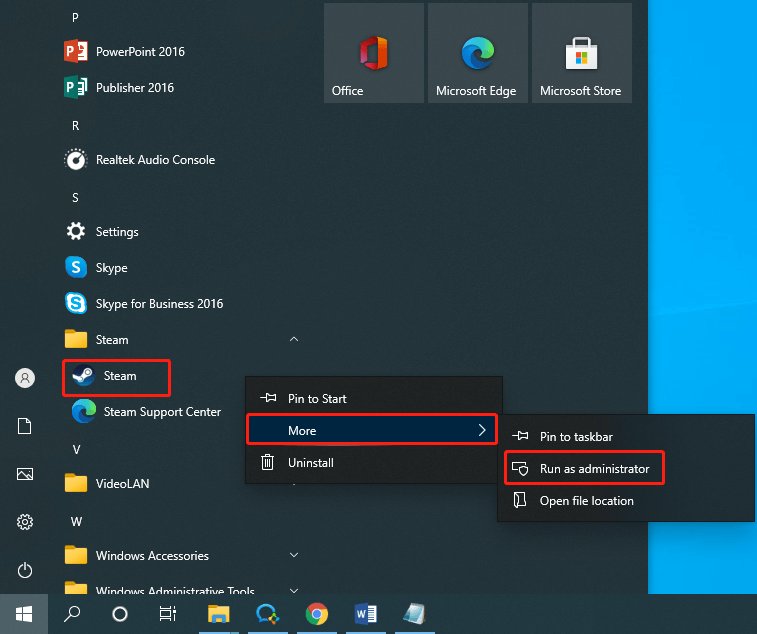
To run a Steam game as admin, right-click the game’s executable file (usually found in the game’s installation folder), select “Properties,” go to the “Compatibility” tab, and check the box for “Run this program as an administrator.”
Ever felt a game wasn’t performing as it should? Sometimes, certain games need extra permissions to function correctly. This is where knowing how to run a Steam game as admin becomes useful. It can resolve issues with save files, mods, or compatibility.
Granting admin rights to a game allows it to access system resources fully. This action may prevent conflicts and enhance the game’s overall performance. This small change can make a significant difference in your gaming experience.

How to Run a Steam Game as Admin
Ever found yourself in a situation where your favorite Steam game just won’t cooperate? Sometimes, games need a little extra push, and that’s where running them as an administrator comes in. It’s like giving the game a special permission slip to access all the resources it needs. But why would a game need this, and how do you actually do it? Let’s explore this together and make sure your gaming sessions are smooth and uninterrupted.
Why Running Games as Admin Matters
Think of your computer as a castle, and the programs you use are the visitors. Normally, programs have limited access – they can play in the designated areas but cannot get to the royal treasury without permission. That’s because standard programs are run with user-level permissions. However, some games, especially older ones or those with complex functionalities, need more freedom to function properly. This is where admin rights come into play.
Common Issues Requiring Admin Access
Here are a few situations where running your Steam game as an administrator can save the day:
- Save Game Issues: Sometimes, if a game doesn’t have the right access, it might not be able to save your progress. This can be incredibly frustrating, especially after a long gaming session.
- Game Crashes: When a game tries to do something it doesn’t have permission to, it can crash. This happens more often when the game needs to modify files or access system resources.
- Mod Conflicts: Mods add extra features to games, and sometimes these mods need more access than a regular user level program can give. Running as admin can fix these conflicts.
- Multiplayer Problems: Some multiplayer games need full access to network functions, and these functions might be blocked without admin access.
- Compatibility Issues: Older games might not be designed for newer operating systems. Giving them admin rights can sometimes bypass compatibility problems.
Methods to Run Steam Games as Admin
Okay, so now you understand why running as admin is important, but how do we actually do it? Don’t worry, it’s not complicated. There are a couple of straightforward methods you can use, and I will show you both ways so you will know all the methods, both ways are great and you can choose to use any way you prefer, all the ways are effective for sure.
Method 1: Running the Game Directly as Admin
The first method involves giving the game itself the permission it needs directly. This is useful when you just need to do it once or occasionally.
Steps to Run the Game Directly as Admin
- Locate the Game’s Executable: First, you need to find where the game is installed on your computer. Open Steam, go to your library, find the game, right-click on it, and then select “Manage” and choose “Browse local files.” This will open the folder where the game’s files are stored.
- Find the .exe File: Look for a file with a name that ends in “.exe”. This is the main file that starts the game. It usually has the same name as the game itself.
- Right-Click and Select “Run as Administrator”: Right-click on the .exe file. In the menu that pops up, select “Run as administrator.”
- Grant Permissions: Your operating system (like Windows) might ask for permission to run the program with administrative rights. Just click “Yes” to allow it.
- Start Playing: The game should now start up with the extra permissions it needs. See if that fixes the issue you were experiencing.
Method 2: Permanently Setting a Game to Run as Admin
If you find yourself running a particular game as an administrator often, it can be tiresome to do it every single time. Here’s how to make it run as admin every time you start it.
Steps to Permanently Set a Game to Run as Admin
- Locate the Game’s Executable: Just like in the first method, you’ll need to go to the game’s folder. Again, use Steam, go to your library, find the game, right-click on it, and select “Manage” and choose “Browse local files.” This will open the folder where the game’s files are stored.
- Find the .exe File: Once you are in the game’s folder find the game executable file, the file with the “.exe” extension.
- Right-Click and Select “Properties”: Right-click on the game’s .exe file. In the menu that pops up, select “Properties”.
- Go to the Compatibility Tab: In the Properties window, click on the “Compatibility” tab at the top.
- Check “Run This Program as an Administrator”: In the “Settings” section of the “Compatibility” tab, look for the option that says “Run this program as an administrator.” Click the checkbox next to it to make the checkmark visible.
- Apply and OK: Click the “Apply” button at the bottom of the window and then click “OK” to save the change.
- Play the Game: Now, every time you start the game, it will automatically start with administrator privileges. you don’t have to run the game each time manually by right clicking it.
What If Things Go Wrong? Troubleshooting
Sometimes, even running as admin won’t fix all problems. If your game is still not working as expected, here are some steps to try:
Reinstalling the Game
A fresh installation can fix errors that have crept into your game’s files. Here’s how:
- Uninstall Through Steam: Go to your Steam library, right-click on the game, and choose “Manage” and then “Uninstall.”
- Reinstall: Once it’s done uninstalling, click the “Install” button on the game’s page in your library and start the fresh installation.
Checking File Integrity
Steam has a tool to make sure your game files are correct. Here’s how to use it:
- Right-Click the Game: In your Steam library, right-click on the game and select “Properties.”
- Go to Local Files: Click on the “Local Files” tab.
- Click “Verify Integrity of Game Files”: Steam will check your game files and re-download any that are missing or incorrect.
Updating Your Graphics Drivers
Outdated graphics drivers can cause issues with games. Here’s how to update them:
- Find Your Graphics Card: Find out what graphics card you have (like an NVIDIA or AMD card).
- Go to the Manufacturer’s Website: Go to the NVIDIA or AMD website and look for the driver download section.
- Download and Install: Download and install the latest drivers for your card.
Other Steps To Follow
- Restart Your Computer: Sometimes, just restarting your computer can fix the problem.
- Check for Game Updates: Make sure your game is up to date with the latest version.
- Temporarily Disable Antivirus: Antivirus software can sometimes interfere with games, so try disabling it briefly to see if that is the issue. (Remember to turn it back on afterward.)
- Check Game Forums: The game’s community forums might have solutions for any problems you are facing. It’s often worth it to check to see if other users have had a similar problem and if they have found a solution.
Potential Risks and Considerations
While running a game as administrator is a great tool, you should be aware of the potential risks or considerations:
- Security Risks: Running a program as admin means that program can make changes to your computer’s files, this can lead to security risk if the program is not safe or is infected. Always be sure that the programs you are running are safe, and avoid running programs you do not trust with administrator privileges.
- User Account Control (UAC) Prompts: If you set the game to run as administrator permanently, you might see extra pop ups every time you start it. This is not a major problem but can be a minor annoyance.
- It Is Not Always the Solution: Remember running as administrator is not always the solution to every problem. If none of the steps mentioned above works, it is better to look for other potential issues in your computer.
By understanding when and how to run a Steam game as an administrator, you can significantly improve your gaming experience. You can tackle errors, save issues, and mod conflicts more effectively. Remember to always be cautious and aware of any potential security risks, and always download programs from a safe and secure source to avoid infection. With the right approach, you can enjoy a smooth gaming experience every time you play your favorite games.
How To Run Steam Games As Administrator
Final Thoughts
To run a Steam game as admin, right-click the game’s executable file and select “Run as administrator.” This action grants the game necessary permissions, potentially resolving compatibility or save issues. This method is straightforward and applies to most Steam titles.
Remember, this approach may bypass some user account control settings, so use it cautiously when needed. Running a game with administrator rights sometimes fixes game-related errors. Knowing how to run a steam game as admin helps in those specific scenarios.

