
To run games as administrator on Steam, locate the game’s executable file, right-click it, choose “Properties,” navigate to the “Compatibility” tab, and check the “Run this program as an administrator” box.
Ever wondered why some games don’t behave properly? Sometimes, they need extra permissions to work correctly. One common fix is knowing how to run games as administrator Steam. It’s a simple tweak that can resolve a lot of compatibility issues.
This method allows the game to access all of the system resources it requires, potentially fixing crashes and other problems you may encounter. We will cover the steps to do this with your Steam games easily.

How to Run Games as Administrator on Steam
Ever wondered why some of your favorite games might not be working correctly? Sometimes, the problem isn’t the game itself, but how it’s interacting with your computer. One way to help games run smoother and have the permissions they need is by running them as an administrator. This means you’re giving the game special access to your computer’s resources. Let’s dive into why this might be necessary and how to do it on Steam.
Why Run Games as Administrator?
Think of your computer like a castle, and your programs, like games, are guests. Usually, guests can only access certain areas. Running a game as an administrator is like giving it a special key, granting access to more areas and resources that it might need to function perfectly. Here’s a breakdown of why this can be useful:
Permissions and Access
Some games need to write files to specific folders, change settings, or access certain hardware components. If a game doesn’t have the right permissions, it might crash, not save properly, or simply not run at all. By running it as an administrator, you’re ensuring the game has all the necessary permissions it needs to operate correctly.
Troubleshooting Compatibility Issues
Sometimes, older games or games with complex features may have compatibility issues with newer operating systems. Running them as an administrator can sometimes bypass these problems by providing the game with the necessary privileges it needs to operate as intended. In particular, you might find this helpful when a game is trying to access protected system files or modify system configurations, activities which standard user permissions will typically prevent.
Preventing Game Conflicts
In some cases, games that have to interact heavily with the operating system (especially games that require low-level access) can cause conflicts with other running processes and softwares. Running your game as admin can mitigate such conflicts by preventing restrictions imposed by the operating system from interfering with the game’s operation. This means that running a game as administrator sometimes helps it access the resources required without being interfered by other softwares.
Modifications and Customization
If you are using some game mods or custom content for a specific game, or making some game changes from other sources, these modifications or changes can sometimes require administrator level access to make those modifications work properly. Running the game as administrator will then allow those modifications to function correctly by providing the needed access to the game files.
How to Run Steam Games as Administrator
Now that you know why it can be helpful, let’s explore the different ways to run Steam games as an administrator. There are a couple of main methods you can try.
Method 1: Running a Specific Game as Administrator (one-time basis)
This method allows you to run a specific game as administrator each time you play it. This gives you control over when and which game runs with elevated rights. Here are the steps:
-
Locate the Game’s Executable File: First, you need to find the actual file that starts the game. This file usually ends with “.exe.”
- Open Steam.
- Go to your Library.
- Find the game you want to run as administrator.
- Right-click on the game title and select “Properties.”
- Click on the “Local Files” tab.
- Click the “Browse Local Files…” button. This will open the folder where the game is installed.
Look for the file with the game’s name and the .exe extension (for example, “game.exe”).
-
Right-Click and Select “Run as Administrator”: Now, right-click on the .exe file you just located. A menu will pop up.
Choose “Run as administrator.”
If Windows asks you for permission, click “Yes.”
-
The Game Starts: The game will now start with administrator rights. Play as usual!
Method 2: Always Run a Specific Game as Administrator
If you want to ensure that a specific game always runs with admin rights, you can configure it to do so automatically. Here’s how:
-
Find the Game’s .exe file : Use the same steps from Method 1 to locate the game’s .exe file.
-
Right-Click and Select “Properties” : Right-click on the .exe file and choose “Properties” from the menu.
-
Go to the “Compatibility” Tab : In the Properties window, click on the “Compatibility” tab.
-
Check the “Run this program as an administrator” Box : Under the Settings, you will see “Run this program as an administrator”. Click the box to put a checkmark there.
-
Apply the Changes : Click the “Apply” button and then the “OK” button to save the changes.
Now, every time you start the game from the .exe file (or through Steam if you start the game from the steam app) it will run with administrator privileges automatically. This method is best suited for games that consistently encounter problems without admin rights.
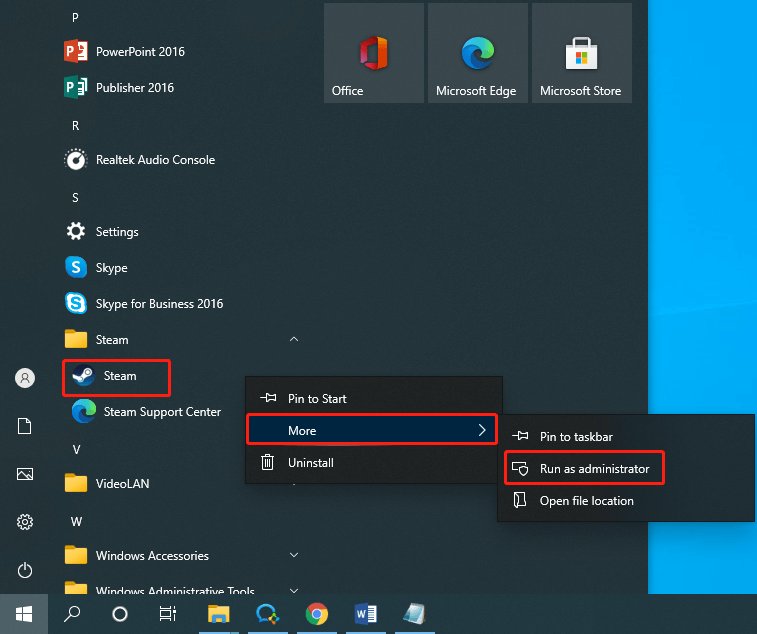
Method 3: Running Steam as Administrator
Sometimes the issue might not be with the game itself, but with the Steam client. Running Steam itself as administrator can solve many issues, especially with older games. Here’s how you do it:
-
Close Steam: Make sure Steam is completely closed. Look in your system tray (usually the bottom-right corner of your screen) and make sure the Steam icon is not running. If you see it, right-click it and select “Exit”.
-
Find the Steam executable: Find the Steam icon or shortcut on your desktop or in your Start Menu.
-
Right-click and select “Run as administrator”: Right click on the steam shortcut or executable and select “Run as administrator”.
-
Start steam: If Windows asks you for permission, click “Yes”. Steam will now start as an administrator.
Now, every time you run a game through Steam, they will have the permissions that they need since steam itself is running as admin. This method can be effective for solving issues with multiple games at once, especially when the issues may stem from how steam interacts with your system’s permissions.
Method 4: Always Run Steam as Administrator
To always run steam as administrator, follow these steps :
-
Locate the Steam Executable: Find the Steam icon or shortcut on your desktop or in your Start Menu.
-
Right-click and Select “Properties”: Right-click on the Steam icon or shortcut and select “Properties”.
-
Go to the “Compatibility” Tab: In the properties window click on the “Compatibility” tab.
-
Check the “Run this program as an administrator” Box: Under settings section check the box “Run this program as administrator”.
-
Apply and OK: Click “Apply” then “Ok”.
This method will ensure that steam always runs with admin access, so all the games started through it will have sufficient access needed for proper operations. This can be particularly useful when the issue is related to steam itself. It can also be useful in cases of frequent game permission problems.
Things to Keep in Mind
While running games as administrator can be beneficial, it’s important to know a few things:
Security Considerations
Running a program as an administrator gives it greater control over your system. While usually safe with well-known games, be cautious when running executable files from unknown sources as administrator. Only run programs from a trusted source as administrator.
Troubleshooting Further Issues
If running as administrator doesn’t fix your game problem, there might be other issues to look into, like outdated drivers, corrupted game files, or hardware conflicts. It’s a good idea to explore other troubleshooting options when you’re still having trouble. Some of these might be related to the game and not directly related to administrator permission.
Performance Impact
In most cases, running a game as administrator should not affect the performance of your computer or the game itself. Some cases may even improve the game performance by providing the access it needs to resources. However, it’s worth keeping an eye out for any odd behaviors after running a game with admin rights, although this is usually unlikely. But, in the case of odd behaviors, it’s best to revert to running the game without administrator permissions if that resolves the issue.
When Should You Use Administrator Rights?
So, when exactly should you try running a game as an administrator? Here’s a simple guide:
-
Game crashes or freezes: If a game frequently crashes or freezes, especially during start up or saving, running as administrator may help.
-
Save games are not working: If the game is not saving the progress or loading the saves properly, try giving admin privileges to the game.
-
Error message related to permissions: If you see error messages about lacking administrator rights, then surely you should try this. This is a clear indication that the game needs more access.
-
Compatibility issues: If an older game isn’t working well with your operating system, then running it as administrator can help. Especially, in older games this solution is helpful.
-
Games that interact with mods/custom content: Some games that heavily use mods or custom content may also need administrator privileges. When these mods need special access, running the game as admin is a must.
Steps if Problems Still Exist
After trying all the above methods of running the game as administrator if you’re still having problems, it’s important to consider some common troubleshooting steps, as the issue might lie elsewhere. Some troubleshooting you can perform are:
-
Update graphics drivers: An outdated graphics driver can often be the cause of issues in a game. Updating your graphics driver can often resolve game issues related to crashes, freezes, and poor performance. You can find drivers for your GPU on the website of its manufacturer (like Nvidia or AMD) to make sure you are up to date.
-
Verify game files: Sometimes, some game files may be corrupt or missing. Steam allows you to verify the game files, which will check for missing or corrupt files and re-download them to repair the game’s installation. To do this, right-click on the game title and select Properties. Click on Local Files and then click on “Verify integrity of game files”.
-
Check for conflicting programs: Some background applications may cause conflicts with games. Close any unnecessary applications that you may be running, and then try again to play your game. The most common applications that cause issues are overlay apps or antivirus software.
-
Reinstall the game: If all else fails, a complete reinstall may sometimes solve underlying problems. This can often be a good way to deal with hidden file corruption that the other methods may have missed. To perform this, just right click the game on steam and click uninstall.
Running games as administrator on Steam can be a helpful trick to fix issues and get your games running smoothly. Remember to use this method carefully and be mindful of the security aspects. By exploring these methods, you will now be prepared to tackle a variety of game issues when they show up. Keep troubleshooting, and you’ll get back to gaming in no time!
How To Run Steam Games As Administrator
Final Thoughts
To run games with admin rights, locate the game’s .exe file, right-click it, and choose “Run as administrator”. This action grants needed permissions, potentially solving issues. You can also set the game to always run as admin through its properties.
Another way is to modify Steam settings for games. This ensures the game runs with administrator privileges automatically. Remember that running games as administrator steam might resolve some conflicts.
Finally, learning how to run games as administrator steam is a must for many. It helps in compatibility and stability, often preventing problems with some games, especially older titles or specific programs.

