
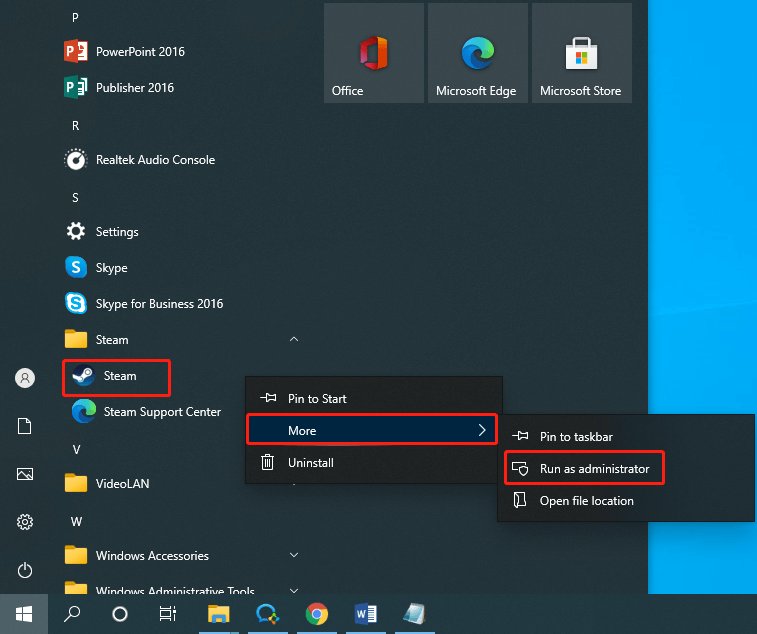
To run a Steam game as admin, right-click the game’s executable file (.exe) and select “Run as administrator”.
Ever had a game act strangely, maybe not saving progress correctly or displaying graphical glitches? Sometimes, these issues arise because the game lacks the necessary permissions on your system. This is where knowing how to run steam game as admin becomes important.
Granting administrative rights can often fix these hiccups, allowing the game full access to the required resources. It’s a simple process with a good chance of resolving common problems.

How to Run Steam Games as Admin
Ever had a game act a bit strange? Maybe it won’t save your progress, or certain features just don’t seem to work right? Sometimes, the solution is simpler than you think: running the game as an administrator. Think of it like giving the game permission to do its job properly. It’s like letting your teacher use the special marker – it helps them do things they normally couldn’t! Let’s explore why this is important and how you can do it.
Why Run a Steam Game as Administrator?
Operating systems like Windows have safety rules that are like rules in a school. These rules control what programs can do to protect your computer. Sometimes, games need to make changes to your system to save files, settings or connect to the internet properly. When a game does not have admin rights, it cannot do this, like a student who does not have permission to use the special marker. This can cause a whole range of problems. Here are a few reasons why running as administrator can help:
- Saving Your Game: If a game can’t write to certain folders, your progress might not be saved. Admin rights give it the permission it needs.
- Mod Support: Sometimes mods or user-made changes for games need higher-level permissions to be installed or work correctly.
- Compatibility Issues: Older games sometimes don’t work well with modern operating systems. Running them as admin can fix these problems.
- Accessing Game Files: Some games require the ability to modify or access system files. Running as administrator gives them that needed access.
- Fixing Glitches and Errors: Sometimes strange errors and glitches within games stem from permission issues. Running as administrator can sometimes get rid of them.
How to Run a Steam Game as Admin: Different Ways
There are several ways you can make a Steam game run with admin rights. It’s not hard once you know how. Let’s take a look at the most common methods.
Method 1: The Quick Right-Click
This is the easiest and most common way to run a game as admin. It only takes a few clicks:
- Find Your Game: Open Steam and go to your game Library.
- Right-Click: Find the game you want to run as admin, and right-click it.
- Go to Manage: In the menu that appears, move the mouse pointer on to “Manage”.
- Run as Administrator: When you hover over the “Manage” option, a small pop-up appears and you need to choose “Run as administrator”.
- Confirm: Windows will ask if you’re sure. Click “Yes.”
Your game should now start with administrator rights.
Method 2: Creating a Shortcut with Admin Rights
This method is slightly more involved, but it can be very useful if you want a quick way to run the game as admin every time. Here’s how to make it happen:
- Find the Game’s Files: Go to your Steam Library, right click on the game, go to “Manage” and choose “Browse local files”
- Find the Game’s Executable (.exe): This is usually a file with the same name as the game. For example, it might be “game.exe”.
- Right-Click and Create Shortcut: Right-click on the .exe file, and click “Send to”, then select “Desktop (create shortcut)”.
- Find the Shortcut on Your Desktop: You should now see a shortcut on your computer screen, usually for the game you just selected.
- Right-Click the Shortcut: Right click on this shortcut you created, and choose “Properties.”
- Go to the “Compatibility” Tab: Click the “Compatibility” tab near the top of the window.
- Check “Run This Program as an Administrator”: Near the bottom of the Compatibility window, find the option that says “Run this program as an administrator” and check the box next to it.
- Apply Changes: Click “Apply” then click “OK”.
Now, every time you start your game using this shortcut, it will automatically run as administrator. That’s very handy, isn’t it?
Method 3: Changing Game Properties in Steam
This is a less common method, but it’s also very handy if you want to run the game in admin mode permanently.
- Find Your Game: Open Steam and go to your game Library.
- Right-Click: Find the game you want to run as admin, and right-click it.
- Go to Properties: In the menu that appears, choose “Properties” near the bottom of menu.
- Go to “Installed Files” Tab: Click the “Installed Files” tab near the left-hand side.
- Click on “Browse”: Click on the browse button on the top right of this window.
- Find the Game’s Executable (.exe): This is usually a file with the same name as the game. For example, it might be “game.exe”.
- Right-Click the Game .exe file: Right click on this game’s exe file and select “Properties”.
- Go to the “Compatibility” Tab: Click the “Compatibility” tab near the top of the window.
- Check “Run This Program as an Administrator”: Near the bottom of the Compatibility window, find the option that says “Run this program as an administrator” and check the box next to it.
- Apply Changes: Click “Apply” then click “OK”.
Now, every time you start your game using Steam, it will automatically run as administrator.
When to Use Admin Rights and When to Avoid It
Running programs as an administrator can be useful, but it is not always needed. It is important to know when to use it and when not to. If something works fine without admin rights, leave it alone. Here is a little guide on when to use administrator rights:
- Use it when:
- Games aren’t saving.
- You’re installing game mods.
- Older games have problems.
- Games get errors or glitches often.
- You need to change game files.
- Avoid it when:
- Games work perfectly well normally.
- You’re not comfortable with the risk of it.
Always be sure the games you are running are from a trustworthy source, to prevent any potential problems and safeguard your computer.
Understanding Potential Risks
While running games as an administrator can solve problems, there are a few things you need to keep in mind. Giving a program administrator rights means you are giving it permission to make changes to your computer. If a program is not safe, this can be dangerous. Only give administrator permissions to software you trust. Always double-check the game you downloaded before running with admin rights.
Here’s a breakdown of the risks:
- Security Risks: If you run a malicious game or software with admin rights, it can cause serious damage to your computer. It could infect it with viruses or get access to personal information.
- System Instability: Programs with admin rights have the power to make significant changes. This can sometimes lead to crashes or other issues.
Be careful and don’t just run everything as an administrator.
Troubleshooting Common Issues
Sometimes, even running as an admin doesn’t solve every problem. Here are some things to try if you’re still having trouble:
- Restart Your Computer: Sometimes, just restarting your computer can fix the issue.
- Update Your Graphics Drivers: Having the latest graphics drivers ensures games run properly.
- Check Game Files: In Steam, you can right-click on the game, go to “Properties”, then “Installed Files”, and then click “Verify integrity of game files…” to make sure the game is not corrupted.
- Look for Game Updates: Make sure the game is updated. Sometimes a bug fix can resolve the problem.
- Contact Game Support: If all else fails, see if the game makers have a customer service team you can contact.
Making the Most of Your Gaming Experience
Running your Steam games as an administrator can fix many issues, but it is not a magic solution to everything. By understanding how it works and when to use it, you will become a more savvy player. If you still need help after trying these steps, consider asking for assistance from more experienced players.
With these steps you can troubleshoot a lot of the problems you face with Steam games, and it makes your game experience more enjoyable. Now you know all about how to run your Steam games as admin. This means you are ready to solve problems, and get back to what matters most – playing your game! Happy gaming!
How To Run Steam Games As Administrator
Final Thoughts
To run a Steam game as administrator, locate its .exe file, right-click, and choose “Run as administrator.” This often resolves permission issues that hinder game functionality. Alternatively, you can set a game to always run as administrator through its properties.
Finding a game’s .exe file usually means navigating to the Steam game’s installation directory. Then, selecting the correct .exe gives you this option.
In short, you can ensure optimal performance by applying ‘how to run steam game as admin’ method, whenever a game requires elevated permissions. This simple step helps fix many compatibility or permission problems.

