
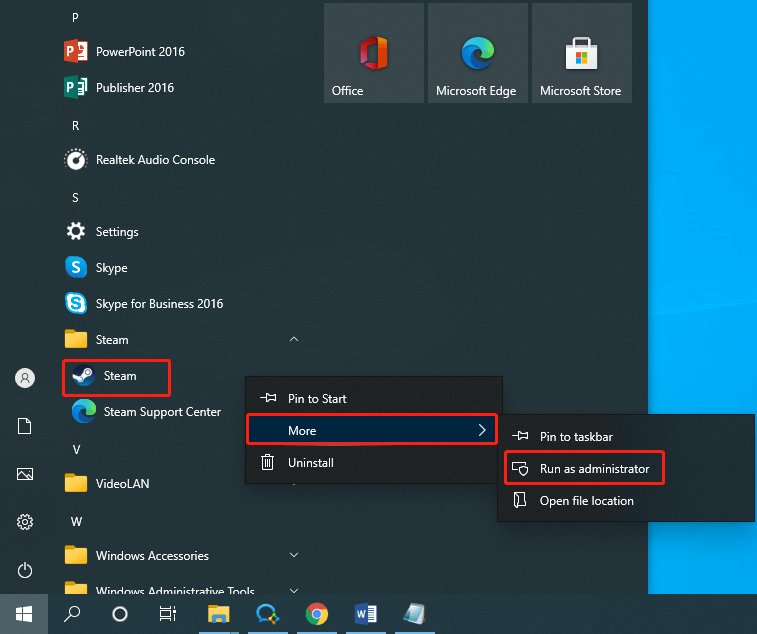
To run Steam games as administrator, right-click the game’s executable file and select “Run as administrator” from the context menu.
Ever found yourself encountering weird glitches or access issues when trying to enjoy your favorite Steam titles? Sometimes, the solution is simpler than you might think. One common fix is learning how to run Steam games as administrator. This can grant the game necessary permissions to operate correctly.
It’s a quick and easy process, and it can make a significant difference in your gaming experience. By granting the game elevated rights, you might resolve compatibility problems. Ultimately, it will help things run smoothly.

How to Run Steam Games as Administrator
Have you ever had a game act a little weird, maybe not saving properly or just not working right? Sometimes, the problem isn’t with the game itself, but with how your computer is letting it run. One way to help fix those issues is to run your Steam games as an administrator. Think of it like giving the game special permission to do its job properly. Let’s dive into why you might need to do this and how to do it!
Why Run Games as Administrator?
You might be wondering, “Why even bother with running a game as an administrator?” It’s a good question! When you start a game normally, it runs with standard permissions. This means it can only access certain parts of your computer. Sometimes, a game needs to access other areas or make changes to files that require higher permissions. Here are some common reasons:
- Saving Issues: Some games might have trouble saving your progress if they don’t have the right access. They might not be allowed to write to the folder where your save files are stored.
- Game Crashes: If a game needs to access certain files to work correctly and it can’t, it could crash. Running as an administrator can often help with these kinds of errors.
- Mod Compatibility: If you love adding mods to your games, you will sometimes need to run the game as an administrator. Mods often make changes to the game’s files, and they might require these special permissions to work correctly.
- Problems with Specific Features: Certain game features, like multiplayer components or in-game overlays, can face issues if the game lacks the necessary permissions to access the network or other resources.
- Older Games: Some older games were made for older versions of Windows, and these might need to run as an administrator on modern operating systems to function correctly.
Running as an administrator is like giving a key to a locked door. It’s not something you need to do all the time, but it can be really helpful in certain situations. So, now that we know why, let’s learn how!
How to Run a Single Steam Game as Administrator
Okay, let’s get into the practical part. Here’s how you can run a specific Steam game with administrator privileges. It’s not too tricky, and you only need to do it once for each game you want to run this way:
Method 1: Through Steam’s Game Properties
This is often the easiest way to do it. Follow these steps carefully:
- Open Steam: Start by opening your Steam client.
- Go to Your Library: Click on the “Library” tab at the top.
- Find Your Game: Locate the game you want to run as administrator in your games list.
- Right-Click the Game: Right-click on the game’s name.
- Select “Properties”: In the context menu that pops up, click on the “Properties…” option.
- Go to Local Files: In the Properties window, click on the “Local Files” tab.
- Click “Browse”: Click the “Browse…” button. This will open the folder where the game is installed.
- Find the Game’s EXE: In the folder that opened, locate the executable file of your game. This file will usually have a name similar to the game’s title and will end with “.exe”. For example, “game.exe” or something like that.
- Right-Click the EXE: Right-click on the game’s executable file.
- Select Properties Again: In the new context menu that pops up, select “Properties.”
- Go to Compatibility Tab: In the Properties window that appears, click on the “Compatibility” tab.
- Check the Administrator Box: Under the “Settings” section, you’ll find a checkbox that says “Run this program as an administrator”. Click it to check the box.
- Click Apply and OK: Click the “Apply” button, then click the “OK” button.
Now, when you start the game through Steam, it will run with administrator permissions. This only applies to this specific game’s .exe file that you modified.
Method 2: Creating a Shortcut with Administrator Privileges
Another method is to create a shortcut to your game and set that shortcut to always run as an administrator. Here’s how:
- Locate the Game’s EXE: As you did in Method 1, you need to find the game’s .exe file. Use the “Browse local files” method described before to find it.
- Right-Click the EXE: Right-click on the game’s executable file (the .exe file).
- Select “Create Shortcut”: Select the “Create shortcut” option from the menu.
- Locate the New Shortcut: A new shortcut will be created in the same folder as the executable file.
- Right-Click the Shortcut: Right-click on this new shortcut.
- Select Properties: Select “Properties” from the menu.
- Go to Compatibility Tab: In the properties window, click on the “Compatibility” tab.
- Check the Administrator Box: Under “Settings” section, check the “Run this program as an administrator” checkbox.
- Click Apply and OK: Click “Apply”, then click “OK” to save the settings.
- Move the Shortcut: Now, move this shortcut to a place that is easy for you to access, like your desktop or a dedicated games folder.
Now, when you use this shortcut to start the game, it will always run with administrator rights. The original way of starting the game through Steam will not run with administrator rights unless you have completed method one.
How to Run Steam Itself as Administrator
Sometimes, giving the game administrator rights isn’t enough, and you might need to run the whole Steam application itself as an administrator. This can be helpful for things like installing games or updates that need higher access levels. Here’s how you do it:
Running Steam as Administrator Once
If you only want to run Steam as administrator for a single time, here’s what you do:
- Close Steam: Make sure Steam is completely closed. You might want to check the system tray (bottom right of your screen) and close it from there too.
- Find the Steam Shortcut: Locate the Steam shortcut on your desktop or in your Start menu.
- Right-Click the Shortcut: Right-click the Steam shortcut.
- Select “Run as Administrator”: Choose the “Run as administrator” option from the context menu.
Steam will start up with administrator rights. But, this only lasts for this session. Next time you run Steam normally, it won’t be running as an admin, unless you do the below permanent changes.
Setting Steam to Always Run as Administrator
If you find yourself needing to run Steam as an administrator often, here’s how to set it up so it always does:
- Close Steam: Make sure Steam is closed completely.
- Find Steam Shortcut: Locate the Steam shortcut on your desktop or in the Start menu.
- Right-Click the Shortcut: Right-click the Steam shortcut.
- Select “Properties”: Choose “Properties” from the context menu.
- Go to Compatibility Tab: Click on the “Compatibility” tab in the properties window.
- Check the Administrator Box: Under “Settings,” check the box next to “Run this program as an administrator”.
- Click Apply and OK: Click the “Apply” button, then click “OK”.
Now, whenever you use this shortcut to open Steam, it will always run with administrator rights. This change will apply to all shortcuts pointing to the same steam .exe file.
Potential Problems and Precautions
While running games as an administrator can be helpful, it is not without possible drawbacks. Here are some points to remember:
Security Considerations
Running programs with administrator privileges can make your computer more vulnerable to security threats. Here’s why you need to be careful:
- Malware: If you run a program, especially an old game, with admin rights, and it contains any malicious code, that code can have more access to your computer. This makes it more dangerous than if the program was running with normal permissions.
- Unnecessary Access: Not every program needs administrator rights. Giving these rights to every program just exposes your system without any need. Try to give the administrator rights only when it is required.
So, it’s a good idea to make sure you only run games from sources that you trust as administrator and only when you actually need to. Don’t make running as admin your default way of starting the game, keep the default permission in place, and only use admin rights in case you face specific issues.
Compatibility Issues
Sometimes, giving games admin privileges can lead to some unexpected problems:
- Overlays: Some in-game overlays, especially the Steam overlay might not work well when the game is running as an administrator. This means you may lose access to features like the in-game browser, screenshots and friend list while you are playing the game.
- Game Updates: In some rare situations, giving admin rights to your games could hinder the update process. Although unlikely, keep this in mind.
- Other Software Conflicts: Running as administrator could bring some conflicts if you have some other software running in background with normal privileges.
Troubleshooting
If you are trying to solve a specific problem with admin rights, and it doesn’t work, don’t be discouraged. Here are some suggestions:
- Restart Your Computer: Sometimes, a simple restart of your computer can solve a lot of problems. It might be that your system needs to adjust to the changes you made in the admin settings.
- Run Steam as Administrator: Sometimes issues with specific games can be related to the fact that Steam itself doesn’t have the necessary permissions. Try running Steam with administrator rights.
- Update Your Drivers: Check if your graphics card drivers are up to date. Older drivers could cause many problems with gaming.
- Check Antivirus Settings: Sometimes, your antivirus could be the one causing issues. See if your antivirus is blocking some files that are needed for your game to run properly. You can try to add the game to the exclusion list of your antivirus program.
- Reinstall the Game: If all else fails, sometimes just uninstalling and reinstalling the game again can fix many issues, including those related to permissions.
Remember to test the game after any changes you make to make sure you have solved the issue you were facing.
Running Steam games as an administrator can be a helpful way to fix a variety of issues, from save problems to compatibility errors. It’s like having a special key to unlock more functionality, but you need to use it wisely. Remember to follow the steps carefully, and be aware of the potential issues. Now, you have the knowledge you need to give your games the administrator boost they might need!
How To Run Steam Games As Administrator
Final Thoughts
To run Steam games as administrator, simply right-click the game’s shortcut or executable file and select “Run as administrator.” This provides necessary permissions that sometimes help to fix game issues. It’s a straightforward process to implement.
Always consider doing this if you encounter problems with game files or saves. This method ensures the game runs with elevated privileges. So, remember this important step when facing game errors.
Therefore, knowing ‘how to run steam games as administrator’ is a must for gamers seeking a smoother experience. Running a game with admin access can address a lot of common game issues.

