
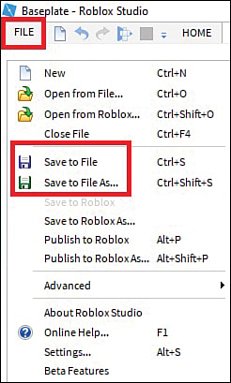
Saving a Roblox game is done automatically by Roblox Studio as you work, but you should manually save by pressing Ctrl+S (or Cmd+S on Mac) or clicking ‘File’ then ‘Save’ to ensure your progress is secured.
Have you ever spent hours creating an amazing Roblox game, only to fear losing it all? It’s a common concern! Understanding how to save a roblox game is essential for any aspiring game developer on the platform.
The good news is the process is simple. Roblox studio saves your work periodically automatically. However, it is important to also know how to manually save to avoid any potential loss of progress.

How to Save a Roblox Game
Saving your Roblox game is super important! Think of it like saving your drawing in a coloring book, or saving your progress in another video game. You don’t want to lose all your hard work, right? Whether you’re building a cool racing track, a spooky haunted house, or a fun role-playing world, learning how to save correctly is key. This means making sure all your awesome creations are safe and sound.
Understanding the Different Ways to Save
Roblox gives you a few different ways to save your game. It might sound a little complicated at first, but don’t worry! We’ll break it down into simple steps. Think of them as different ways of storing your game so you can come back to it later.
Saving to Roblox
The most common way to save is by saving directly to the Roblox platform. This means your game is saved online, just like when you upload a video to YouTube. This makes it easy to share with your friends or play on different computers. Here’s how you do it:
- First, open Roblox Studio (where you create your game).
- Then, look for the “File” menu in the top-left corner of the screen.
- Click on “File” and a dropdown menu will appear.
- You will see “Save to Roblox” and “Save to Roblox As…”. “Save to Roblox” is used when you have previously saved your game and are saving over the older version. Use “Save to Roblox As…” the very first time or when you want to save a copy of your game with a different name.
- If you are saving for the first time or using “Save to Roblox As…”, a new window will pop up.
- You can either create a new game by hitting the “Create New Game” button, or update an existing one by selecting it from the “Existing Game” tab.
- Once you have chosen a game, you need to provide a name for your game. Then hit the “Save” button
- Roblox will then save your changes to your online account.
- A message will appear on the screen letting you know when the save has been completed.
Important! Make sure you have a good internet connection when saving to Roblox. If your internet goes out while saving, your game might not save correctly, and you may lose your work.
Saving as a Local File
Another way to save your Roblox game is as a local file on your computer. Think of this like saving a Word document on your hard drive. This way is useful if you want to keep a copy of your game on your computer or if you want to move your game to a different Roblox account. Here’s how to do it:
- Open Roblox Studio.
- Go to the “File” menu again.
- This time, click on “Save to File”.
- A new window will appear, asking where you want to save the file on your computer. You can usually select your Documents folder or create a special folder just for Roblox games.
- Choose where you want to save the file and give it a name. It’s a good idea to pick a name that helps you remember what the game is.
- Click the “Save” button.
The file will be saved on your computer, usually with the extension “.rbxl”. It’s like a special code that Roblox Studio understands.
Why Different Saving Methods Matter
You might be wondering, why are there two ways to save? Here’s a simple breakdown:
Saving to Roblox: The Cloud Option
- Cloud Storage: This is like saving to an online folder. It is safe if your computer ever has a problem, because your game is online.
- Access Anywhere: You can access your game on any computer just by logging into your Roblox account.
- Sharing is Easy: It’s easy to share your game with others when it’s saved to Roblox.
Saving to a Local File: The Computer Option
- Backups: It’s good for making a copy of your game on your computer, just in case something goes wrong with the online version. Think of this as a secondary backup copy.
- Transferring: You can use this to share your game with another Roblox account. You do this by loading the local file in the new account’s studio.
- Offline Work: If you don’t have internet or if you need to work offline, this allows you to keep working.
How to Choose the Right Saving Method
So, which one should you use? It depends on what you’re doing. If you’re working on a game to share with friends or want to easily access it on different computers, then “Save to Roblox” is usually the better option. If you want to keep an extra backup or move your game to a different account, “Save to File” is the way to go. Ideally, you’ll want to save your game to Roblox and make an occasional local save as a backup just in case.
Tips for Saving Like a Pro
Here are some extra tips to make sure your saving game is on point:
Save Often
Don’t wait until you finish the whole game to save. Save every 15-20 minutes, or whenever you make a big change. It’s better to save too often than not enough. Imagine building an entire castle then having the power go out and losing it all; don’t let that be you.
Descriptive Names
When you save a local file, use a name that helps you remember what it is. Instead of “Game1,” try names like “My Racing Game,” “Haunted House V2,” or “Fun Roleplay Map.”
Using Version Control (with “Save to Roblox As…”)
When you are making many big changes to your game, you should utilize the “Save to Roblox As…” feature to make backup saves of each major version of your game. This way, if something goes wrong or if you dislike the recent changes, you can revert to a previous version of your game. It helps to name them with numbers or dates, such as “My Racing Game v1”, “My Racing Game v2”, “My Racing Game Oct 21”.
Double-Check Your Saves
Always check to make sure the save went through. When you save to Roblox, there will be a message on the screen, this means the save is successful. When you save to local files, make sure the file is in the folder you chose.
Backup Your Local Files
If you save as a local file, it’s a good idea to make another backup of it. You could copy it to a flash drive or another computer. It’s always safe to have multiple backups of your hard work.
Troubleshooting Common Saving Issues
Sometimes, saving can be a little tricky. Here are some common problems and how to fix them:
Internet Connection Problems
- Issue: You’re trying to save to Roblox, but it’s not working.
- Solution: First, make sure you have a working internet connection. If you do and it’s still not working, try saving again later. Maybe check your wifi router.
Roblox Studio Errors
- Issue: You’re getting an error message when trying to save.
- Solution: Close Roblox Studio completely and restart it. Sometimes the software may have some problems, and closing and reopening it usually fixes the issue.
Disk Space Problems
- Issue: You can’t save local files.
- Solution: This is usually caused by not having enough storage space on your computer. You can free up disk space by deleting old files or moving things to another storage device.
File Corruption
- Issue: Your local file won’t open or gives errors.
- Solution: If the file is corrupted, you may need to load an older version of the game. This is why it is recommended to save backups of your work. If no backups exist, then unfortunately there is nothing you can do to fix the corrupted file.
Saving and Teamwork
If you’re working on a game with friends, saving becomes even more important. Roblox’s team create feature lets multiple people work on the same game at the same time. Here are some tips to make saving easier:
- Communicate: Talk to your teammates. Let them know if you’re making big changes so everyone is on the same page and no one overwrites each other’s progress.
- Save Often: All team members should save often, especially when multiple people are working at once.
- Version Control: If big changes are being made, use the “Save to Roblox As…” feature to create a new version of the game before all the changes are implemented.
How Saving Helps You
Saving your game is more than just keeping your work; it helps you in many other ways. By saving often, you can test out new ideas. If it doesn’t work out, you can load an older save and try a new approach. It also helps prevent frustration. You may lose hours of work if you forget to save. Saving frequently ensures that you can always continue from where you left off.
Saving your Roblox game is very important for every game developer, just like it’s important for artists to save their drawings. By understanding the two ways to save, and utilizing best practices, you’ll keep your projects safe, accessible, and ready for your next game adventure. Keep creating, keep saving, and most importantly, have fun!
How To SAVE Your Roblox Studio Games! | Roblox Studio
Final Thoughts
To save your Roblox game, regularly click ‘File’ then ‘Save to Roblox’. Choose to update an existing game or create a new one. This action ensures your progress isn’t lost. Remember, frequent saves are critical.
‘How to save a Roblox game’ involves understanding these basic steps. Consistent saving protects your creations. These steps guarantee your hard work is safe.

