
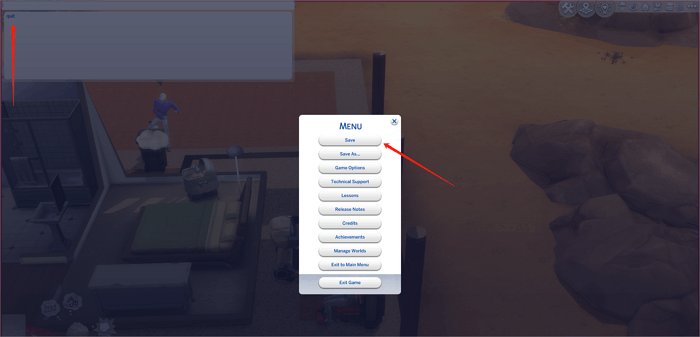
To save a frozen Sims game, force quit the application through your operating system’s task manager. This action will unfortunately not save any unsaved progress.
Oh no! Your Sims game is frozen, and you’re panicking about losing all that progress. It’s a frustrating situation, but it happens. You just spent hours building the perfect house and crafting compelling narratives for your Sims, and now it’s all at risk! This article will address your question on how to save frozen Sims game and what you can do next time.

How to Save a Frozen Sims Game
Okay, Simmers, let’s talk about that heart-stopping moment when your game freezes. Your Sims are living their best lives (or maybe having a hilarious disaster), and suddenly, everything stops. It’s like time itself has decided to take a break! We know how frustrating this can be, especially when you’ve put in hours of gameplay. Don’t worry; we’re here to help you get your Sims world moving again without losing all your progress. Saving a frozen Sims game can be tricky, but with the right steps, you can minimize the damage and hopefully keep your Sim families safe and sound.
Understanding Why Your Sims Game Freezes
Before we dive into solutions, it’s helpful to understand why your game might be freezing in the first place. Knowing the cause can help you prevent future freezes. Sometimes, it’s like a mystery, but usually, there are clues. Here are some common reasons:
- Your Computer Needs a Break: Sometimes, your computer is simply working too hard. If your computer is older or not very powerful, it might struggle to run The Sims smoothly, especially if you have lots of expansion packs or custom content.
- Too Many Sims and Objects: A large family, a packed house, and lots of furniture can all add strain to your game. It’s like having too many toys that the game has to keep track of.
- Game Bugs and Glitches: Sometimes, the game itself has issues. These can be small bugs or glitches, or they could be bigger problems with the game’s code. Developers often release patches and updates to fix these problems, so keeping your game updated is important.
- Custom Content Conflicts: If you use custom content (like new hair, clothes, or furniture), these can sometimes cause conflicts and make your game freeze. It’s like trying to put puzzle pieces that don’t quite fit together.
- Outdated Drivers: Your computer uses special programs called drivers to make your graphics card work. If these drivers are old, they might not work well with the game, causing freezing and other problems.
- Overheating: Just like people, computers can get too hot when they work too hard. Overheating can slow down your computer and cause your game to freeze.
Checking Your Computer’s Specs
It’s good to know what your computer is capable of doing. This is similar to knowing how much your car can carry. Here is how you can see your computer’s basic specifications:
- Windows: Press the Windows key, type “System Information,” and click on it. Look for “Processor,” “Installed Physical Memory (RAM),” and “BaseBoard Product” (This indicates the type of your Motherboard).
- Mac: Click the Apple logo, choose “About This Mac.” You’ll see information about your processor, memory, and graphics card.
Knowing this can help you compare your computer to the minimum and recommended specifications for your version of The Sims and can help guide you towards upgrades if needed.
Immediate Actions When Your Sims Game Freezes
So, your game has frozen. Don’t panic! Here’s what you should do first:
The “Wait and See” Approach
Sometimes, the game freezes for a short time and then fixes itself. This happens when the game is processing a lot of information at once. Before you do anything drastic, give your game a few minutes. Maybe go grab a snack, and when you come back, the game may be up and running.
The Force Quit Method
If waiting doesn’t help, you’ll need to force the game to quit. This is like telling your computer to stop running the game, even if it doesn’t want to. Here’s how:
- Windows: Press Ctrl + Shift + Esc at the same time. This opens Task Manager. Find The Sims 4 in the list, click on it, and then click “End Task.”
- Mac: Press Command + Option + Esc. Select The Sims 4 from the list and click “Force Quit.”
Important: If you can’t force quit, you might have to restart your computer. Remember, force quitting or restarting might make you lose some of your progress if your game did not save recently.
Preventing Freezes in the Future: Best Practices
Now that we’ve covered what to do when your game is frozen, let’s talk about how to avoid freezes in the first place. These simple steps can keep your Sims world running smoothly:
Saving Your Game Regularly
Saving is your best friend in the Sims world! Get into the habit of saving your game often. Think of it like taking a picture of your progress. If something goes wrong, you can go back to the last picture you took. Press “Ctrl + S” (or Command + S on a Mac) to save your game quickly.
- Tip 1: Save every 15-30 minutes, or whenever something big happens in your game like a Sim is born or got married.
- Tip 2: Use “Save As” to create different save files so you have more backups. It’s like making copies of your favorite book. If one copy gets ruined, you have another copy safe and sound.
Cleaning Up Your Sims World
Just like your real house, your Sims world can get cluttered. Over time, you might have too many items, Sims, and other things that the game has to handle. Here’s how to declutter:
- Rotate Household: Don’t play with the same household for too long; sometimes, the game starts to lag when they’ve been around for long periods of time. Playing other households for a while might help fix the lag.
- Culling: If you use mods that enable you to have more Sims in the world, sometimes this can cause problems. You should check the settings on your mod and lower the amount of Sims that it generates in the world. You should also periodically check in to your Sim’s family tree and remove unwanted sims that have no connection to your family. This is called culling the family tree.
- Reduce the number of items: Too many items, furniture, or decorations can put a strain on the game. Try to keep only the items your sims need and remove the rest.
- Manage your Neighborhoods: Don’t have too many households living in the game at the same time. Sometimes, the game slows down when it has too many families to keep track of.
Managing Custom Content and Mods
Custom content (CC) and mods can add lots of fun to your game but can also cause problems, so it’s good to be cautious. They are like adding ingredients to a recipe, so you should use good ingredients to create something amazing! Here’s how to manage them:
- Download from Trusted Sources: Only download custom content and mods from reliable websites. Some bad websites can install bad code, and that can cause big problems to your computer.
- Test New Content: When you get new custom content or mods, add only a few at a time and play the game for a while to see if they make the game freeze or create bugs.
- Check for Updates: Keep your mods updated! Just like the game itself, mods get updates to fix problems and add new features.
- Keep Track of What You Have: You should keep track of which custom content and mods you have and make sure that you are not installing duplicate items, which might cause problems.
Keeping Your Game and Computer Updated
Updates are important for your game and your computer. These updates often include fixes to problems that might cause the game to freeze. It is like giving your game and computer a check-up to make sure everything is working well.
- Update the Sims 4: When a new update for the Sims is out, you should install it! This is very important because this can fix game errors and problems.
- Update Windows/MacOS: Like your game, your operating system (Windows or Mac) should also be updated. These updates can fix problems with how your computer runs.
- Update Your Graphics Drivers: Graphics drivers are the special instructions that help your computer show pictures and videos. Keeping them updated can help the game run better.
Managing Graphics Settings
The graphics settings determine how your game looks. When the graphics are set to “high”, it requires more computer processing power. If your computer is not that strong, it can make the game freeze or slow down. It’s like trying to run a marathon in heavy boots! Try setting the graphics settings to “medium” or “low” to help your game run better.
Here’s how to access graphics settings in The Sims 4:
- Open the game.
- Click on the “…” button on the top right corner of the game.
- Click on “Game Options”.
- Click on “Graphics” tab.
- Under “Graphics Quality”, change the graphics settings to low, medium or high.
Managing Background Apps
Sometimes, apps on your computer run in the background even if you don’t see them. They can take up some of your computer’s power, making it hard for the Sims 4 to run smoothly. Close any apps that you are not using before playing the game.
- Windows: Look for the arrow pointing upwards (^) in the bottom right corner of your screen, and close the applications that you don’t need.
- Mac: Click on each application that you are not using in the dock at the bottom of your screen and then press “Command + Q” to quit it.
Keeping Your Computer Cool
Just like people, computers need to stay cool so that they don’t overheat. Overheating can make your game freeze. Make sure that the vents on your computer are not blocked and that the room where you play is not too hot. You can even use a cooling pad to help keep your computer cool.
Advanced Troubleshooting
Sometimes, even with the best practices, you still run into problems. Don’t worry. Here are some advanced things you can try:
Repairing Your Game Files
Sometimes, the game files themselves can become broken. Repairing the game can fix these problems. It’s like giving your game a checkup to make sure everything is in the right place.
- Origin: Open Origin, find the game in your library, right-click on the game image, and select “Repair.”
- EA App: Open the EA App, find the game, click on the three dots, and select “Repair.”
Resetting the Sims 4 User Data Folder
Your user data folder contains all the information about your game, like save files and settings. Sometimes, this folder can become damaged and cause problems. Resetting it can help. It is like starting with a clean slate.
Important: Resetting this folder will remove all of your game settings and saved games, so make sure to backup the folder if you want to keep your saved games. To backup your saved games, copy the “saves” folder into a separate location.
- Locate the folder: Go to your Documents folder, then Electronic Arts, and then The Sims 4.
- Rename it: Rename the folder to “The Sims 4 Backup”.
- Run the game: The game will create a new user data folder.
If this resolves your problem, you can move the “saves” folder from “The Sims 4 Backup” folder back to the new “The Sims 4” folder.
Reinstalling the Game
If all else fails, you can try reinstalling the game. This is like completely cleaning the game and installing it fresh. Make sure you back up your save files first!
- Uninstall: Use the EA App or Origin to uninstall The Sims 4.
- Reinstall: After uninstalling, reinstall the game.
Seeking Help from the Community
Sometimes, other players might have experienced the same problems as you and found solutions. The Sims community is large, friendly, and very helpful. It is like having a team of people working to help you!
- EA Forums: The official EA forums have lots of information and tips.
- Reddit and Other Forums: You can also ask for help in various Sims forums online.
Dealing with a frozen Sims game can be annoying, but it’s something that many players experience. By understanding why it happens and following these steps, you can reduce the chances of it happening again and keep your Sims stories going strong. Remember to save often, keep your game clean, and don’t be afraid to seek help when you need it. Happy Simming!
Sims 4 Tip: How to save when your game freezes – Windows #sims4 #sims4tips #tipsandtricks
Final Thoughts
If your Sims game freezes, force quitting is often the only solution. Unfortunately, this means you lose any unsaved progress. Periodically save your game to prevent data loss. Remember that, regularly saving the game is the only surefire way to protect your progress.
Therefore, the key is prevention. The steps to avoid losing data are essential. Always hit that save button frequently. That’s practically the only way to avoid asking ‘how to save frozen sims game’.

