
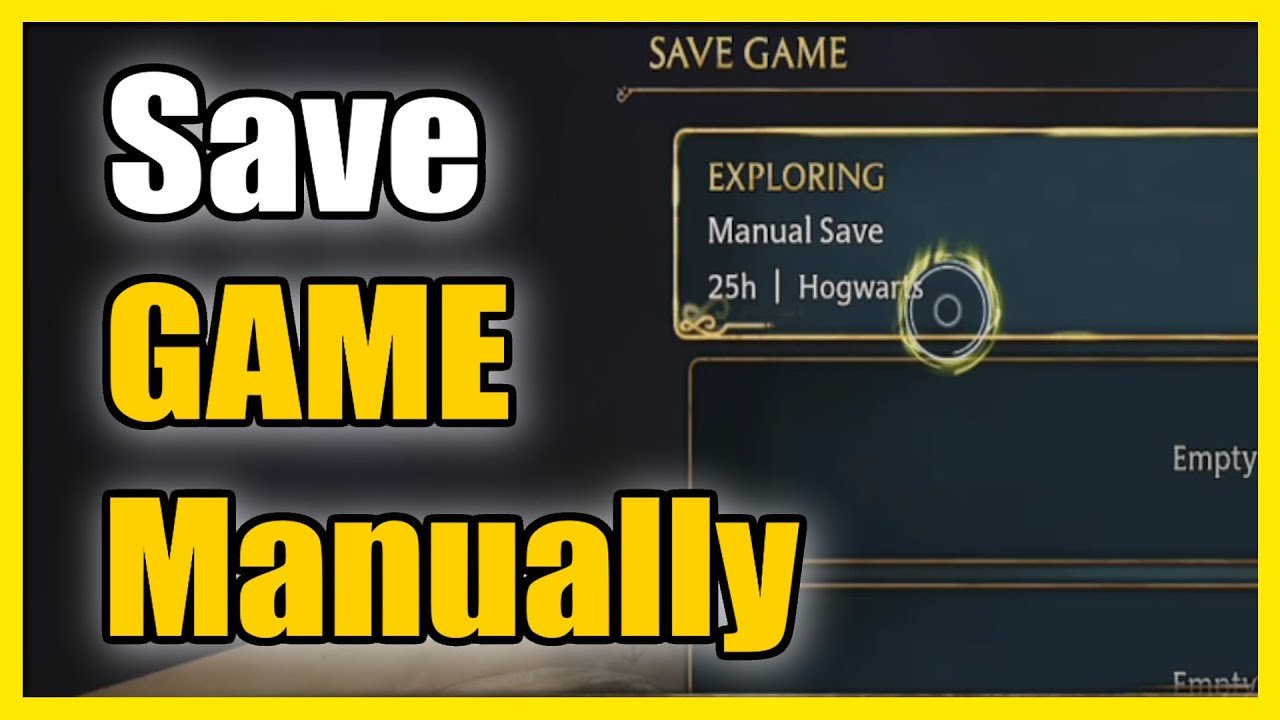
The game automatically saves your progress at various points, particularly after completing major events or when you fast travel. You can also manually save game in Hogwarts Legacy by going to the menu and selecting ‘Save Game’.
Worried about losing your progress in the magical world? Let’s talk about how to save game in Hogwarts Legacy. The game employs an autosave system, but manual saves offer more control. This is super useful because you might want to revisit a particular moment.
Knowing this ensures that your time exploring the castle and surrounding areas never goes to waste. You can always have a backup to go back to if you want to.

How to Save Game in Hogwarts Legacy
Embarking on your magical journey in Hogwarts Legacy is super exciting! You’re probably eager to explore the castle, learn new spells, and make friends. But what happens when you need to take a break? Well, that’s where saving your game comes in. It’s like putting a bookmark in your favorite book so you can pick up right where you left off. Luckily, Hogwarts Legacy makes saving your game pretty straightforward. Let’s dive into all the different ways you can preserve your progress in this enchanting world.
Understanding Hogwarts Legacy’s Saving System
Hogwarts Legacy uses a combination of autosaving and manual saving to ensure you don’t lose your progress. This is great because it means you have multiple safety nets in place. Let’s break down each type of save:
Autosave
Autosave is like having a little magical helper constantly keeping track of your adventures. The game automatically saves your progress at regular intervals, like when you complete a quest, enter a new area, or reach a significant milestone. You’ll often see a small icon, usually a spinning circle or the Hogwarts crest, in the corner of your screen when the game is saving automatically. This lets you know that your game has just been safely recorded. You don’t need to do anything for autosaving to work—it just happens in the background!
While autosaves are super convenient, it’s important to remember they can overwrite each other. This means that if something happens and you need to go back to an earlier point in your game, you might not be able to rely solely on autosaves. So, always use manual saves too as your backup!
Manual Save
Manual saving puts the power in your hands. You choose exactly when you want to save your game. This is especially helpful before trying something risky, like a challenging duel or exploring a dark cave. Manual saves provide you with a reliable checkpoint that you can always return to if things don’t go as planned.
How to Manually Save Your Game
Saving your game manually in Hogwarts Legacy is a simple process. Here’s how you do it, step-by-step:
-
Open the Pause Menu: First, you need to bring up the in-game pause menu. This is typically done by pressing the ‘Esc’ key on PC, the ‘Options’ button on PlayStation, or the ‘Start’ button on Xbox or Switch. Once the pause menu opens, you’ll see a number of different options to choose from.
-
Navigate to ‘Save’: Look for the ‘Save’ option in the pause menu. It usually has an icon next to it, like a floppy disk. Use the arrow keys or the analog stick to highlight ‘Save’ and then press the corresponding button (usually ‘A’ on Xbox or ‘X’ on Playstation and Switch and Enter Key on PC) to select it.
-
Choose a Save Slot: Once you select save, the game presents you with a list of save slots. You have multiple slots available to store your progress. These slots let you keep multiple playthroughs of the game or create multiple save points in a single playthrough. This is useful for experimenting or if you want to revisit specific moments in the story.
-
Select a Save Slot and Save: Scroll through the save slots and choose an empty one or pick one that you want to overwrite. Be mindful that if you choose an existing save slot, that save will be replaced with your current progress. After selecting your slot, press the save button again (same button as before). The game will now save your progress into that slot.
Once your game is saved, you can easily load it from the main menu later if you need to. Remember, always try to make a manual save when you’re about to do something important or before taking a break. Don’t rely on autosave only.
Tips for Saving Effectively
While saving your game is straightforward, here are some tips to help you get the most out of the game’s save system and protect your progress:
-
Save Frequently: Don’t wait for the game to autosave before putting the controller down! It’s a good idea to manually save every so often, especially after a big accomplishment, completing a quest, or before heading into a particularly difficult area. Having multiple manual saves is helpful if you need to go back a little further.
-
Use Multiple Save Slots: Hogwarts Legacy gives you a number of save slots. Utilize them! Don’t overwrite your only save point every time. Having multiple saves allows you to go back to an earlier part of your adventure if you want to replay something or change a choice you’ve made.
-
Save Before Big Decisions: Sometimes in Hogwarts Legacy, your character will face important choices that can affect the story. Always save your game before making these critical decisions, as you might want to revisit and see how things play out with different choices. This gives you the chance to experiment without needing to start your entire game again.
-
Check Your Save: Once you’ve saved your game, take a quick peek at the save file to make sure that it has the correct date, time, and location. This can help you make sure you have the right save in the event you need to go back. This is especially useful when you have many saves in a single playthrough.
-
Don’t Rely Solely on Autosave: Although the autosave feature works great, never depend solely on it. Manual saving provides you with better control, and it’s always good to have a solid manual save as a backup.
Why Manual Saving is Important in Hogwarts Legacy
As you continue your adventures in the Hogwarts world, you’ll realize that manual saving is very important. Here’s why:
-
Experimentation: Hogwarts Legacy lets you make all kinds of choices that can influence the story and your character’s journey. Manual saves are really useful here. Before you try different potions, or decide which house to align with, save your game! This gives you a safety net to explore and see the different outcomes your choices have.
-
Challenging Combat: Sometimes, you’ll go into a fight and you may be easily defeated. Manual saves are super helpful before you get into tricky situations. You can learn from your mistakes and try a different approach, knowing that you have a place to return to if things go wrong.
-
Avoiding Glitches and Bugs: Like any game, Hogwarts Legacy can sometimes have glitches or bugs. Having a manual save gives you a safe checkpoint if your game encounters any issues. It’s much better than losing progress due to a glitch.
-
Peace of Mind: At the end of the day, manual saving gives you a sense of control. You can stop playing the game whenever you want, knowing your progress is safely saved. This peace of mind allows you to fully enjoy the game without worrying about losing time and effort.
Save Files on Different Platforms
The basic process of saving in Hogwarts Legacy is mostly the same across different platforms, whether you’re playing on PC, PlayStation, Xbox, or Nintendo Switch. However, the way the save files are stored can vary a little. Knowing where the game stores your saves could be handy, especially if you need to back them up or transfer them.
PC
On PC, your Hogwarts Legacy save files are typically located in a specific folder within your user profile. Usually, this location is:
Documents\WB Games\Hogwarts Legacy\Saved\SaveGames
You can easily back up your save files by copying the contents of this folder to another location on your computer. You might want to do this, for instance, if you’re planning to reformat your computer or just want to have a separate copy of your game progress. This is a great habit to have.
PlayStation (PS4 & PS5)
On PlayStation consoles (both PS4 and PS5), your saves are managed within the console’s system storage. These save files are linked to your PlayStation Network account, and you can manage them through the console’s settings. It is possible to upload your save files to the cloud with PlayStation Plus, which makes it easier to switch between consoles or to have a backup. This is generally a very user-friendly experience.
Xbox (Xbox One & Xbox Series X/S)
Similar to PlayStation, Xbox consoles (both Xbox One and Xbox Series X/S) manage your saves within the console’s system storage. Xbox also includes a cloud-save feature, meaning your progress is automatically synced across different consoles that are logged into the same Xbox account. This is incredibly useful if you play on multiple Xboxes in your home or if you get a new console later on. You shouldn’t have to do anything to make this work; it’s automatic.
Nintendo Switch
On Nintendo Switch, your Hogwarts Legacy save files are also stored directly on the console’s system memory or on your microSD card if you have one. These saves are connected to the user profile that you are playing on. The cloud-save feature on Nintendo Switch, through Nintendo Switch Online, can also be used to back up your progress in case you lose the console. This feature adds a good layer of security for your hard-earned progress in the game.
Loading Saved Games
Okay, so you’ve diligently saved your game, either manually or automatically. Now, you might want to continue from a previous point. Here’s how to load a saved game in Hogwarts Legacy:
-
Return to Main Menu: First, if you’re currently in the game, you’ll need to return to the main menu. This can usually be done through the pause menu by selecting ‘Quit to Main Menu’. You must be on the main menu to load a save file.
-
Select ‘Load Game’: Once you’re at the main menu, look for the ‘Load Game’ option. It’s typically next to or near the ‘Continue’ or ‘New Game’ option. Select it by pressing the appropriate button.
-
Choose Your Save: The game will display a list of all your save files. This includes both manual saves and autosaves. Each save will typically show the date and time it was created, along with the character’s location. Use the arrow keys or analog stick to scroll through the list and pick the save you wish to load. Carefully look at each save to ensure it’s the right one.
-
Load the Game: After you’ve selected a save, confirm your selection by pressing the appropriate button. The game will then load and take you back to that particular point in your adventure. Once this is complete, you are all set to continue playing.
Always make sure that you choose the right save file when loading. As mentioned before, this prevents you from losing any progress. By making a habit of saving your game often, you will have no trouble rejoining your adventure in Hogwarts Legacy whenever you want.
Saving your game in Hogwarts Legacy is a simple process that’s critical for enjoying the game properly. By understanding how autosaves and manual saves work, and by following the simple steps outlined, you will always be able to pick up your progress right where you left off. With a little planning, your Hogwarts journey will be a safe and enjoyable adventure from start to finish, and you won’t need to worry about ever losing your hard earned progress. Now get back out there and explore!
Hogwarts Legacy: How to Save Your Game
Final Thoughts
To save your progress in Hogwarts Legacy, the game automatically saves at regular intervals. You will notice the saving icon appearing in the corner of the screen. This autosave function is frequent, reducing data loss.
You can also save manually by accessing the game menu. Select the “save game” option and choose a save slot. Remember, manual saves are key for crucial moments you might need to return to. Therefore ‘how to save game in hogwarts legacy’ is mostly automatic, but you have some manual control.

