
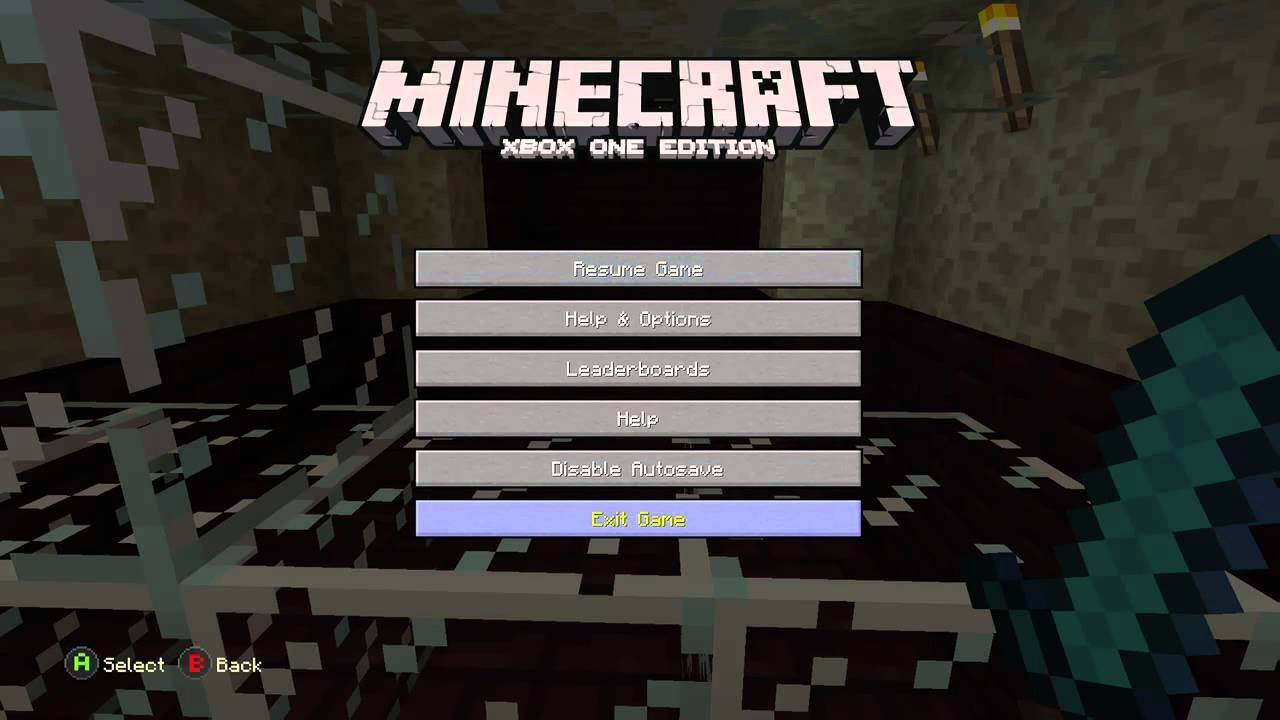
To save a game in Minecraft, the game automatically saves your progress periodically. You can also manually save and quit by selecting ‘Save and Quit to Title’ from the game menu.
Have you ever built a magnificent castle, only to lose it all because you forgot how to save game in minecraft? It’s a common worry for new and even seasoned players. Minecraft, with its vast worlds and creative possibilities, doesn’t rely on an old-fashioned save button. The game does much of the work for you in the background.
Understanding how your progress is saved, and the option for a manual save, is crucial. This knowledge will help you keep your creations safe. Knowing this process will help you avoid frustrating losses.

How to Save Game in Minecraft
Minecraft is an amazing game where you can build anything you imagine! But what happens when you’ve spent hours creating a magnificent castle or a cozy little house? You definitely want to save your progress so you can come back and keep playing. Learning how to save your game in Minecraft is super important, and it’s quite simple once you know how. This guide will walk you through all the different ways to save your Minecraft worlds, whether you’re playing on a computer, phone, tablet, or console.
Understanding Minecraft Save Mechanics
Before we dive into the how-to, let’s understand how Minecraft actually saves your game. Minecraft doesn’t have a traditional “save” button like many other games. Instead, it uses something called “autosaving.” This means that the game is constantly saving your progress as you play. However, there are some nuances to this autosaving process, and it’s crucial to understand them to avoid losing any of your hard work.
Autosave: The Silent Saver
The core saving function in Minecraft is the autosave. It works behind the scenes, frequently preserving your world state. Every time you make changes – whether mining a block, placing a new structure, or moving a character – Minecraft is silently working to make sure that your progress is backed up. The autosave frequency depends on which platform you are on.
While the autosave is reliable in most situations, there are instances where having a backup can be advantageous. For example, if your game crashes or your device suddenly turns off, the autosave might not have captured all of your latest actions. Also, sometimes you might want to return to a particular state in the game to fix a building or re-do an experiment.
World Data Storage
Minecraft saves your progress into data files stored on your device. This is where all of the details of your world are recorded – the landscape, your builds, the items in your inventory, and even your player’s location. Knowing that your game is saved as data helps understand why certain types of actions (such as switching games mid-session) could potentially not save everything immediately. Now, let’s get practical with the actual saving techniques.
Saving on Different Minecraft Platforms
The process of saving may have subtle differences depending on where you play Minecraft. Here, we’ll explore how saving works on the most common platforms.
Saving on PC (Java Edition)
Minecraft Java Edition on your computer has specific ways it handles saves, mostly automated but you can influence them.
The Natural Autosave
Java Edition autosaves your world at regular intervals, which are quite frequent. You don’t have to do anything special to ensure your progress is being saved. Just continue playing, and your world will be updated periodically.
Forced Save and Proper Exit
Even though autosave works in the background, the best way to ensure every change is captured is to exit your game correctly. If you are planning on quitting playing Minecraft, follow these steps:
- Press the ‘Esc’ key on your keyboard to open the game menu.
- Click on ‘Save and Quit to Title’. This option makes the game write all the data to your save files.
- Never close the game window directly without quitting properly through the menu. This might risk some loss of recent activities.
Manually Backing up Your World
Sometimes, you might want a manual backup to revert to a previous state if something goes wrong. This is particularly handy when making big construction projects or experimenting.
- Find your Minecraft save folder. This is usually under the following path:
- Windows: Press the Windows key + R, type
%appdata%\.minecraft\savesand press Enter. - macOS: In Finder, press Command+Shift+G, type
~/Library/Application Support/minecraft/savesand press Enter. - Linux: Navigate to
~/.minecraft/savesin your file manager.
- Windows: Press the Windows key + R, type
- Inside the saves folder, find the folder named after the world you wish to back up.
- Copy the entire world folder and paste it to a safe location such as a USB drive, another location on your computer, or a cloud storage.
- To restore a backed-up world, copy the saved folder back into the saves folder. Make sure you replace the existing world folder (if there is one).
Regularly creating manual backups gives you a safety net against any accidents or mistakes in your Minecraft world. It is a safety practice even with autosave in place.
Saving on PC (Bedrock Edition)
Bedrock Edition on PC, available through the Microsoft Store, handles saving very similarly to Java but still has its specific methods.
Automatic Saving Process
Similar to the Java Edition, the Bedrock Edition utilizes autosave. As you play, the game automatically saves the current state of your world, from your block placement to item collection. This continuous process helps ensure that a very small portion of your progress is lost in the event of an unexpected game exit.
Properly Exiting the Game
While autosave is active, properly exiting the game using the menu helps to synchronize all the changes to disk. Follow these steps:
- Press ‘Esc’ or the equivalent menu button that opens the in-game settings.
- Choose “Save and Quit.” The game will finalize all operations and exit to the main menu, keeping your progress safely saved.
- Always go through the menu before closing the game window. Forcefully closing the game might not fully save your latest activities.
Locating World Data Files
Bedrock Edition stores its save data differently than Java. Finding the folder can be a bit more challenging, but knowing its location allows for manual backups.
- Bedrock save location: Open File Explorer. Go to C:\Users\
\AppData\Local\Packages\Microsoft.MinecraftUWP_8wekyb3d8bbwe\LocalState\games\com.mojang\minecraftWorlds - Each folder represents a saved world. Copy the folder to create backup.
- To restore the backed up world, simply copy the folder back to the same location, replacing the existing file (if there is one).
Regular backups can save you from losing significant progress, especially if you play often or create larger projects.
Saving on Consoles (Xbox, PlayStation, Nintendo Switch)
Consoles handle game saves a little differently, relying more on the system’s infrastructure.
Autosave Functionality
Minecraft on consoles, similar to the PC versions, autosaves your game regularly. The frequency of autosave is typically optimized to not disrupt gameplay while still securing your progress. You don’t need to do manual saving actions during your playthrough.
Using the In-Game Menu for Saving
The main action you will take to save your console Minecraft is to use the menu to exit the game:
- Press the appropriate menu button on your console controller (usually the start or options button).
- Find the “Save and Quit” or similar menu option.
- Selecting this option ensures all changes are written to the console’s storage before exiting to the title screen.
This helps avoid losing any new builds or resource gathering.
Console Specific Storage
Consoles store saved game data on their internal storage or the cloud, depending on your console settings. The game handles most of the saving details so users don’t have to worry about file locations. You will find your game data automatically synced when you restart the game.
Cloud Saves
Many consoles offer cloud saving features. It is highly recommended that you have your game save to cloud storage to have a backup if your console has a problem. These cloud services are automatically managed by your console and your game. Always use the “Save and Quit” method on the game menu to ensure any recent changes are stored correctly, including cloud saves.
Saving on Mobile (iOS & Android)
Minecraft on mobile devices like phones and tablets handles saving quite efficiently.
Automatic Backups
Minecraft on mobile also uses the autosave feature. It saves your changes regularly while you’re actively playing. As you place blocks or find new areas, the game records these moments. It makes mobile gaming more accessible as it requires little action on the player’s part.
Proper Exiting Process
To ensure that the game saves everything properly, follow the exit procedure:
- Tap the pause button to bring up the menu.
- Look for a button that says “Save & Exit” or something similar. Tap on it.
- Let the game finish saving to avoid data loss.
Backup on Mobile
On mobile, you are not able to find the save files as easily as on a computer. However, cloud saving options are usually available which provide a backup in case your device malfunctions or is lost. Ensure you have enabled this option in your game settings.
- If you are using an Apple device (iPhone, iPad), it’s linked to your iCloud account.
- On Android devices, the game can often use Google Play services for cloud backups.
Always ensure that cloud saving is enabled so that even if you have device issues, you don’t have to start a new world from scratch.
Common Mistakes to Avoid When Saving
While Minecraft’s autosave is reliable, there are a few pitfalls that many players, especially beginners, can fall into. Knowing these can save you some heartache:
- Force Quitting: Never close the game window without using the “Save and Quit” option. This is very crucial for all platforms since it finalizes the latest changes before exiting. Forcefully closing it can lose very recent data.
- Power Issues: Sudden loss of power can cause data loss since the autosave might not have saved yet. It’s always best to have a proper exit. If possible, playing on a laptop with a battery can add some safeguard if power goes out.
- Low Storage: If your device is running out of storage, the game might fail to save correctly. Regularly check your device storage capacity. Delete unneeded files or apps to make space.
- Not Backing Up: Relying solely on autosave can be risky for very important projects. Make backups using techniques specific to your platform if you are going to make big builds or if you would like a checkpoint to go back to.
- Ignoring Cloud Saves: If cloud storage is offered, enable it! It’s a second layer of security for your saved worlds, particularly useful in case of hardware problems.
Tips for Efficient Game Saving
Saving regularly and correctly will avoid many issues. Here are tips to make your Minecraft saving process efficient.
- Exit Properly: Always exit to the main menu via the “Save and Quit” option every time you finish playing. This solidifies your recent actions on the saved files.
- Regular Backups: Make occasional manual backups of your game world, especially if you are planning very large changes or a risky project.
- Cloud Service: Enable any cloud save options that your platform offers. This gives an extra safeguard to your progress in case local device issues.
- Storage Space: Always keep enough storage on your device to save the changes without any issues. Delete old files you don’t need.
- Monitor Saving Process: Always watch for any saving notifications, even if its an autosave. This makes sure the game is writing to your data and that everything is working correctly.
Following these practices will minimize the risk of losing your progress and help you enjoy Minecraft to its fullest potential.
Troubleshooting Saving Issues
Even with the best saving practices in place, sometimes things may go wrong. Here are a few troubleshooting tips.
- Game Crashes: Game crashes can lead to data corruption. If you experience crashes, restart your device and check if everything saves okay using autosave.
- Low Disk Space: When you are saving the game, if you notice the process is very slow, this might be because you have very low space on your device. Free some disk space.
- Outdated Software: Ensure your game is updated to the latest version, as this can resolve many bugs.
- Reinstalling the Game: When all other methods fail, try reinstalling the game and restoring your save from your backup, whether local or cloud.
By understanding how saving works in Minecraft and taking the necessary precautions, you will be able to safeguard your progress and focus on what truly matters – enjoying your creations within the game.
Saving in Minecraft might seem simple, but understanding the nuances and platform-specific actions is very important to ensure that your progress is safe. Always save correctly, consider backups, and make sure your devices are in good condition. Following the steps and strategies mentioned in this article will let you have a pleasant experience in Minecraft without losing your progress.
Minecraft Bedrock PE: How to Save and BACK UP your World
Final Thoughts
To save your Minecraft world, simply exit the game properly. The game automatically saves progress when you leave. This process ensures your builds and adventures are not lost.
Remember, ‘how to save game in minecraft’ is automatic upon quitting. Always return to the main menu, don’t force quit. Your world is then safely stored.

