
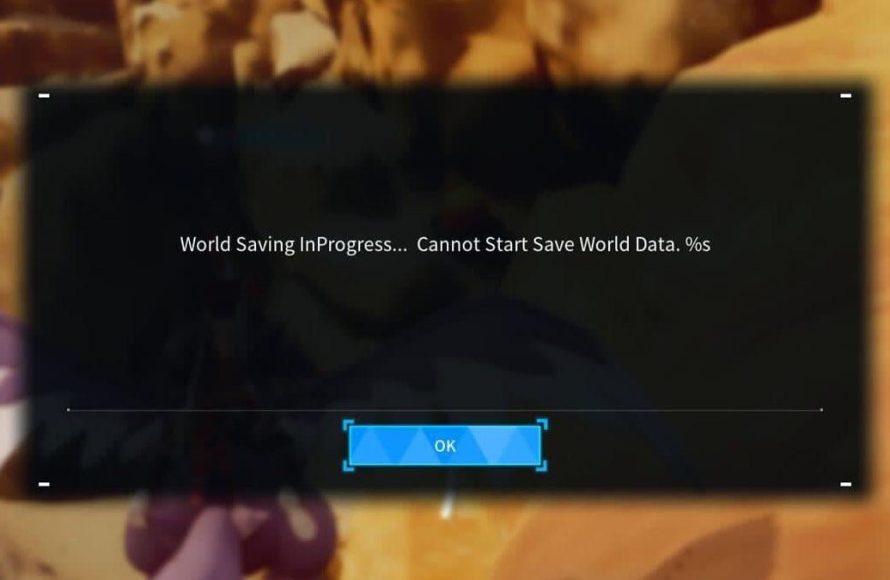
Palworld automatically saves your game progress regularly. There is no manual save option to worry about; your game progress is generally secure.
Palworld is a vast, exciting world to explore, full of creatures and crafting possibilities, and it is natural you might be concerned about losing your progress. Knowing how to save game in Palworld is crucial for a smooth gaming experience. Thankfully, the developers have implemented an autosave system. This system takes the burden of manual saving off your shoulders.
You can therefore play without constantly thinking about saving. Your adventures and creations will be saved in the background, making your focus on exploring. So play on and enjoy the game without that worry of data loss.

How to Save Game in Palworld
So, you’ve jumped into the amazing world of Palworld, right? It’s a place full of cool creatures called Pals, fun crafting, and lots of exploring. But what happens if you need to stop playing? You definitely don’t want to lose all your hard work! That’s where saving your game comes in. Let’s talk about all the ways Palworld makes sure your progress is safe, and how you can make sure your game saves correctly.
Understanding Palworld’s Autosave Feature
Palworld has a clever trick up its sleeve: autosaving! This means the game is constantly making backups of your progress without you having to do a thing. It’s like having a helpful friend who remembers everything for you, even when you forget. Let’s dive into how this works and why it’s your best friend in Palworld.
How Often Does Palworld Autosave?
The game automatically saves your progress at regular intervals. By default, this is every 15 minutes. Think of it like a gentle clock ticking away in the background, making sure you don’t lose much if you have to close the game unexpectedly. This constant saving means you can usually pick up right where you left off with very little lost time. This is a very helpful feature in a large, open-world game where you can spend a lot of time exploring.
Why is Autosave Important?
Imagine spending hours building a fantastic base, making friends with lots of Pals, and collecting valuable resources, and then the game crashes. Without autosave, all that progress would be gone. Thanks to autosave, your progress is always being recorded in the background, so you don’t have to worry about losing too much progress. It’s like having a safety net that always catches you. It provides a worry-free gaming experience, allowing you to focus on the fun without the stress of losing your hard work.
- Peace of Mind: You don’t have to constantly worry about manually saving.
- Less Lost Progress: If the game closes unexpectedly, you don’t lose much progress.
- Focus on Fun: You can focus on playing the game, not saving the game.
Manual Saving: When and How
While autosave is great, sometimes you might want to take matters into your own hands and save your game manually. This is especially useful if you’re about to try something risky or make a big change to your world. You might also want to make a save before you quit playing just to be safe. Let’s look at when and how to do this.
When Should You Manually Save?
Manual saves can be really handy at certain points in your Palworld adventure. Think of them as bookmarks that you can go back to if things don’t go as planned. Here are some situations when a manual save is a good idea:
- Before a Big Adventure: Going to explore a new area or fight a tough boss? Save beforehand!
- Major Base Changes: Ready to move your base or make big construction upgrades? Save first.
- Before Trying Something New: Experimenting with new strategies or crafting recipes? Better save!
- Before Quitting the Game: Making a final save before logging off is a good habit to get into.
How To Manually Save Your Game in Palworld?
Unlike many games, Palworld doesn’t have a specific “save” button in the menus. Palworld’s saving mechanism is a bit different from other games. It’s all about how you leave the game. Here’s how it works:
- Pause the Game: Press the “Escape” (Esc) key on your keyboard or press the “start” button on your controller to open the menu.
- Go to the Exit Game Option: Look for the “Exit to Title” option in the menu. This is your way of saving your game in Palworld.
- Confirm Exit: The game will prompt you to confirm your decision to exit. Click “OK” or “Yes” to confirm. By exiting using this method, the game automatically saves your current state. It’s not a separate save command, but simply exiting the game in this way triggers a save. This includes all your progress in the world, your base building, Pal captures, and character stats.
Important Note: Palworld does not support the traditional way of saving your game, like having multiple save slots for different playthroughs, you will only have one save slot for your current world. So each time when you exit using the steps given, it just overwrites the existing save data with the latest progress. This is why manual saving is more about deciding when the game should perform its automatic save function, rather than creating separate save files.
Understanding the Game Save Locations in Palworld
Curious where your Palworld adventures are being stored on your computer? Knowing where to find these files can be helpful for backups and for troubleshooting, if you encounter any issues. It’s good to understand where your game saves are located, even if you don’t plan to mess with them much.
Where are Palworld Save Files Stored?
The save locations vary depending on the gaming platform you are using. Palworld saves are stored in specific folders on your computer. Below, you’ll find out where they are stored on each platform
For Windows (Steam/PC):
- Your save data is usually located in a folder similar to this:
C:\Users\[YourUsername]\AppData\Local\Pal\Saved\SaveGames - Replace
[YourUsername]with your actual Windows username. - The
AppDatafolder is a hidden folder, you have to enable the show hidden folders option on your Windows settings to see it.
For Xbox/Game Pass:
Xbox and Game Pass saves are usually synced to the cloud, you do not need to access specific folders.
Why is Knowing the Save Location Helpful?
Knowing where your save files are located can be valuable for several reasons:
- Backups: You can manually copy these files to another location for backup. This can be very handy if you are worried about losing your progress due to any issue.
- Troubleshooting: Sometimes, if you are having problems with the game, knowing where the files are can help. Also, If you need to re-install the game, it can help you from losing your game progression.
- Transferring Game Saves: You can manually copy the save files to another PC to continue the game.
Dealing with Saving Issues
Even with autosave, you might sometimes encounter problems. It’s rare, but it’s important to know how to tackle these situations. Don’t worry, it’s usually not too hard to fix things if you run into problems.
Common Saving Problems and How to Fix Them
Sometimes, games can have small problems with saving. Here are a few things you might see and how to take care of them:
- Game Not Saving: If you think that the game is not saving, make sure you exit to the title screen by pressing “Esc” and then click the “Exit to Title” button, this triggers the saving process.
- Game Crashing During Save: If Palworld crashes when it tries to save, try to restart the game. Check for updates for your game and also try to update the drivers of your GPU, This might help in solving the issue.
- Lost Save Files: If your save files are missing, it could be due to corrupt files or deleted files. Always make a backup of your save files on a separate drive, so you don’t lose your progress.
Tips to Avoid Saving Issues
Following these few tips may prevent your game from any unwanted saving problems.
- Keep Your Game Updated: Make sure your Palworld game is up to date with the latest patch. Game developers usually fix bugs related to saving in their updates.
- Keep Your Drivers Updated: Make sure your graphics card has the latest drivers installed. Outdated drivers can also cause these kind of saving issues in game.
- Avoid Sudden Exits: Always use the “Exit to Title” option instead of closing the game directly. This helps ensure the game saves correctly.
Multiplayer Saving in Palworld
Playing with friends in Palworld is a lot of fun! But how does saving work when you’re in a multiplayer game? Let’s take a look at how multiplayer saves are handled and what you should know about them.
How Multiplayer Saves Work
In multiplayer mode, Palworld uses a server to store all the game data. It means the save game is not only stored on one single computer but stored on the multiplayer server. This allows all the players to be on the same world and share all the progress. When the server saves, all the progress that all players have done is saved, meaning every player’s progress is secured on the multiplayer server.
- Host’s Save: If you are playing a co-op game, then the host is responsible for saving the game. It means the host must save using the above mentioned method for saving the game. When the host exits to the title screen, the server saves the progress.
- Dedicated Servers: If you are playing on dedicated servers then there are different ways you can save the progress, mostly they autosave the game at a regular interval.
Important Considerations for Multiplayer
There are few important things that you need to keep in mind while playing multiplayer Palworld:
- Communication: Always communicate with your fellow players to make sure everyone is on the same page about saving and exiting the game.
- Host Responsibility: If you are the host, be aware that your actions affect everyone’s save. Make sure that the game has properly saved before exiting.
- Server Backup: If you are on a dedicated server, the host should set up proper backup procedures to prevent data loss.
Cloud Saving and Palworld
Cloud saving is another great way to keep your Palworld progress safe. Let’s explore how cloud saving works with Palworld and why it can be very useful to you.
How Cloud Saves Work in Palworld
Cloud saves make backups of your game data to the internet instead of only your local computer. Steam and Game Pass both come with their cloud save feature. This is a good feature as it enables you to play your game on another computer and start where you left off.
Benefits of Cloud Saving
Cloud saving comes with multiple benefits. Here are some benefits:
- Cross-Platform Play: If you are switching between different devices, you can keep your progress synchronized.
- Backup Security: Your game progress is safe even if there are any issues with your computer.
- Automatic: The process of uploading the save to the cloud is usually automatic.
So, now you know everything about saving your game in Palworld! Autosave is your always-working backup, manual saves let you take control when needed, and cloud saves keep everything secure across multiple devices. With all these tools, you can adventure with your Pals and build amazing things without worrying about losing your hard work. Just remember to exit to the title screen to make sure everything saves correctly, and you’ll be all set for your next big adventure! Have fun exploring Palworld!
How to Save Progress in Palworld
Final Thoughts
Palworld automatically saves your progress at regular intervals. You don’t need to manually save. The game uses an autosave feature, so you can enjoy playing without worrying about losing progress.
To ensure your progress is saved correctly, always quit the game using the in-game menu option. This guarantees that the game properly saves and that you won’t experience data loss. Thus, it’s essential you follow these steps for how to save game in palworld.

