
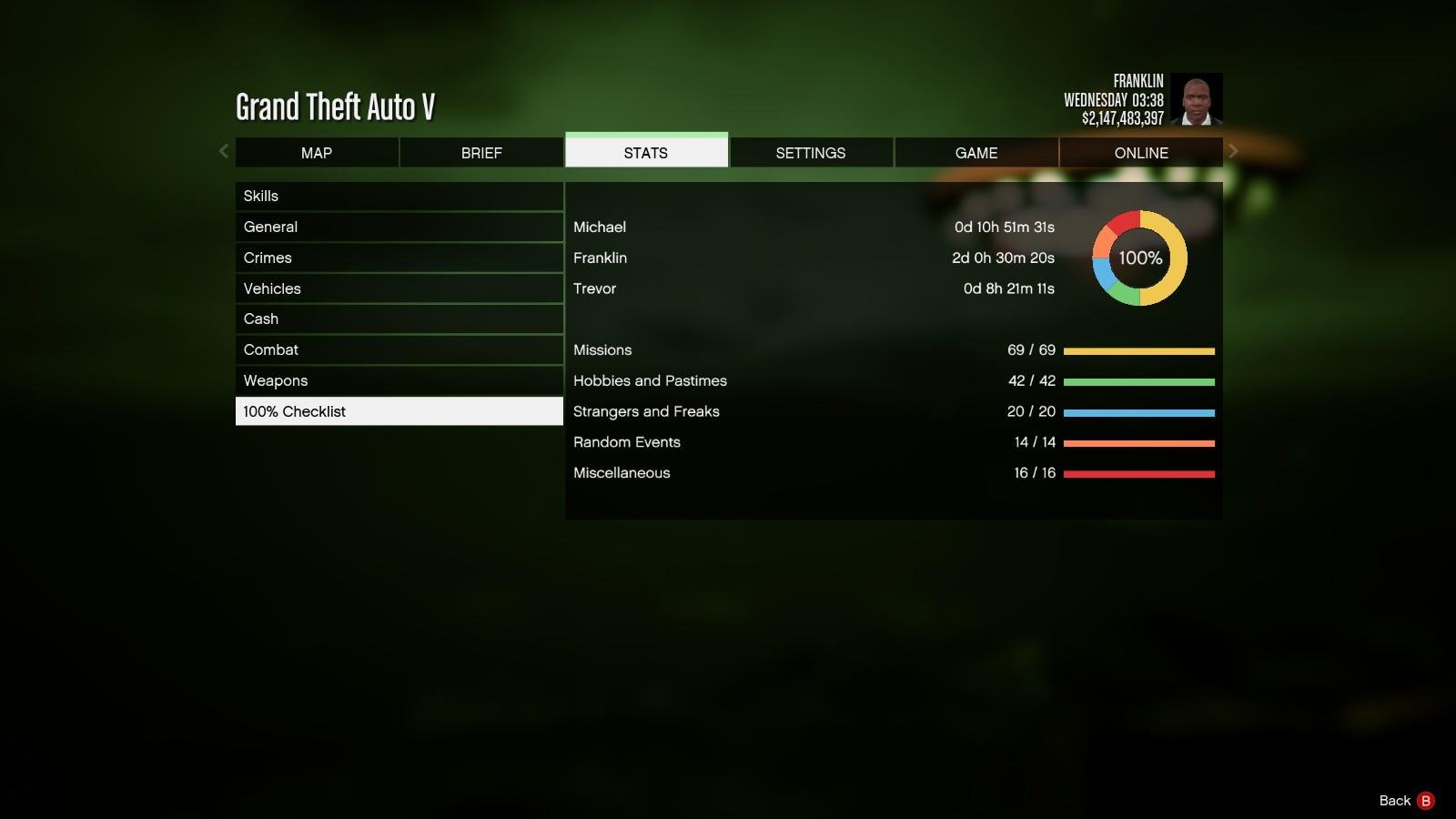
Saving a game typically involves accessing the in-game menu and selecting the “save” option, sometimes requiring you to choose a save slot.
Ever felt the frustration of losing hours of progress? We’ve all been there! Understanding how to save game properly can prevent such heartbreak and ensure your gaming journey is preserved.
Different games employ various saving mechanisms; some auto-save frequently, while others require manual intervention. Knowing the specifics for your current game is vital.

How to Save Game: A Comprehensive Guide
Saving your progress in a video game is super important! It’s like putting a bookmark in your favorite book, so you don’t have to start all over again. Imagine building an awesome castle in Minecraft and then, poof, it’s gone because you didn’t save! That would be a bummer, right? This guide will show you all the different ways you can save your game, so you can pick up right where you left off and keep enjoying the adventure.
Understanding Game Saves
Before we dive into the ‘how,’ let’s talk a bit about the ‘what.’ A game save is basically a file that keeps track of everything you’ve done in the game. It remembers your character’s level, your items, where you are on the map, and even what you were doing at the moment. This file is stored somewhere on your device, usually on your computer, console, or phone. When you load a save file, the game uses that information to put you back exactly where you were before you stopped playing.
Types of Game Save Systems
Not all games save the same way. Some games have automatic saving, while others make you save manually. Let’s look at the most common types:
- Automatic Saves (Auto-Save): These games save your progress automatically at certain points. This could be after completing a level, reaching a new checkpoint, or even just every few minutes. The benefit here is that you don’t have to worry about remembering to save!
- Manual Saves: These games require you to actively save your progress using a menu option. You usually find this option in the pause menu or sometimes in a dedicated save area within the game itself. It’s really important to remember to do this or you may lose progress.
- Checkpoint Saves: Some games save your progress when you reach certain milestones or areas in the game. When you die, you respawn at the last checkpoint you reached. This is a mix of automatic and manual saves. Checkpoint saves are very common in platformers or action games.
- Hybrid Systems: Many modern games use a mixture of automatic and manual saving. They might auto-save frequently but also allow you to make manual saves at your leisure. This gives you the best of both worlds.
Why Saving Games Is So Important
We talked about not losing your work, but saving is important for other reasons, too. Think about these:
- Preventing Loss of Progress: Imagine playing for hours and then your game crashes or the power goes out! Without saving, all that hard work would be gone. Saving regularly helps keep your progress safe.
- Trying Different Things: If you’re playing a game with choices, you can save before making a big decision and then reload if you want to see what happens if you choose differently.
- Returning to Fun Parts: Maybe you have a favorite level or section of the game. You can save right before that part and go back to play it again anytime you want.
- Taking Breaks: Saving lets you stop playing whenever you need to, without losing your progress. You can easily pick up where you left off later.
How to Manually Save Your Game
When a game uses manual saving, it’s up to you to remember to do it! Here’s how it usually works:
Finding the Save Option
The save option is usually in the game’s main menu. To access the main menu, often you press the pause button, the escape key, or the options button on your controller. The exact buttons or keys can differ based on your gaming system, but you’ll typically see an option that says “Save,” “Save Game,” or something very similar. Keep an eye out, because it’s one of the most vital things to understand about games.
Creating a New Save
When you select save, the game might give you a choice to either overwrite an existing save or to create a new one. Overwriting a save replaces the old information with your current progress. This is fine if you just want to continue your game, but you can make a new save if you might want to go back to your previous location, or if you’re experimenting. It’s generally a good idea to keep multiple save files, especially for long games or for ones with very important choices.
Choosing a Save Slot
Many games will give you a set amount of save slots, which are like separate folders for your different save files. This is helpful if you have multiple people playing or you want to experiment with different paths and keep your main game safe and sound. Think of save slots like putting books on separate shelves. If you overwrite the wrong save slot you’ll lose that saved progress.
When to Save Your Game
Knowing when to save your game is really important. Here are some key times when you should be saving:
- Before a difficult section or fight: If you know a tough challenge is coming up, save beforehand. Then, if you lose, you can try again right away without losing much progress.
- After making a big decision: If the game gives you an important choice, save after making it. That way you can reload and try the other option if you are curious.
- After collecting important items or completing a quest: You don’t want to lose valuable items or the progress on your quests. It’s wise to save after reaching milestones.
- Before taking a break: This is an obvious one! Always save when you’re planning to stop playing.
Understanding Automatic Saves
Automatic saves can be convenient, but they don’t always work perfectly, so it’s very important to understand how they function. Not all auto-save systems are created equal. Some are very frequent and others are less common. Here are some things you should keep in mind when playing a game with auto-saving:
Auto-Save Indicators
Many games will give you a visual cue that an auto-save is happening, so watch out for them! This could be a symbol or icon popping up on the corner of the screen, or a quick message telling you your game is saving. Look out for those signs and try to avoid interrupting the game while it’s happening to avoid issues.
Limitations of Auto-Saves
Auto-saves might not always save at the exact spot you would like. Sometimes, they happen only at particular points or sections of a level. They usually have a certain frequency, so you may lose some progress in between each auto save. You may still want to save manually, even if the game has automatic saving enabled. Also, many auto-save systems only have one single save slot, meaning that you can’t go back in the progress. Always pay attention to what the game says about its save system.
Game Save Locations
It’s useful to know where your game saves are stored on your system. They are usually stored within your computer or console, and they depend on the platform you use. Here’s a little guide:
PC Game Saves
PC game saves are normally found in your computer’s documents folder, or inside the folder where the game itself was installed. These can vary greatly, so you might have to search a bit if you are looking for them. Usually there will be a specific folder for the game or game developer. For example you may find the game saves within the ‘Saved Games’ folder under your Documents. You could also look for the specific game folder in the location where the game files have been installed.
Console Game Saves
On consoles, game saves are usually stored on the console’s hard drive or in the cloud. The cloud service is usually connected to the game console service, for example Xbox Live or Playstation Network. Consoles typically manage the saves automatically without needing any intervention from the player. You can sometimes see your saves using the console’s file management tools, but normally you don’t need to do that. There is usually an option to manage the save data through the options, if you need it.
Mobile Game Saves
Mobile games usually store their saves within the app itself or on a cloud account. The specific location can vary between iOS (Apple) and Android devices. Many games also offer options to sync your save to your account, so you can play it on another device. Cloud saves for mobile games are generally a convenient way to secure your data without worrying about having to manually create backups.
Dealing with Save Issues
Sometimes, things go wrong with game saves. Here are some tips for handling save issues:
Corrupted Save Files
Sometimes save files can become corrupted or damaged. This can cause the game to crash when you try to load them, or it can even just fail to work. If you experience this, you may need to start a new game if there is no backup available. Sometimes, if you have other game saves, you might be able to copy them to another save slot. This might fix the broken save file.
Save File Backups
It’s very useful to back up your save files, specially for long games or if you have multiple files. You can copy them to a different folder or cloud storage. That way, you have another save in case something goes wrong with the original. Some games also offer built in options to copy your save files. For console users, you should see if your saves are backed up using your console’s cloud save service. They may be saved to the cloud automatically. Check with the console’s documentation for details about their cloud save systems.
Cloud Saving
Cloud saving is a way to keep your saved games on the internet. Many game platforms offer this feature. This allows you to play your save on any device that is connected to the same account, and also gives you a backup in case anything happens to the local files. Always keep your account credentials safe, because your data is linked to it. This is a very useful option that many people use these days.
Tips and Tricks for Saving Games
Here are a few extra tips and tricks to help make saving your game even easier:
- Get into a Routine: Make saving your game a regular habit, especially if it’s a manual save system.
- Check the Options: Before you start playing, look in the game’s options to see what kind of save options there are.
- Use Multiple Saves: If possible, use multiple save slots so you have backups.
- Be Aware of Auto-Save: Pay attention to the auto-save icons, so you know when the game has saved your progress.
- Close Games Properly: Don’t just shut off your computer or console while a game is still running. Always make sure to quit the game from the menu to properly save your progress.
Common Save Related Terms
Let’s make sure we understand all the common terms we see when talking about game saves:
- Save File: A file that holds your game’s progress.
- Save Slot: An area to hold a save file, like a folder on your computer.
- Auto Save: When the game saves for you automatically.
- Manual Save: When you save the game yourself using the menu.
- Checkpoint: A point where the game saves and you respawn if you fail.
- Cloud Save: Saving a game on the internet to allow access from multiple devices.
- Overwrite: Replacing an old save file with a new one.
- Corrupted Save: A save file that has been damaged and doesn’t work.
Saving your game is a very basic but vital part of gaming. Following these tips will make sure that your progress is safe and you can keep enjoying the games that you love.
How To Create The Impossible 0% GTA 5 Save File – DarkViperAU
Final Thoughts
Saving progress often involves pressing a designated menu button. Then, select the “save game” option and choose a slot. Some games feature auto-save.
Be sure to check the specific game’s menu. These steps should help you avoid lost progress. Remember, regularly perform a save game to keep your advancements intact.

