
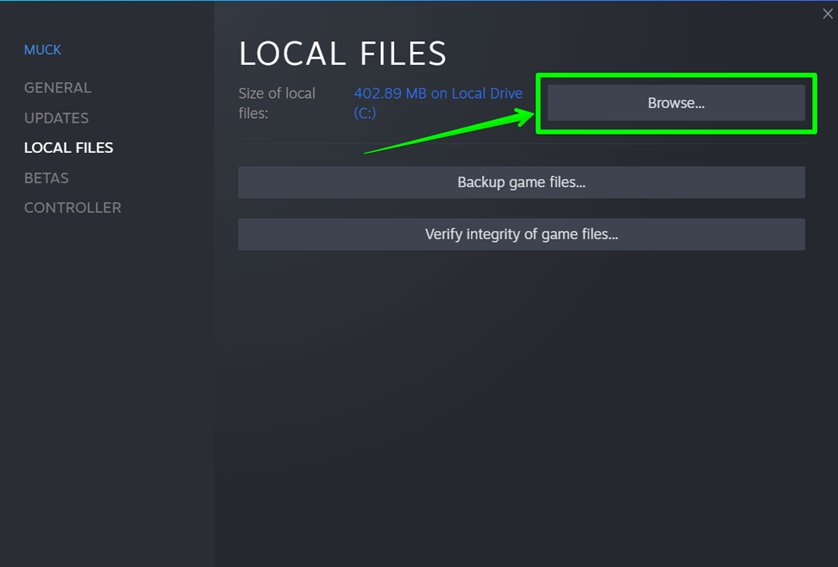
To see the game version on Steam, right-click the game in your library, select “Properties,” and then go to the “Updates” tab. The game’s version number is often shown near the bottom of this window or within the general game overview page.
Ever wondered which version of your game you’re playing? It’s quite common to need that info for compatibility or troubleshooting. Knowing exactly how to see game version on steam can be super helpful.
The good news is finding this information is actually pretty easy. Steam makes it very accessible once you know where to look. This simple guide will show you exactly how to check the game version.

How to See Game Version on Steam
Ever wondered what version of a game you’re playing on Steam? It’s a common question, and thankfully, Steam makes it pretty easy to find out! Knowing the game version can be helpful for many reasons, like making sure you have the latest bug fixes, joining multiplayer games with friends, or checking if you need to update your game. This article will walk you through all the different ways you can check your game versions on Steam, so you’re always in the know.
Why Knowing Your Game Version Matters
Before we jump into how to see your game version, let’s talk about why it’s important. Game developers often release updates, called “patches,” to fix problems, add new features, and improve how the game works. These patches have version numbers, like “1.0.2” or “2.1.5.” Here are a few reasons why knowing your game version is helpful:
- Bug Fixes: Updates often fix annoying bugs or glitches that can make a game frustrating. Playing with the latest version means you’re less likely to run into these issues.
- Multiplayer Compatibility: Many multiplayer games require all players to be using the same version of the game. If you’re on an older version, you might not be able to join your friends’ game.
- New Content: Game updates often introduce new levels, characters, items, or other exciting content. If you’re playing on an old version, you’re missing out on all the good stuff!
- Technical Support: If you need help from the game’s support team, they will often ask you what version of the game you’re using.
- Mod Compatibility: Many players enjoy using mods to change and enhance their games. However, mods are often made for specific game versions, and using the wrong one can cause issues.
Finding the Game Version in Steam
Steam provides a few different places where you can find a game’s version number. Let’s explore the most common methods.
Method 1: Checking the Game Properties
This is the most reliable method to find your game’s version number. Here’s how to do it:
- Open Steam: Start the Steam application on your computer.
- Go to your Library: Click on “Library” at the top of the Steam window.
- Find Your Game: Locate the game you want to check the version for in your list of games.
- Right-Click the Game: Right-click on the game’s name. A menu will appear.
- Select “Properties”: Choose “Properties” from the menu. This will open a new window.
- Go to the “Updates” Tab: In the Properties window, click on the “Updates” tab at the top.
- View the Version: On the Updates tab, you should see the current game version number displayed. It’s usually labeled as “Build ID” or something similar. Sometimes, the full version number (like “v1.2.3”) will also be visible. If you see the build ID, you’ll also find it mentioned in game forums or on the developer’s website.
What If I don’t see a specific version number?
Sometimes, you might not see a clear version number like “1.2.3.” Instead, you may see a “Build ID” number. This is a unique identifier that Steam uses to manage updates. Don’t worry, this is still the version. You can often find out what full version this build ID corresponds to by looking at community forums or game developer’s websites. They usually announce updates and link the build ID to a version number.
Method 2: In-Game Display
Some games display the version number directly in the game itself. This can be found in a few different places:
- Main Menu: Many games will show the version number in the bottom corner or in the main menu screen. Look carefully!
- Settings Menu: Sometimes you need to go to the in-game settings menu, or the “options” menu. It might be under “About,” “System,” or “Help.”
- Loading Screens: The game version might also flash briefly on loading screens. This can be hard to catch, though!
Finding the In-Game Version, Step-by-Step:
- Start the Game: Launch the game from Steam.
- Look Around: Once the game is open, look around the main menu screen for any numbers. It may be in a corner or on the bottom of the screen.
- Check the Options: If you don’t see it on the main menu, go into the game’s “Options” or “Settings” menu.
- Find the “About” or “System” Section: Look for a section like “About”, “Help”, or “System Info”. The version number may be mentioned here.
Method 3: Using the Steam Console (Advanced)
This method is a bit more technical and you may not be comfortable using it, but it can provide additional details about your game’s current state. This uses Steam’s built-in developer console.
Note:The console method is usually not needed by most users. The properties method or in-game version method is usually sufficient.
How to access and use the Steam console to find game version:
- Enable the Console:
- Go to your Steam settings (click “Steam” in the top left corner and then “Settings”).
- Click on “Interface”.
- Check the box that says “Display Steam URL address bar when available” and click “ok.”
- Then look in the browser or search bar at the top of your Steam window.
- Type steam://open/console into this bar and press enter. This will open the developer console window.
- Enter the Command: In the console window, type the following command and press enter:
app_info_print [appid]Replace[appid]with the app ID of the game you’re interested in. You can find the app ID by going to your game’s store page on Steam. It is in the URL (web address) for that page. - Find the Build ID: The console will display a bunch of information. Look for the line that says
"buildid":. The number after this is your game’s build ID, which represents the game version. As mentioned previously, search the web to find out what full version this build ID corresponds to.
Example: If the game’s App ID is 12345, then the command you would type in the Steam console would be: app_info_print 12345.
Troubleshooting: What If You Can’t Find the Version Number?
Sometimes, finding the exact game version can be tricky. Here are a few things to check:
- Check for Updates: First, make sure your game is fully updated. Steam should usually download updates automatically, but sometimes, it may be paused, or you may need to manually check. Go to “Downloads” at the bottom of your Steam window to see if you have any downloads waiting. You can check for the update in the game’s “properties” under the “updates” tab by selecting the dropdown menu, and selecting “always keep this game updated.”
- Beta Branches: If a game is using beta versions, the game version displayed may be different than the standard version. In the game properties, under the “betas” tab, you will see the beta program that your game is currently using. If you are on a beta version, this will usually be labeled by a specific beta title in the dropdown. Make sure you are not on a specific beta version if you want to be playing on the current stable build. If you choose “none” in the beta dropdown, this will put you back on the normal stable version of the game.
- Check the Game Forums or Community Hub: If you still can’t find the version number, try checking the game’s community hub or forums. Players often discuss and post about their game versions here and may give advice on how to find the version. You may even find more information about different versions, and what is included in each update.
- Contact the Game Developer: If all else fails, you can contact the game developer or the game’s technical support. They should be able to tell you how to find the game’s version.
- Verify Integrity of Game Files: Sometimes, missing files can cause game issues. You can verify that your game is completely installed and up-to-date by going into the game’s properties and looking under the “installed files” tab, and selecting “verify integrity of game files.” This will check all of your game files and re-download any missing files. This can help get you onto the correct version and fix certain game errors you might be having.
How to Make Sure Your Game is Up-to-Date
To always have the most up-to-date version of the game, you should leave the update settings as “always keep this game updated” in the game’s “properties”, under the “updates” tab. This will keep you on the most current stable version that is available. When a new version is released, Steam will usually download it automatically in the background.
Also, make sure your internet connection is working well so that the updates can download properly. If you notice that updates are paused, you may need to resume them or restart Steam.
Using Game Version for Modding
If you are into modding, the game version is essential information. Mods usually target a specific version of the game and may not work with other versions. Here’s how to use version numbers for your mods:
- Check Mod Requirements: Before downloading any mod, check to see which game version it is compatible with. Usually this is listed on the download page of the mod. If your game version doesn’t match the requirements, the mod may not work properly.
- Update the Game as Needed: If a specific mod requires a certain game version, make sure your game is updated to that version (or downgraded if necessary). Remember to make a backup of your game files before doing this, so you can return to the previous game state if needed.
- Pay Attention to Patch Notes: When a game updates, many mods may break. The creators of the mods may not update them for a while, or at all. Make sure to pay attention to the mod page for any patch notes about compatibilities with new versions. Sometimes, mod creators will stop supporting their mod if the game updates and it is no longer compatible.
By paying attention to your game version, you’ll be able to enjoy mods without issues and have the best gaming experience.
Knowing how to check your game version on Steam helps you with a lot of things, from avoiding bugs to playing online with friends. Now that you know all of these different methods for finding your game versions, you are all set to have a better Steam experience. Remember, that if you can’t find it in the Properties, try looking in the game’s menu, or the game’s forums.
Where to Find Game Version in Steam (2023)
Final Thoughts
To check your game’s version, navigate to your Steam library. Right-click the specific game. Select properties from the menu that pops up.
Then, choose the ‘Updates’ tab. The game’s version is usually displayed there. However, sometimes developers opt to include it in the game itself. This might be on the main menu or in the options area.
So, to see how to see game version on steam, check the properties in your library first. Remember this quick method when you need to know the installed version.

