
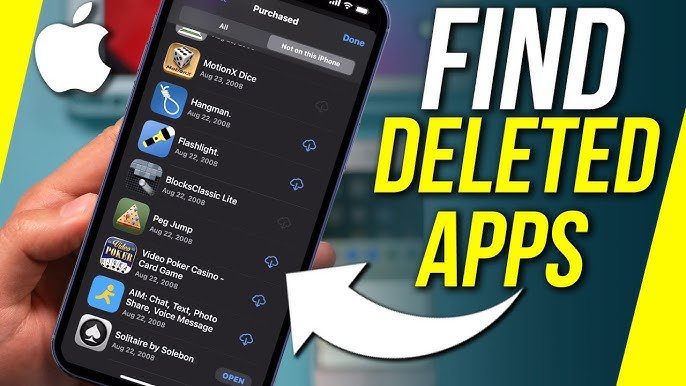
To see games you deleted on iphone, navigate to the App Store, tap your profile icon, then select ‘Purchased’ and choose ‘Not on this iPhone’.
Ever accidentally delete a game and then regret it later? It happens to the best of us, especially when managing storage on our iPhones. The good news is, those games aren’t gone forever. Figuring out how to see games you deleted on iphone is actually quite simple.
You can easily find a list of all your past app downloads, including the deleted games. This list remains linked to your Apple ID, making it easy to redownload those games when you’re ready. Let’s go through how to access that list quickly and get back to playing.

How to See Games You Deleted on iPhone
Have you ever deleted a game from your iPhone and then thought, “Wait, I want that back!”? It’s a common feeling. Maybe you miss playing it, or maybe you just want to see what games you used to enjoy. Luckily, Apple keeps a record of the apps you’ve downloaded, even if you’ve deleted them. This article will walk you through how to find those deleted games and, if you want, how to get them back on your phone.
Understanding Your App History
Before we dive into the “how,” let’s talk a bit about why you can see deleted apps in the first place. Apple stores your app purchase history connected to your Apple ID. This is like a record of everything you’ve ever downloaded, whether it’s a game, a productivity app, or a silly sticker pack. This history is helpful because it means you don’t have to repurchase an app if you delete it and then decide you want it again. It’s also how you can see the list of games you previously enjoyed.
What’s Included in Your App History?
Your app history includes:
- All free apps you’ve downloaded.
- All paid apps you’ve purchased.
- Apps that are currently on your phone.
- Apps that you have deleted.
Think of it like a library card that lists every book you’ve ever checked out – even the ones you returned a long time ago! This history makes it easy to redownload apps without paying for them again, which is a pretty nice feature.
Finding Your Deleted Games in the App Store
The main place to find your deleted games is in the App Store. It’s not always obvious how to get there, but it’s actually quite simple. Here’s how:
- Open the App Store: Look for the blue icon with a white “A” on your iPhone. Tap it to open the App Store.
- Tap Your Profile: In the upper-right corner of the App Store, you’ll see a picture or your initials. Tap on this to go to your account.
- Go to Purchased: On the account page, you will see options like “Personalized Recommendations”, “Subscriptions”, etc. Look for the “Purchased” option and tap on it. This is where the list of all your downloaded apps lives.
- Look for “My Purchases”: If you have Family Sharing set up, you’ll see “My Purchases” and “Family Purchases.” Tap on “My Purchases” to see only the apps you’ve downloaded with your Apple ID.
- See All Apps: Now you’ll see a list of all the apps associated with your Apple ID. They might all be on your phone. To see all including the deleted games, you have to tap on “Not on this iPhone”.
- Scroll Through the List: You will see a comprehensive list of all the applications you have downloaded from the App Store with the Apple ID you’re currently using. This list includes both games and non-game apps, whether they are currently installed on your phone or deleted. Look through the list to find those games you’re missing.
Filtering Your App List
If you have lots of apps, finding a specific game might take a while. There’s no direct way to filter for just games, but here are some tips to make the search easier:
- Remember the Name: If you know the name of the game, use the search bar at the top of the “Purchased” page. Type the name, and the game should appear if it’s part of your download history.
- Look at the Icons: Icons of the applications can often help you spot the game you’re looking for. This visual search can sometimes be quicker than scanning through the text names.
Redownloading Deleted Games
Found the game you were looking for? Great! Now, you have a choice: keep it in your history or bring it back to your phone. Here’s how to redownload a deleted game:
- Find the Cloud Icon: Next to the game’s name in the “Not on this iPhone” list, you will notice a cloud icon with a downward-pointing arrow.
- Tap the Cloud Icon: Tapping the cloud icon will start the download process. The game will begin to download and install on your iPhone again.
- Wait for Installation: Depending on your internet speed and the game’s size, it may take a few minutes to download and install. Once installed, you’ll see the game’s icon on your home screen, and it’s ready to play again.
What if the Cloud Icon is Missing?
If you don’t see a cloud icon, it usually means that the app is already on your phone. Double-check your home screens and app library. If you are certain it’s not on your phone, you may need to check if you’re logged into the correct Apple ID. Sometimes, if a game was downloaded using a different Apple ID, you won’t be able to redownload it using your current account.
Understanding iCloud Backups and Deleted Games
iCloud backups are very useful, but they don’t directly let you see a list of deleted games. iCloud backups save settings, app data, and other important information from your iPhone, but they are not used to see your list of deleted apps. You can, however, restore from an older backup, which might bring the game back with all its data. However, restoring from backup might also revert other data as well, so if you need just your game, using the “redownload” method is much better.
How to Restore from an iCloud Backup
If you are interested in restoring from an iCloud backup (but remember, this will not just bring back the game), here’s how:
- Go to Settings: Open the Settings app (the gray icon with gears) on your iPhone.
- Tap on Your Name: At the top, tap on your name or Apple ID to get to your account settings.
- Select iCloud: Tap on “iCloud”.
- Manage Storage: Underneath your iCloud storage chart, look for “Manage Account Storage” or “Manage Storage”. Tap on this.
- Find and Choose Backup: Select “Backups” and choose the backup you want to restore from. Be mindful that if you are restoring from old backups, your phone and its data will revert to the time of that particular backup.
- Erase Your iPhone: You’ll have to reset your phone to factory settings to restore from a backup. To do that, go back to the main Settings page. Then tap “General”, then scroll all the way to the bottom and tap “Transfer or Reset iPhone” and choose “Erase All Content and Settings”.
- Start the Restore: Once the iPhone restarts, you will be guided to the “Restore From Backup” screen. Choose the backup you selected earlier, and follow the prompts.
Please keep in mind that using this method will revert your data to the time of the backup and is not the best way to redownload a deleted game.
Why Games Disappear From Your App History?
Sometimes, you might find that a game you were sure you downloaded is not showing up in your app purchase history. This can be confusing, and there are a few potential reasons why this may occur:
- Different Apple ID: The most common reason is that you used a different Apple ID to download the game originally. Make sure that you are logged in with the correct account. Check the list of the apps downloaded under every Apple ID that you may have used.
- App Removal from Store: It’s rare, but sometimes a game might be removed from the App Store by the developer. This doesn’t mean you lose access to it if you already downloaded it, but it can’t be re-downloaded if you deleted it. In this case, the game may be missing from the history.
- Family Sharing Issues: If you share an Apple ID with your family or if you are using the Family Sharing feature, there might be issues with the app ownership. Make sure the app purchase is associated with your Apple ID.
- App Is Not Compatible Anymore: The app might not be compatible with your current iOS version. In that case, while the app will show up in the list, it might not download on your phone, unless you are using the older version of the software.
Checking Your Apple ID
To double-check which Apple ID you are currently using:
- Open Settings: Again, the gray icon with the gears.
- Tap Your Name: You’ll see your name at the top. Tap on it.
- See the Apple ID: Your current Apple ID is listed under your name.
If this is not the Apple ID you used to download the missing game, you’ll have to sign out and log in with the right account.
Managing Your App Storage
Knowing how to see and redownload deleted games is also a good way to manage your app storage. If you have a large number of apps, it can take up a lot of space on your iPhone. Here are some tips for managing your app storage:
- Delete Unused Apps: Regularly look through your app list and delete the ones you no longer use. If you want them back at some point in the future, you know where to look for them.
- Offload Unused Apps: Apple provides a handy “Offload Unused Apps” feature. This feature automatically removes apps you don’t use often but keeps your data. You can redownload them quickly when you want to use them again. To enable this, go to Settings, then tap “App Store”. Look for “Offload Unused Apps” and toggle the switch to enable it.
- Regular Clean-ups: Make a routine to look through your app list to see what you can remove to save space. Deleting games and apps that you don’t play anymore will give you extra space for new apps and games.
Keeping your app library organized is a good habit. It makes it easier to find the apps you do use, and it keeps your iPhone running smoothly.
So, there you have it! Finding deleted games on your iPhone isn’t as tricky as it may seem at first. You can always access your app purchase history, see the list of all downloaded apps, whether they are currently installed on your phone or deleted, and redownload a game if you want to play it again. Remember to check your Apple ID if you cannot see your downloaded games. Keeping your Apple ID organized is one of the keys to accessing your complete app history.
How to Find Deleted Apps on iPhone
Final Thoughts
To see games you deleted on iPhone, simply navigate to the App Store, then tap your profile icon and select “Purchased.” There, find “My Purchases,” and filter by “Not on This iPhone.” This reveals all apps, including games you’ve previously deleted. You can then easily re-download any game you wish to play again.
This process shows you how to see games you deleted on iphone. The list presents both purchased and free games. You can restore games quickly using the cloud icon.

