
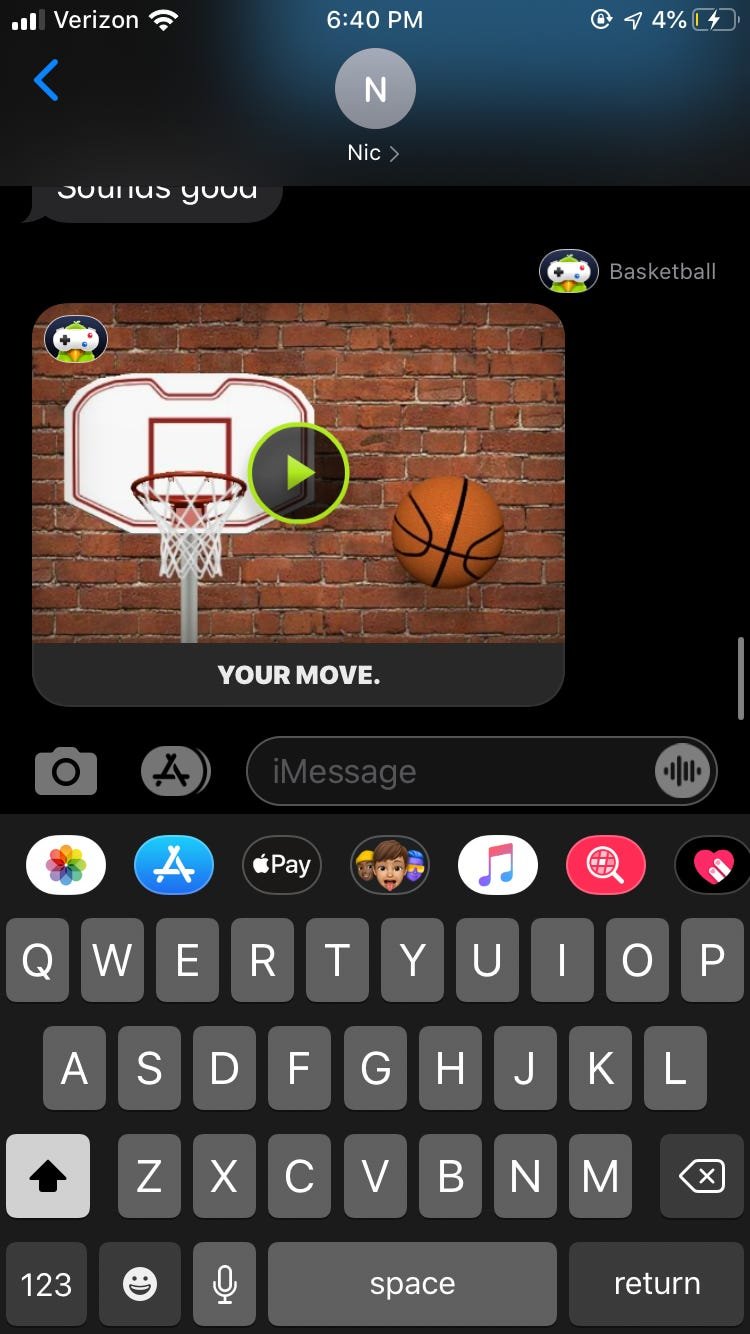
To send games on iMessage, first open the Messages app, choose a conversation, tap the App Store icon, then browse or search for a game. After selecting a game, tap “Get” or “Open”, then tap the send icon.
Want to spice up your iMessage chats? Forget those boring text conversations; it’s time for some interactive fun! This article will show you exactly how to send games on iMessage to your friends and family.
It’s really quite simple to share the games you love directly within your messages. Think of it as adding a new dimension to your usual chats and getting to enjoy a bit of fun with your contacts.

How to Send Games on iMessage: A Playful Guide
Ready to share some fun with your friends right through your messages? iMessage makes it super easy to send games and challenge your buddies. Forget about needing a separate app – it’s all built right in! Let’s dive into how you can start playing together using iMessage.
Finding Games in the App Store for iMessage
The first step is finding games that work with iMessage. Not all games work this way, so you need to look for ones that are made for iMessage apps. It’s like finding the right toy for a specific game. Here’s how to do it:
Opening the App Store within iMessage
You don’t have to leave your messages to find games. The App Store is waiting inside the iMessage app.
- Open the Messages app on your iPhone or iPad.
- Tap on a conversation (or start a new one).
- Look for the App Store icon (it’s a blue ‘A’ inside a circle) at the bottom of the screen, right next to the text box where you type your messages.
- Tap the App Store icon and the store will open directly in iMessage!
Searching for iMessage Games
Once you’re in the App Store inside Messages, you can start hunting for games.
- Tap on the “Search” bar at the top of the App Store screen.
- Type in keywords like “iMessage games” or specific game types (like “puzzle games iMessage,” “word games iMessage,” or “simple games iMessage”).
- A list of available games will appear. Browse through and see what catches your eye!
Identifying iMessage Games
Sometimes it’s tricky to tell if a game works with iMessage just by looking at it. Here’s a helpful hint:
- When you tap on a game to learn more about it, look for a section that says “Supports” or a similar title. It will usually be right under the game’s name and creator’s info.
- If you see “iMessage” listed there, then you know it’s a game that you can send and play within your messages.
Downloading and Installing iMessage Games
Found a game you like? Great! Now, let’s get it installed so you can start playing with your friends.
Getting Games from the App Store
Getting a game is almost exactly like downloading any other app on your iPhone or iPad.
- Tap on the game you want to download in the iMessage App Store.
- Look for the “Get” button, which usually has a cloud icon with a downward arrow if you’ve downloaded it before or a price tag if you haven’t.
- Tap the “Get” or price button. You might need to use your Face ID, Touch ID, or Apple ID password to confirm the download.
- Wait for the game to finish downloading. A little circle with a square in the middle shows how much progress the download is making.
- Once the download is complete, the “Get” button will turn into an “Open” button. This means the game is ready to go!
Managing Your iMessage Apps
Sometimes, iMessage apps, including games, can start to clutter up the app tray. You can manage these to keep things tidy:
- When you have the message conversation opened, swipe left on the app icons at the bottom of your screen.
- Tap the three dots (the “More” icon) that appears when you get to the end of the list.
- You’ll now see the full list of your iMessage apps. You can toggle the switch next to an app to turn it on or off within iMessage.
- If you want to get rid of an app completely, tap the “-” sign (a circle with a minus symbol in it) on the app icon. This will remove the app from your iMessage.
Sending Games Through iMessage
Okay, the game is installed. The fun part – sending it to your friends! Here’s how to share the game and start some friendly competition:
Launching a Game from Within iMessage
Sending a game is different from just sending a picture or text. It involves starting the game within the message thread.
- Open your Messages app.
- Start a new message or open a message with the friend you want to play with.
- Look at the bottom of the screen, at the app icons. Find the icon of the game you want to send. It should be in the list of all your iMessage apps.
- Tap the game’s icon. The game will open inside the message window.
Starting a New Game Session
Before you send the game, you often have to start a new session.
- Most games will have an option like “Start Game,” “New Match,” or something similar.
- Sometimes, you may have to create a username or pick a player color before the game begins.
- Once you start the game, it’s ready to send to your friend.
Sending the Game to Your Friend
The way you actually “send” the game is a little different from what you might expect. It’s more like sending a link to join your game.
- Within the game screen, look for a send or share button. It’s often an arrow pointing upwards.
- When you tap the send button the game preview is sent into the iMessage chat. Your friend will see this game preview.
- Your friend can then tap on the game preview to open the game on their end and join.
Starting the Game
Once both players have the game launched, you can begin.
- Some games might automatically start as soon as both players are connected.
- In other games, you or your friend might need to take the first turn or do something else to start the game.
Playing iMessage Games
Now that you know how to send the game, let’s talk about playing it!
Taking Turns and Playing Together
iMessage games are usually turn-based, meaning you and your friend take turns making moves.
- After you take your turn, it is your friend’s turn.
- You’ll usually see a message in the message chat letting you know it’s your turn again.
- Some games play in real-time where you and your friend do things simultaneously. These can be really fast paced and fun.
Keeping Track of the Score
Many iMessage games have a built-in way to keep track of the score so you don’t have to use a pen and paper.
- Keep an eye on the game screen. Usually, it will clearly show you how many points each player has.
- Some games even show a leaderboard within the game, so you can see how you stack up.
Ending a Game
Games can either end when the goal is reached, or by player decision, depending on the game. Some games can be very quick, and others take a bit of time.
- Some games will automatically end when someone wins, or when the game reaches its conclusion.
- In other games, you and your friend might have to manually agree to end the game.
- After the game is over, most games show a recap of the game showing who won or what the outcome was.
Troubleshooting Common iMessage Game Issues
Sometimes, things don’t go as smoothly as we’d like. Here are some common problems and how to fix them:
Game Won’t Download
If the game won’t download, there could be a few reasons why.
- Make sure that you have a working internet connection on your device.
- Check to see if you have enough storage space on your phone to download the game. If not, you’ll need to delete some things you’re not using anymore.
- Try restarting your phone or iPad. This often fixes weird glitches.
Game Won’t Send
If you can’t send the game, double check these things:
- Check that both your iMessage and your friend’s iMessage are turned on. You can check this in your phone’s settings.
- Sometimes a simple restarting of the messages app will solve this issue.
- Make sure you are not using a different message app. The game will only work in the iMessage app.
Game Not Working Right
If the game is acting strangely or not working correctly, try these steps:
- Check for app updates. The app developer may have made some changes to fix any problems, so the update might be the solution.
- Delete the iMessage app and download it again. This can solve lots of technical issues.
- If nothing seems to fix the problem, reach out to the game developer for assistance.
Tips for a Great iMessage Gaming Experience
To make sure you have a good time while gaming on iMessage, keep these things in mind:
Communicating with Your Opponent
Don’t just play in silence, chat with your friend as you are playing, this is where the real fun happens!
- Use the chat to make jokes, taunt, or encourage each other.
- Try to find out your friends weakness in the game for more competitive edge.
- Having a running commentary while you’re playing adds to the experience and can help you bond with your friend.
Finding New Games
Don’t stick with the same old games! Regularly look for new iMessage games to keep things fresh.
- Follow the steps outlined above to search for new games in the App Store on iMessage.
- Keep an eye out for recommendations from your friends, family, or even social media.
- New games are added all the time, so there’s always something exciting to try.
Being Patient
Sometimes, technology can be a little frustrating. Be patient with yourself and others. Sometimes the game or message might take a little extra time to send or load.
- Don’t get frustrated if you or your friend makes a mistake, it is just a game.
- The most important thing is to have fun, so don’t let a few glitches ruin your good time.
Sending games on iMessage is a fun way to connect with friends and have some laughs. With a few simple steps, you can share your favorite games and start playing together right away. So, grab your iPhone or iPad, find a game you like, and send it to a friend. Have fun!
How To Play Games On iMessage!
Final Thoughts
To send games on iMessage, you must first open the Messages app and select your desired contact. Next, tap the App Store icon, which is above the keyboard. Then, find the game you want to share.
Once you’ve picked a game, press the “Get” or cloud download icon to install it. After installing, tap the send button next to the game. This will send how to send games on imessage. The recipient can then directly play the game from your message.

