
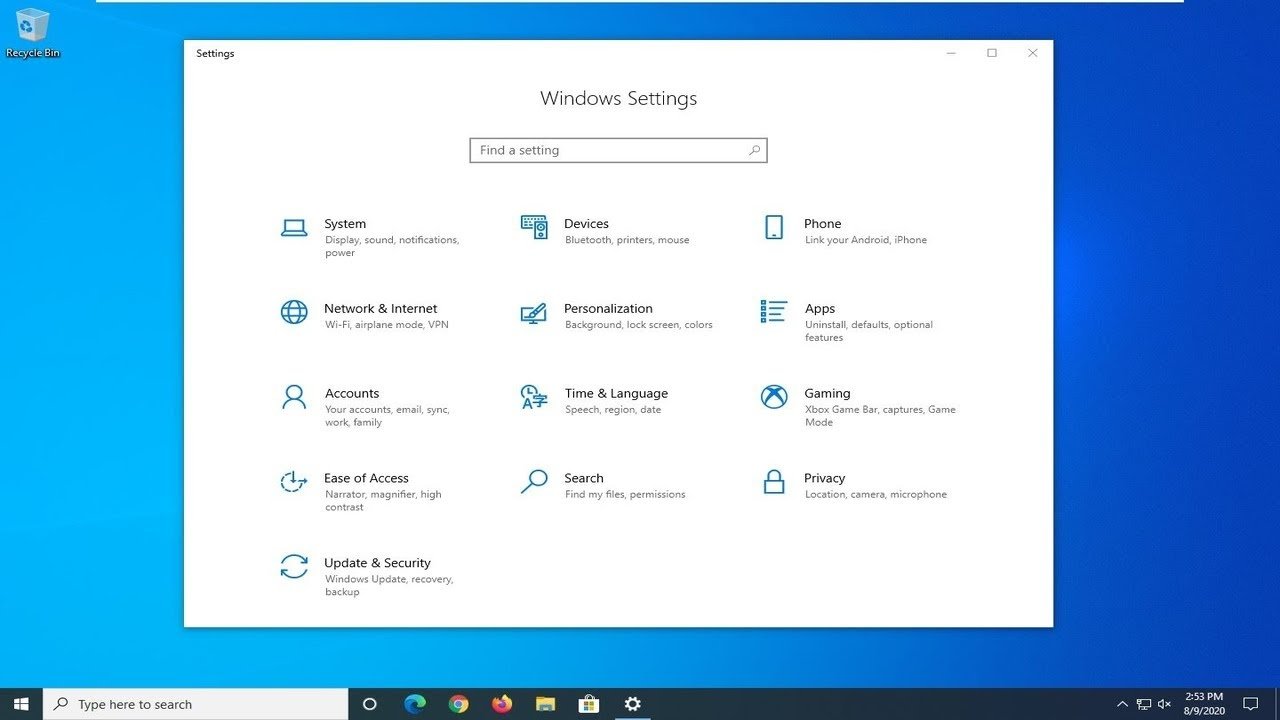
To set a game to high priority, open Task Manager, go to the Details tab, find the game’s .exe, right-click it, select ‘Set priority’, and choose ‘High’.
Have you ever experienced annoying lag while gaming? It can be frustrating when your favorite game stutters, especially during a critical moment. One method to potentially improve performance is to increase resource allocation. You might be asking, “how to set a game to high priority?”
Prioritizing your game tells your computer to focus more processing power on it, potentially reducing lag. This is a simple fix that could drastically improve your gaming experience. We will guide you through the process.

How to Set a Game to High Priority
Have you ever been playing your favorite game, just to have it lag and stutter? It’s super frustrating! Sometimes, your computer is trying to do too many things at once, and it doesn’t give enough attention to your game. That’s where setting a game to high priority comes in. Think of it like telling your computer, “Hey, this game is important! Focus on it more than anything else.” When you give your game higher priority, you’re telling your computer to give it more of its resources, like processing power, so the game runs smoother. Let’s explore different ways you can do this and why it can make your gaming experience much better.
Why Set a Game to High Priority?
Imagine you’re baking cookies and trying to do your homework at the same time. It’s hard to focus on both! Your computer is similar; it manages many tasks simultaneously. Background applications like your web browser, music player, or antivirus software can all use processing power. When a game doesn’t have enough of this power, it can lead to:
- Lag: That annoying delay between your actions and what happens on screen.
- Stuttering: The game freezes or pauses for short periods, making it choppy.
- Low Frame Rates: The game doesn’t run smoothly, making it less enjoyable and harder to play.
By setting a game to high priority, you’re telling your computer to prioritize the game over other tasks, which can dramatically improve performance and help make these problems go away. It’s like giving your game a VIP pass for your computer’s resources.
Methods to Set Game Priority
There are several ways to give your games that special priority treatment. We will look at a few popular methods to help you have the best gaming experience. They involve both temporary and more permanent ways to adjust how your computer manages your games. Let’s break down each method.
Using Task Manager (Temporary)
The Task Manager is a built-in tool in Windows that allows you to see what’s happening in the background of your computer. It’s like a command center for all the running processes. You can use this to change the priority of a game while it’s running. Here’s how:
- Start Your Game: Get your game running as normal.
- Open Task Manager: Press
Ctrl + Shift + Escall at once. You can also right-click on the taskbar and choose “Task Manager.” - Find Your Game: Look for your game’s executable (the .exe file) under the “Processes” or “Details” tab. If the game is not in the Processes tab, then it can be easily find inside the Details tab.
- Go to Details Tab: If your game is in the Processes tab, then right click on the game name, and then click on “Go to details”. This will take you to details tab and highlight the game. If your game is already present in the details tab, simply move to next step.
- Set Priority: Right-click on your game’s name in the “Details” tab, go to “Set priority,” and choose “High.” You can also select “Realtime,” but be careful with this one. “Realtime” gives the game the absolute top priority, which can sometimes make the other apps very slow. Try “High” first.
Important Note: This change is only temporary. When you close the game, the priority goes back to normal. You will need to repeat these steps every time you start the game if you want to have high priority.
Using the Registry Editor (More Permanent)
The Registry Editor is a tool that changes settings deep in the Windows system. It’s like the control panel for all Windows’ most important stuff. Changing settings here can make your priority setting more permanent. However, it is a powerful tool, so be careful when making changes here. It’s always best to back up the registry before making changes so you can restore it if something goes wrong. Here’s how to use it for game priority:
Backing up the registry
Before making any changes, it’s good to back up the registry so you can go back to normal settings if there is a problem.
- Open the Registry Editor: Press the
Windows key + Rat the same time, typeregeditand press enter. - Go to File and export: Click on “File” and then click on “Export” in the menu bar.
- Choose where you want to save backup: Choose where you want to save the file on the drive, give a name for file, and then click on Save Button.
Now that you have made a backup file, you can perform the operation of changing the game priority using registry editor.
Warning: Editing the Registry incorrectly can cause problems with your system. It is good to create a backup before you make changes.
Changing the Priority using Registry Editor
- Open the Registry Editor: Press the
Windows key + Rat the same time, typeregeditand press enter. - Navigate to the right Key: Look at the left panel to open the folders and go to
HKEY_LOCAL_MACHINE\SOFTWARE\Microsoft\Windows NT\CurrentVersion\Image File Execution Options. - Create a New Key for your Game: Right click on “Image File Execution Options,” select “New,” and then “Key.” Name it the exact same as your game’s .exe file name. For example, if the game’s .exe file is called “MyGame.exe”, name it “MyGame.exe” .
- Create another Subkey: Right click on the new key you created, named as your game name, and select “New,” and then “Key.” Name this new key “PerfOptions.”
- Create a String Value: Right-click inside the “PerfOptions” key, choose “New,” and then “String Value.” Name this “CpuPriorityClass”.
- Set the Value Data: Double-click “CpuPriorityClass,” and change the “Value data” to 3 for High Priority, 2 for Normal, 5 for Below Normal, 6 for Idle, or 1 for Realtime. Choose “3” for high priority. Click “OK”.
Now close Registry Editor. The next time you start the game, it will run with the priority that you have defined. To change it again, you would need to follow these steps and change the “value data”.
Using Third-Party Software
There are many software tools available that can help manage your computer’s resources and let you adjust application priority easily. These tools may have some extra features such as:
- Game Boosters: These software can help optimize computer resources specifically for gaming, sometimes automatically.
- Process Managers: Some of these will let you customize settings, such as priority, more easily than the built in Task Manager or Registry Editor,
- Automation: Some tools can automatically change the priority of a game when it starts.
Some popular software options include:
- Process Lasso: This software is very popular among gamers and allows for granular control over process priorities.
- Razer Cortex: It’s a game booster, that helps improve the game performance, and has some process optimization tools.
- Game Fire: This is a gaming software, which helps to improve the system resource for gaming.
These programs usually have simple interfaces that make it easier to set and manage game priorities, along with other optimization tools. They will let you change priority settings easily. Be sure to download software from trusted sources.
Understanding Different Priority Levels
When setting a game’s priority, you can choose from different levels. It helps to know what each one means:
- Low: The process gets very little attention, only when no other process need resources. This is not useful for gaming.
- Below Normal: The process is still not given a lot of priority, but gets more than a Low priority, not ideal for gaming, but useful for some background task.
- Normal: The default setting, the process gets normal resources. Good for most background tasks.
- Above Normal: The process is given more resources than Normal, which is a good compromise for some apps.
- High: The process receives more resources than most other applications. Good for getting better game performance.
- Realtime: The process is given the highest priority. This can be good for gaming but can cause other things to slow down, so be careful when using it.
Generally, High is the best option for most games. Realtime should be used carefully, because it might cause problems with other apps that are running at the same time.
Potential Drawbacks of High Priority
While setting games to high priority can greatly improve game performance, it’s important to know it can also cause some problems. It’s like giving the game all of the attention, which means other things may not work well.
- System Slowdown: Other programs may get less of your computer’s resources which may lead to slowdowns. For example, your web browser, or music player may not work as smoothly.
- Unresponsiveness: If the game uses too many resources while at high priority, your whole system might become less responsive, and can even cause the system to freeze or crash in rare cases.
- Not always needed: If the game already runs smoothly, setting it to high priority might not make any noticeable improvements. So, don’t change it unless you see lag or stutter.
It’s good practice to test if setting the game to high priority is helpful for you, as it depends on the game and your computer specifications.
Troubleshooting Tips
If you set your game to high priority and are still having issues, here are a few things you can try:
- Update Graphics Drivers: Make sure your graphics card drivers are up to date. Old drivers can cause performance problems.
- Close Background Applications: Shut down any programs that you don’t need while playing a game. This frees up resources for your game.
- Adjust Game Settings: Lower some in-game graphics settings, such as resolution or graphics quality. This can help the game run smoother without needing high priority.
- Check System Temperature: Overheating can cause slowdowns. Make sure that your PC is not too hot.
- Check for malware: Sometimes, malware can cause performance issues. Scanning for malware is a good idea.
- Consult Forums: Check out forums related to your game. Other players may have good advice that could help.
Remember, setting a game to high priority is one of the ways to improve the game experience, not the only way.
Setting a game to high priority is a way to make sure your computer is giving the game the attention it needs, making your game smoother and more enjoyable. You can use the Task Manager for a temporary boost, the Registry Editor for a more permanent change, or try one of many easy-to-use third party software tools. While high priority can be very helpful, it’s important to understand the possible side effects. If you still have problems after trying these things, remember to look into updating drivers, closing background apps, and testing other settings for performance. With some experimenting, you can find the best settings for your system and enjoy a smoother, more engaging gaming experience.
Set Any Games on High Priority In Windows 10
Final Thoughts
To set your game to high priority, use Task Manager. Locate the game process within the details tab. Right-click it and select “Set priority,” then choose “High.”
This action tells your PC to dedicate more resources towards your game, potentially improving its performance. Remember, consistently using high priority may affect other running programs.
This is how to set a game to high priority effectively. Prioritizing your game will offer a smoother experience.

